Students, instructors and guardians (with the Guardian add-on) use one dashboard after they sign in. It shows only what applies to the person, grouped into areas, and remembers where they were.
Add the dashboard to a page
Block
1.Edit a page in the block editor.
2.Click the block inserter, search for Academy Student Dashboard, and click it.
3.Publish the page. Nothing else is needed on it.
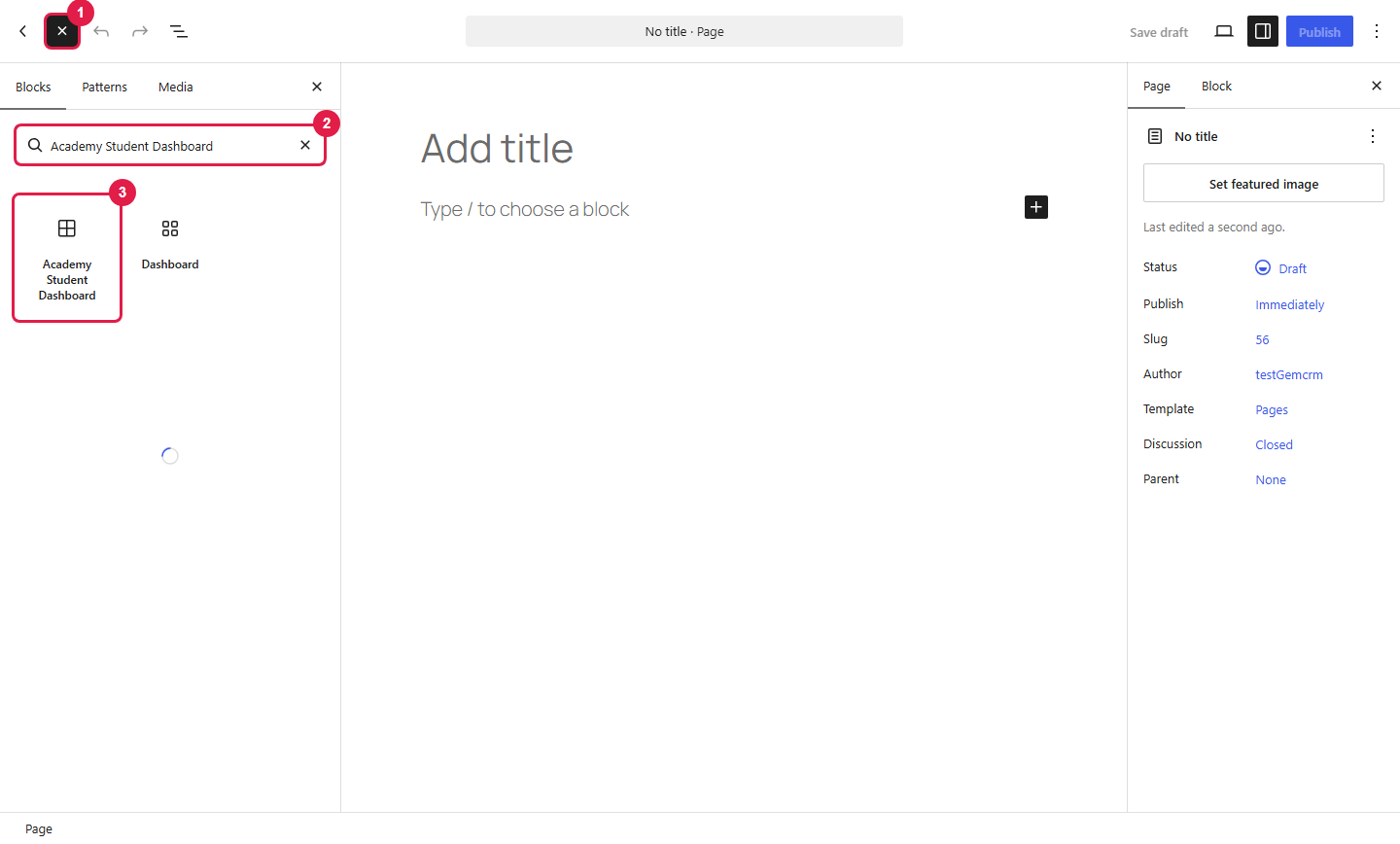
1.Block inserter button
2.Search box
3.Academy Student Dashboard block
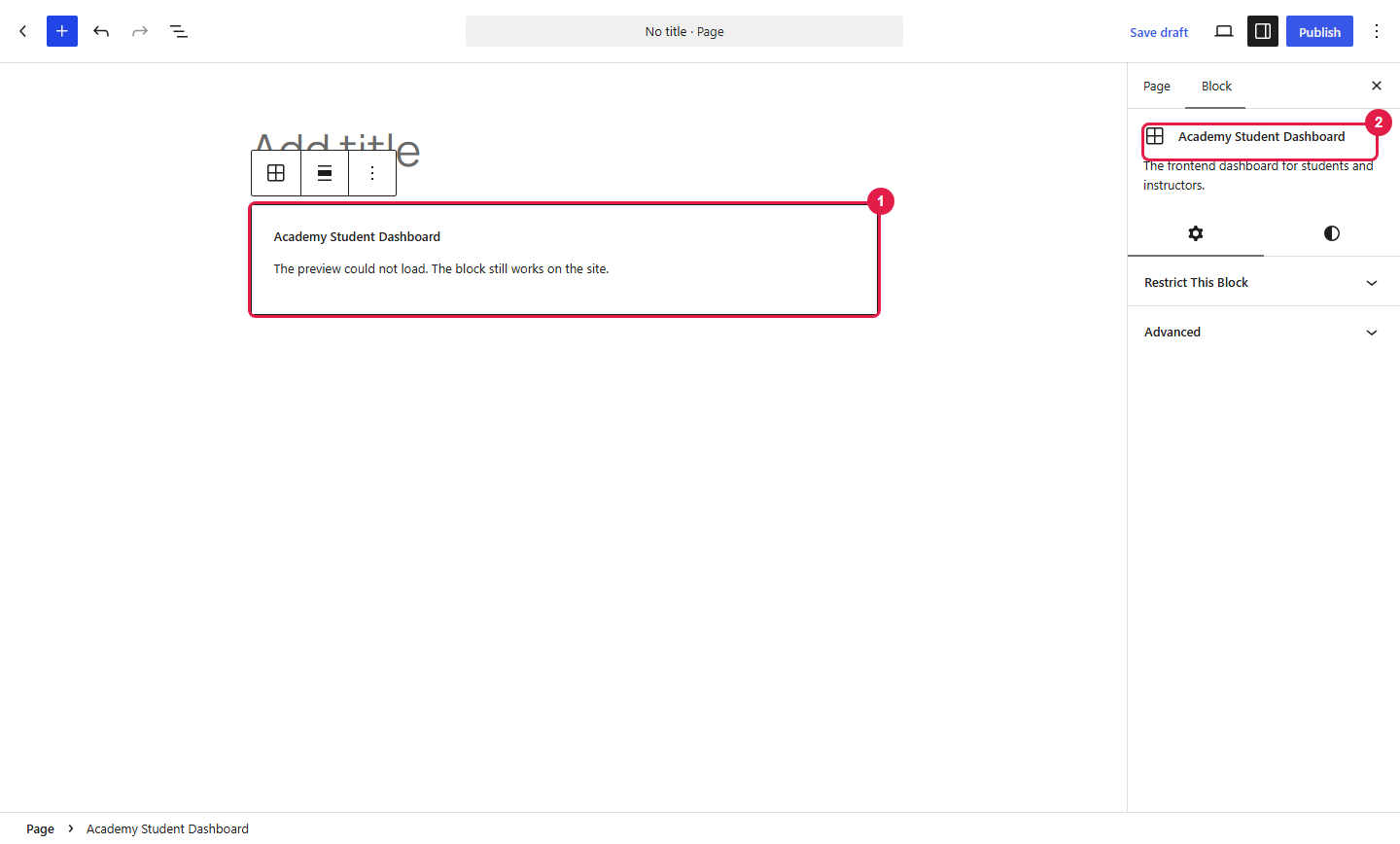
1.The dashboard block on the page
2.The block name in the settings panel
Shortcode
1.Edit a page (block editor, classic editor, or a page builder with shortcodes).
2.Add this shortcode:
[academy_dashboard]
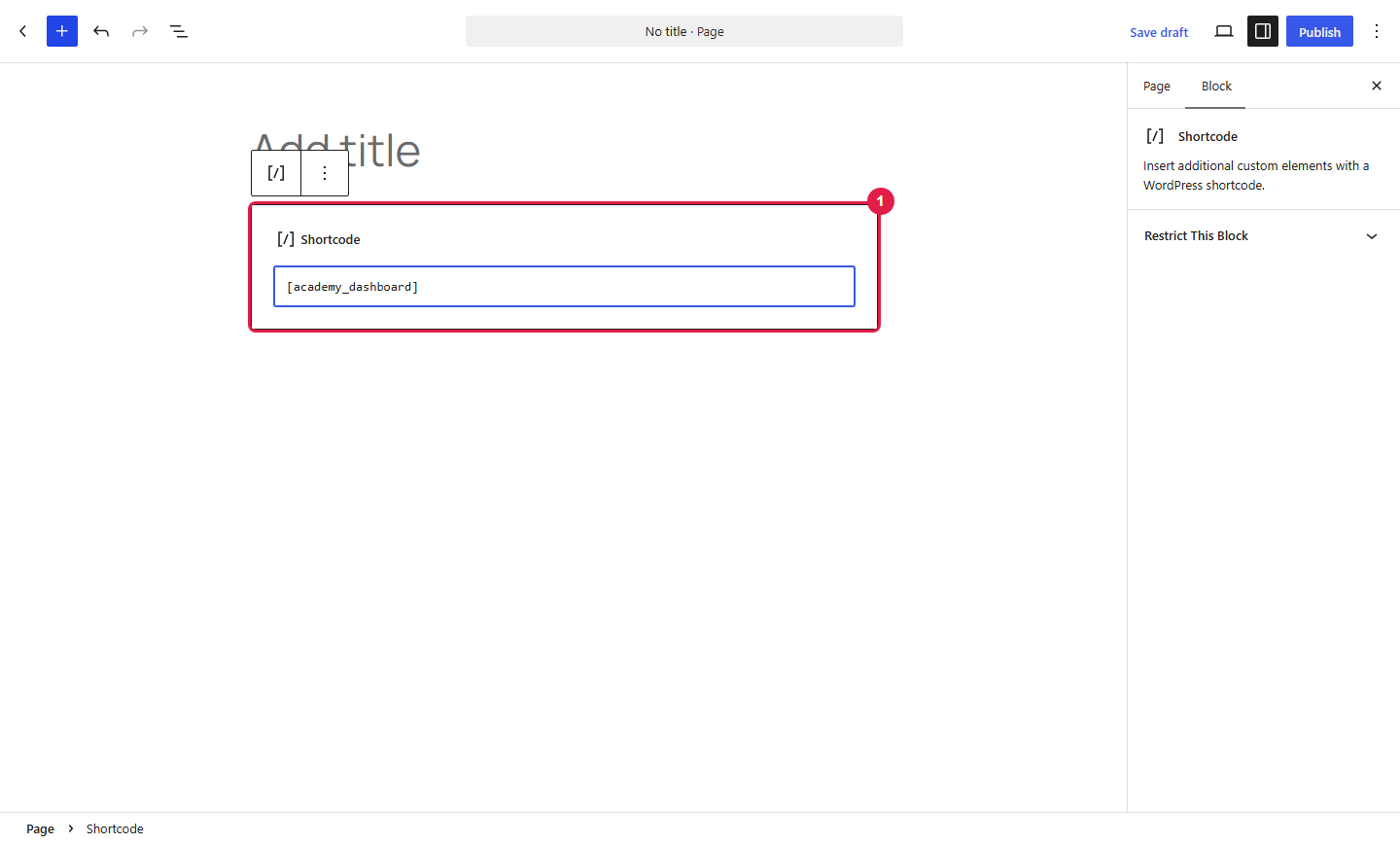
1.Shortcode block with [academy_dashboard]
Tell Academy which page it is
1.Go to Academy LMS → Settings → Pages → Dashboard Page.
2.Set Frontend Dashboard Page to your page.
3.Click Save.
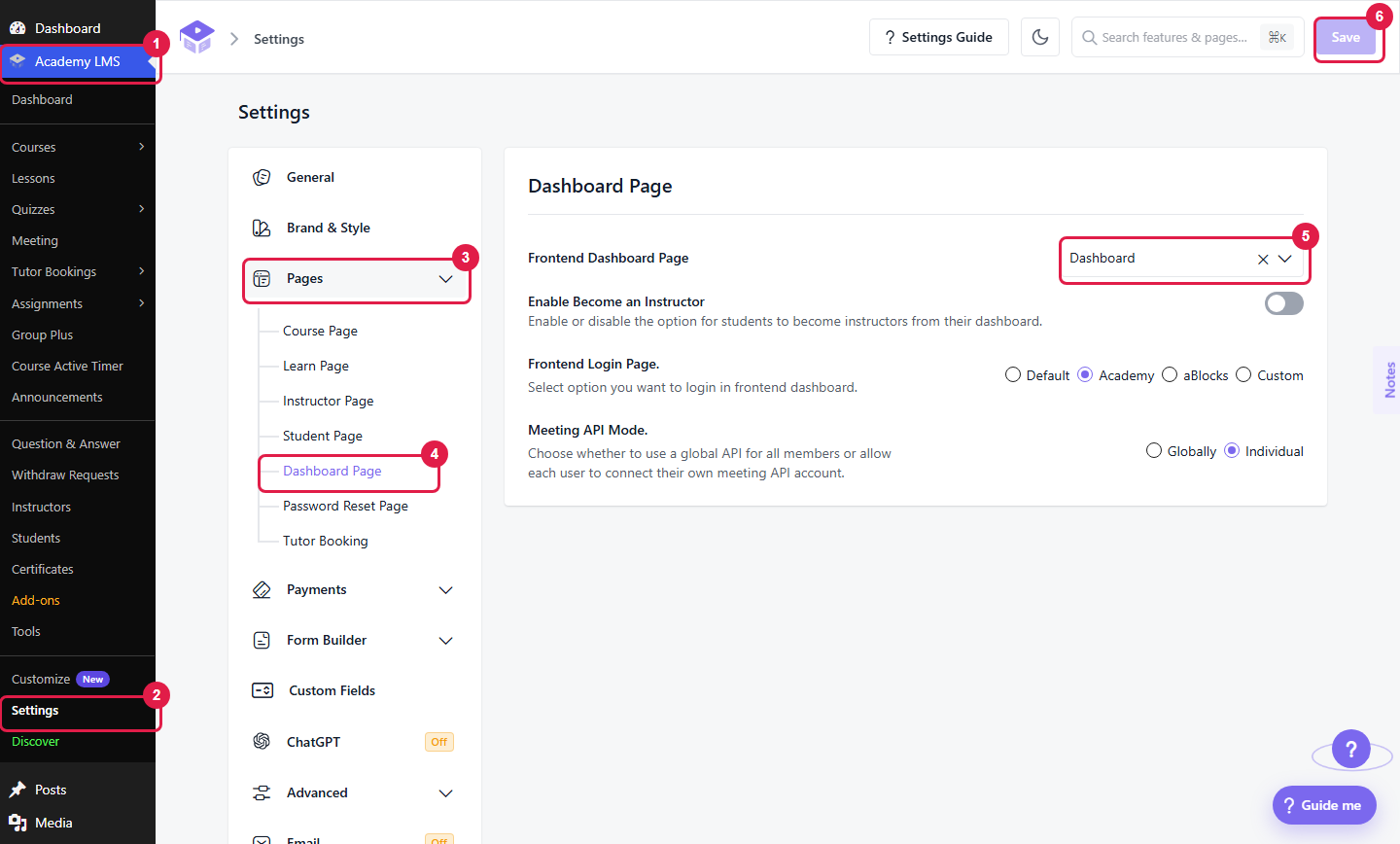
1.Academy LMS menu
2.Settings
3.Pages
4.Dashboard Page
5.Frontend Dashboard Page selector
6.Save
Visitors who are not signed in see a sign-in form on this page.
Dashboard areas
The menu is split into areas. A person who teaches and also takes courses gets more than one.
|
Learning
|
Everyone
|
Enrolled courses, grades, wishlist, reviews you wrote
|
|
Teaching
|
Instructors
|
Your courses, students, announcements, reviews you received
|
|
Family
|
Guardians with at least one child added
|
Your children and their courses
|
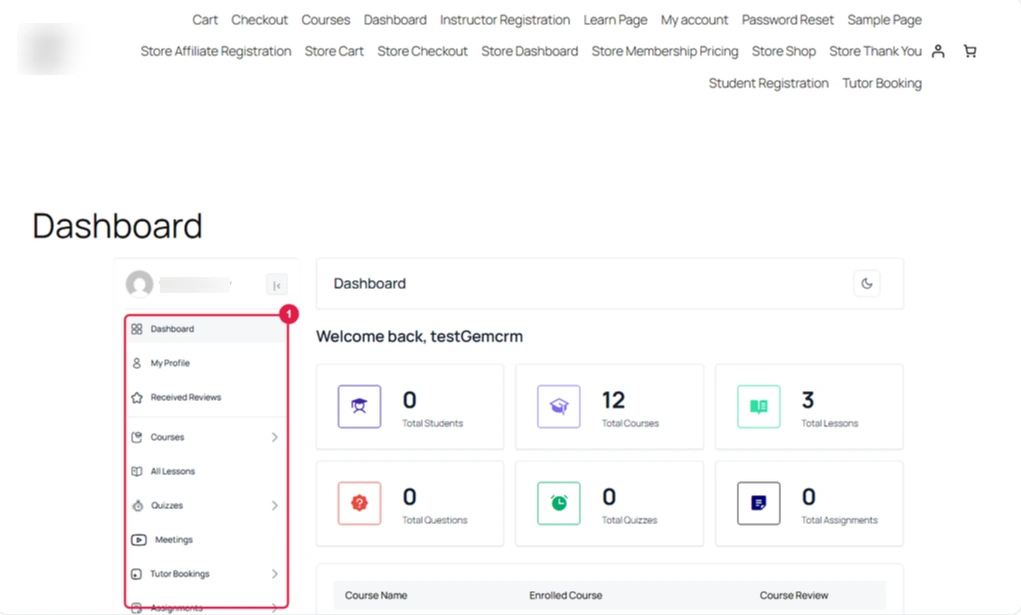
Profile, Settings and Log out show in every area.
Switch areas (“Viewing as”)
1.Open the dashboard.
2.Click your name and photo at the top of the menu.
3.Under Viewing as, pick an area.
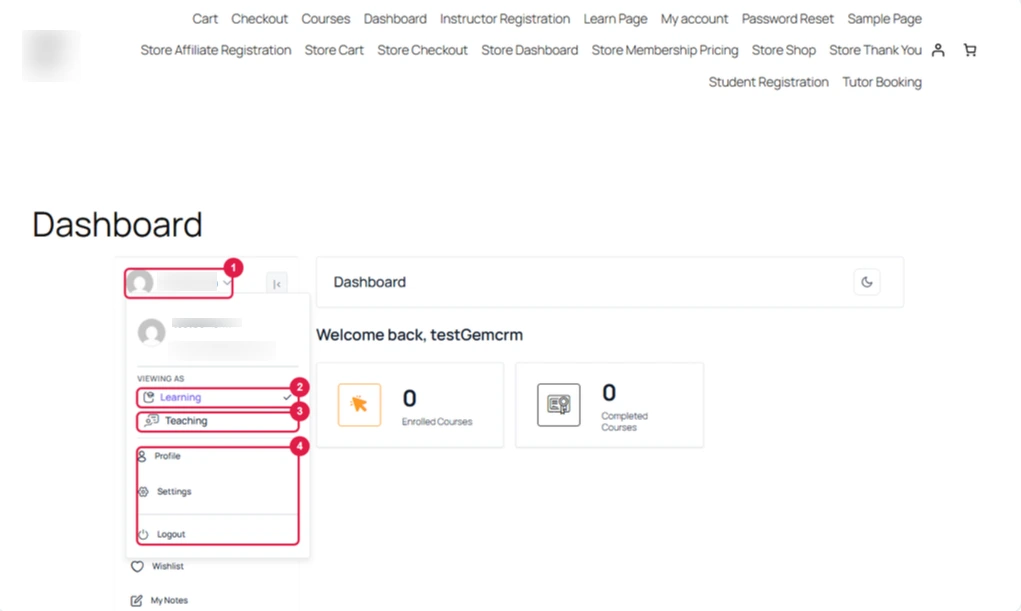
1.Name and photo
2.Learning
3.Teaching
4.Profile, Settings and Logout
The page reloads on that area’s home page. Academy remembers your choice for next time.
Only one area? You see no switcher. It appears when a second area becomes available, for example when an instructor application is approved.
First visit: you land on Teaching if you teach, Family if you are a guardian who does not, and Learning for everyone else.
Links: opening a link from another area switches the menu for you.
Customize the dashboard
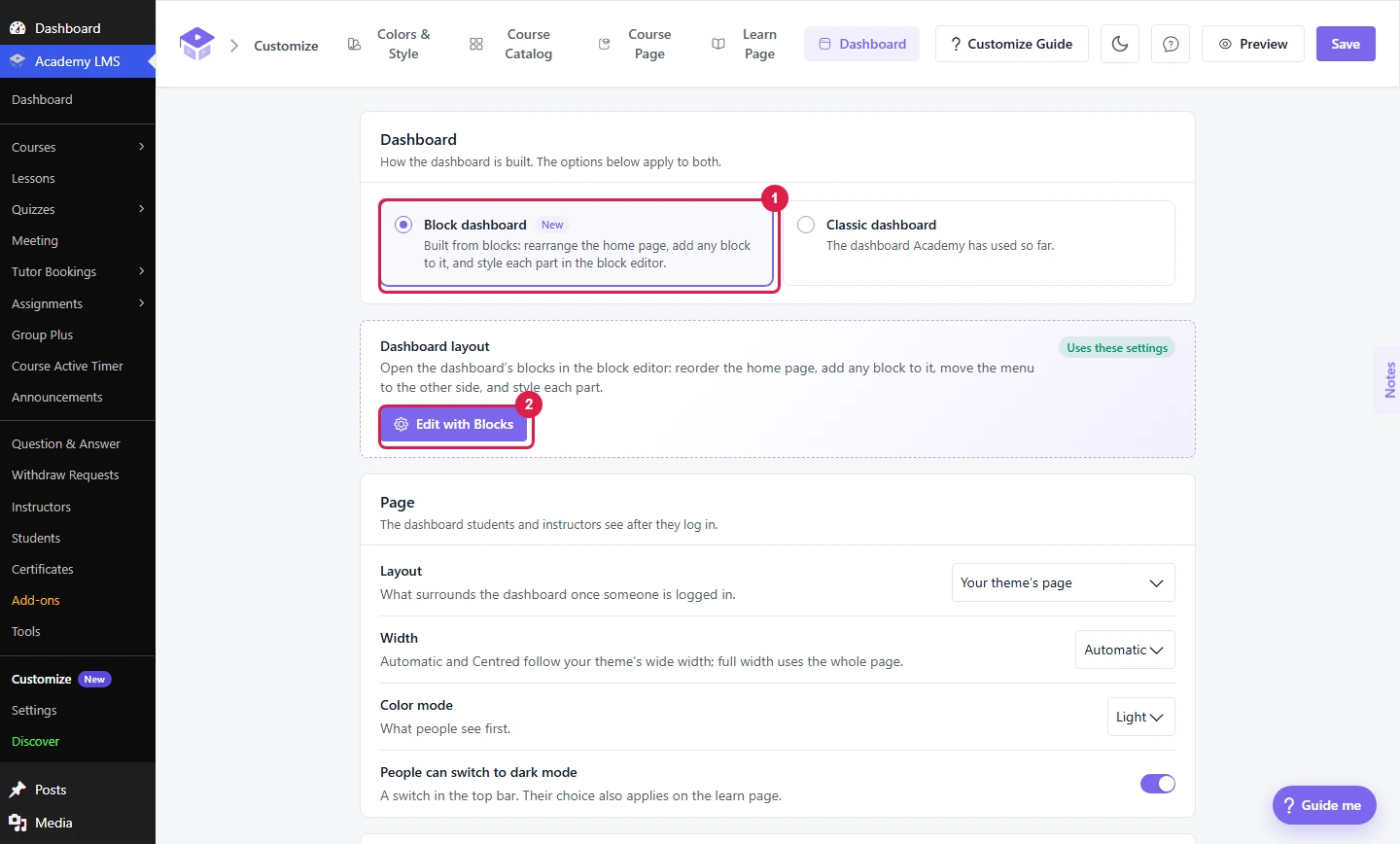
Go to Academy LMS → Customize → Dashboard.
Classic or Block dashboard
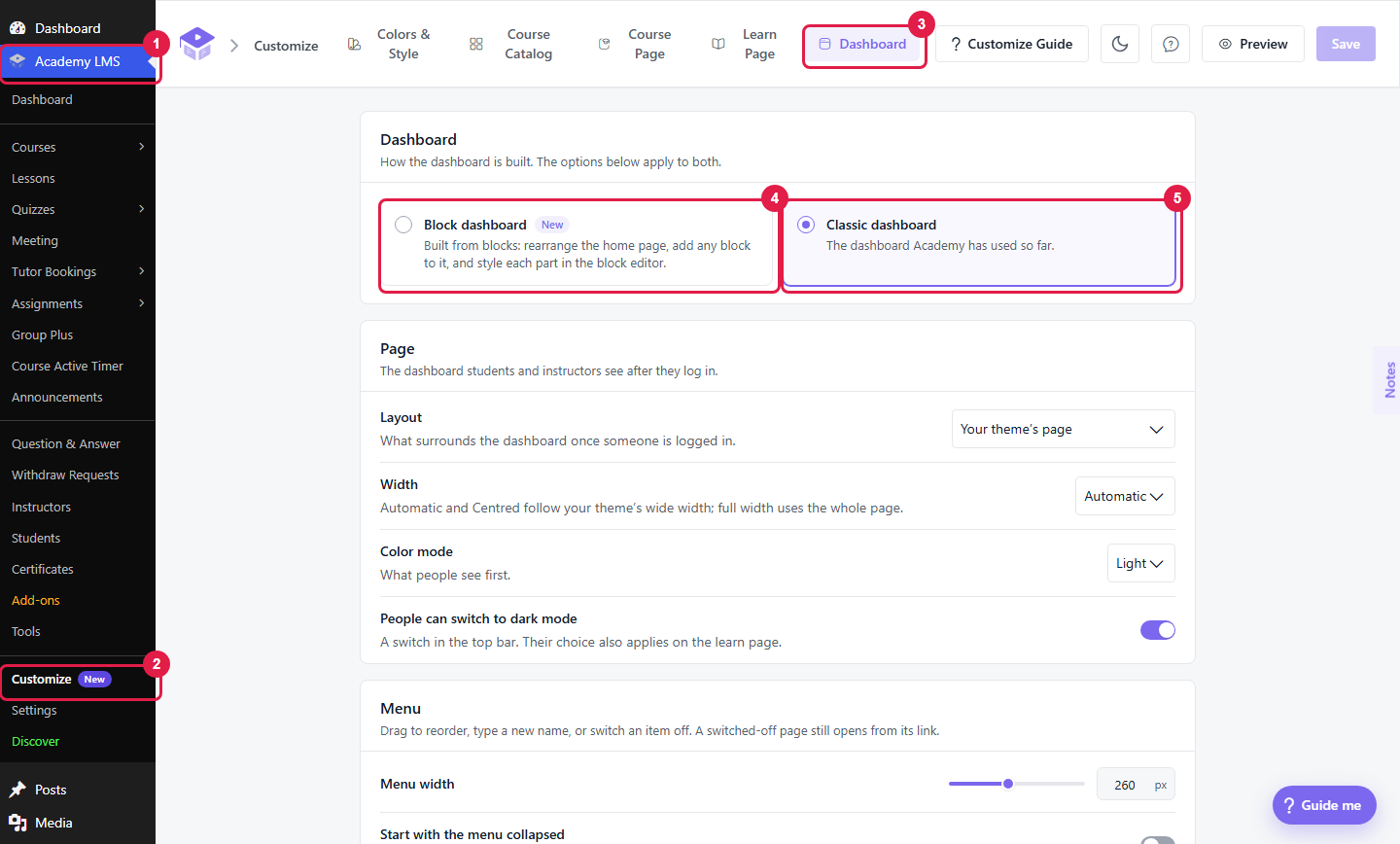
With Block dashboard, click Edit with Blocks. You can rearrange the home page, add blocks, move the menu to the other side, and style each part.
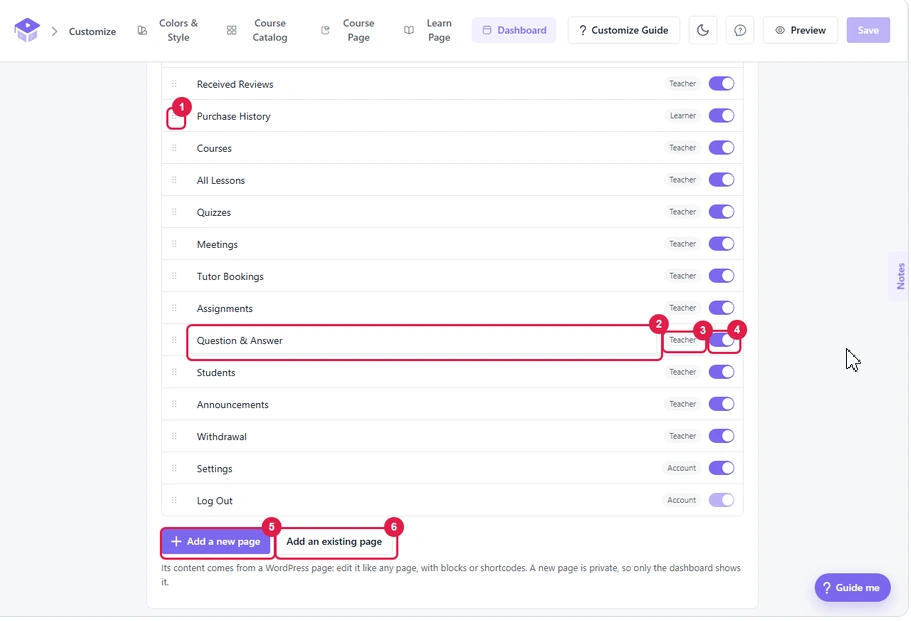
Drag an item to reorder it.
Click a name to rename it.
Use the switch to turn an item off. A switched-off page still opens for anyone with the link.
Click Add a new page or Add an existing page to put a WordPress page in the menu. Write it like any page, with blocks or shortcodes.
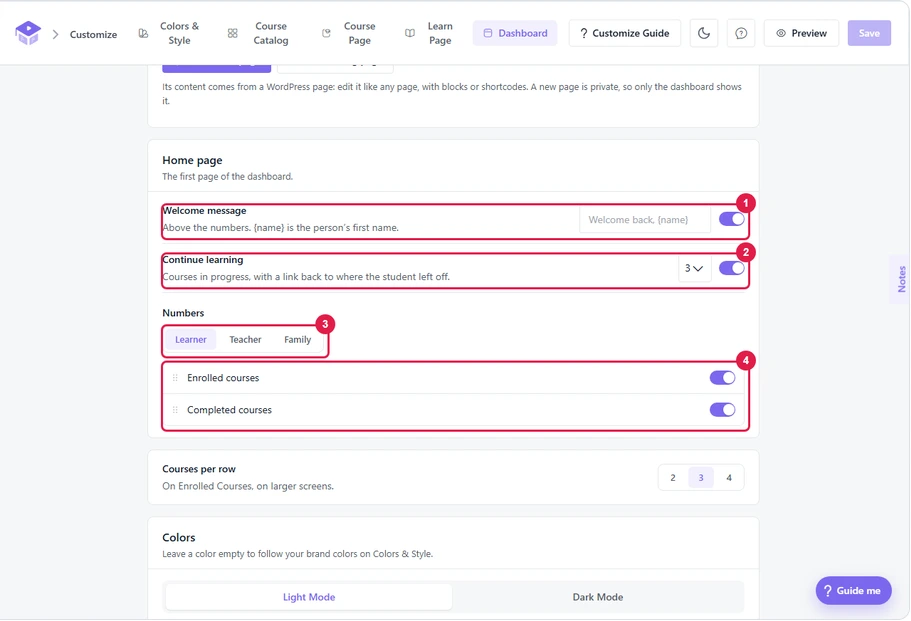
Home page
Turn the Welcome message and Continue learning on or off.
Choose which number cards show. Set this separately for Learner, Teacher and Family.
Colors
Set colors for the page background, menu, current menu item, top bar and cards.
Set them separately for light and dark mode.
Leave a color empty to follow your brand colors.
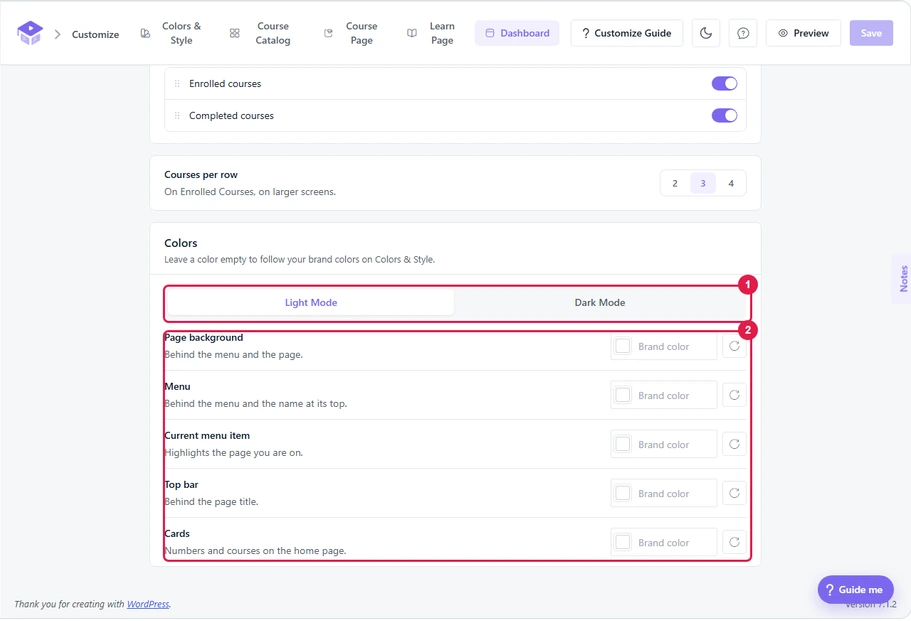
1.Light Mode and Dark Mode tabs
2.Color fields: Page background, Menu, Current menu item, Top bar, Cards