Academy LMS 4.0 IS LIVE

00
Days
:
00
Hours
:
00
Minute
:
00
Second

Attachment Download Tracking in Academy LMS

Academy LMS records every time a student downloads a file you attached to a lesson or an assignment. You can see who downloaded what, how many times, and when they last did it, per course.

Note: The tracking itself is built in, but the screen that shows it lives on the Academy dashboard’s Courses tab, which needs the Pro Advanced Analytics addon.

Before you start

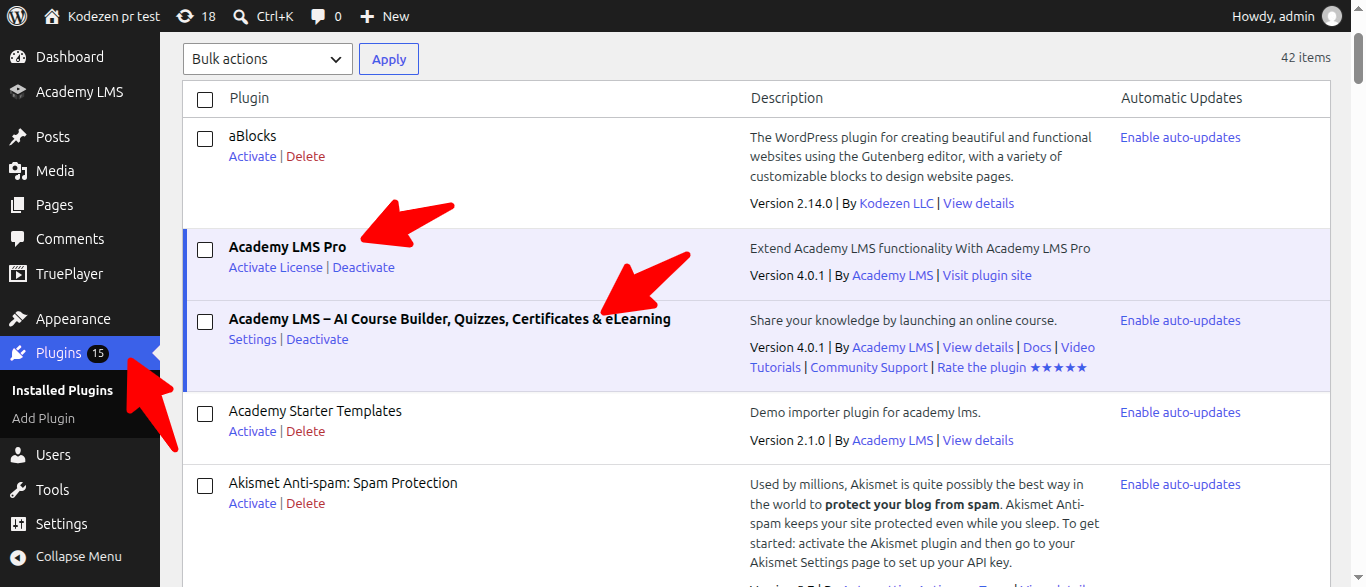
Academy LMS and Academy LMS Pro are both active.
The Advanced Analytics addon is on.
At least one lesson has a file attached, and a student has downloaded it.

What gets tracked

Academy logs one entry each time a student downloads:

a file attached to a lesson
a file attached to an assignment

Each entry records the student, the file, the lesson or assignment it came from, and the moment of the download. Repeat downloads by the same student are counted, not overwritten, so you can see who keeps coming back to a resource.

Downloads are only logged for files the student is entitled to. Academy checks that the file actually belongs to the lesson or assignment being requested before it records anything or serves the file.

Step 1: Turn on Advanced Analytics

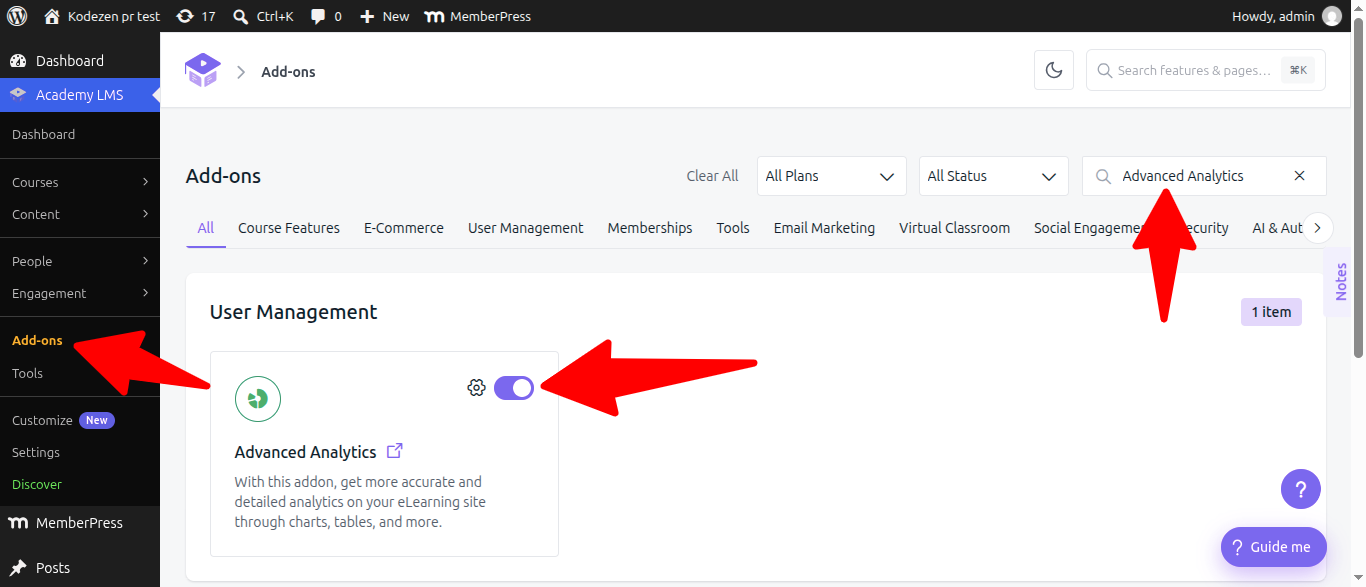
Go to Academy LMS → Add-ons and search for Advanced Analytics. Switch the toggle on.

Without it, the Academy dashboard’s Courses tab is marked Off and will not open, so there is nowhere to read the download figures.

Add Ons User Management

Step 2: Open the course’s action menu

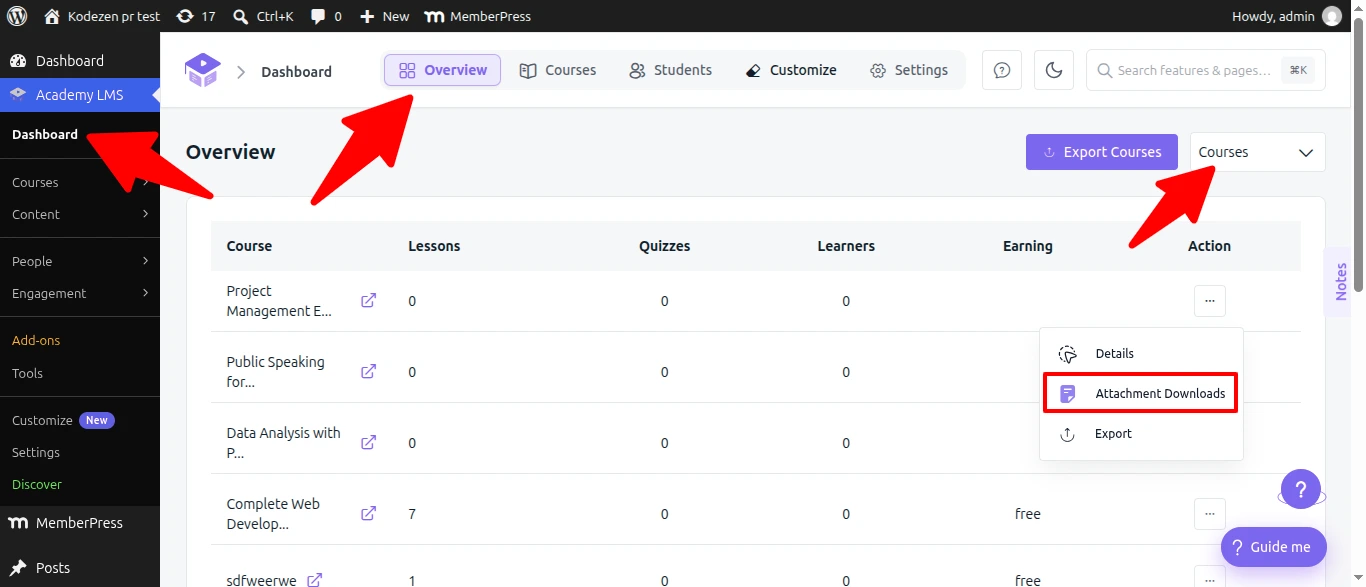
Go to Academy LMS → Dashboard and switch the view at the top right from Overview to Courses. Every course is listed with its lessons, learners and earnings.

Find the course you want and open its action menu, then choose Attachment Downloads.

Overview to Courses.

Step 3: Read the figures

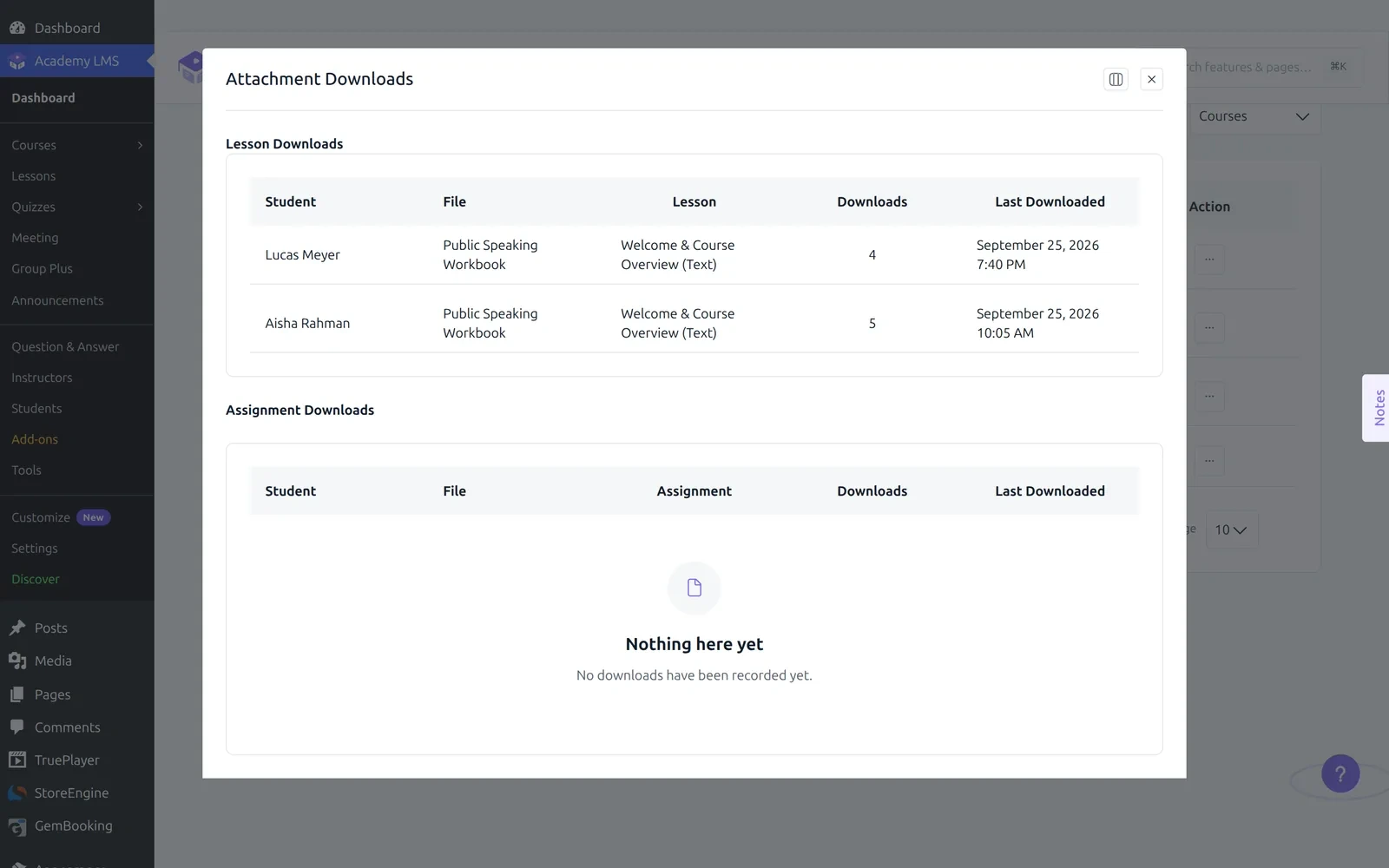
The Attachment Downloads window has two sections, Lesson Downloads and Assignment Downloads, each with the same columns:

Column

What it shows

Student

Who downloaded the file.

File

The attached file’s name.

Lesson or Assignment

Where the file is attached.

Downloads

How many times that student has taken that file.

Last Downloaded

The most recent download, with the time.

Rows are grouped by student and file, and sorted with the most recent download first. If the same file is attached to more than one lesson in the course, those downloads are counted together on one row, and the Lesson column names one of the lessons the file is attached to rather than splitting the count.

A section with nothing to show reads “No downloads have been recorded yet.”

Attachment Downloads

Assignment downloads need Assignments

The Assignment Downloads section only fills once the Assignments feature is active and a student has downloaded an assignment resource. Until then it shows an upgrade prompt or an empty table, depending on your licence.

Troubleshooting

The Courses tab shows Off and will not open. The Advanced Analytics addon is not active. See Step 1.

There is no Attachment Downloads option in the action menu. You are on the Overview tab rather than Courses, or the addon is off.

A download is missing from the table. Academy only records a download that went through the course, for a file genuinely attached to that lesson or assignment. A file opened straight from the media library, or a link shared outside the course, is not counted.

Two lessons share a file and the count looks merged. That is expected. Rows group by student and file, so one file used across several lessons produces one row per student.