









The Instructor Registration Form block adds a sign-up form for new instructor applicants to any page. It is a legacy block kept for backward compatibility — new sites should use the Registration Form block with its role set to Instructors instead, since that block lets you add, remove, and reorder fields.
How to access
This block is hidden from the block inserter’s search results because it has been replaced by the Registration Form block. To use it anyway (for example, on content created before the replacement), switch the editor to the Code editor (Options menu (⋮) > Code editor) and insert the block manually:
<!-- wp:academy/instructor-registration-form /-->

Block settings
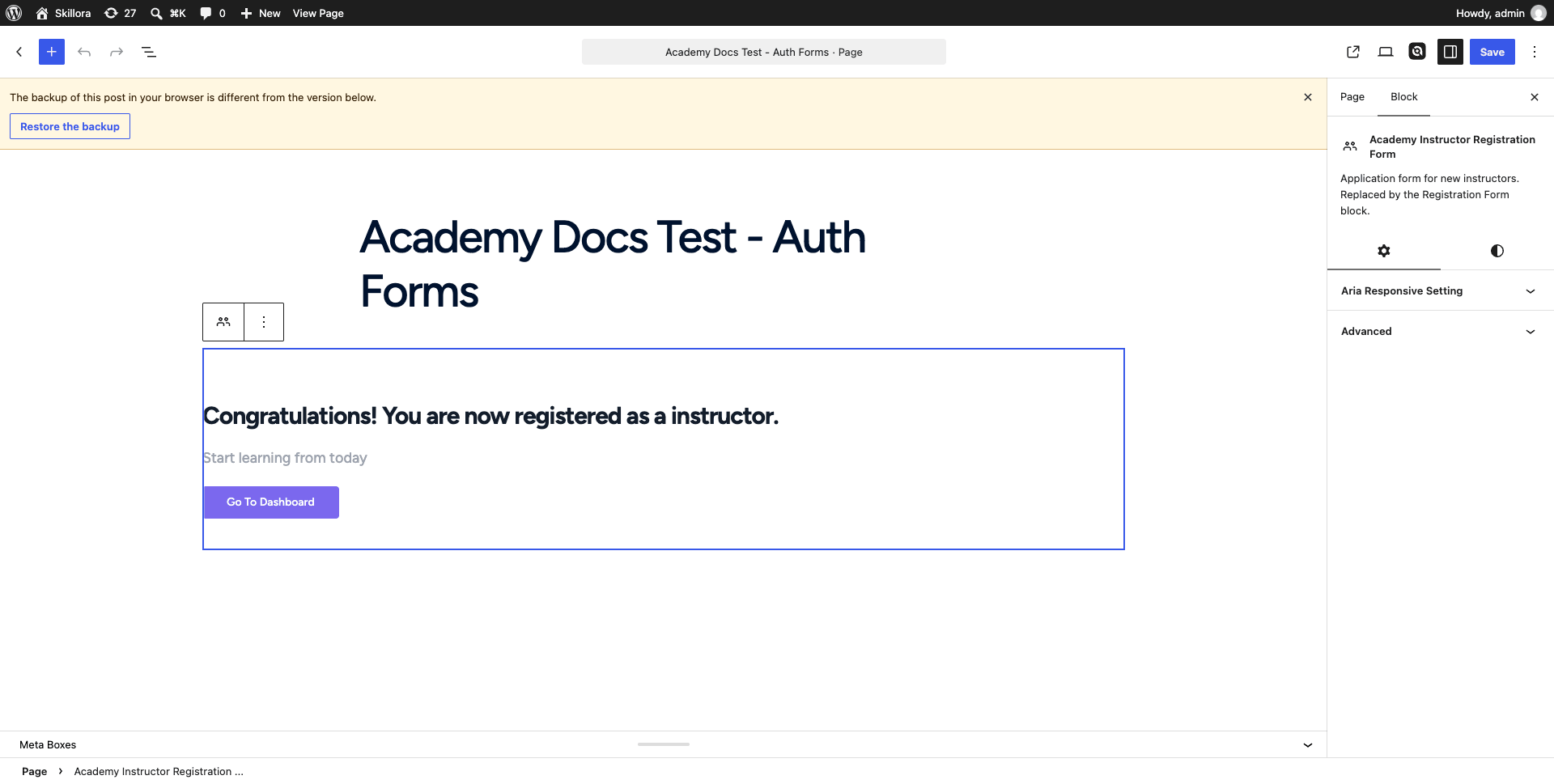
This block has no configurable attributes and no settings panel — it renders Academy’s fixed instructor sign-up form (email, password, confirm password, and a “Register as Instructor” button) using your site’s global Academy registration settings.
If you view the page while already logged in, Academy shows a “Congratulations, you are now registered” or “You are logged in” message instead of the form, since a logged-in visitor doesn’t need to register again.