Academy LMS 4.0 IS LIVE

00
Days
:
00
Hours
:
00
Minute
:
00
Second

Elementor Integration

Academy Elementor Addons is a free plugin that connects Academy LMS with Elementor Page Builder. It adds a set of course widgets so you can design your course pages, course archive page, and any other page (dashboard, registration, login) visually, without writing code.

Note: This is a separate, free plugin (not part of Academy LMS core). It needs both Elementor Page Builder and Academy LMS active to work.

Step 1: Install and activate the addon

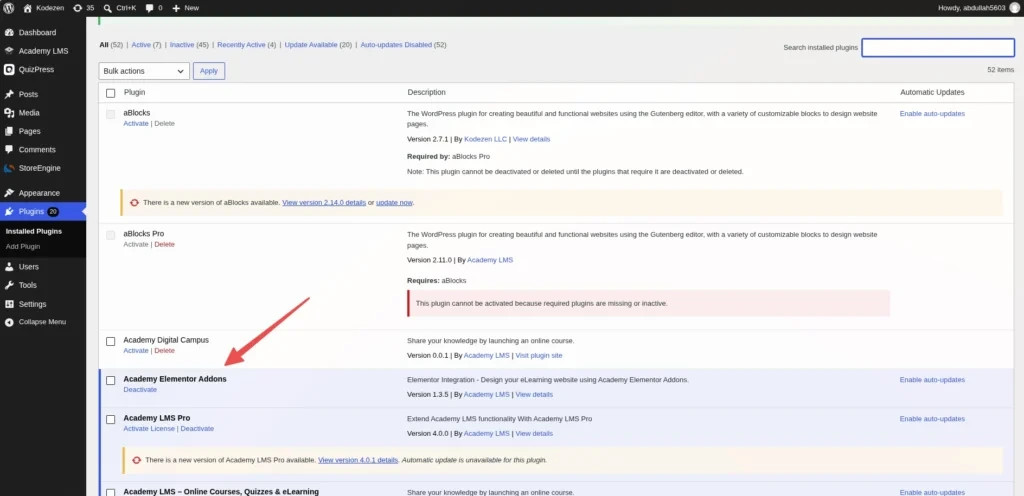
Go to Plugins → Add New, search for “Academy Elementor Addons”, then click Install Now and Activate. Once active, it appears in your admin menu as Academy EA, alongside Elementor in the sidebar.

Academy Elementor Addons activation

Step 2: Open the Template Builder

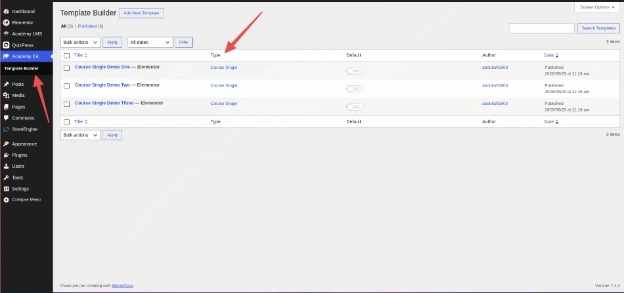
Click Academy EA → Template Builder in the admin menu. This opens a list of your course design templates.

Academy Elementor Addon

On activation, the plugin creates 3 ready-made templates for the course single page: Course Single Demo One, Course Single Demo Two, and Course Single Demo Three. The list shows a Type column (Course Single or Course Archive) and a Default column with a Yes/No switch for each template.

Step 3: Create a template

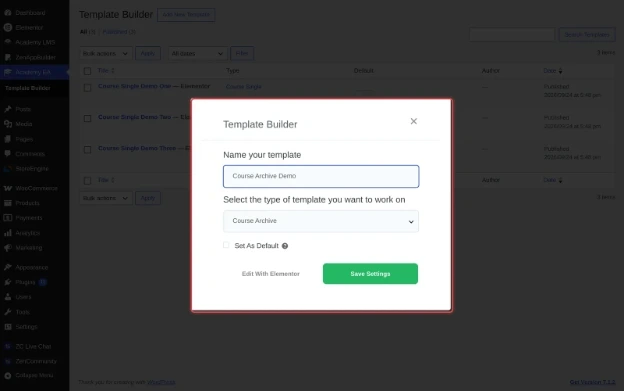
Create new Academy Elementor Addon Template

Click Add New Template. In the popup, fill in:

Template BUilder
Name your template: a name to identify it later.
Select the type of template you want to work on: choose Course Single to design the single course page, or Course Archive to design the course listing page.
Set As Default (optional): ticking this makes the template active immediately. The tooltip explains it will override Academy LMS’s default template with the one you’re creating.

Click Save Settings, then Edit With Elementor to open the template in the Elementor editor.

Step 4: Design with Academy Widgets

Click on edit with elementor

From Academy Elementor Addon click on Edit with elementor.

A Course Single template provides 21 widgets to build your course page:

Edit with elementor
Course Info & Content: Title, Thumbnail, Description, Categories, Tags, Benefits, Target Audience, Requirements, Materials, and Last Update.
Course Meta & Metrics: Price, Total Enrolled, Level, Rating, Duration, and Social Share.
Interactive & Functional: Instructors, Curriculum, Feedback, Reviews, and Enroll Widget.

Drag any widget onto the canvas to place it, then use the panel on the left to style it.

Design with Academy Widgets

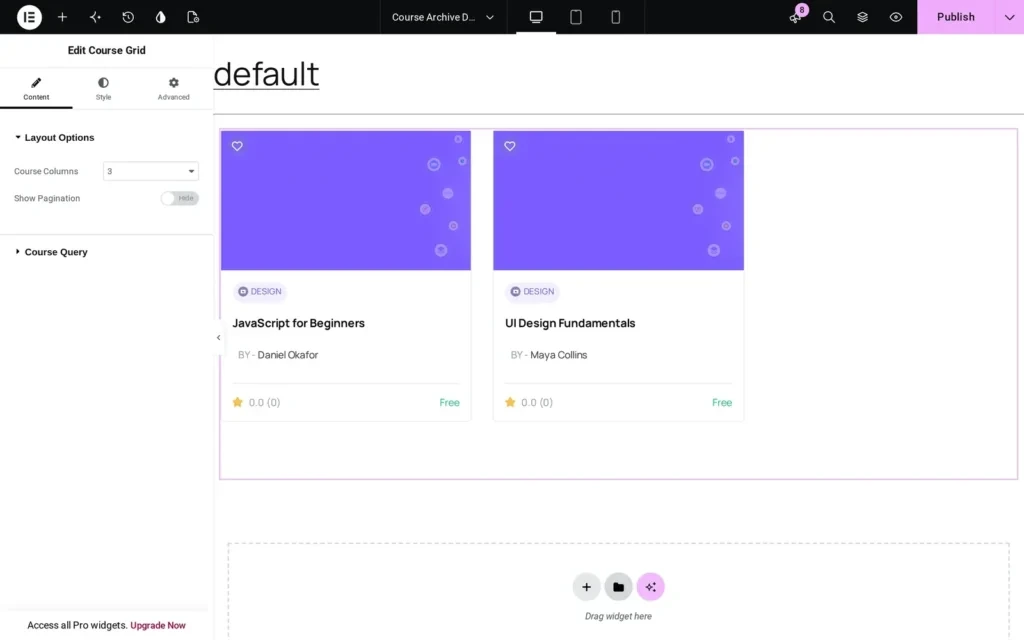
A Course Archive template uses 2 dedicated widgets: Course Grid (the list of course cards) and Course Filters (search and filter controls for the list). Drag the Course Grid widget onto the canvas and it immediately shows your published courses; the settings panel lets you set the number of columns and pagination, and the Course Query section lets you narrow which courses appear.

Course Archive template

Click Publish when you’re done, or the widgets you placed won’t appear on the live site.

Step 5: Set a template as default

Back on the Template Builder list, use the Default column’s Yes/No switch on any template to make it the active one for its type (Course Single or Course Archive). Only one template per type can be default at a time.

Set a template as default

Step 6: Add widgets to any other page

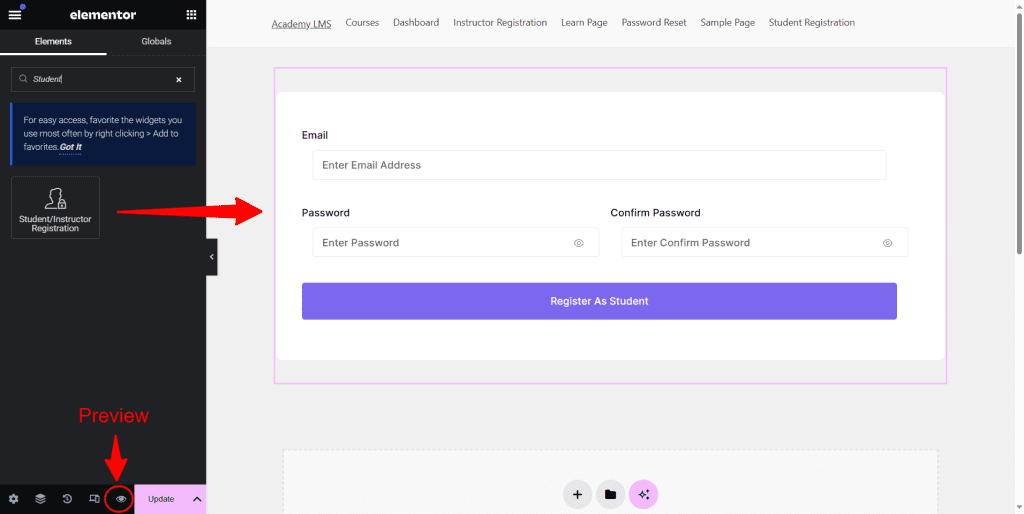
The widgets in the Academy Widgets category aren’t limited to course templates. Open any page with Edit with Elementor (for example, Pages → Dashboard) and drag in: User Dashboard, Student/Instructor Registration, Course Grid, Course Filters, Course Carousel, Login Form, Course Enroll Form, Curriculum Topbar, Curriculum Sidebar, or Course Search.

Add widgets to any other page

How it looks on the frontend

A published Course Single template renders on every course’s page, using your site’s real course data (title, price, description, curriculum and more).

frontend looks

A published Course Archive template renders on the course archive, showing your courses as cards through the Course Grid widget.

Frontend looks for designed template

Troubleshooting

If you set a Course Archive template as default but don’t see it on your site’s course listing page, check whether a static Courses page already exists at the same URL. Academy LMS creates a “Courses” page by default during setup, and on WordPress a Page takes priority over a post type’s archive URL when both would resolve to the same address. In that case, either remove or rename the static Courses page, or link to the course archive URL directly.