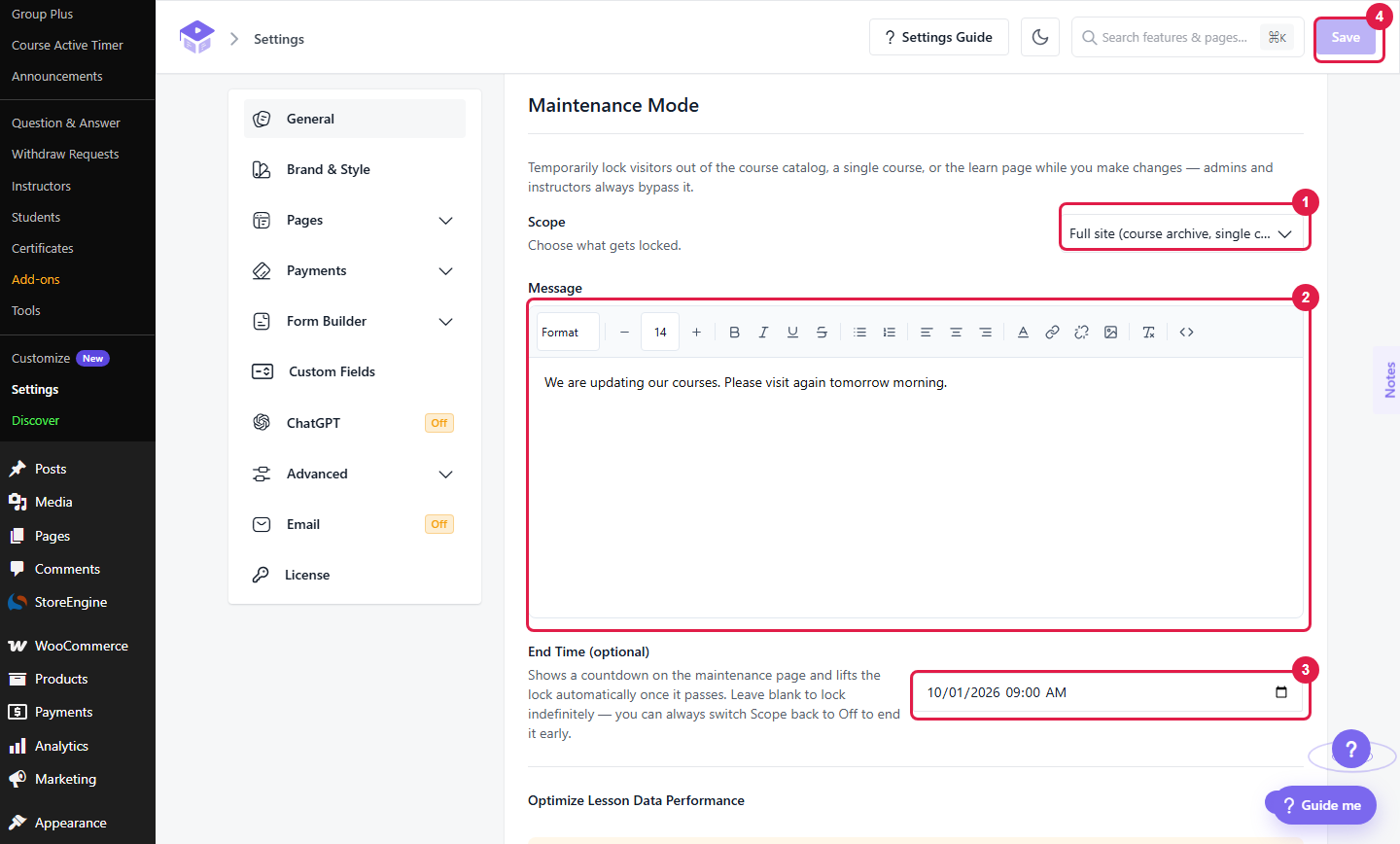
Maintenance Mode lets you close your course pages for a short time. You can use it while you update courses, fix content, or test changes. Visitors see a friendly “Under Maintenance” page instead of your courses. Administrators and instructors can still see everything, so your team can keep working.
What Maintenance Mode Locks
Maintenance Mode only locks the public LMS pages. It never locks the WordPress admin area (wp-admin). It can lock these pages:
Visitors who open a locked page get a 503 “temporarily unavailable” response. This tells search engines the pause is only temporary, so your rankings are safe.
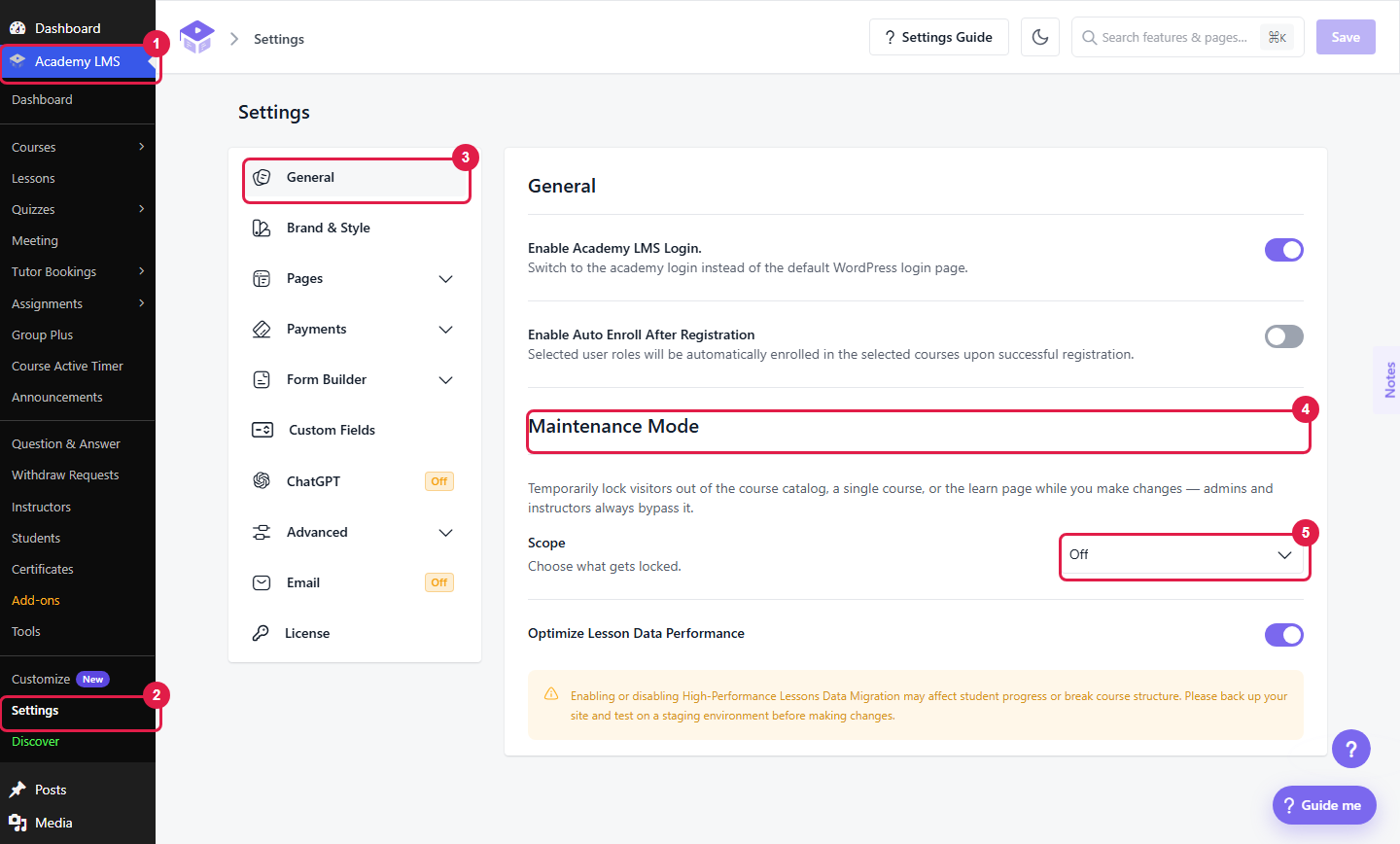
How to Turn On Maintenance Mode
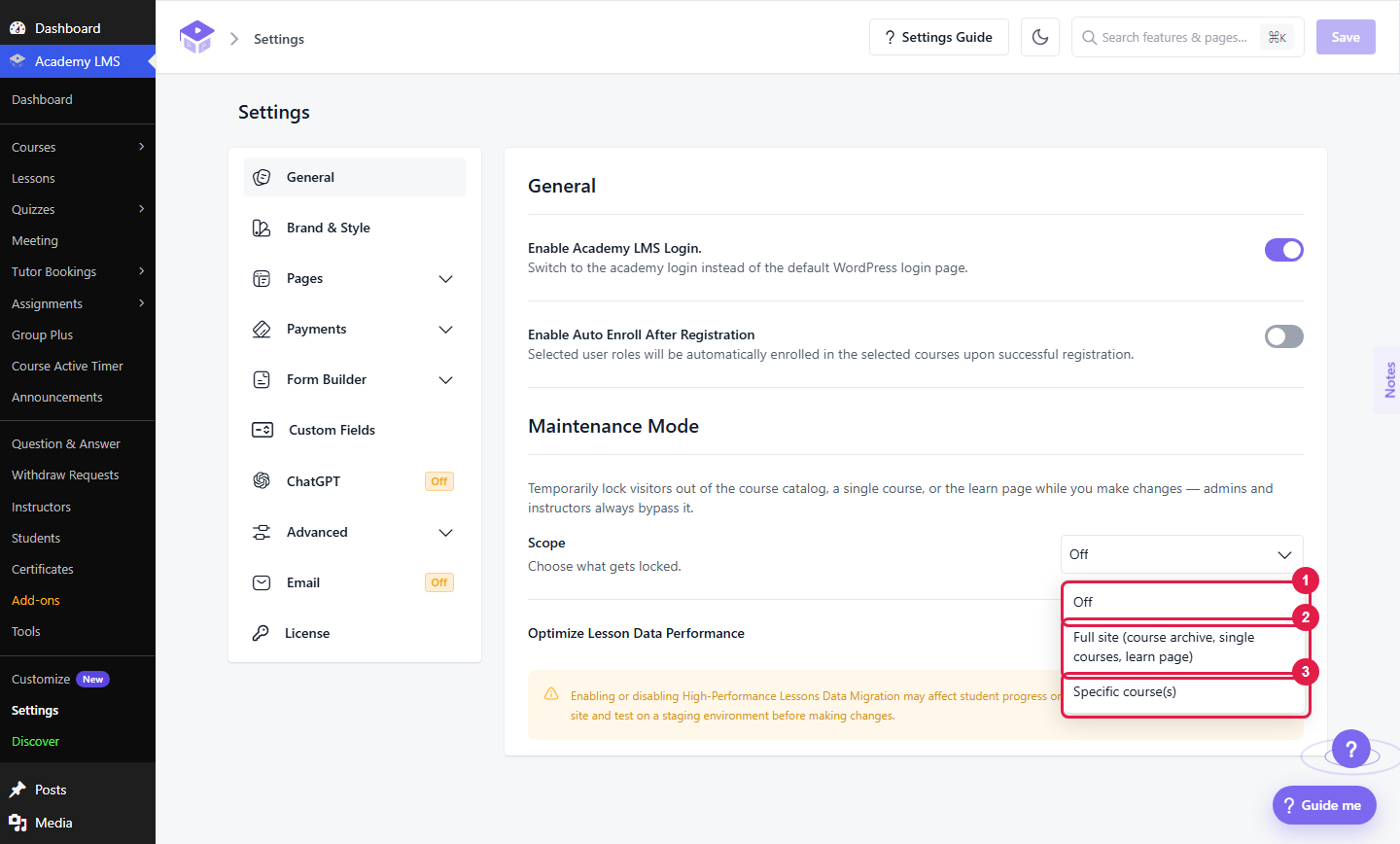
Choose the Scope
Off: Maintenance Mode is not active. This is the default.
Full site: This locks the course archive, all single course pages, and all learn pages. Use it when you are updating your whole LMS.
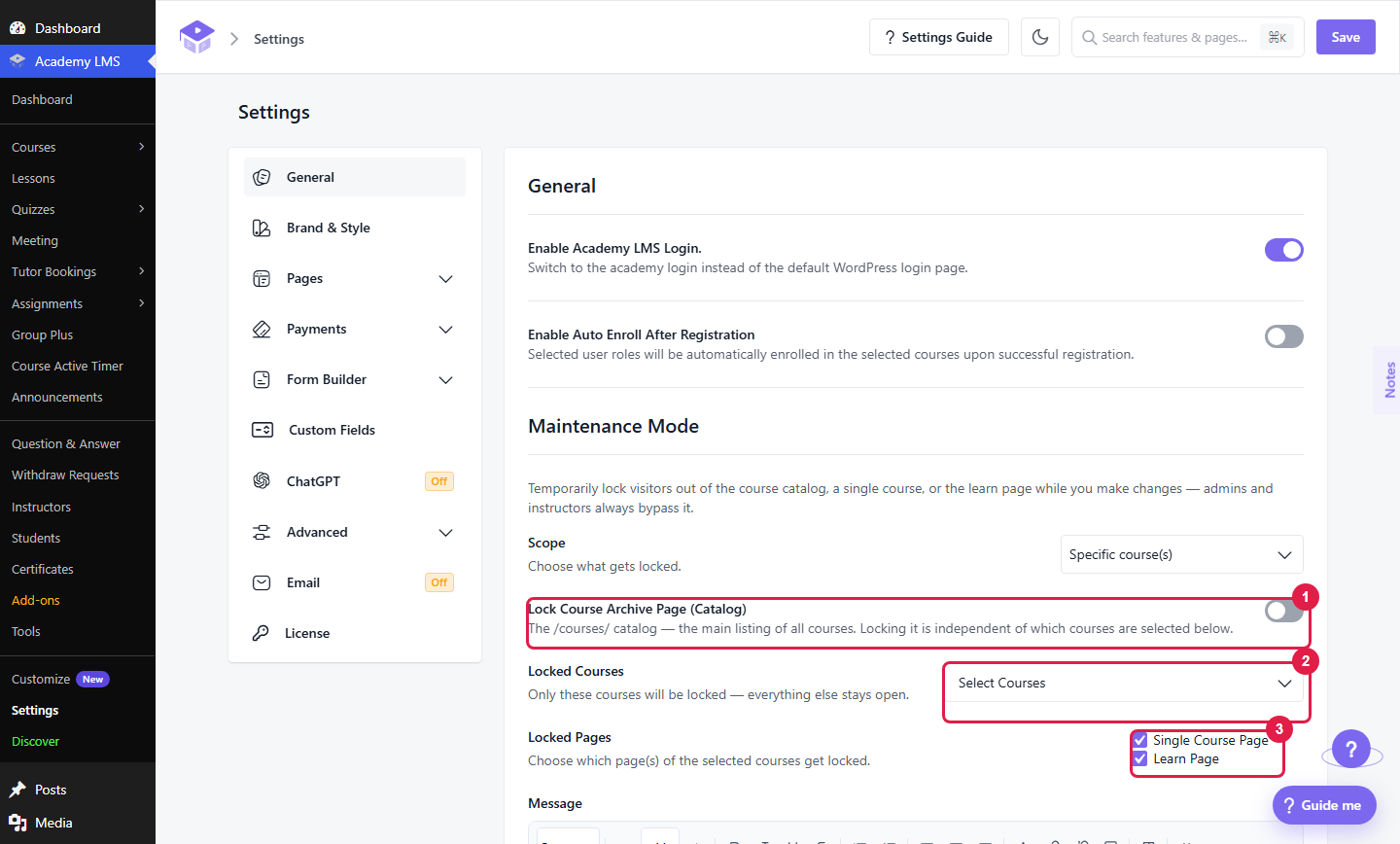
Specific course(s): This locks only the courses you pick. It is useful when you are editing one or two courses and want the rest to stay open. When you choose this option, you will see three more settings:
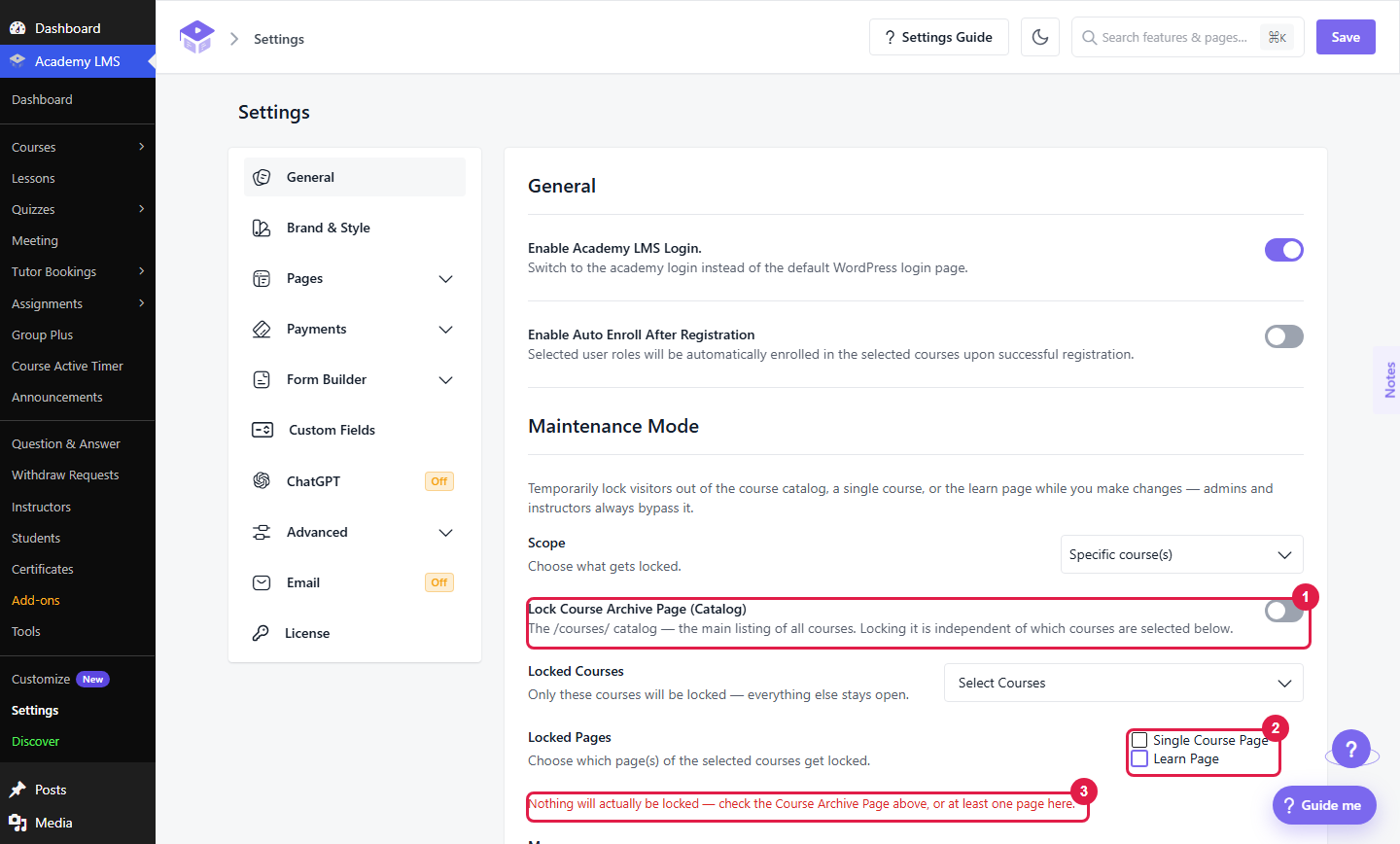
Note: If you don’t turn on the archive lock and don’t select any page type, nothing will be locked. Academy shows a warning in this case.
Write Your Message
Type the text visitors will see in the Message box. Keep it short and tell people when to come back. For example: “We are updating our courses. Please visit again tomorrow morning.” If you leave the box empty, Academy shows this default message: “We’re currently making improvements to our course platform. Please check back soon.”
Set an End Time (Optional)
The End Time field is optional. If you set it, the maintenance page shows a live countdown in days, hours, minutes, and seconds. When the time is up, the lock lifts by itself, and the page reloads for the visitor. You don’t need to come back and switch it off.
If you leave the field blank, the lock stays on until you end it. To end it early, set Scope back to Off and save.
Who Can Still Visit the Site?
To check what visitors see, open your site in a private (incognito) window without logging in.