Academy LMS 4.0 IS LIVE

00
Days
:
00
Hours
:
00
Minute
:
00
Second

Group Plus

Group Plus lets you give a block of course seats to an organisation, split that organisation into teams, and hand the day to day work to leaders instead of doing it yourself. Academy LMS 4.0 adds seat start and end dates, expiry on a schedule with an email notice, a per course validity default, and per seat pricing that drops as the seat count rises.

Note: Group Plus is a Pro addon. You need Academy LMS (free) and Academy LMS Pro active, and the addon switched on.

Before you start

Academy LMS and Academy LMS Pro are both active.
You are logged in as an administrator. The Group Plus admin screen needs the manage_options capability.
You have at least one published course.

Step 1: Turn on the Group Plus addon

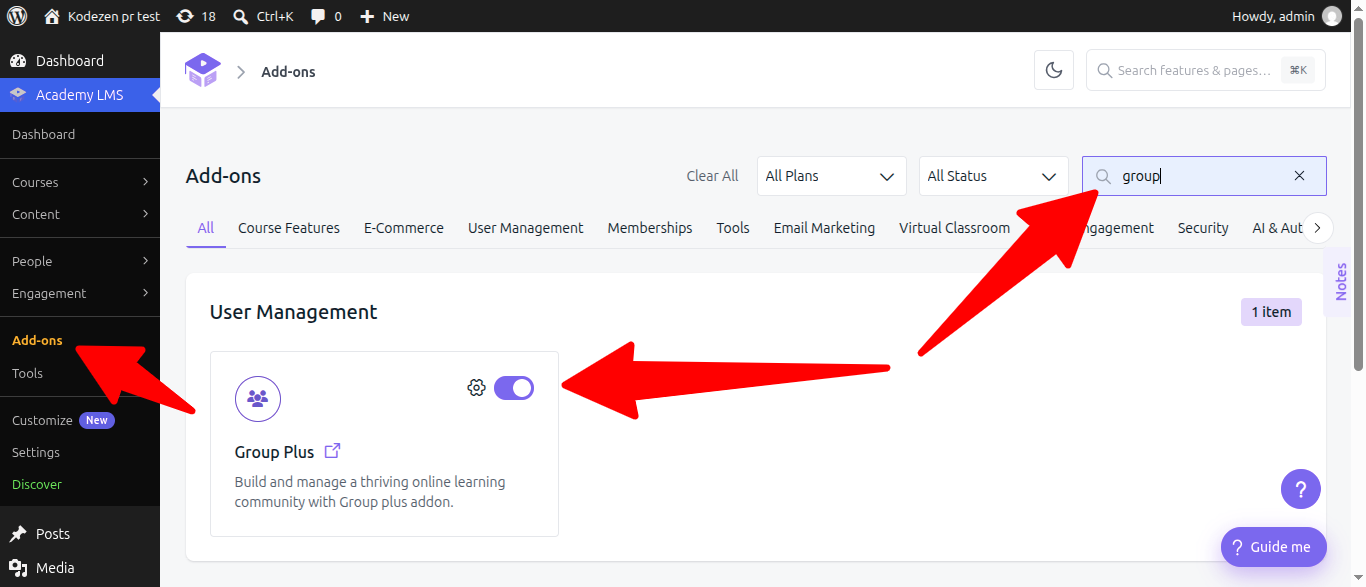
Go to Academy LMS → Add-ons and type Group Plus in the Search Add-ons box. The addon sits under User Management. Switch the toggle on.

Turning the addon on creates the database tables Group Plus needs and adds a Group Plus item to the Academy LMS menu.

turn-on-the-group-plus-addon

Step 2: Create a group

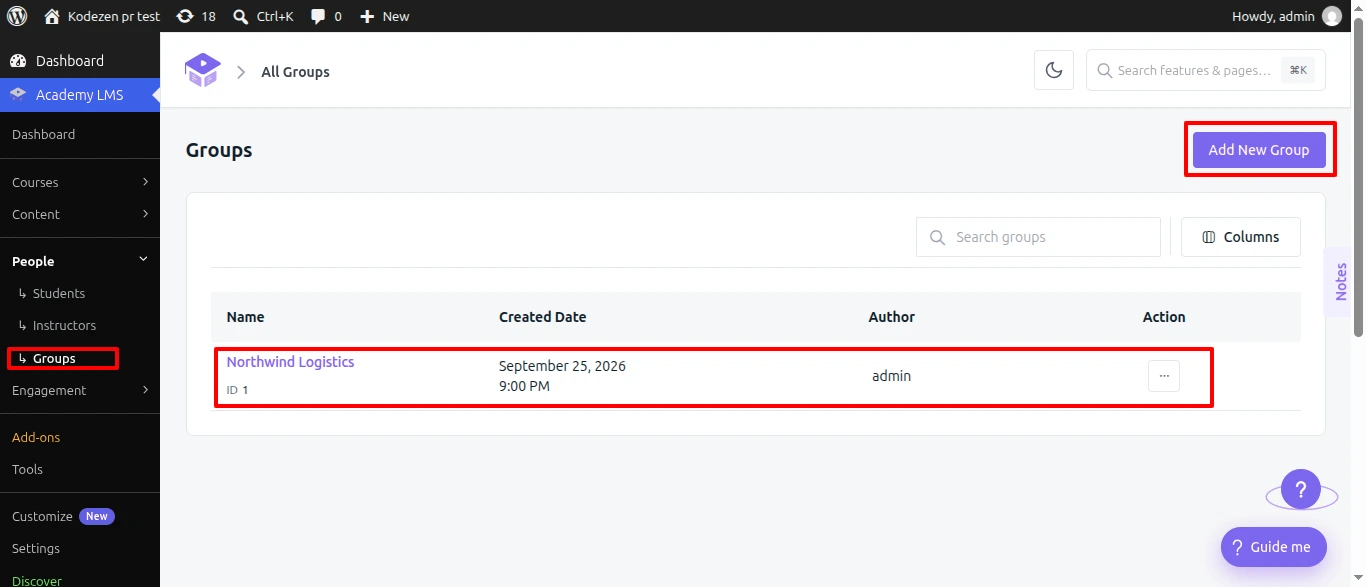
Go to Academy LMS → Group Plus. The list shows every group with its Name, Created Date and Author, and a Search groups box above it. Click Add New Group.

create-a-group

Step 3: Name the group

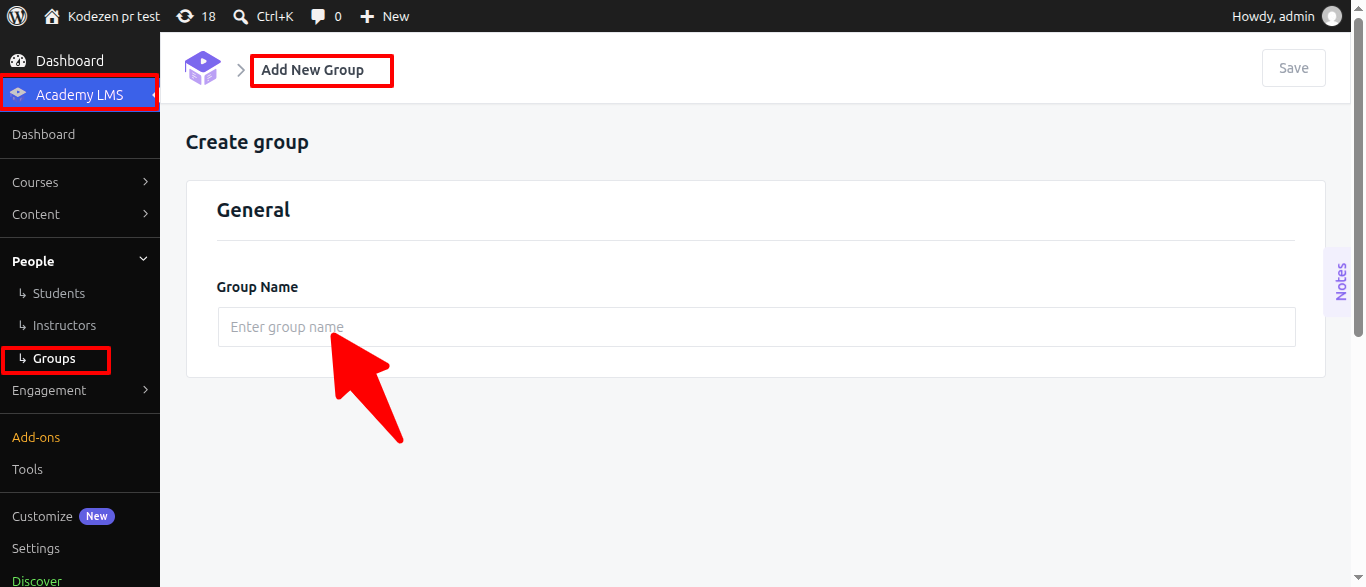
Under General, type the organisation’s name in Group Name, then click Save. Use the name the client will recognise, because leaders see it on their own dashboard.

name-the-group

Step 4: Add courses and seats

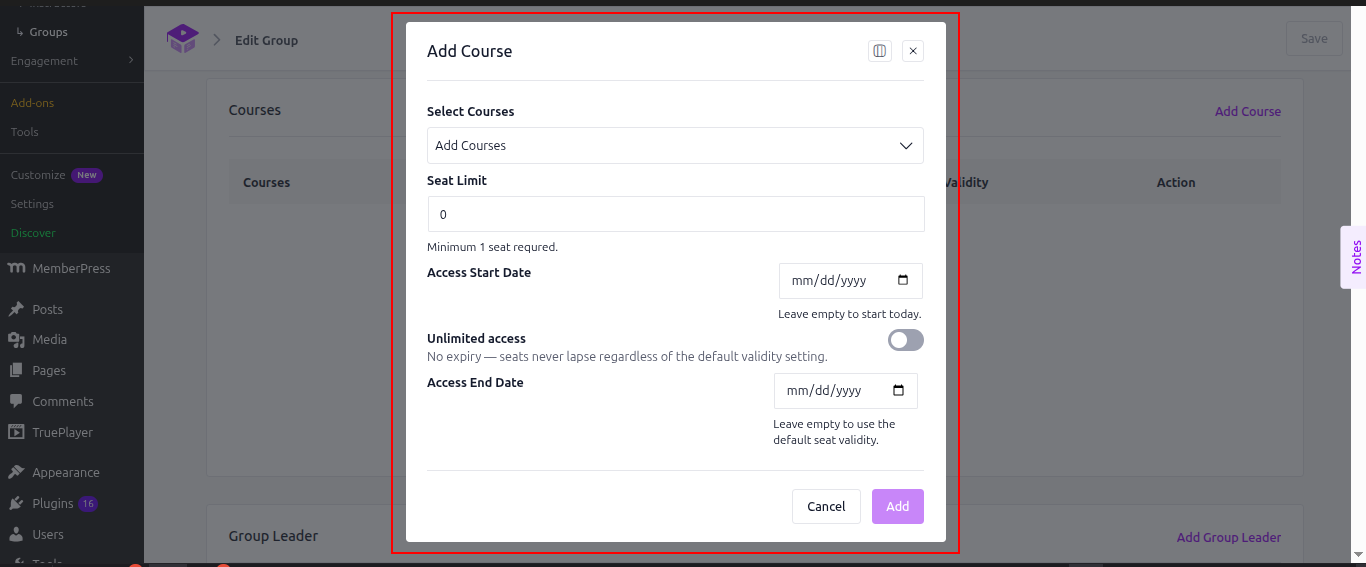
In the Courses section click Add Course, then fill the form:

1.Select Courses: pick the course this group is buying.
2.Seat Limit: how many people may take it. The minimum is 1, and you cannot ask for more seats than the course has left. A course with Maximum Students set to 0 has no limit.
3.Access Start Date: leave it empty to start today.
4.Unlimited access: turn this on and the seats never lapse, whatever the default validity says.
5.Access End Date: leave it empty to fall back to the course’s default validity. The field is disabled while Unlimited access is on.

The three access fields are for administrators only. A leader who requests seats from the frontend dashboard always gets the configured default instead of picking dates.

add-courses-and-seats

Step 5: Read the seat table

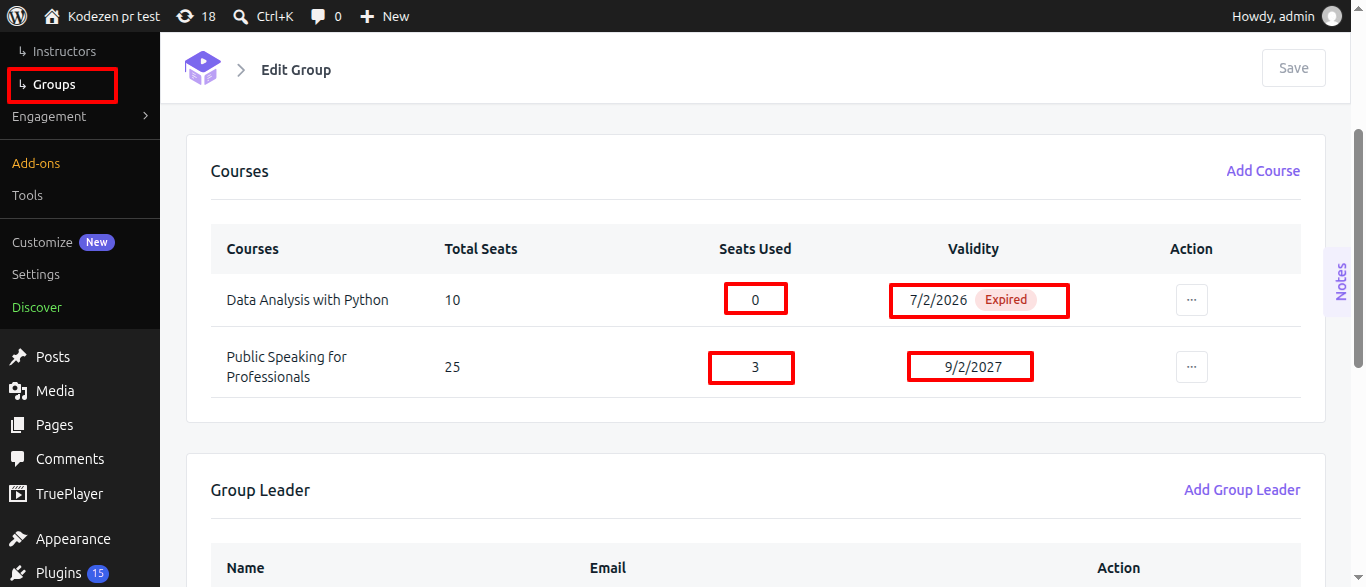
Back in Courses, each row shows Total Seats, Seats Used and Validity. Seats Used counts the team members who hold that course, so it climbs as you build teams.

Validity shows one of these:

What you see

What it means

A date

The day the seats stop working.

Unlimited

No end date was set and no default applied.

Pending approval

A leader asked for seats that you have not granted yet.

Expired

The end date has passed.

read-the-seat-table

Step 6: Add group leaders

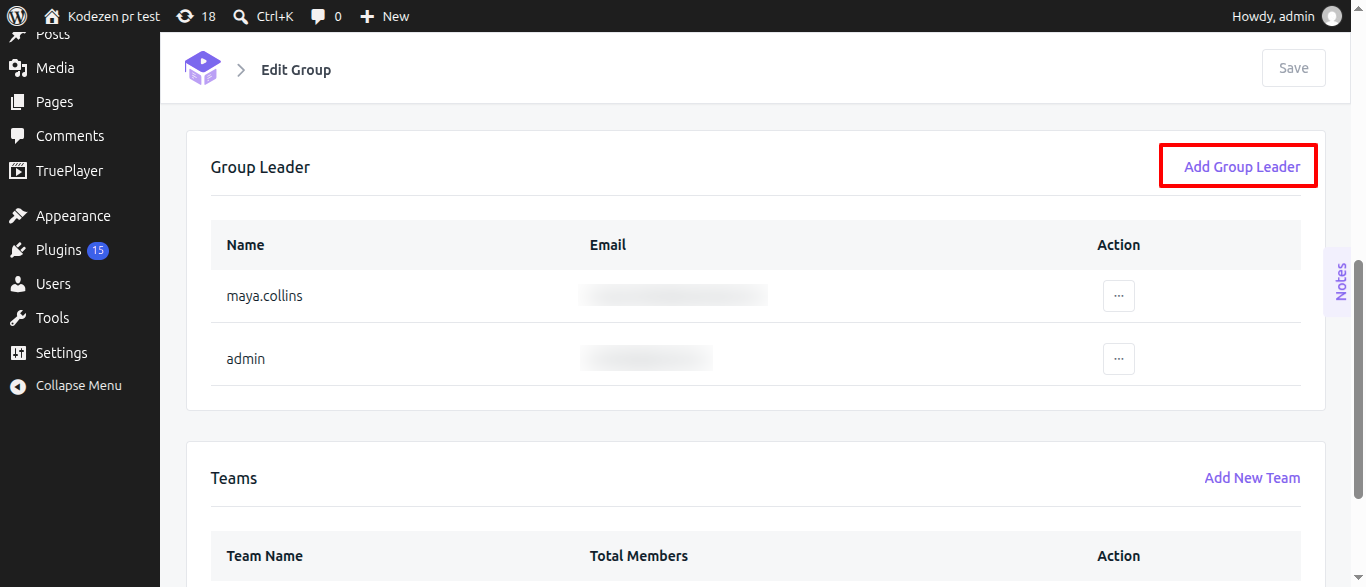
A group leader manages the group without touching WordPress admin. In Group Leader, click Add Group Leader. You can create a new user by filling Group Leader First Name, Group Leader Last Name, Group Leader Email, Group Leader Username and Password, or switch to Choose Group Leader and pick someone who already has an account. A group can have several leaders.

Group Plus adds three roles: Academy group organizer, Academy team organizer and Academy team member.

add-group-leaders

Step 7: Add teams and members

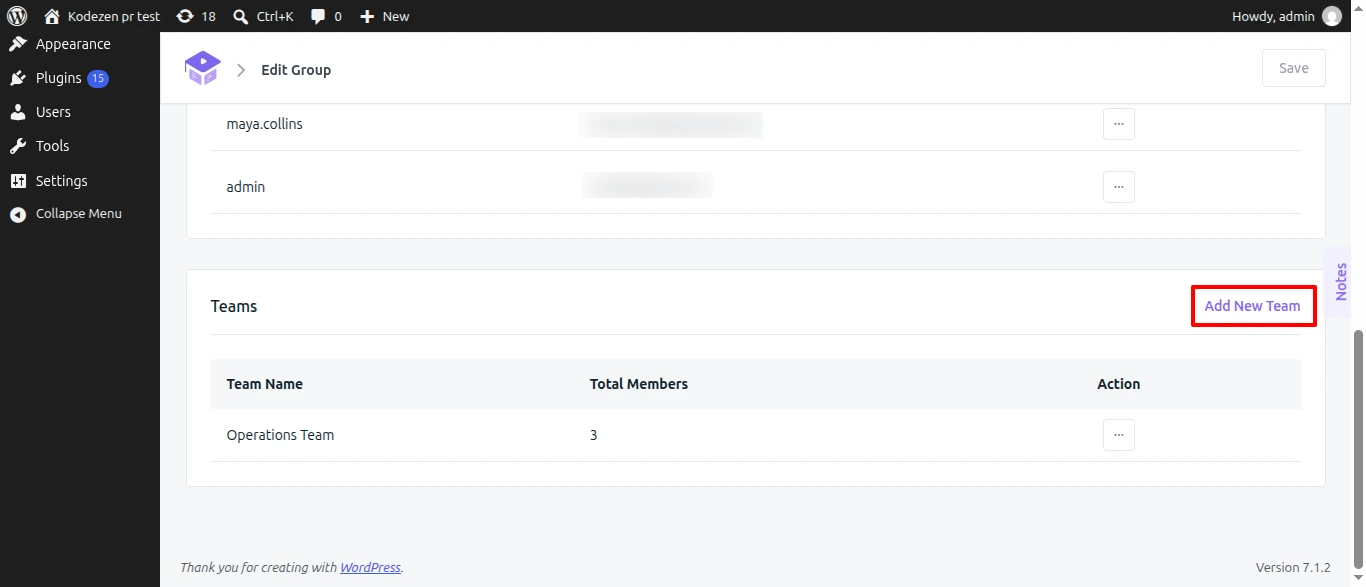
Teams split a group into smaller units, each with its own leader and its own slice of the group’s courses. In Teams, click Add New Team (1) and give the team a name.

To put people in a team, open the team’s action menu and choose Manage Team (2). From there you add members one by one or import users who already have accounts, manage the team’s leaders, and assign courses. A team can only be given courses that the parent group already holds, and every member of the team is enrolled in those courses automatically.

add-teams-and-members

Step 8: Set a course’s default seat validity

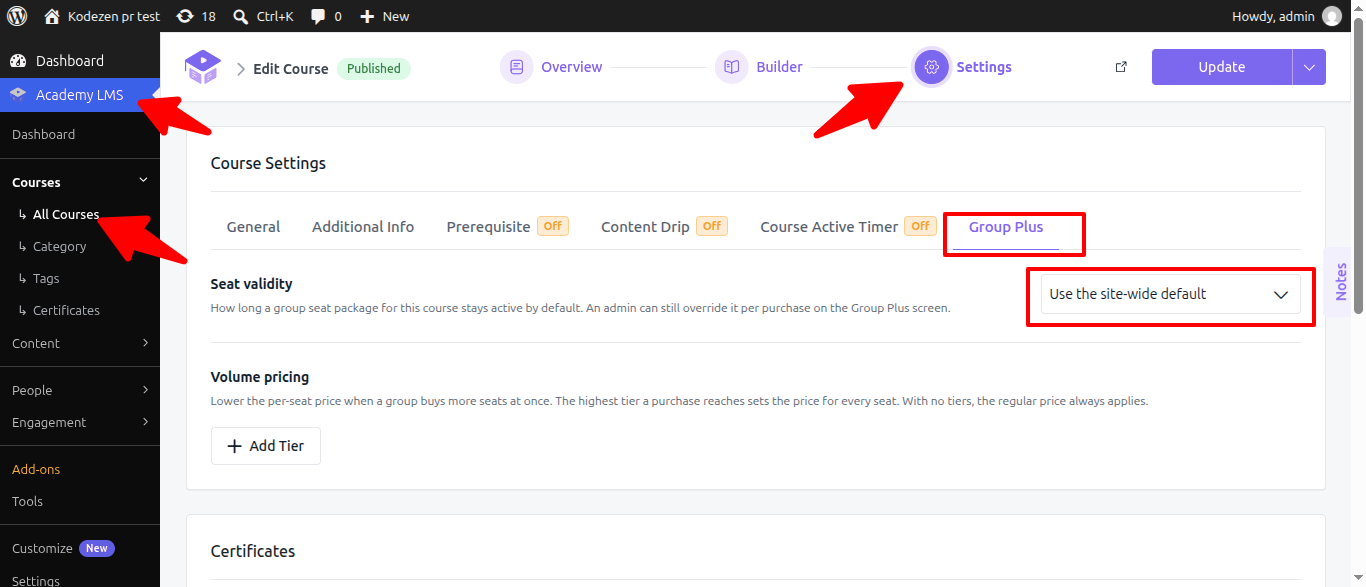
Instead of typing dates for every purchase, give the course a default. Open the course, go to Settings, and pick the Group Seat Validity tab (1).

Group Seat Validity (2) offers three choices:

Option

Effect

Use the site-wide default

Falls back to the site setting, which is Unlimited.

Custom duration

Seats last a set time from the day they start.

Unlimited (never expires)

Seats never lapse.

Choosing Custom duration shows a Duration row (3) where you set a number and pick Days, Months or Years.

This default applies whenever seats are granted without explicit dates. Anything you type in Access End Date on the Group Plus screen wins over it.

set-a-courses-default-seat-validity

Step 9: Price seats by volume

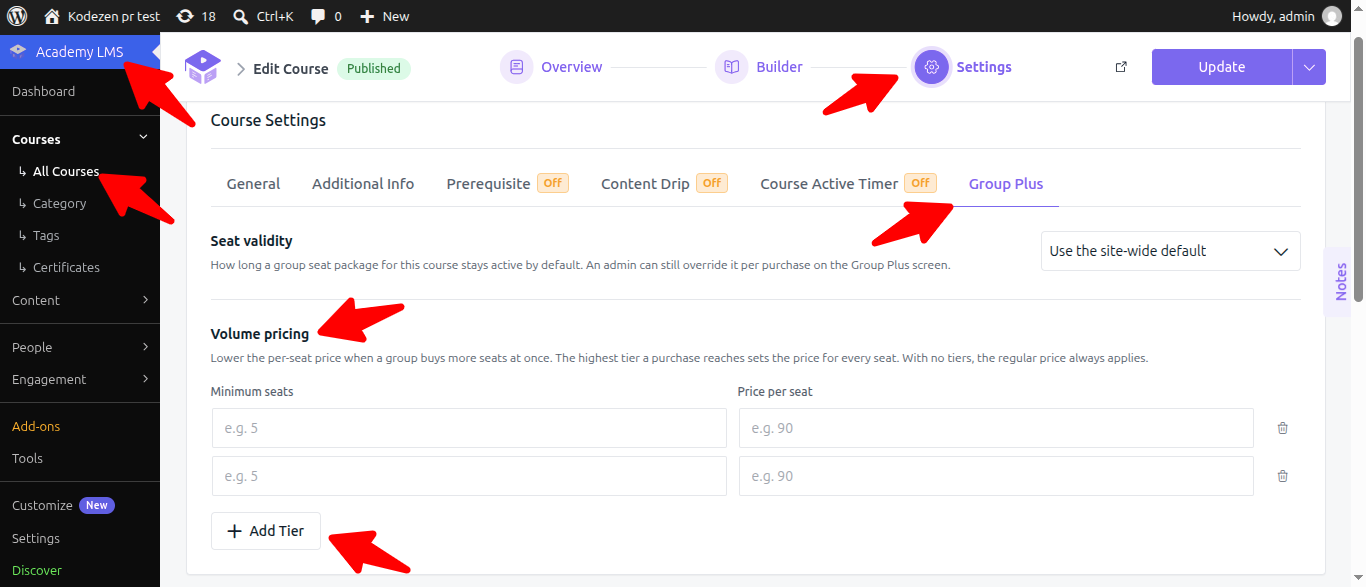
The Volume Pricing tab sets a per seat price that falls as a buyer takes more seats. Each row (1) pairs Seats (minimum) with Price per seat. Click Add Tier (2) for another row, or the bin icon to drop one.

Pricing is flat, not banded. With tiers at 5, 25 and 50 seats, a buyer taking 30 seats pays the 25 seat rate on all 30, not a mix of rates. If you set no tiers, or the quantity falls below your lowest tier, the course’s regular price applies. The tiers work the same way whether WooCommerce or StoreEngine handles the sale.

Volume Pricing tab sets a per seat price

What happens when seats expire

Access stops the moment the end date passes. Members lose the course straight away.

A background job runs once a day and marks expired packages in the database. That flag is what the admin list filters on, so a package can be unusable for up to a day before the stored status catches up. The Validity column compares the date itself, which is why the Expired badge appears right away.

When the daily job marks a package as expired, every leader of that group gets an email with the subject Seat access expired: followed by the course name, telling them access has stopped and the package needs renewing. There is no advance warning email before the expiry date.

Group Plus on the frontend dashboard

Leaders and members do not need WordPress admin. A Group Plus item appears in the frontend dashboard, where leaders manage teams, members and course assignments.

Only assigned group leaders, team leaders and team members see the item. If it does not appear, open Settings → Permalinks in WordPress and save the permalink structure again, which refreshes the dashboard routes.

Troubleshooting

“Add Course” refuses the seat count.

The number must be 1 or more and cannot exceed the seats the course has left. Check Maximum Students on the course. A value of 0 means no limit.

A package shows Expired but the report still counts it as active.

The stored status updates once a day. The badge compares the date live, so the badge is right and the stored flag catches up within 24 hours.

“Use the site-wide default” never expires anything.

The site wide default is Unlimited, so a course left on that option gives seats that never lapse. Pick Custom duration on the course, or set Access End Date on the group, to make seats expire.