









Stop students from sharing one account. Set how many devices a student can be logged in on at the same time. This is a Pro add-on.
Turn on Device Login Restrictions in Academy LMS → Add-ons first.
Set the device limit
1.Go to Academy LMS → Settings → Advanced → Device Login Restrictions.
2.Switch on Limit Multiple Device Access.
3.Enter a number in Set Login Session Limits, for example 2.
4.Click Save.
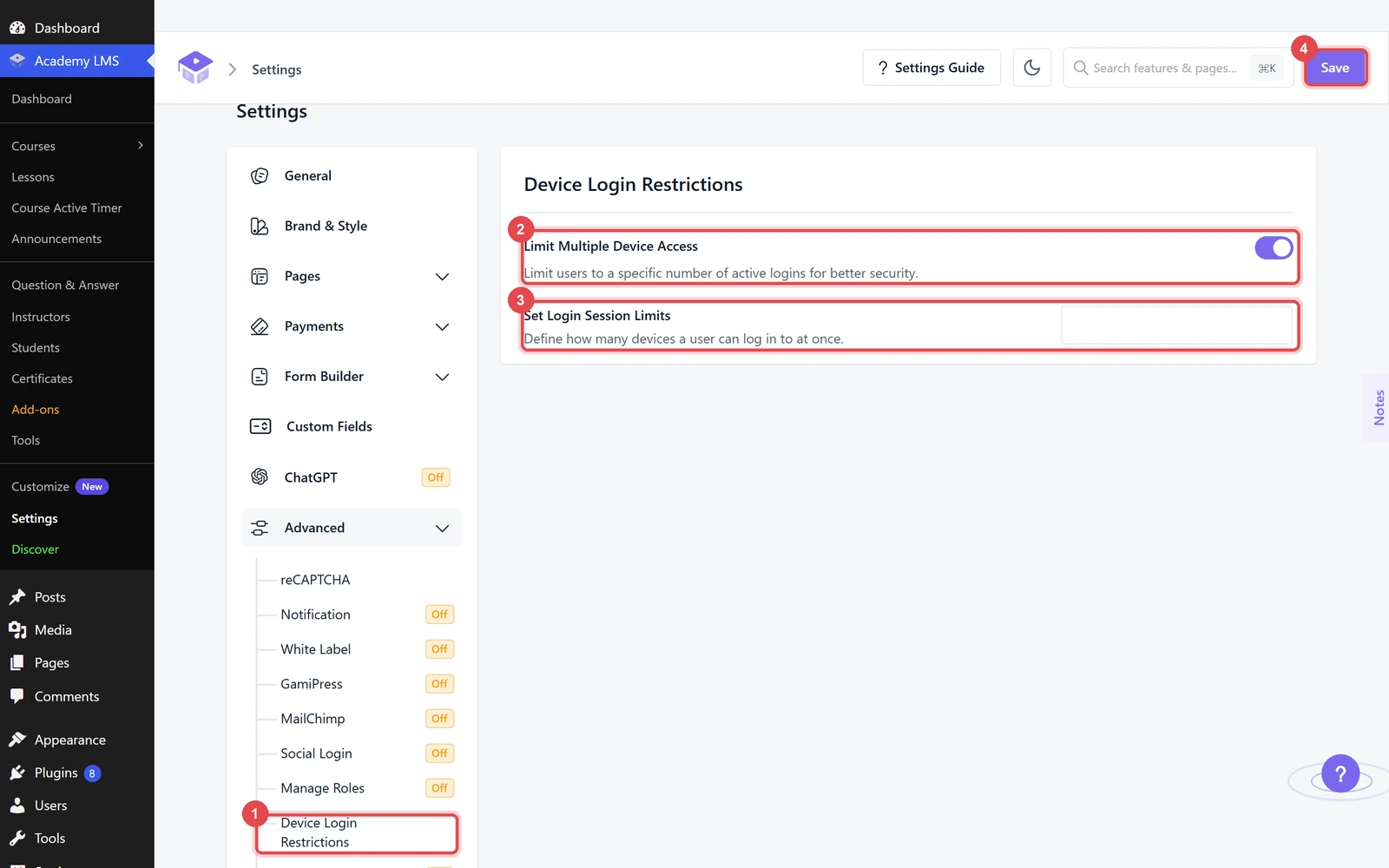
The limit applies to students only. Administrators and instructors aren’t limited.
When a student reaches the limit
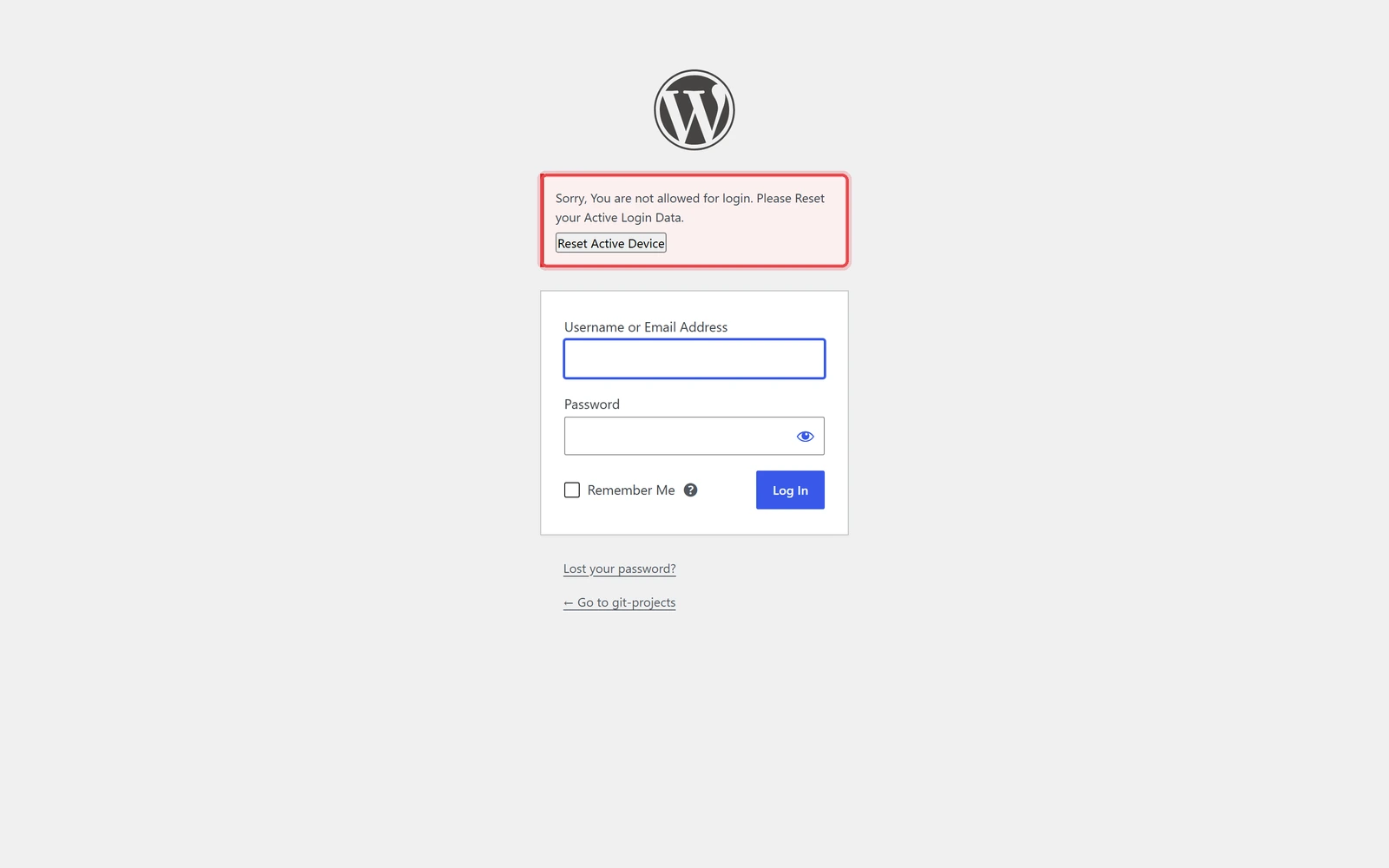
If a student logs in on one device too many, the login is blocked with a message and a Reset Active Device button. Clicking it signs them out everywhere else, so they can log in on the new device.
For more login security, such as two-factor login, see GemSecurity.