Academy LMS 4.0 IS LIVE

00
Days
:
00
Hours
:
00
Minute
:
00
Second

Learn Page PHP Rendering

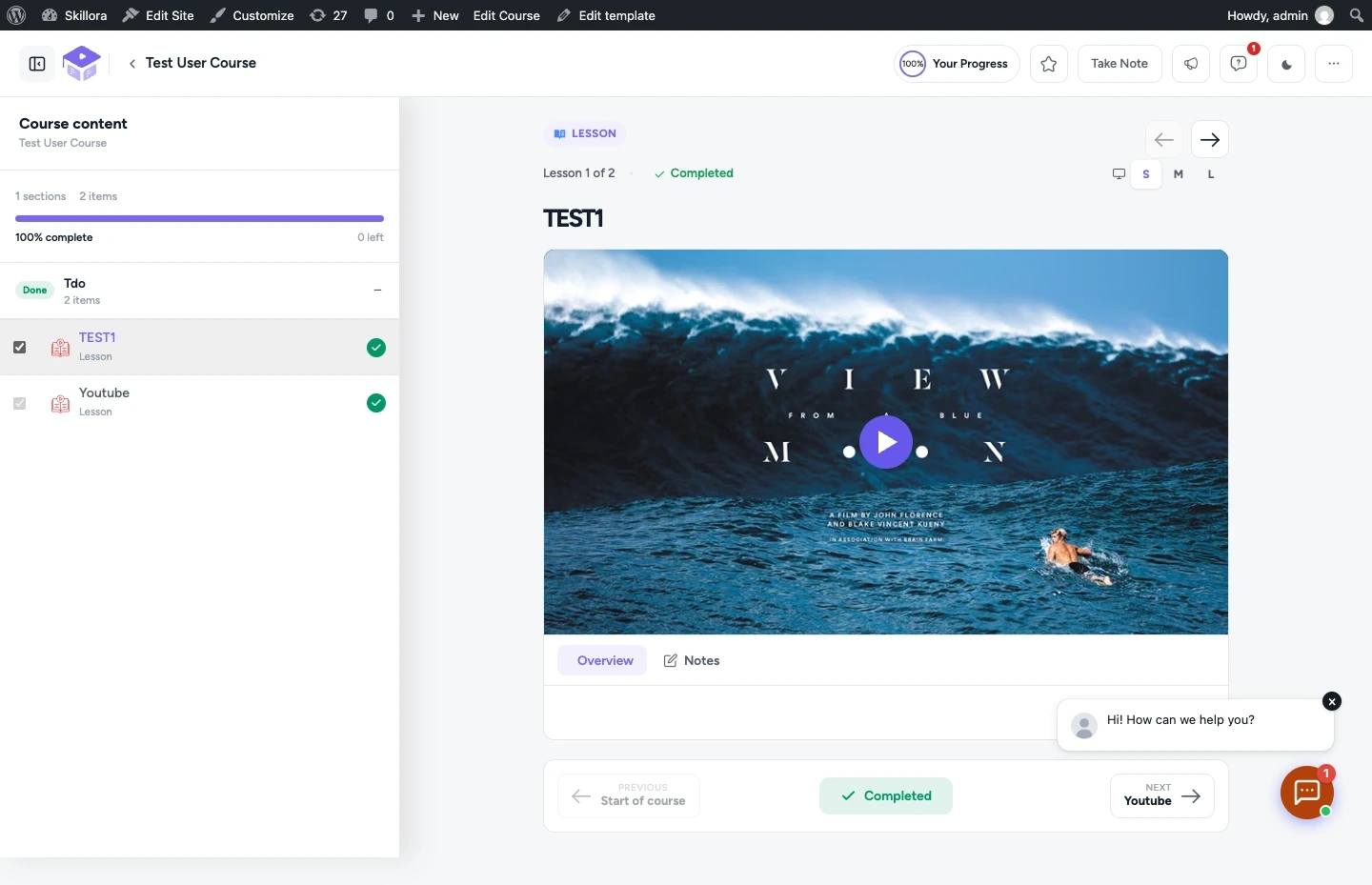
The learn page is the page a student takes a course on — the curriculum sidebar, the lesson or quiz content, and the top bar around them. Academy can build this page in two different ways, and you choose which one your site uses from the Customize screen’s Learn Page tab.

How to access

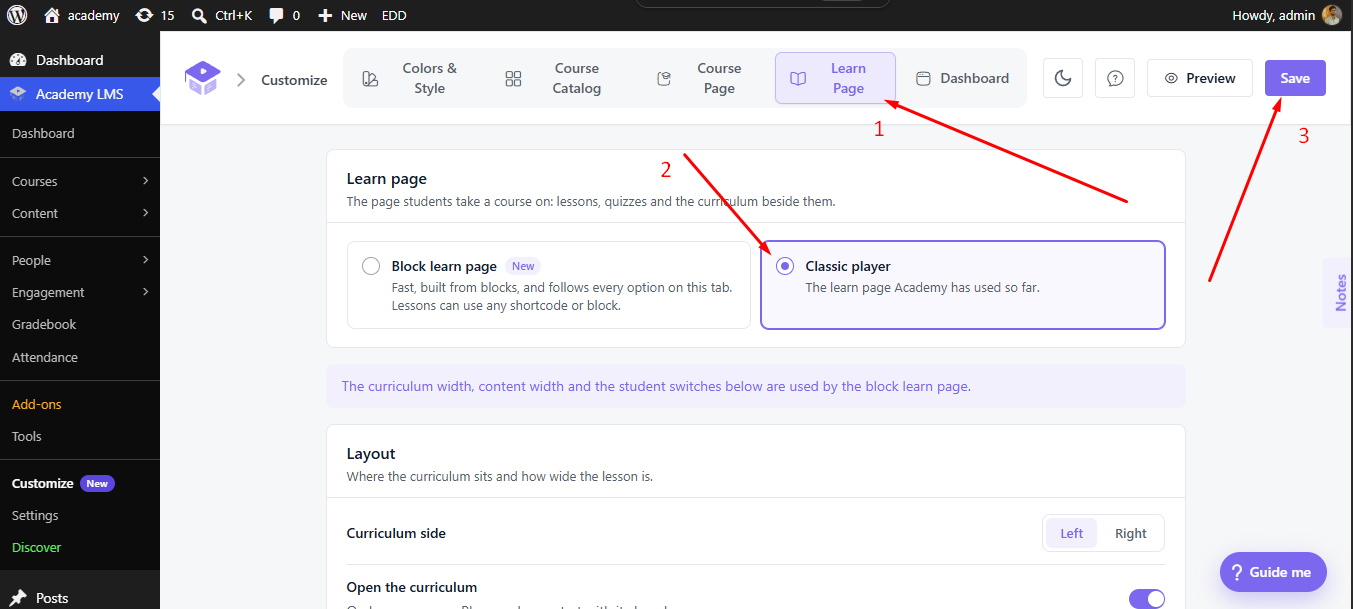
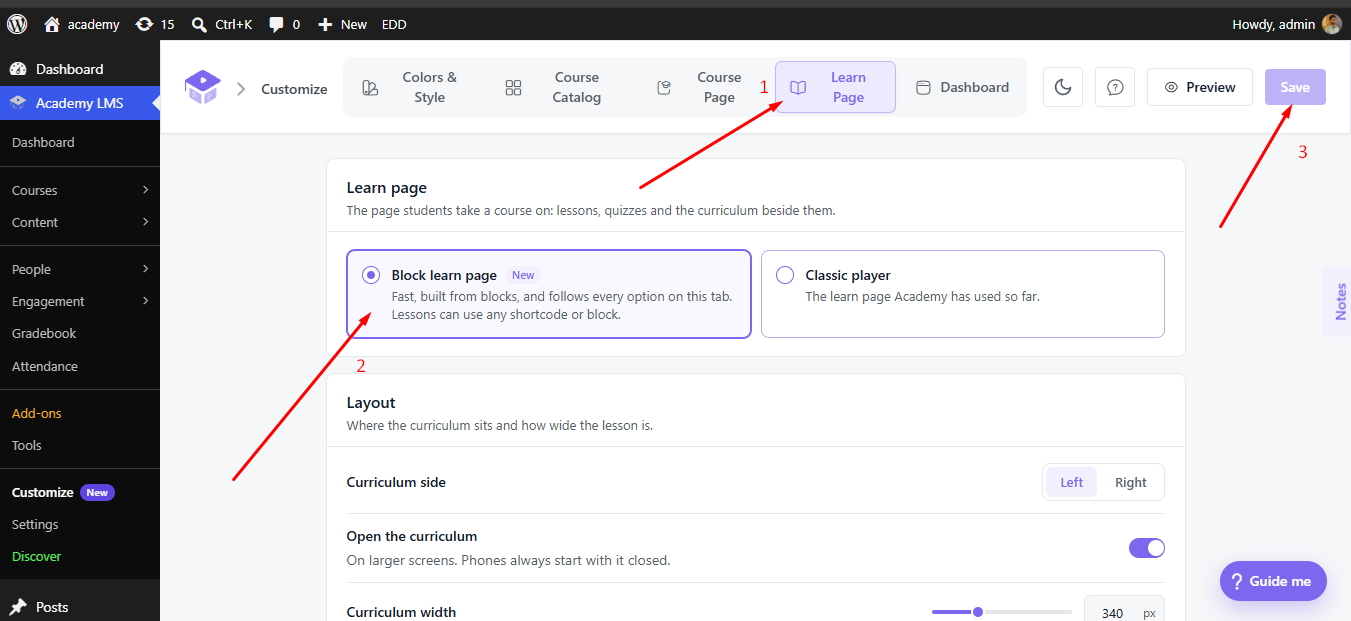
1.Go to Academy LMS > Customize, then open the Learn Page tab.
Academy LMS Learn Page Customize
1.At the top of the tab, pick one of the two Learn page options:
Classic player — the React-driven single-page app learn page Academy has used so far.
Block learn page — a newer, server-rendered page built from Academy blocks.
1.Click Save to apply your choice site-wide.

Classic player vs. Block learn page

Classic player loads once as a single-page app and swaps content client-side as a student moves between lessons — this is react under the hood (learn_page_engine option), and it’s still Academy’s default.

Block learn page (blocks) renders every topic as its own real, server-rendered URL (/course/{course}/{type}/{topic}), and only swaps the content when a student moves between topics — so it feels as fast as a single-page app while still being ordinary WordPress pages underneath. Because each topic is a genuine page rather than a client-side route, third-party shortcodes and blocks placed inside lessons keep working, and the page follows every layout and styling option on the Learn Page tab.

classic-player-vs-block-learn-page

Choose Block learn page if you rely on shortcodes or blocks from other plugins inside your lessons, want each lesson to be a real crawlable/cacheable URL, or want the extra layout and per-element color controls the Learn Page tab exposes (top bar items, curriculum width, per-section colors) to take full effect. Choose Classic player if you’re already relying on its current look and behavior and don’t need those things yet — you can switch back at any time without losing content.

Switching the engine changes how topic URLs are generated, so Academy automatically flushes WordPress’s rewrite rules when you save this setting — no extra step needed.

Layout, top bar, and color options

Once you’re on the Learn Page tab, the sections below the engine picker configure the page further — most of them apply specifically to the Block learn page:

layout-top-bar-and-color-options
Curriculum side — Left or Right; where the lesson list sits relative to the content.
Open the curriculum — whether the curriculum panel starts expanded on larger screens (phones always start closed).
Curriculum width — pixel width of the curriculum sidebar (260–520px).
Content width — Standard, Wide, or Focused; how wide the lesson content area is.
Theme header and footer — show your active theme’s header and footer around the learn page instead of Academy’s own full-screen layout.
Color mode — Light, Dark, or System; what students see first (students can still switch if you leave that toggle on).
Top bar — which items appear beside the course title (course progress, leave a review, take notes, announcements, Q&A) and in the overflow “More menu” (favorite, share, close course), each with its own on/off switch and drag-to-reorder handle.
Colors — per-element colors (top bar, curriculum, lesson area, footer, current topic highlight) for light and dark mode; leave any of them empty to fall back to your brand colors from the Colors & Style tab.
Learn page layout — opens the page’s own blocks in the block editor so you can remove parts, reorder them, or restyle any one of them individually; a Reset option brings it back to following the settings on this tab.

Field breakdown

Learn page engine — Classic player (react, current default) or Block learn page (blocks); stored as the learn_page_engine setting.
Curriculum side / Open the curriculum / Curriculum width — position and default state of the lesson sidebar.
Content width — how wide the lesson content column renders.
Theme header and footer — toggles Academy’s own full-screen chrome vs. your theme’s header/footer.
Top bar items / More menu items — individually switchable, reorderable elements shown around the lesson.
Colors — per-section color overrides, separate for light and dark mode.
Learn page layout — block-editor access to the page’s actual block markup, for changes beyond what the settings above cover.