








After you update Academy LMS, an About page opens once to show you what changed. It explains the new features, lists what to check on an existing site, and links to the full changelog. This guide shows what is on the page and how to use it.
When the page opens
The About page opens by itself once after each plugin update. It shows the next time you load a normal admin screen. It does not open on a fresh install, and it does not open again until the next update.
Only administrators see it. You can also open it yourself at any time. Go to this address and replace the domain with your own.
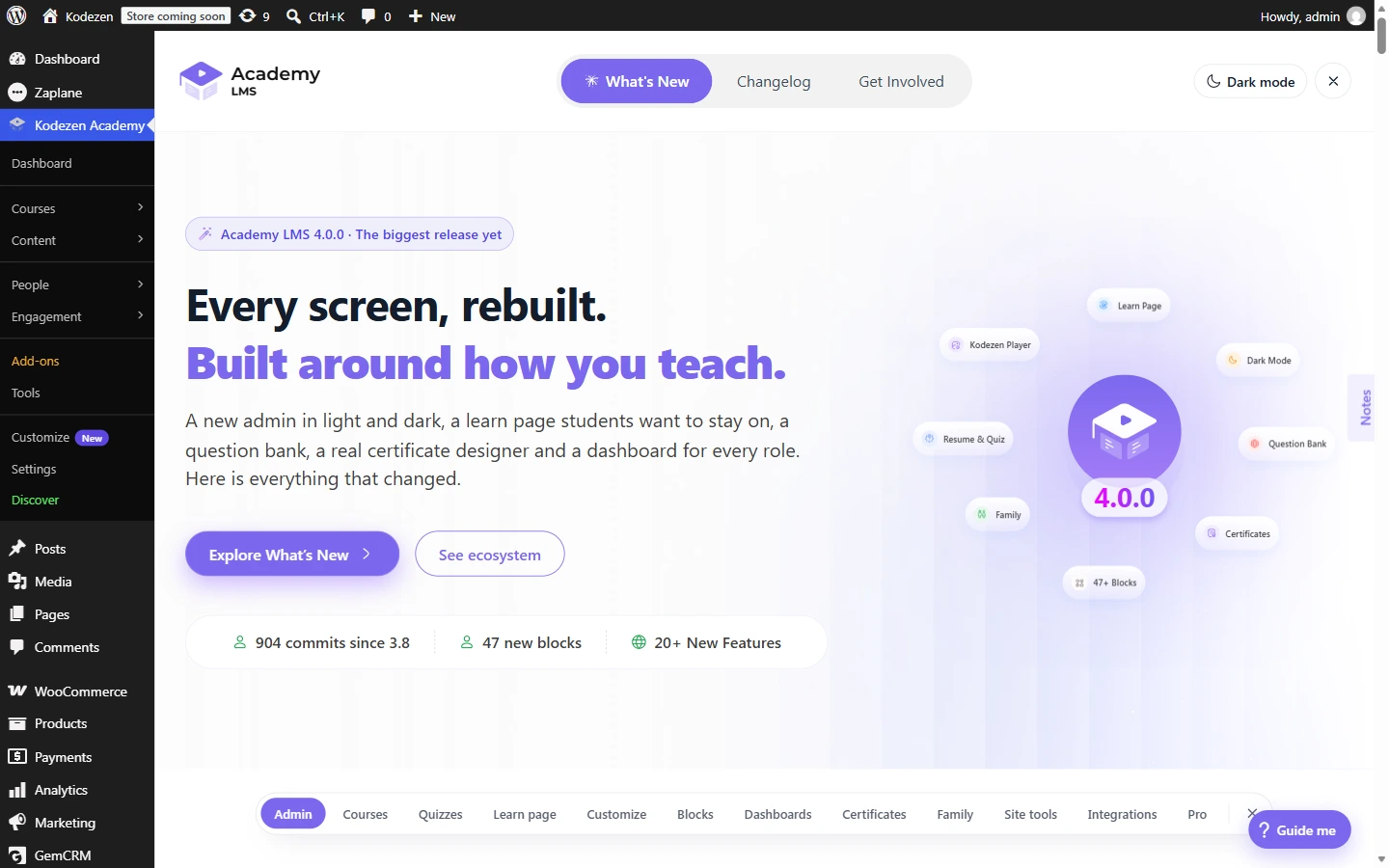
The bar at the top has everything you need to move around:
The What’s New tab
This tab is one long page that you scroll through. It is split into chapters, one for each area of the plugin. A bar of links floats near the bottom of the screen. Click any name to jump straight to that chapter. The bar also highlights the chapter you are reading.
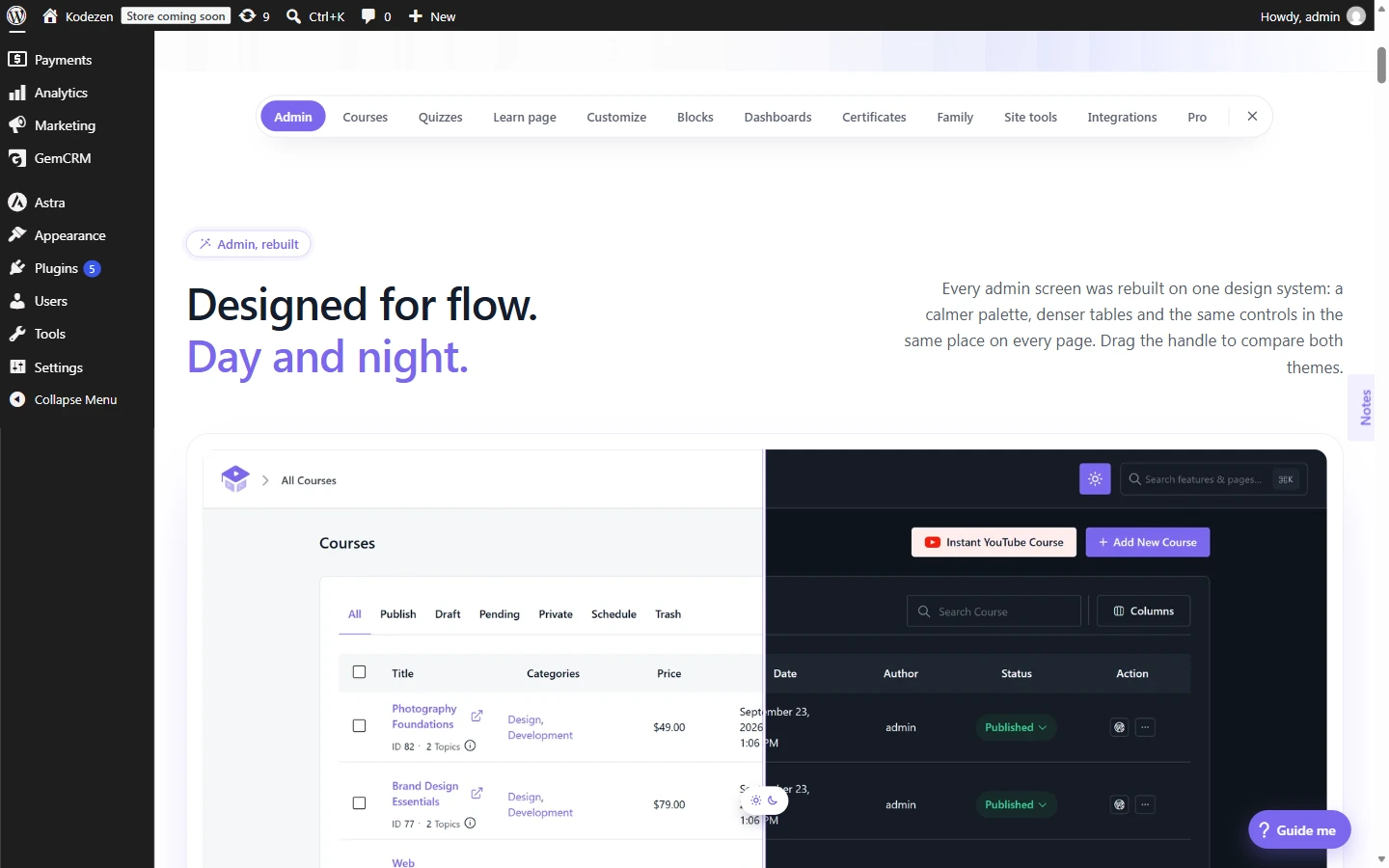
Each chapter has a short headline, a few sentences, and screenshots or demos of the feature. Here is what each chapter covers in the 4.0 release.
|
Chapter |
What you will find |
|
Admin |
The redesigned admin in light and dark, quick search with Ctrl+K, guided tours, and a home screen with a getting-started checklist. |
|
Courses |
Course, lesson, and quiz editors that open as full pages, a drag-and-drop curriculum, and grouped course settings. |
|
Quizzes |
A question bank where you write a question once and reuse it in many quizzes. |
|
Learn page |
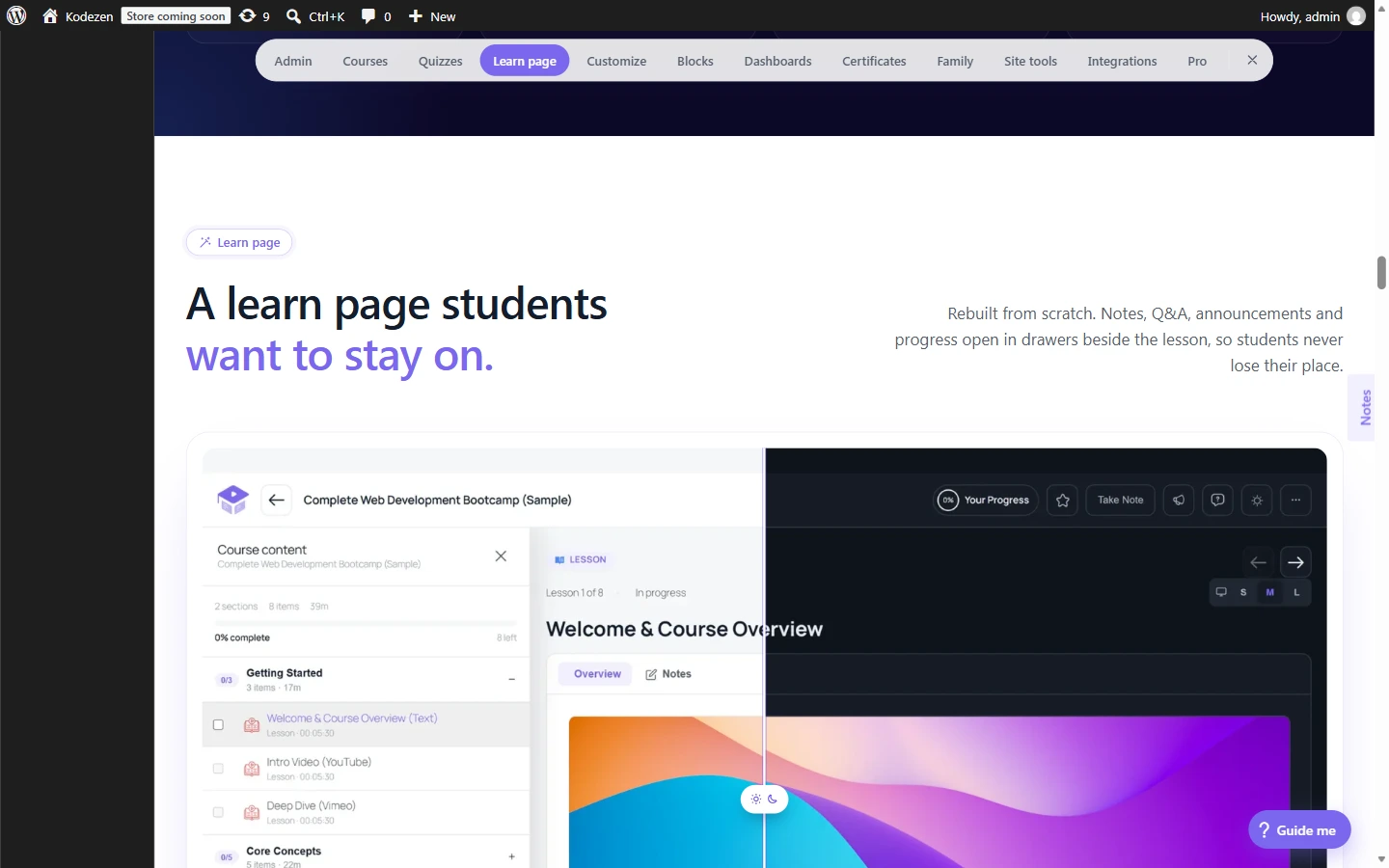
A rebuilt lesson page with drawers for notes, Q&A, announcements, and progress. |
|
Customize |
One screen for colors, course cards, course pages, and the learn page, with a live preview. |
|
Blocks |
47 blocks and block templates, so you can edit Academy pages in the Site Editor. |
|
Dashboards |
A separate dashboard area for learners, teachers, and family, with a “Viewing as” switch. |
|
Certificates |
A Certificate Builder with a drag-and-drop canvas and a PDF preview. |
|
Family |
A guardian role that lets parents follow their children’s progress. |
|
Site tools |
Maintenance Mode, a filtered Add-ons screen, and the Discover page. |
|
Integrations |
New connections with other Kodezen plugins and popular WordPress plugins. |
|
Pro |
Features for Academy LMS Pro, such as a course timer and tutor booking. |
Tip: You do not need to read every chapter. Use the chapter links to jump to the areas you use most.
Updating an existing site?
Near the end of the What’s New tab, a section called Updating an existing site? lists the changes that could affect a site that is already live. Read it right after you update. It tells you what to check so nothing surprises your students.
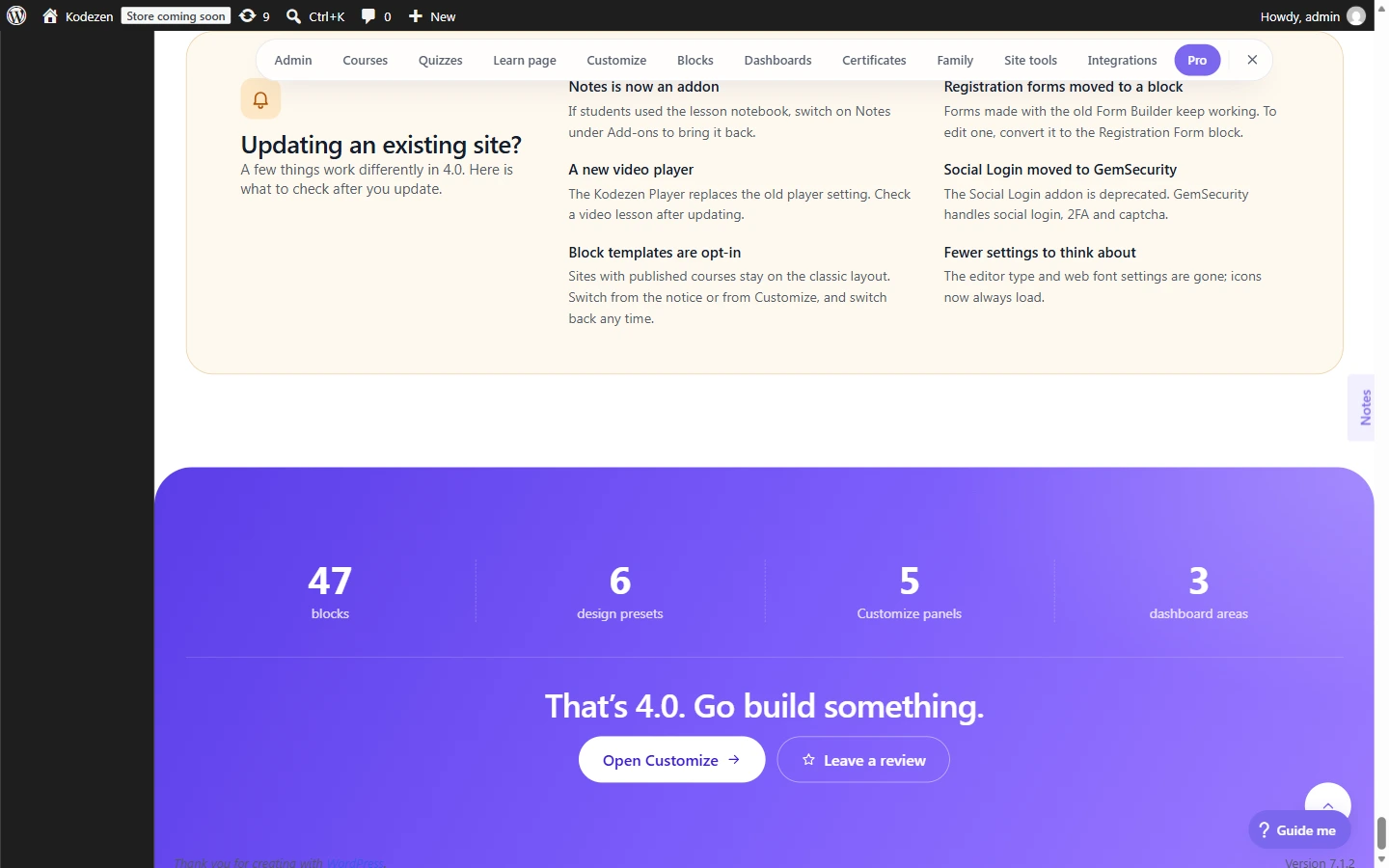
For the 4.0 release, the list includes these items:
The Changelog tab
The Changelog tab is the complete, detailed list of changes. Use it when you want the exact wording of a fix or a new option. It has three sub-tabs at the top: Old Release, Current Release, and New Features.
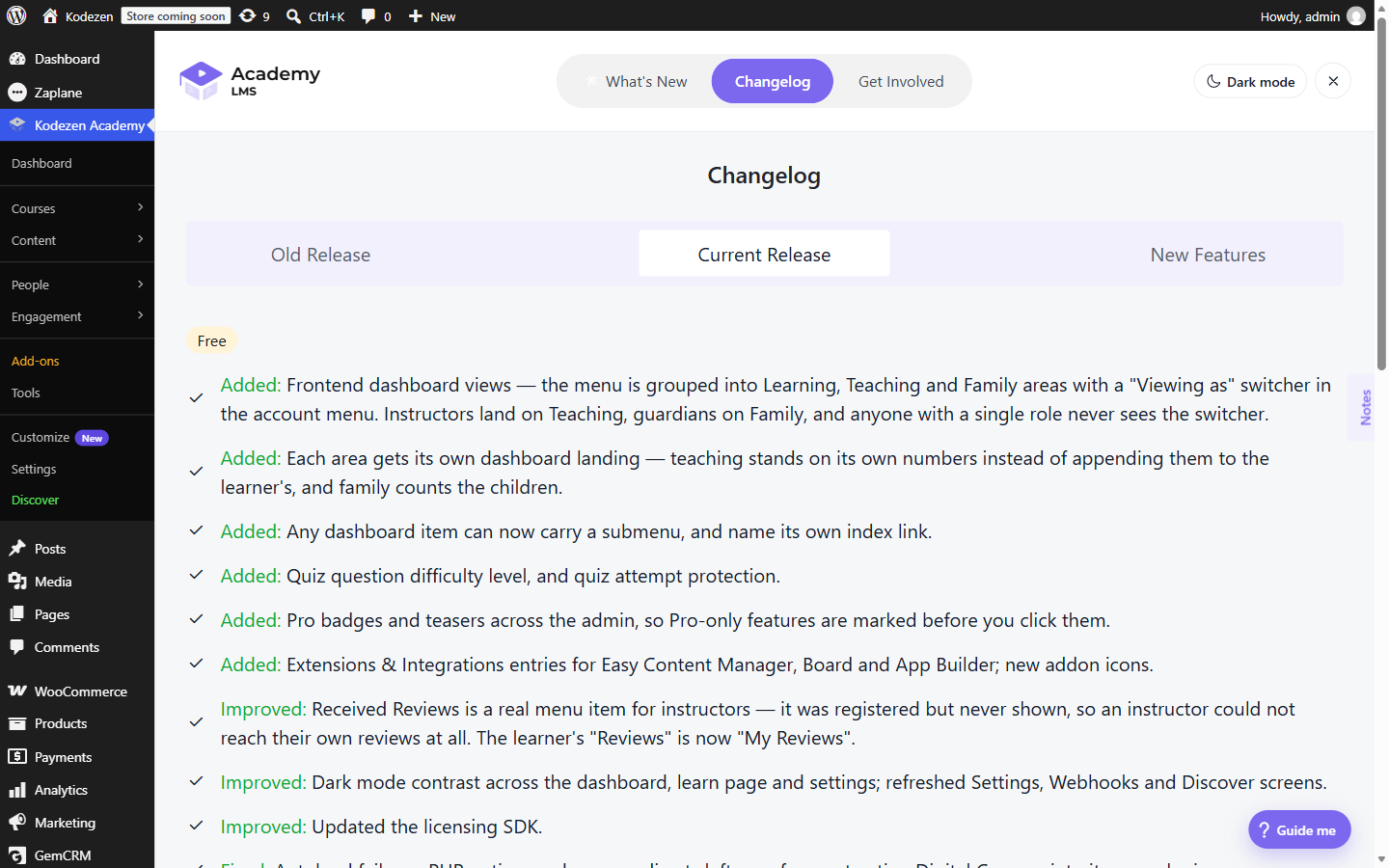
Each line starts with a label. Added marks something new, Improved marks a change to something that already existed, and Fixed marks a bug fix. A small tag such as Free shows whether the change is in the free plugin or in Pro.
The Get Involved tab
The last tab has three cards with useful links. Each link opens in a new browser tab.
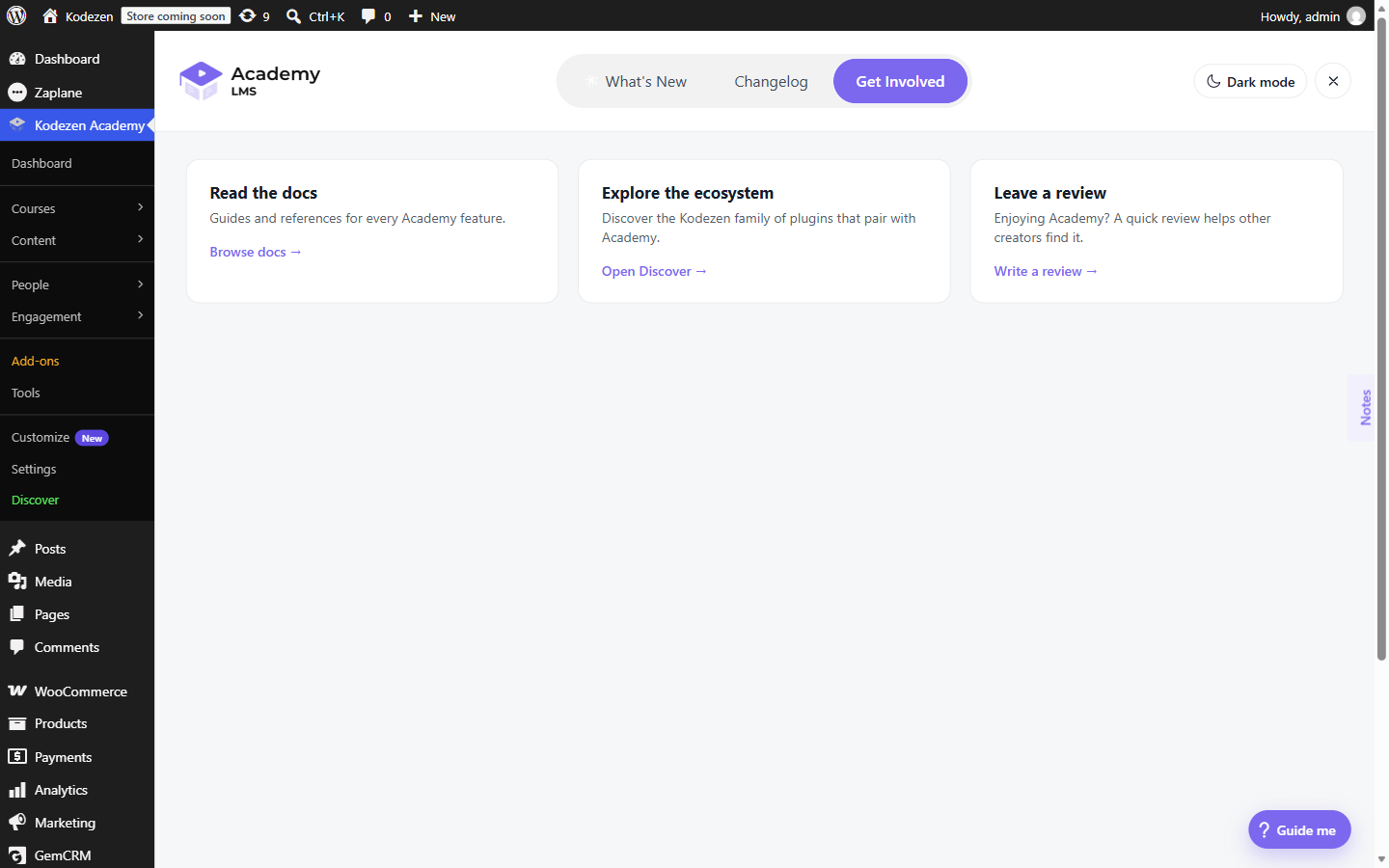
Read the docs: guides for every Academy feature.
Explore the ecosystem: the Discover page, with other Kodezen plugins that work with Academy.
Leave a review: a quick review on WordPress.org helps other creators find the plugin.
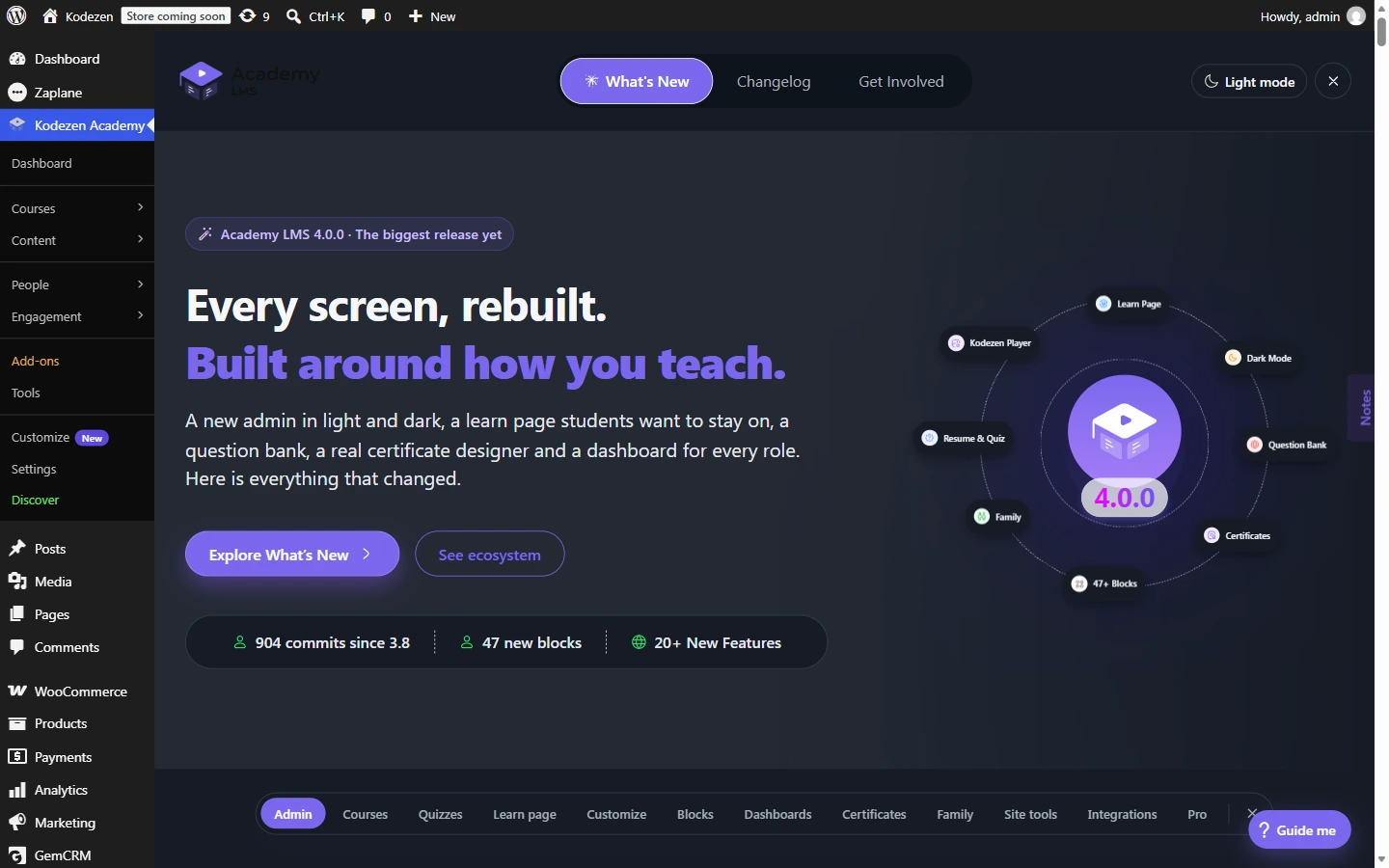
Dark mode
Press Dark mode in the top bar to switch the page to a dark theme. The button then changes to Light mode. Your choice is remembered, and it also applies to the rest of the Academy admin.
Common questions
Why did an About page open when I logged in?
Academy LMS was updated. The page opens once after an update so you can see what changed. It will not open again until the next update.
How do I open it again?
Go to yoursite.com/wp-admin/admin.php?page=academy-about. It is always available to administrators.
Why is there no About link in the menu?
It is hidden on purpose. The page is meant to appear after an update, not to sit in the menu all the time.
Will the page open in the middle of an update?
No. It waits until the update finishes and opens on the next normal admin screen. It also skips form submissions and bulk actions, so it never interrupts your work.
Where can I see the full list of changes?
Open the Changelog tab on the About page. It lists every added, improved, and fixed item.