









Set how your courses look in one place: brand colors, the course catalog, the course page, the learn page and the student dashboard. A live preview shows your changes before you save. This screen controls layout and colors, not course content.
Open the Customize screen
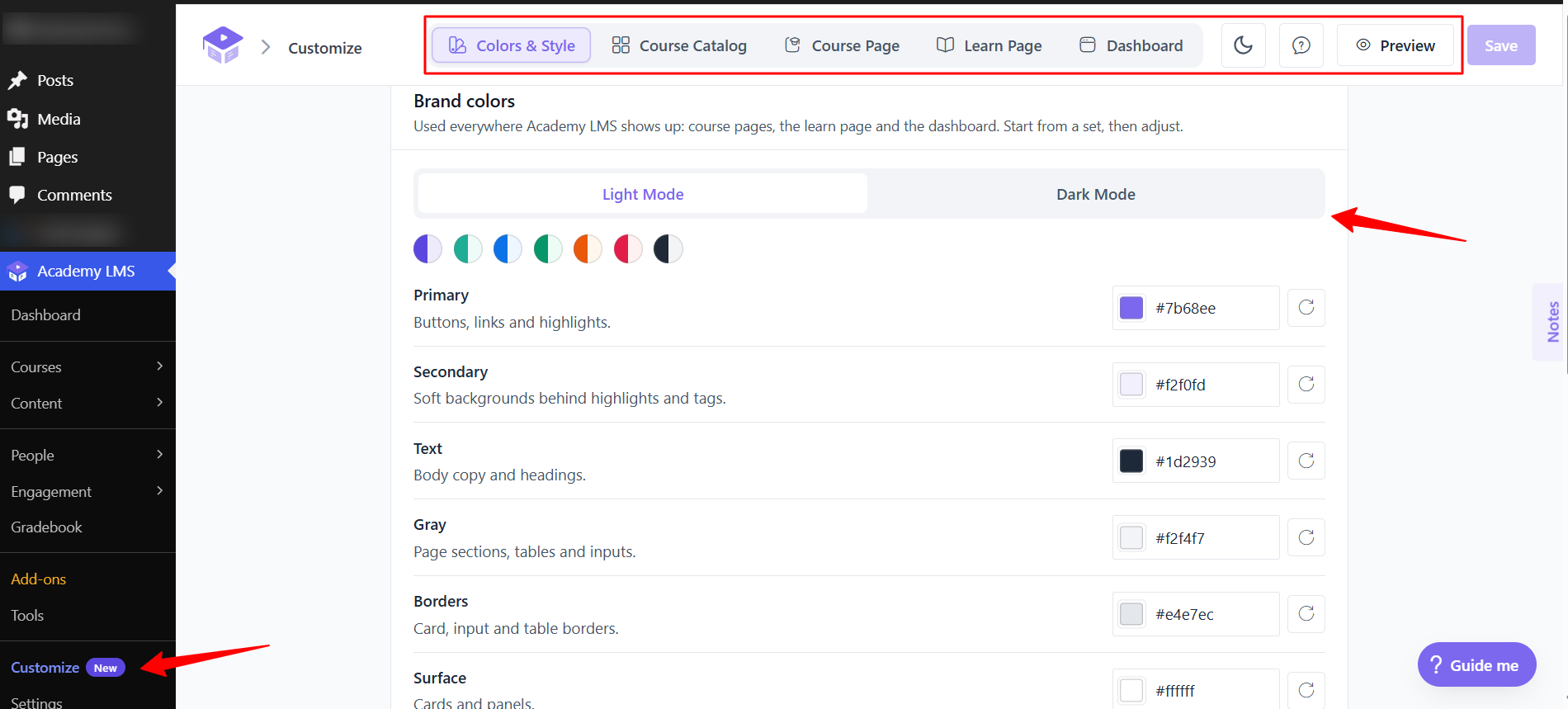
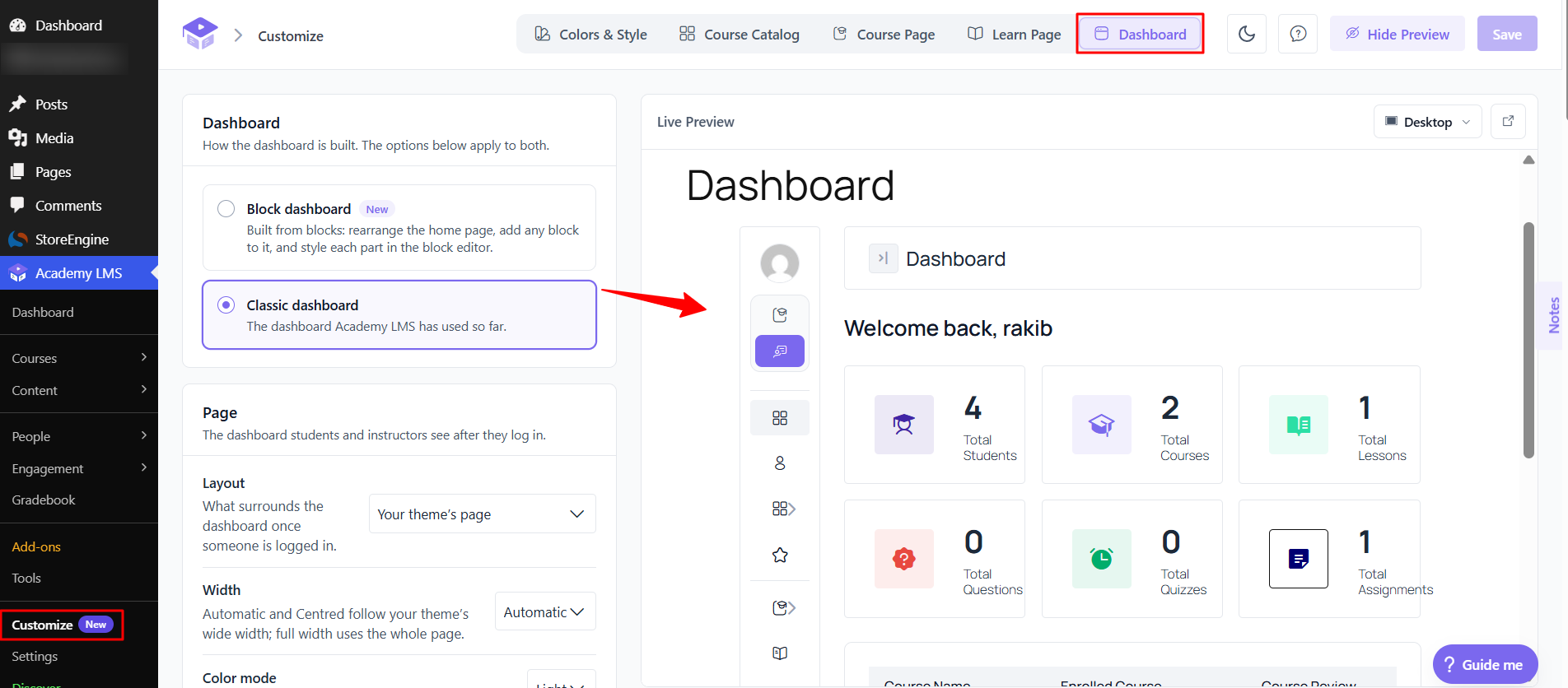
Go to Academy LMS → Customize. Switch areas with the tabs at the top: Colors & Style, Course Catalog, Course Page, Learn Page and Dashboard.
Click Preview to see changes on your real site, or Save to publish them. Nothing changes on the site until you save.
Colors & Style
Your brand colors are used everywhere Academy LMS appears, in light and dark mode.
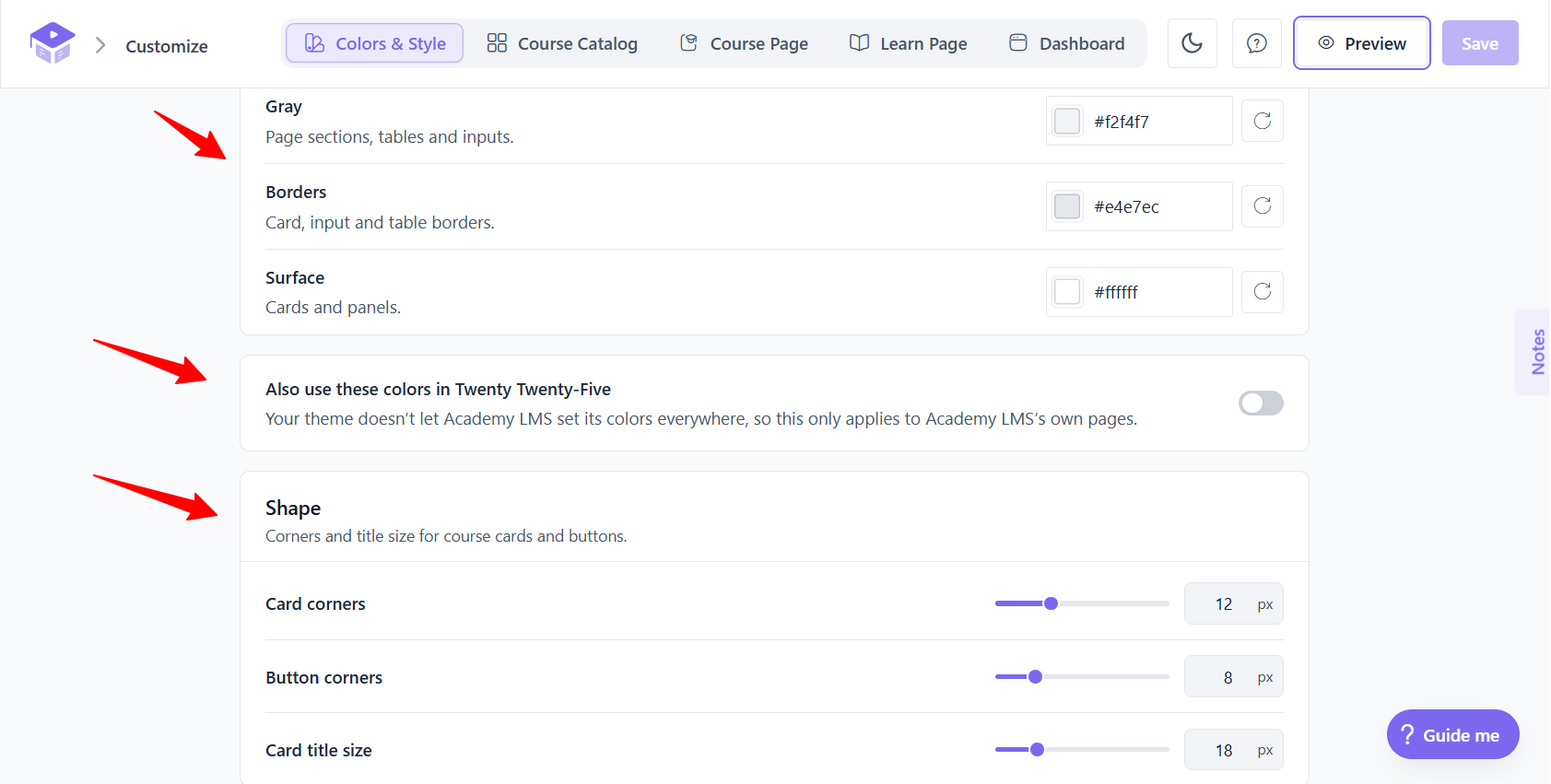
Course Catalog and Course Page
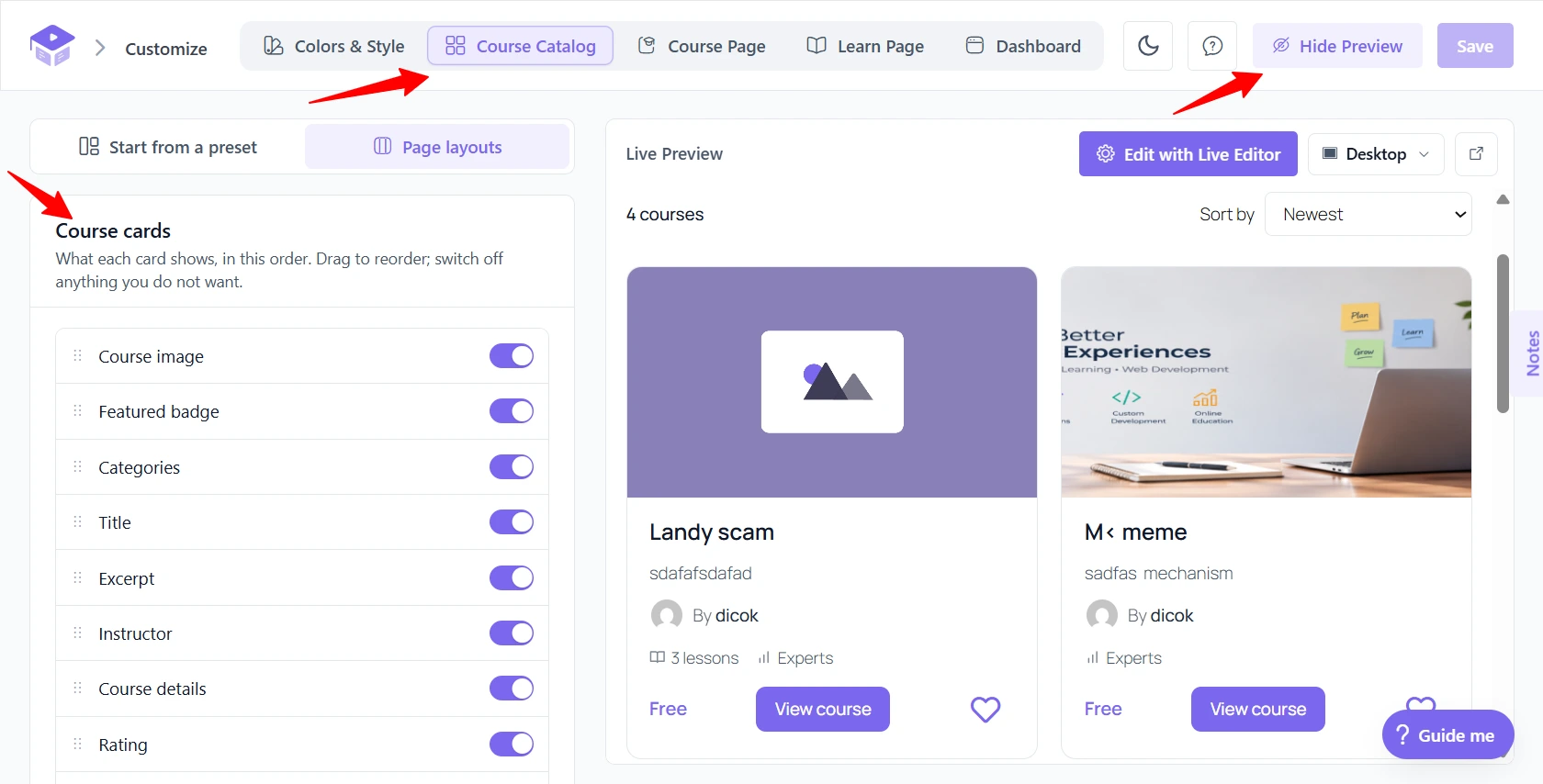
Course Catalog sets what each course card shows and in what order, the image shape, how many columns on desktop, tablet and mobile, and where the filters sidebar sits.
Course Page sets which sections appear on a single course page, their order, and where the enroll box sits.
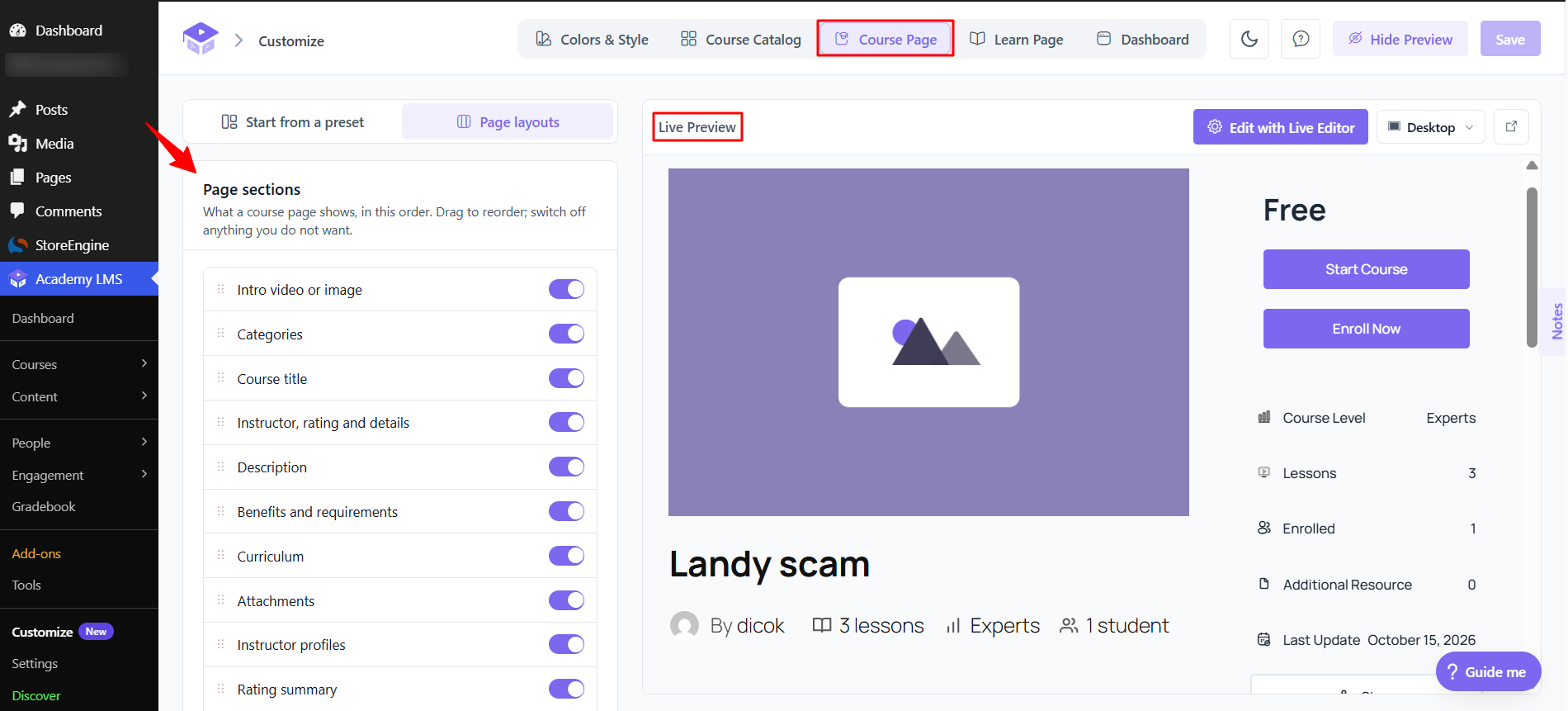
Both tabs offer Start from a preset (a ready-made look in one click) or Page layouts (set each element yourself). For anything else, click Edit with blocks to open the card or the whole page in the block editor. See Block Templates & Site Editor.
If your course pages still use the classic layout, a notice explains that these layout settings apply after you switch to block templates. You can switch back any time.
Learn Page
Choose the learn page engine, the curriculum position and width, the top bar items and the colors. See Learn Page: Classic vs Block.
Dashboard
Set the frontend dashboard’s layout, menu names and order, home page, dark mode and colors.
The WordPress Customizer
Academy LMS also adds an Academy LMS panel to Appearance → Customize, with sections for Course Archive, Course Single, Booking Archive, Booking Single, Learn Page and Frontend Dashboard.
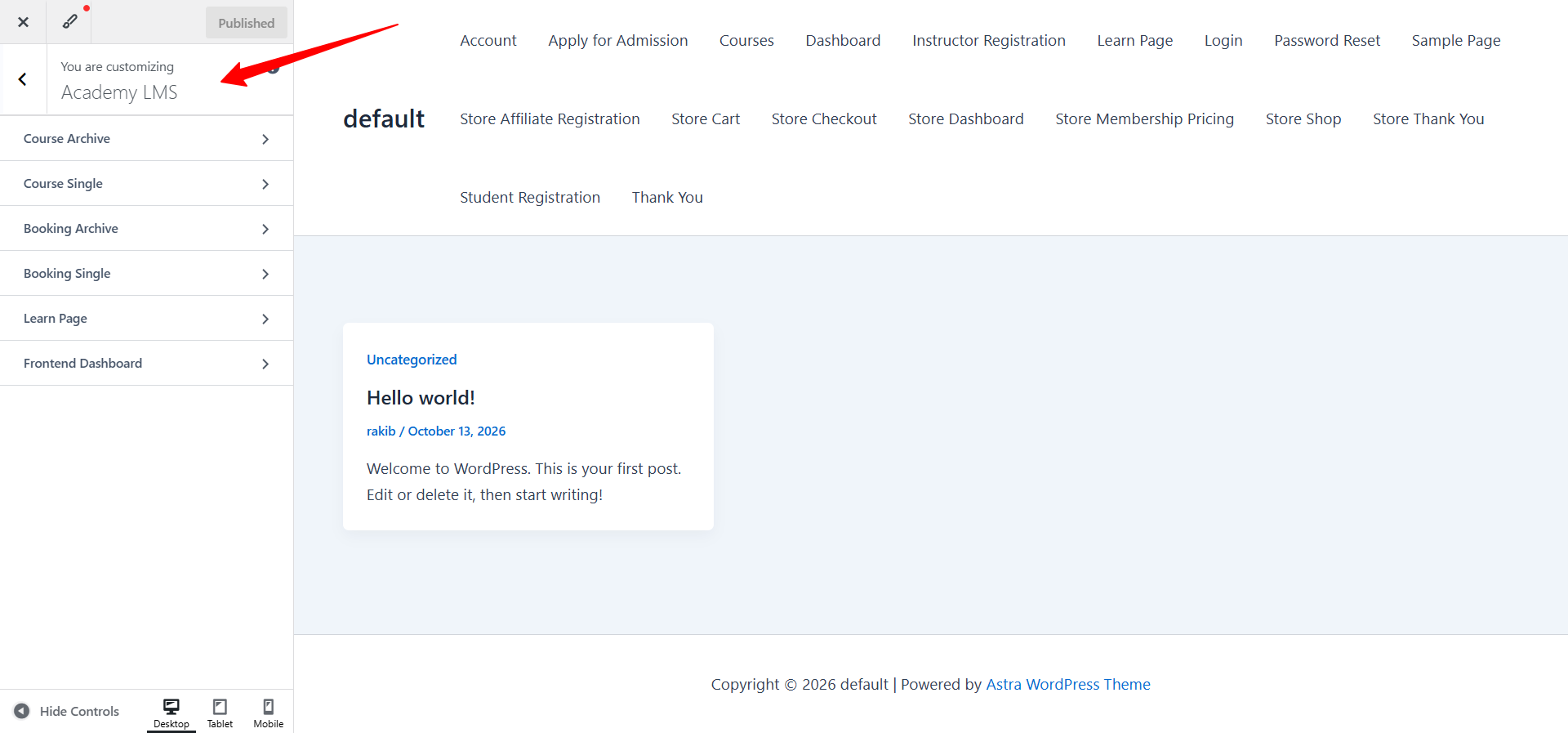
The Learn Page and Frontend Dashboard sections hold the same color settings as the Customize screen. Use whichever you prefer.
On classic themes, style the catalog and course page in the WordPress Customizer’s Course Archive and Course Single sections. On block themes, use the Customize screen.