









Install Academy LMS, add Academy LMS Pro if you need it, activate your license, and keep the plugin up to date. Check the System Requirements first.
Install Academy LMS (Free)
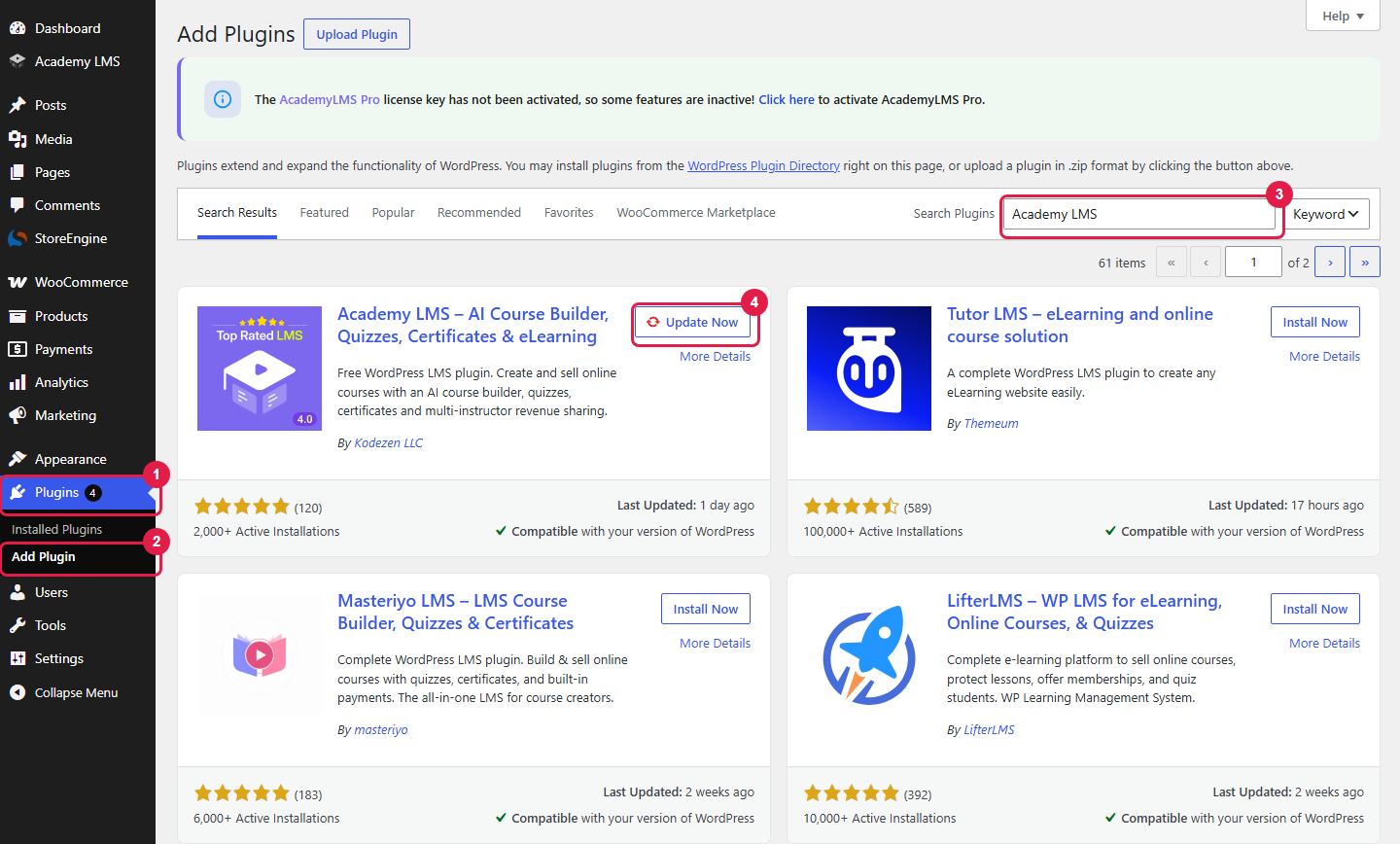
From the WordPress dashboard
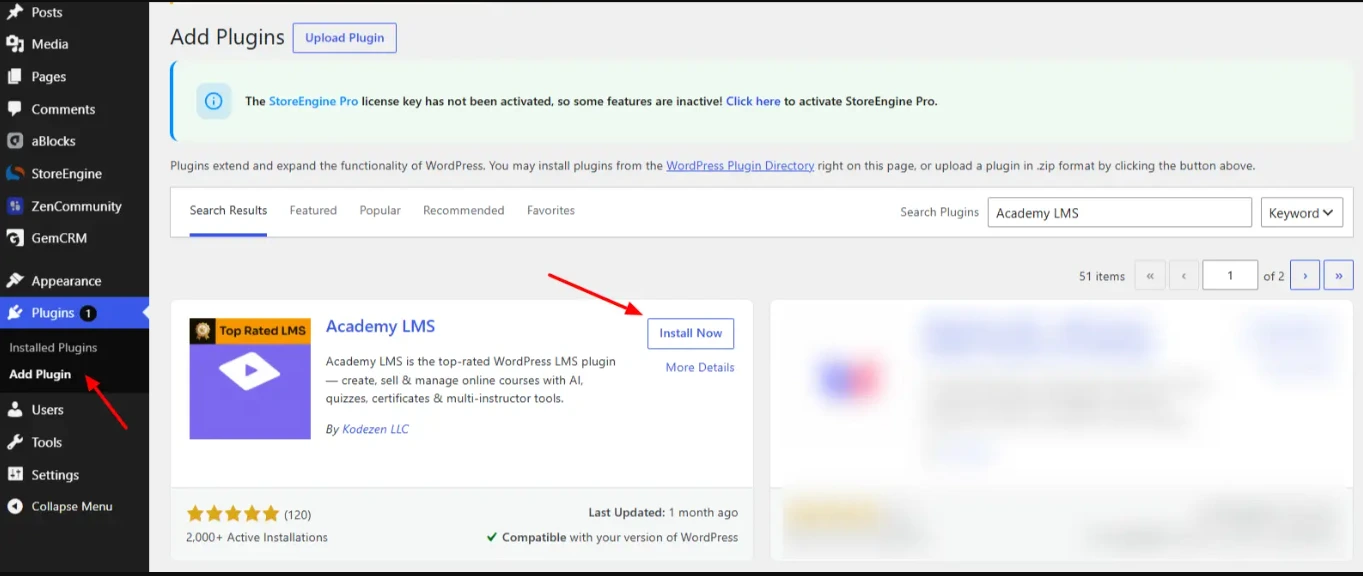
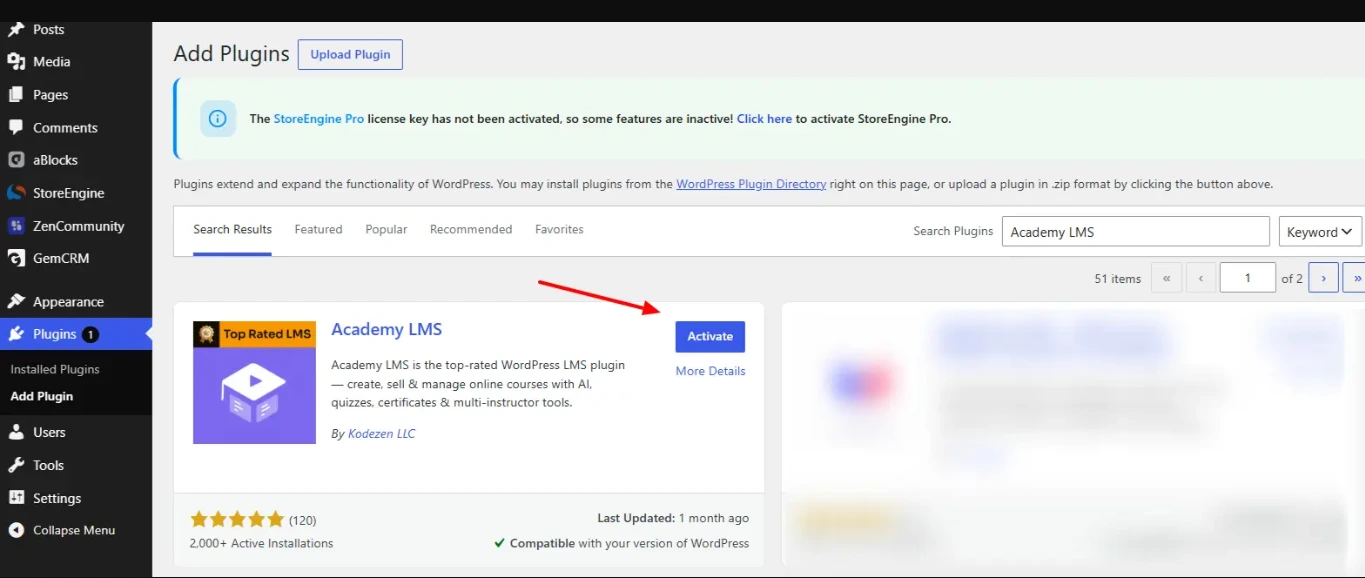
The Academy LMS menu now shows in your admin sidebar.
After activation, a short Setup Wizard opens. Follow the steps on screen. You can skip it and change every choice later in Academy LMS → Settings.
From a ZIP file
Use this if you already have the plugin file.
academy.zip file and click Install Now.By FTP
Use this if your server blocks uploads or the file is larger than your upload limit.
academy.wp-content/plugins/ on your server.Install Academy LMS Pro
Pro is a separate plugin. It works on top of the free plugin and does not replace it. Keep both plugins active.
1. Buy Academy LMS Pro
Go to the Academy LMS pricing page, pick a plan and click Choose Plan. You finish the purchase at the Kodezen store.
Have a coupon? On the checkout page, enter it in the Coupon Code box under Order details and click Apply. The discount shows in the total before you pay.
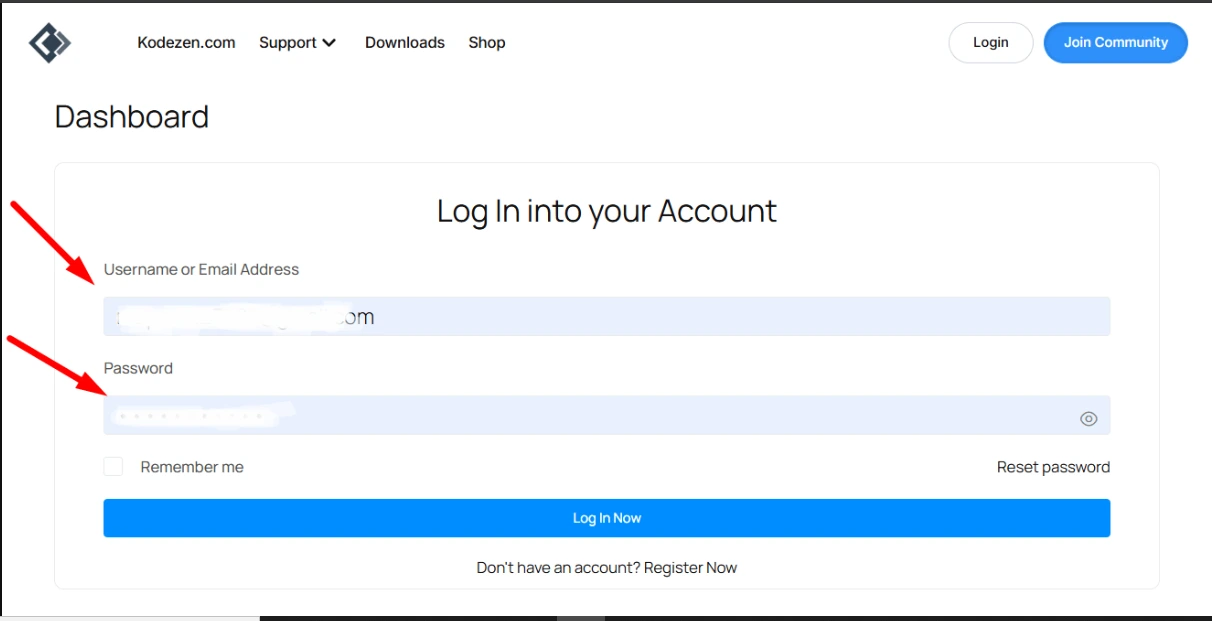
After payment, Kodezen emails your login details.
2. Download the Pro plugin
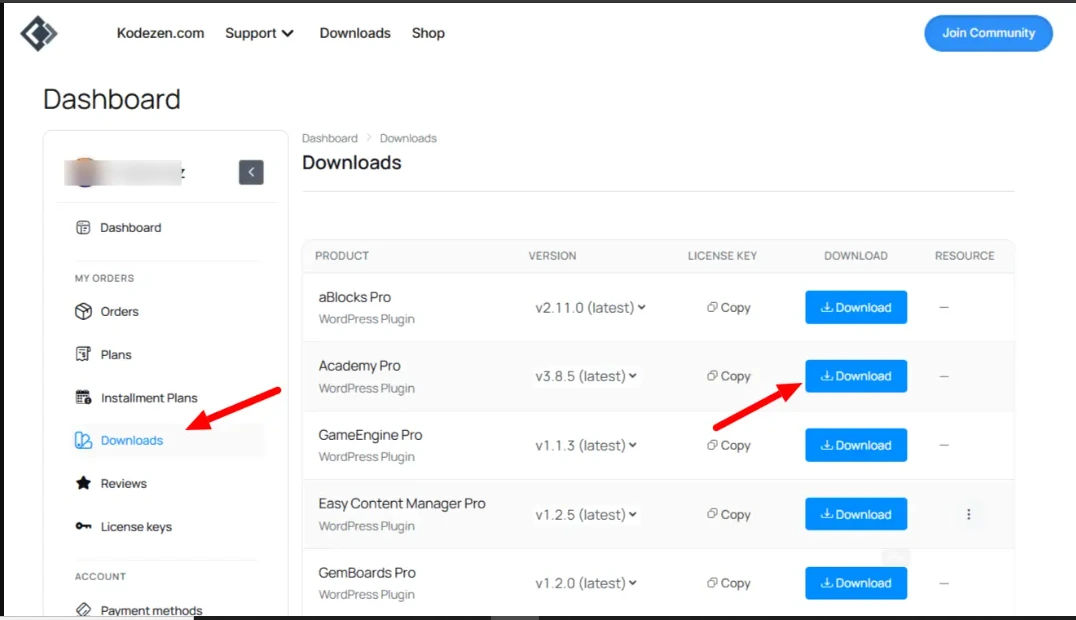
3. Install and activate Pro

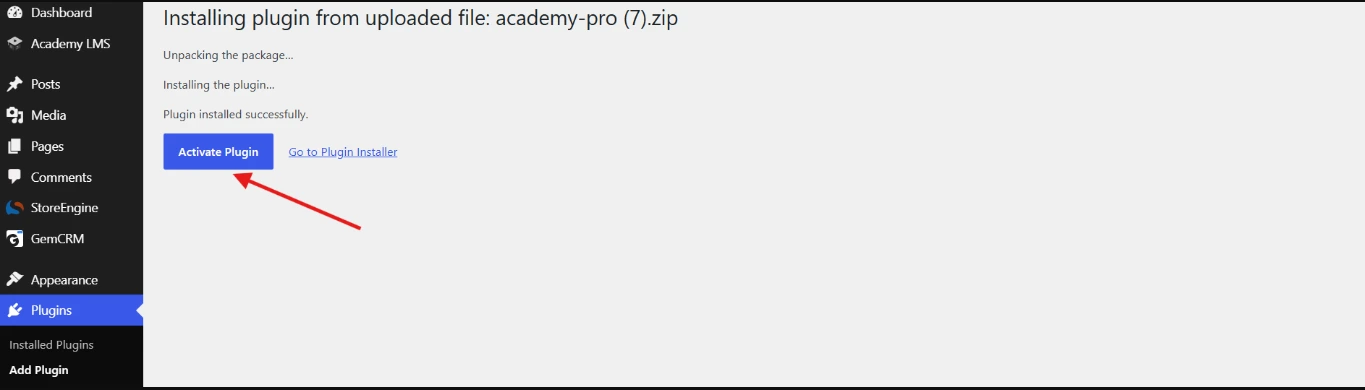
Go to Plugins → Installed Plugins. Both Academy LMS and Academy LMS Pro should show as active.
Activate your license
Pro needs an active license for updates and support.
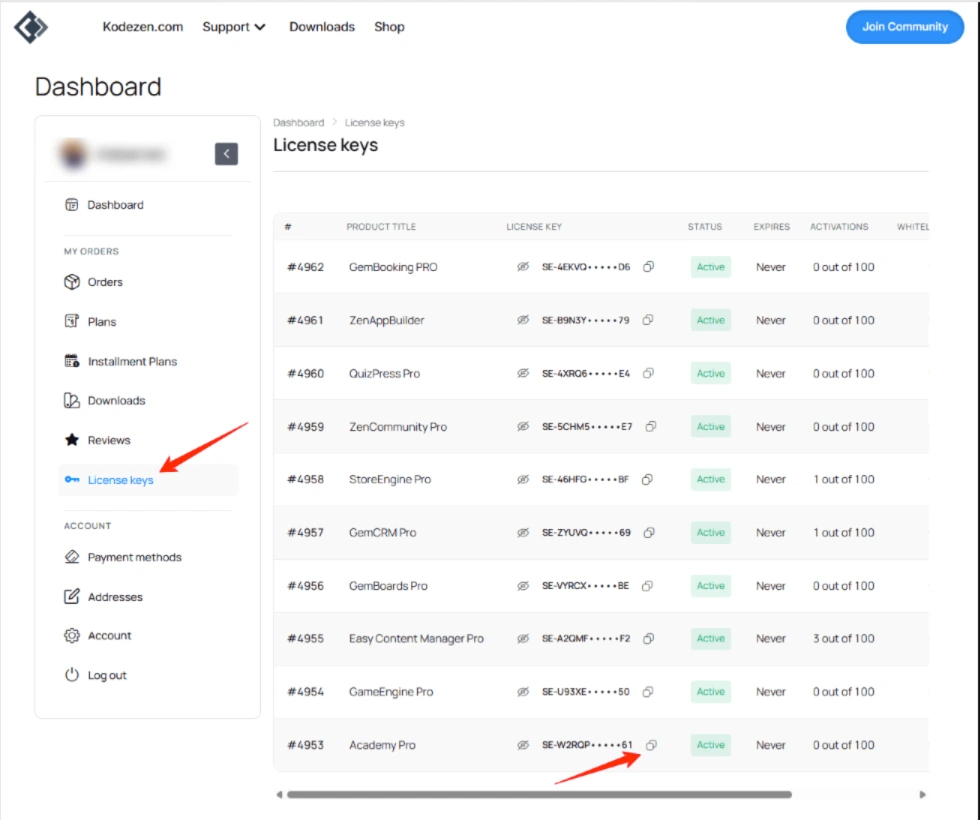
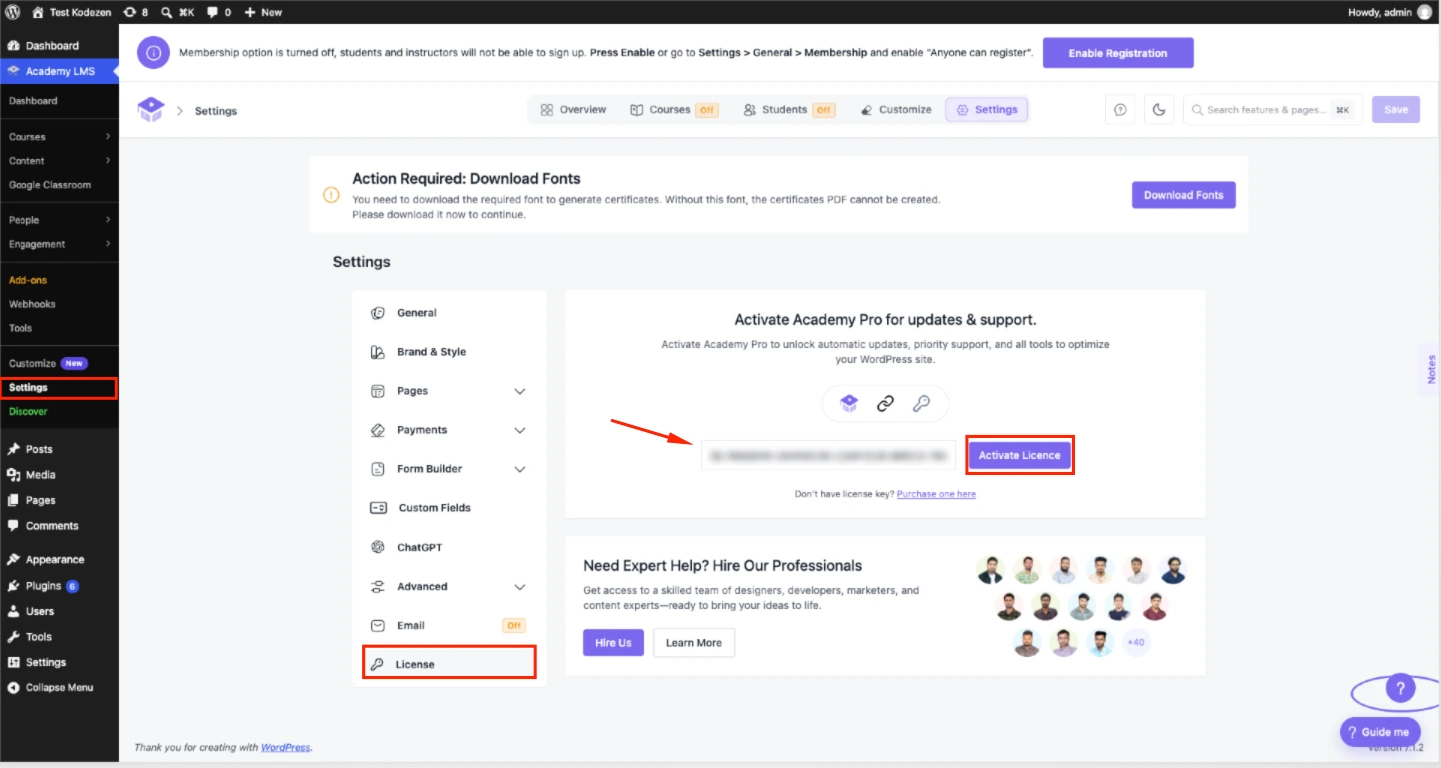
When the license is active, the page shows its Status, Last Checked, Expires date and how many sites use it. Manage License opens your Kodezen dashboard, where you can move the license to another site.
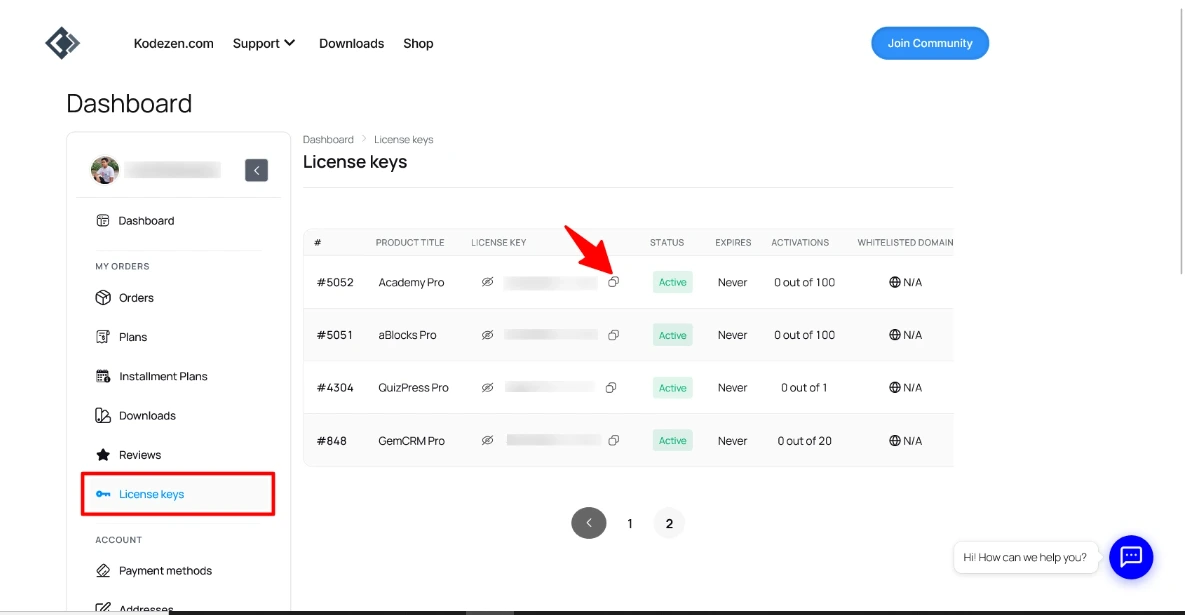
Expired (in red) means updates and support stop until you renew. The plugin keeps working.
Do not share your key in public, and do not use it on more sites than your plan allows.
Update Academy LMS
With an active license, Academy LMS → Settings → License shows your Installed and Latest version.
The WP Auto-update indicator shows whether WordPress updates Academy LMS automatically. You can change that on the Plugins screen.
Try beta versions
Want new features before release? Turn on Receive beta updates on the License page. Check for updates will then also offer pre-release versions. Turn it off to go back to stable releases only.
Test beta versions on a staging site first.
Roll back to an earlier version
If something breaks after an update, you can go back.
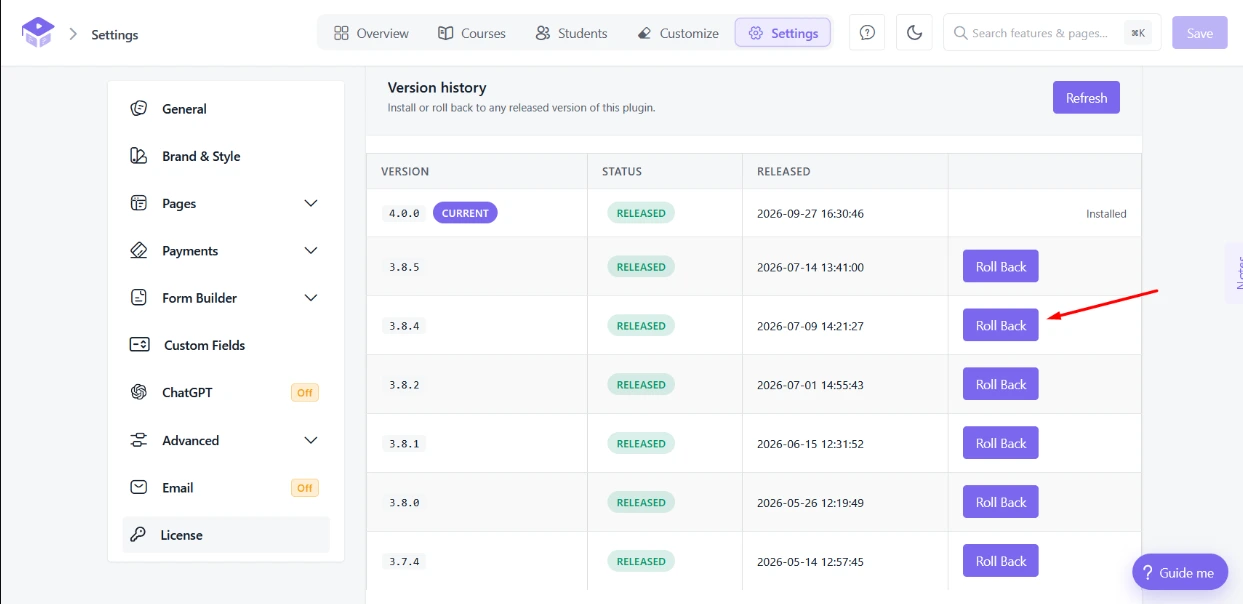
A version with big changes may ask you to confirm. Very old versions may show Rollback blocked if they are no longer supported.
Troubleshooting
Pro shows “Activate the Academy LMS Plugin” or “Install and Activate the Academy LMS Free Plugin”. The free plugin is inactive or missing. Click the button in the notice to fix it. Pro needs the free plugin to run.
Pro shows an “old version of Academy” notice. Your free plugin is too old for this Pro version. Click Update Academy Now in the notice.
“Invalid license.” after you click Activate Licence. The key is mistyped, expired or already used on all the sites your plan allows. Copy it again from License Keys. If the site limit is the problem, free a site from the Manage License in your Kodezen dashboard.
The upload fails or times out. Your server’s upload limit is too low for the ZIP. Install by FTP instead, or ask your host to raise the limit.