Academy LMS 4.0 IS LIVE

00
Days
:
00
Hours
:
00
Minute
:
00
Second

Dummy Data

The Dummy Data Seeder is a free, development only add-on that generates a complete sample course in one click, so you have realistic content to test with or demo instead of building it by hand. It creates course categories and tags, a full course with every lesson type, and a quiz covering every question type when the Quizzes add-on is active.

Note: This add-on is meant for development and staging sites, not production. It is designed to be removed anytime, and WordPress will ask you to confirm before seeding on a site it detects as production.

Step 1: Turn on the add-on

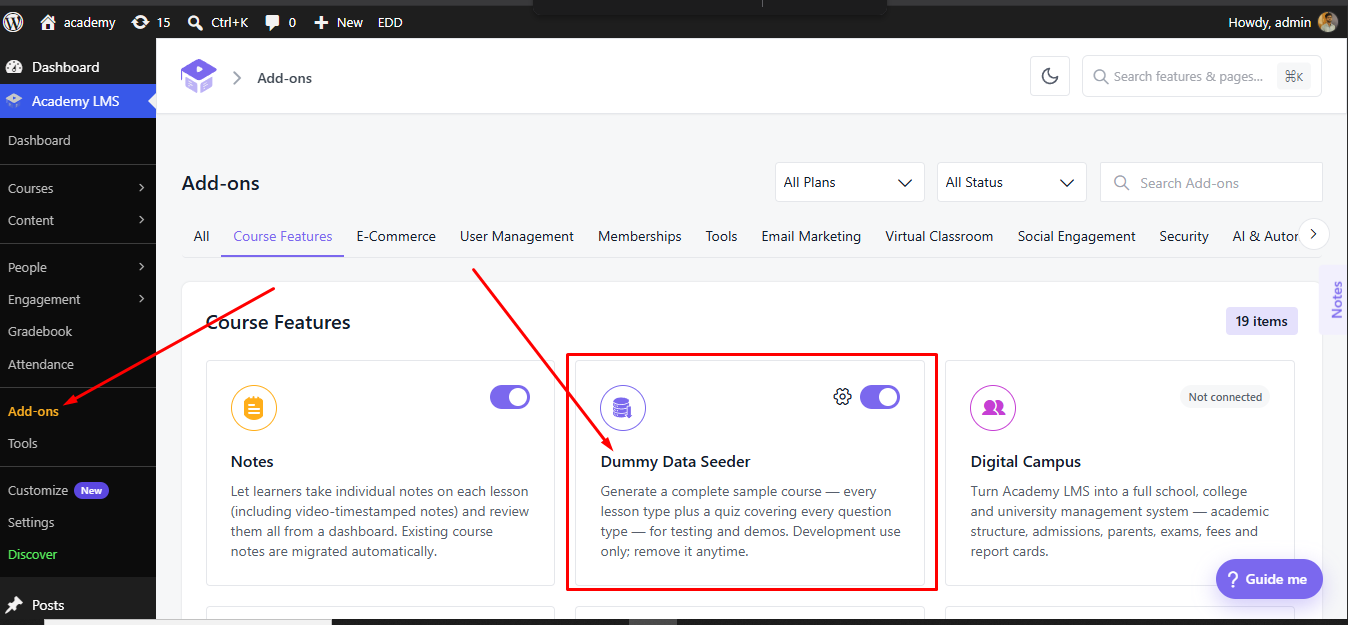
Go to Academy LMS → Add-ons, find Dummy Data Seeder under Course Features, and switch it on.

Dummy Data seeder addon activation

Step 2: Open the Dummy Data tool

Go to Academy LMS → Tools → Dummy Data. You will see two data sets you can generate:
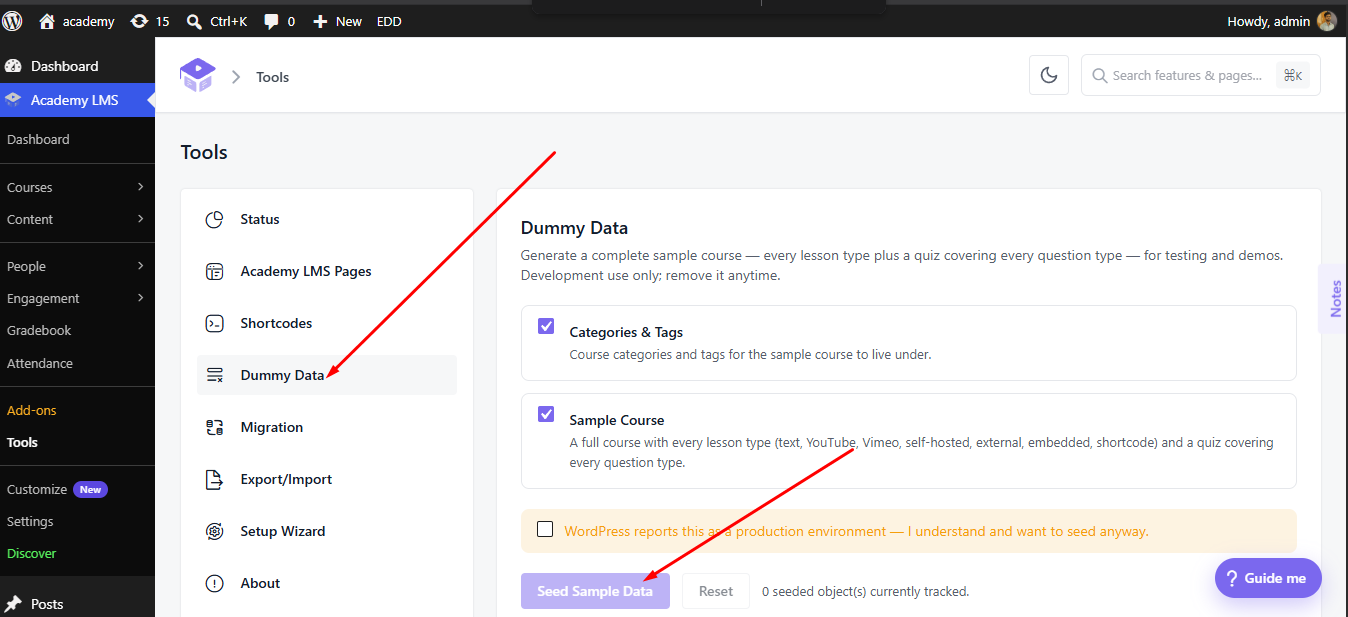
Categories & Tags: course categories and tags for the sample course to live under.
Sample Course: a full course with every lesson type (text, YouTube, Vimeo, self-hosted, external, embedded, shortcode) and a quiz covering every question type.

Both are selected by default. Selecting Sample Course also runs Categories & Tags first automatically, since the course needs somewhere to live.

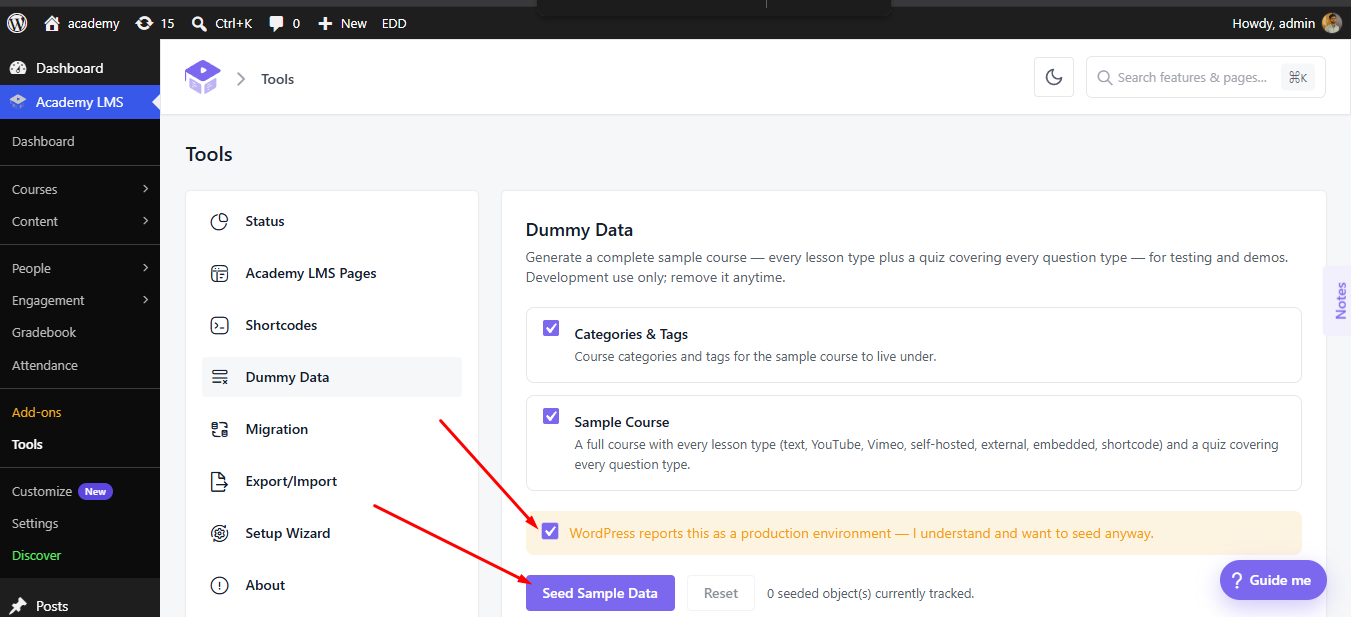
If WordPress reports your site as a production environment, a warning appears (1) with a checkbox you must tick before the Seed Sample Data button (2) becomes available.

Step 3: Seed the sample data

Dummy data sedded action

Tick the boxes for the data sets you want, tick the production warning checkbox if it appears, then click Seed Sample Data. A notification confirms how many objects were created. The new course appears in Academy LMS → Courses, ready to open, edit, or enroll a test student into.

Generated course from dummy data seeder

Step 4: Remove it when you are done

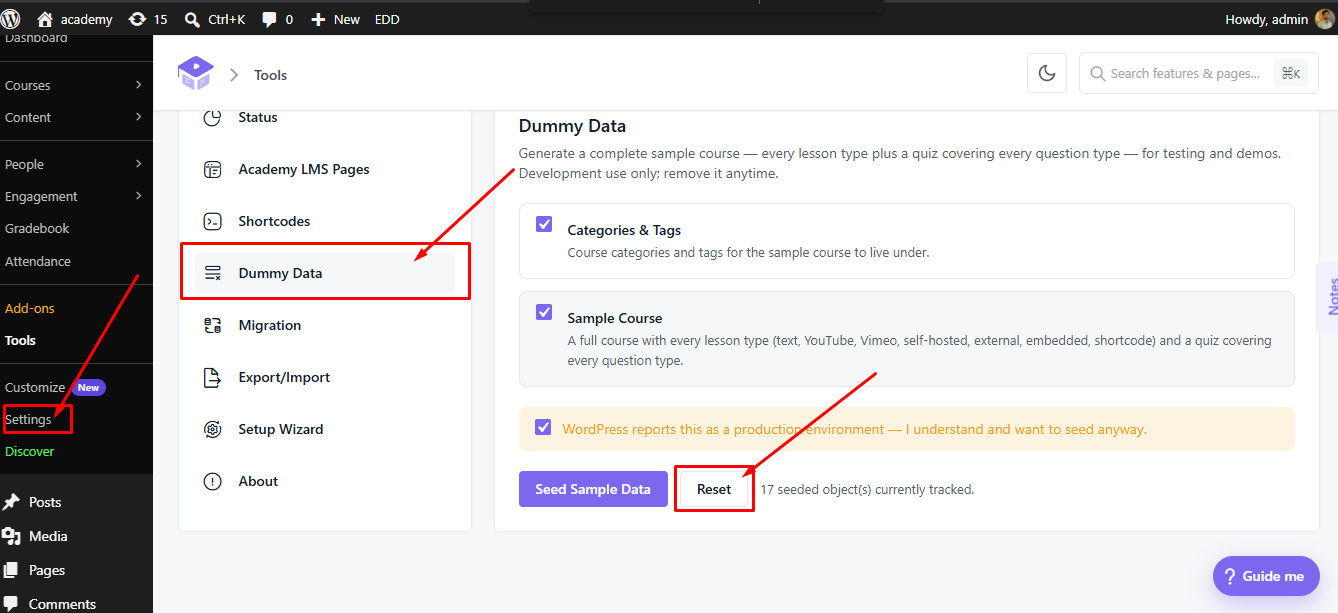
Back on the Dummy Data tab, the tracked object count updates to show how much the seeder has created (1). Click Reset to remove everything it created, all at once. WordPress asks you to confirm, since this cannot be undone.

Data reset and success message

Reset removes every object the seeder has ever created on this site, not only your most recent run, so use it when you want a clean slate rather than to undo a single seed.

Using it from the command line

If you have WP-CLI access, the same generator is available as a command once the add-on is active:

wp academy seed run                # seed the default data sets
wp academy seed run –only=course  # seed only the Sample Course
wp academy seed run –count=3      # create 3 of the selected data sets
wp academy seed reset              # remove everything the seeder has created