Academy LMS 4.0 IS LIVE

00
Days
:
00
Hours
:
00
Minute
:
00
Second

Block templates, Site Editor and Academy blocks

On a block (Site Editor / FSE) theme, Academy LMS integrates directly with WordPress’s native Site Editor: it registers its own block templates for the course catalog and single course page, and it registers a full family of course-related blocks — grouped under an “Academy LMS” category — that those templates (and any other page) can use.

Is your theme a block theme?

Academy checks this with Academy\Helper::is_fse_theme(). In practice: go to Appearance > Editor. If it opens the full Site Editor (templates, styles, patterns, navigation), your theme is a block theme and Academy’s templates are directly editable there. On a classic theme, Academy falls back to letting you edit a synced pattern in the ordinary block editor instead (see “Classic-theme fallback” below) — the Design screen keeps working either way, it just cannot hand you the whole page in the Site Editor.

The dev site used for this doc runs the aria-fse theme, confirmed to be a block theme (wp_is_block_theme() returns true).

The Academy blocks

Academy registers many blocks under includes/blocks/*, grouped into two inserter categories: Academy LMS (search, filters, forms, dashboard, learn page, and course-list blocks) and Academy LMS: Course (single-course elements like price, rating, instructors, curriculum, reviews).

How to access

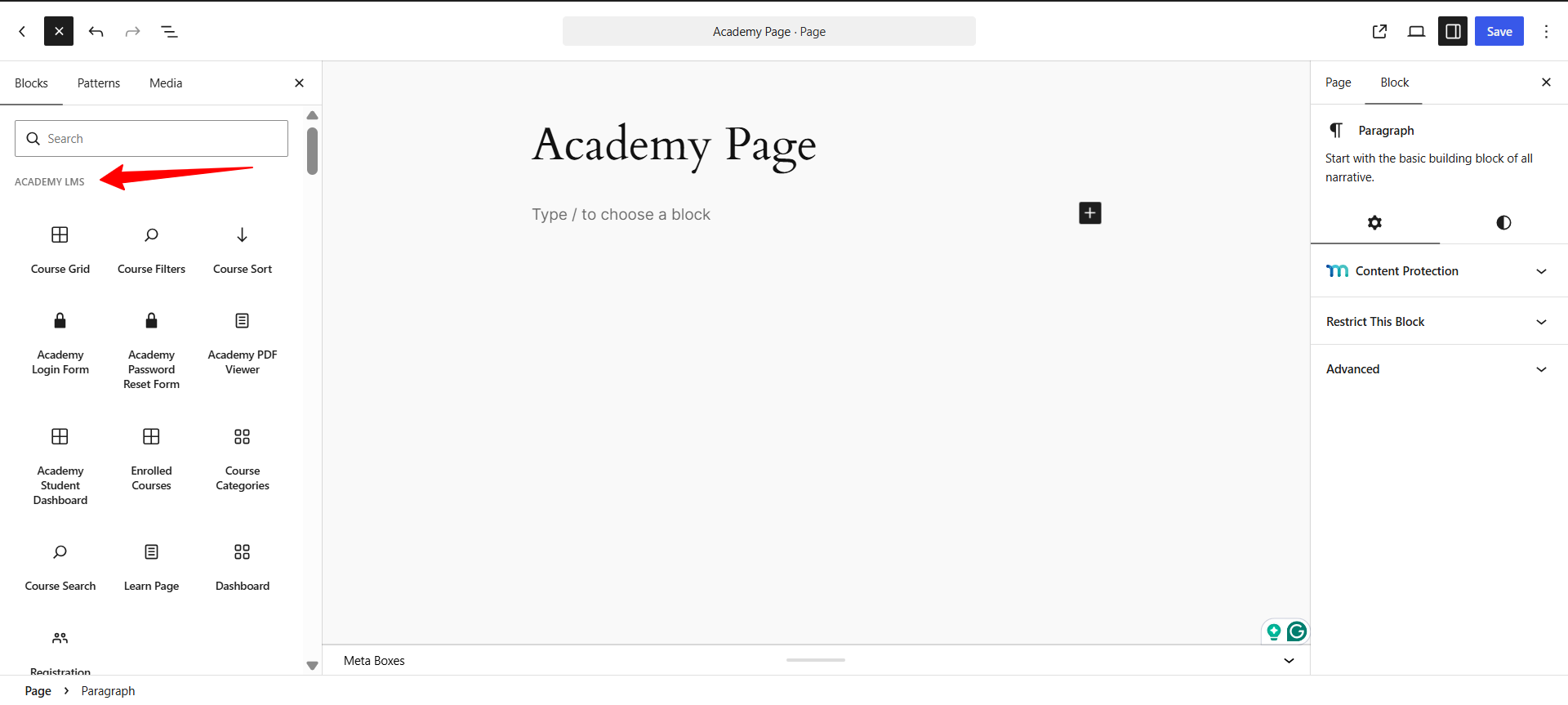
1.Open the block inserter on any page (or inside the Site Editor) and switch to the Blocks tab.
2.The Academy LMS and Academy LMS: Course categories list every available Academy block — Course Grid, Course Filters, Course Sort, Academy Login/Password Reset/PDF/Dashboard blocks, Enrolled Courses, Course Categories, Course Search, Certificate Verification, Social Login Buttons, Learn Page, Dashboard, Registration Form under the first category, and Course Price, Course Rating, Course Instructors, Course Curriculum, Course Reviews, Course Enroll Box/Form, and more under the second.
cademy LMS: Course
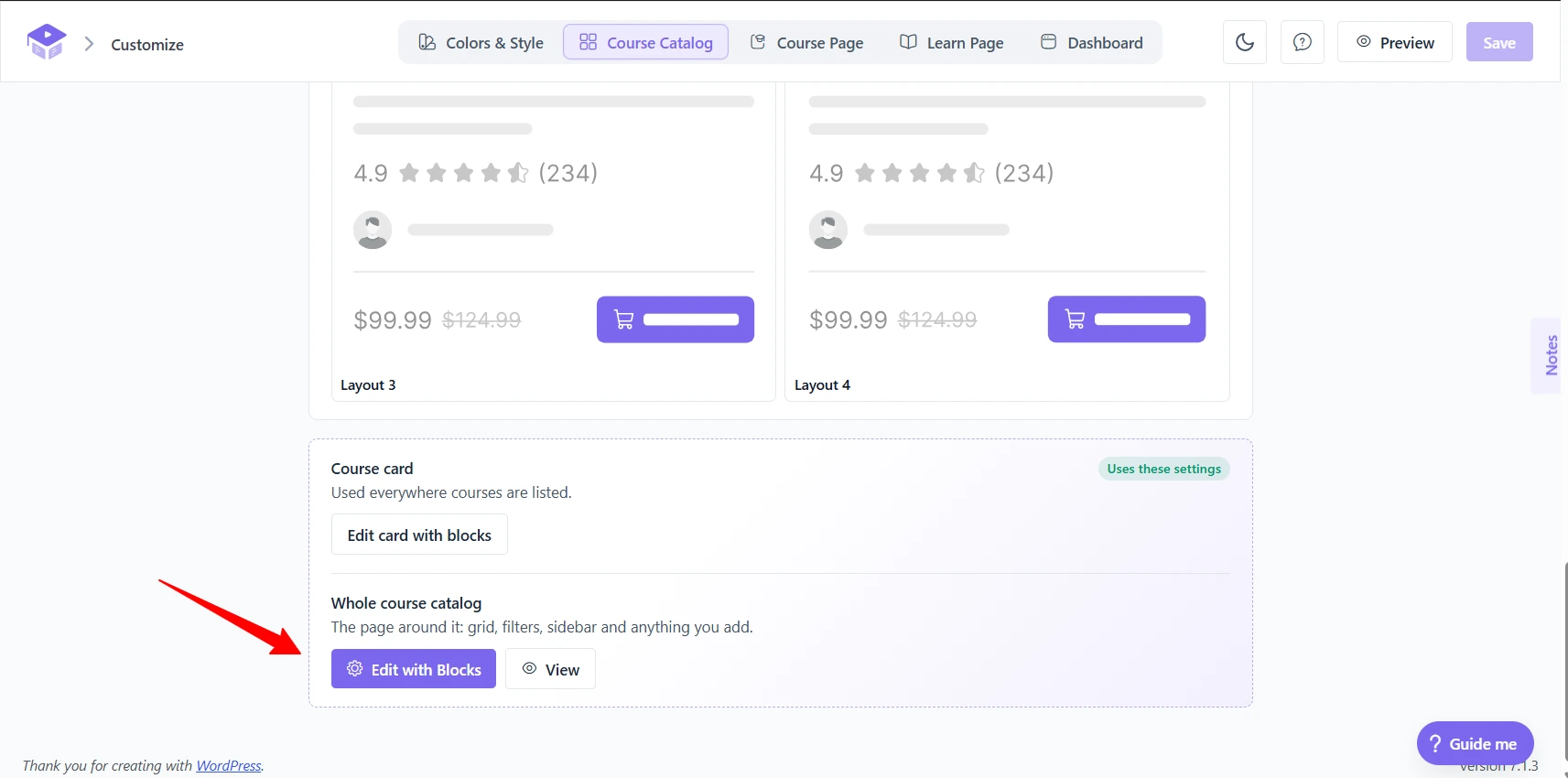
1.To open the Course Catalog or Course Page template directly in the Site Editor, go to Academy LMS > Customize, open the Course Catalog tab, and scroll to the Whole course catalog panel at the bottom. Click Edit with Blocks (there is a matching panel with the equivalent action on the Course Page tab).
Course Catalog
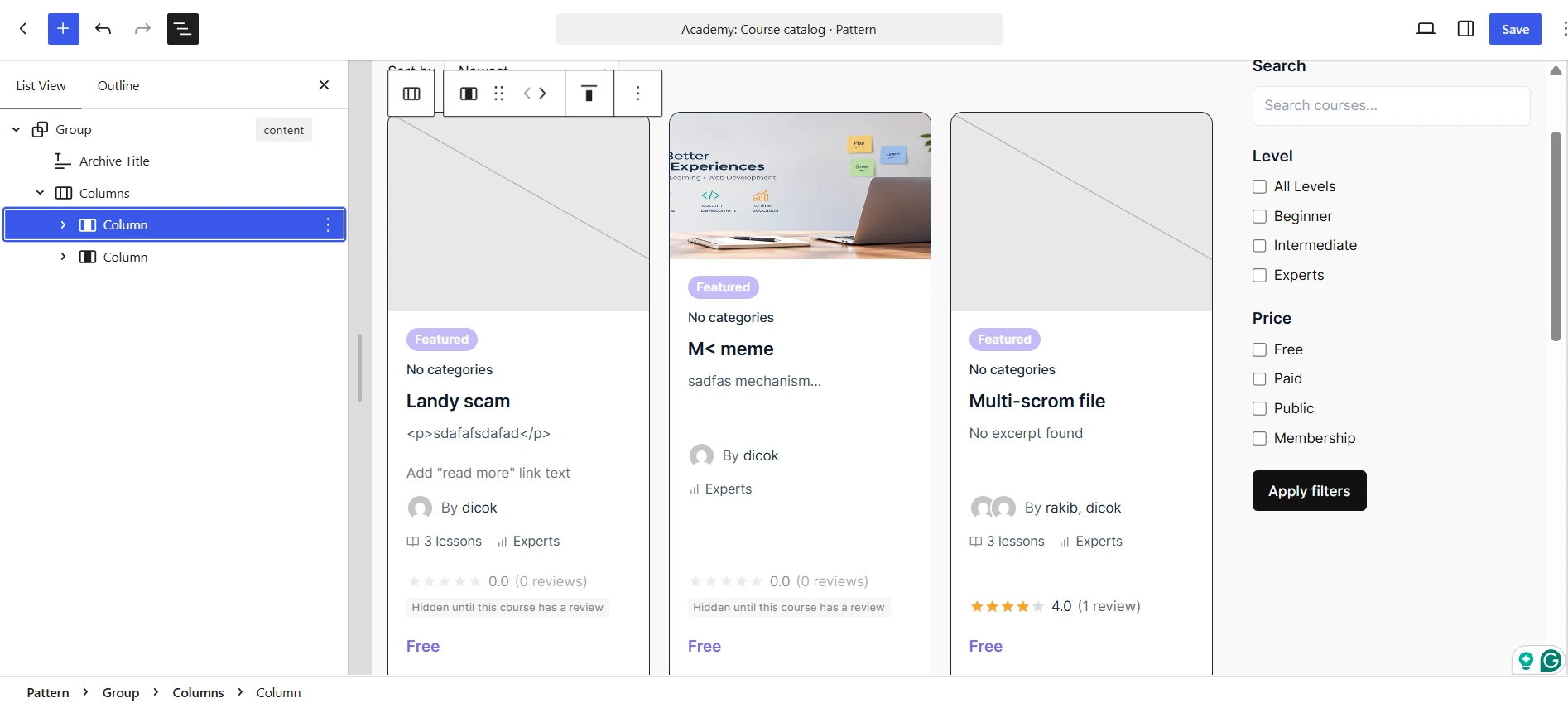
1.This opens site-editor.php?p=/wp_template/...&canvas=edit for the matching template (archive-academy_courses for the catalog, single-academy_courses for the course page), where you can add, remove, or rearrange blocks exactly as you would any other Site Editor template.
academy_courses

On this dev site, the Course Catalog and Course Page still use Academy’s classic (shortcode-based) layout by default, even though the active theme is a block theme — a banner on the Customize screen explains this (“Your course pages still use the classic layout… Switch to the block templates to use everything on this screen — you can switch back”) with a Switch to block templates button. Editing the template in the Site Editor works either way; the banner only affects whether the Customize screen’s own layout controls (cards-per-row, filters sidebar, etc.) apply to it.

Classic-theme fallback

includes/design/patterns.php documents the fallback for themes with no Site Editor: the course card and the whole course-page/course-catalog layout can each be kept as a synced pattern (wp_block post) instead of a template part. When a piece has a pattern, Academy\Design\Templates::pieces() exposes an editUrl of the ordinary form post.php?post={id}&action=edit (via Patterns::edit_url()) rather than a Site Editor URL — so the same “edit the real page” experience is available even without a Site Editor, just through the classic block editor on a reusable pattern post instead of a template.

Field breakdown (Customize screen panels)

Course card / Edit card with blocks — opens just the reusable “course card” pattern used everywhere a course is listed.
Whole course catalog / course page / Edit with Blocks — opens the full template (Site Editor on a block theme, or the pattern’s block editor on a classic theme) with a View link beside it to preview the live page.
Switch to block templates — commits the course pages to the block-template system so the Design screen’s own settings (cards per row, filters position, card style, etc.) stop applying and the block content becomes the source of truth; reversible.

Verification notes

Verified live: confirmed wp_is_block_theme() is true for the active theme; opened the block inserter’s Blocks tab and confirmed both Academy categories and their full block lists; opened Academy LMS > Customize > Course Catalog, found the “Whole course catalog” panel with Edit with Blocks, clicked it, and confirmed it opened the real Site Editor on the archive-academy_courses template (URL site-editor.php?p=/wp_template/academy//archive-academy_courses&canvas=edit), currently built from classic shortcode blocks ([academy_course_header_filters], [academy_courses has_pagination="true"], [academy_course_filters]) since block templates were not switched on for this site. Source consulted: includes/design/templates.php, includes/design/patterns.php, includes/design/outline.php, includes/blocks.php.