









AI Studio uses your OpenAI account to draft a course outline, a title and a description for you. You review the result and add only what you want.
Connect AI Studio to OpenAI
1. Get an OpenAI API key
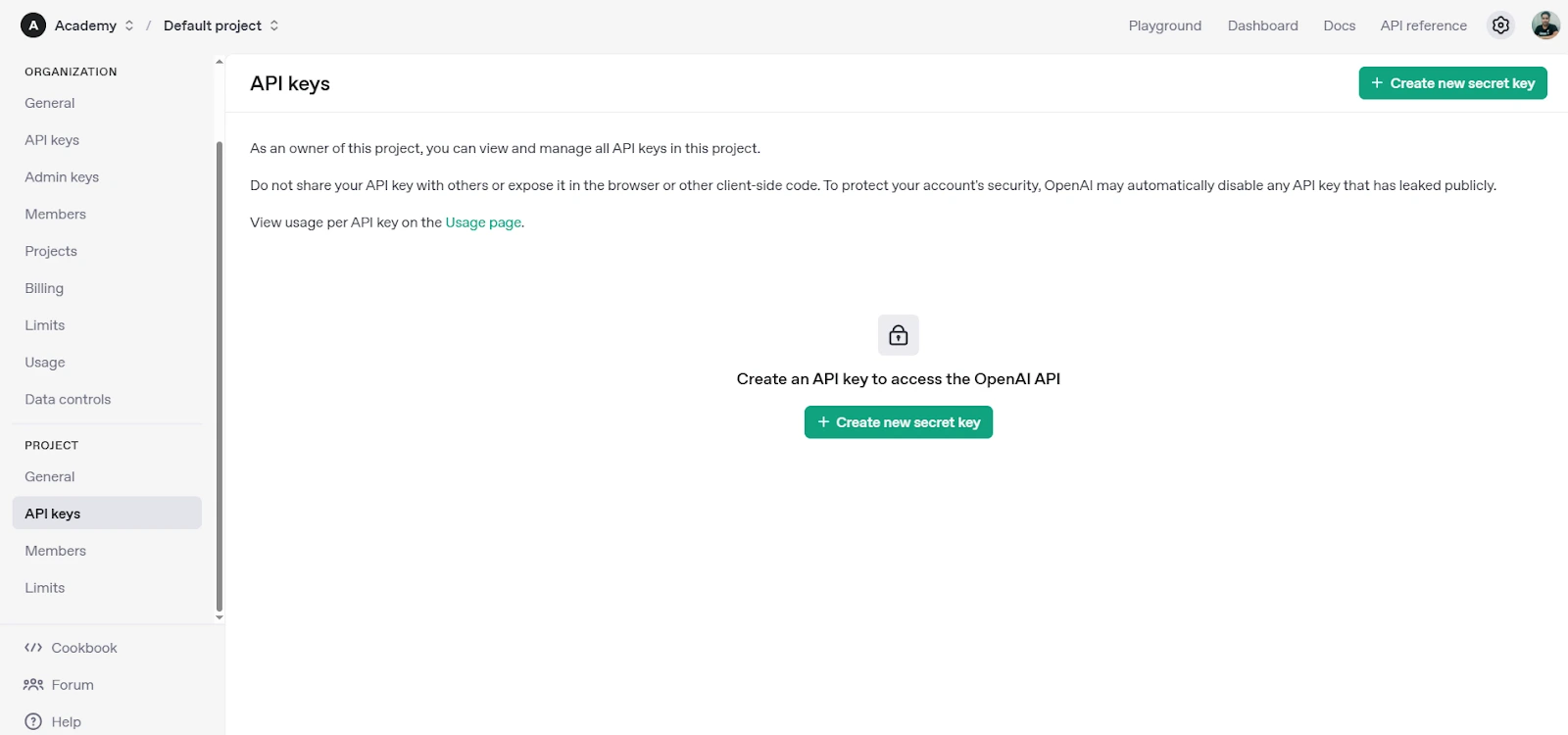
1.Log in at platform.openai.com.
2.Add a payment method and buy credits under Billing. AI Studio uses your OpenAI credits.
3.Open API Keys and click Create new secret key.
4.Copy the key. OpenAI shows it only once.
2. Add the key to Academy LMS
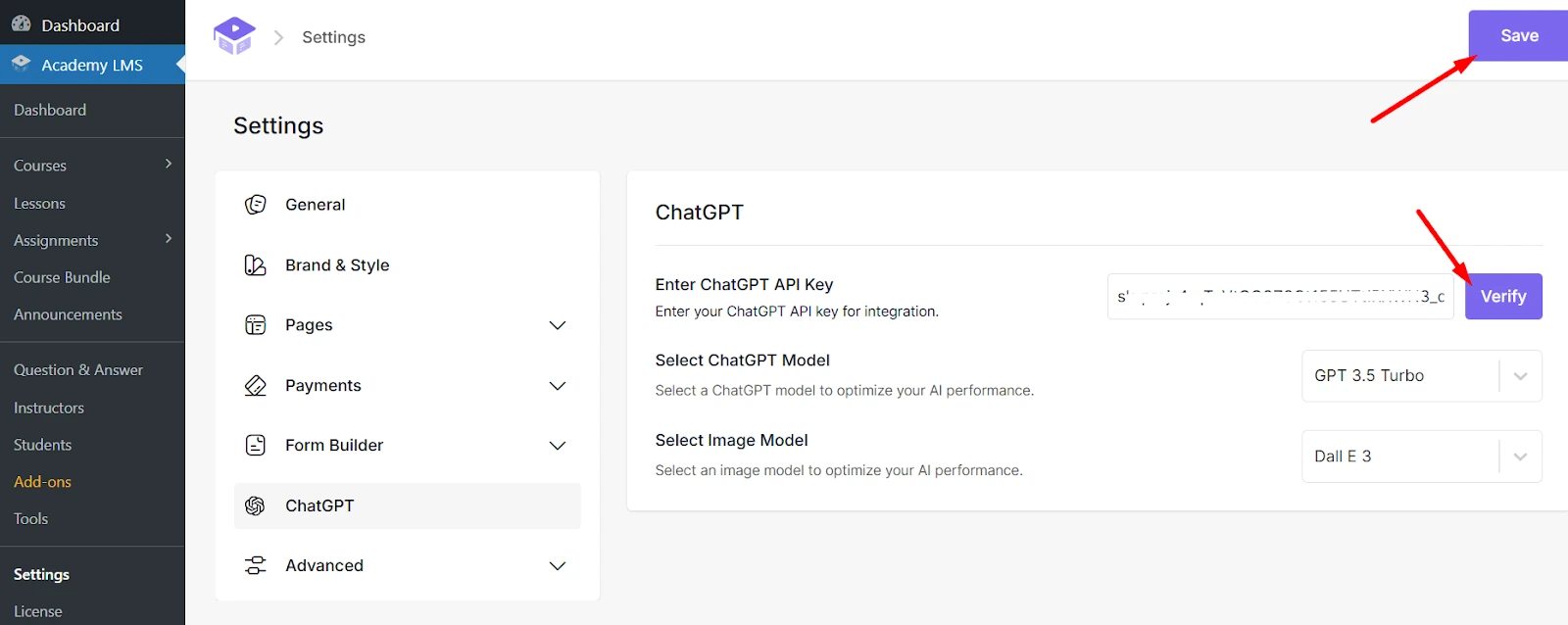
1.Turn on the ChatGPT add-on in Academy LMS → Add-ons.
2.Go to Academy LMS → Settings → ChatGPT.
3.Paste your API key.
4.Pick a text model (for example GPT-3.5 Turbo) and, if you want images, an image model such as DALL·E 3.
5.Click Verify, then Save.
Generate a course outline
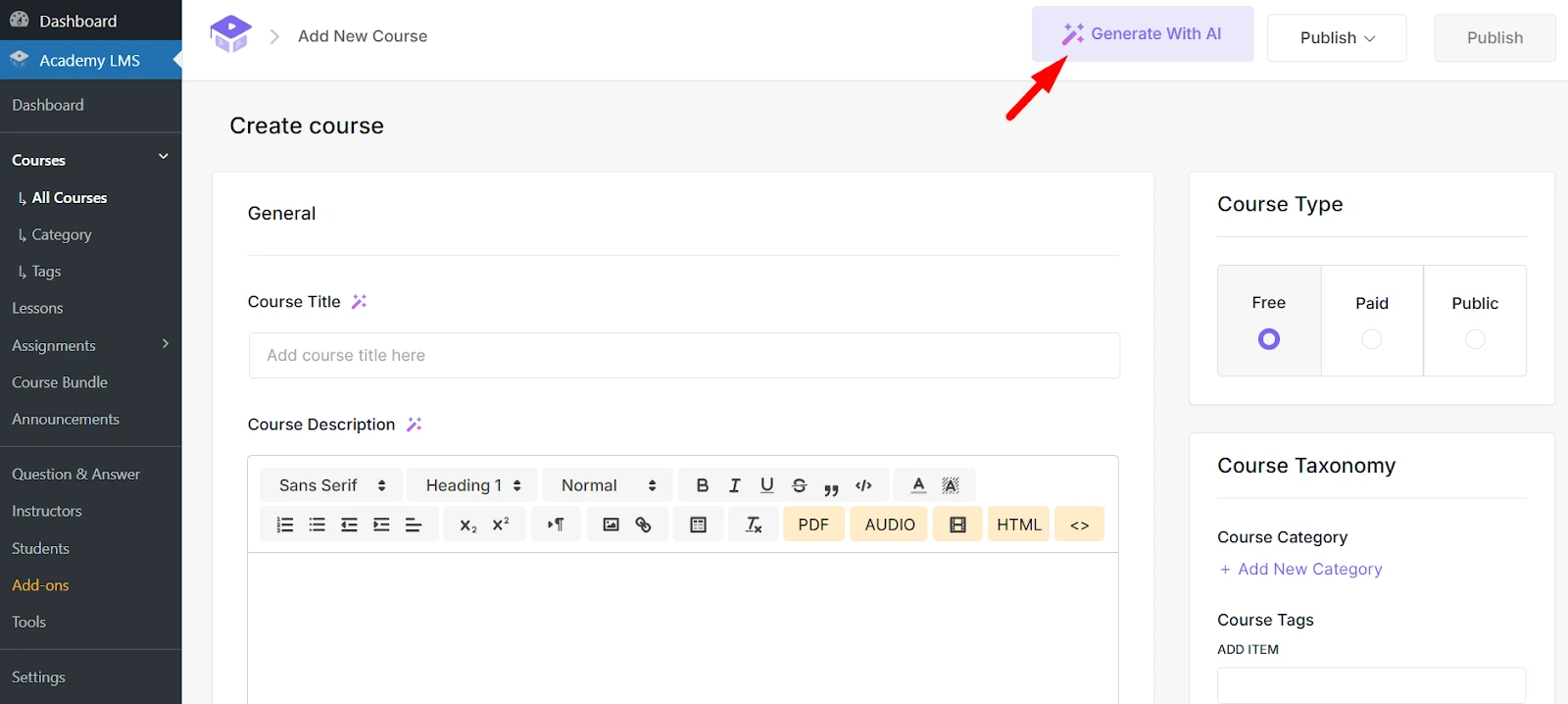
1.Open a course and click Generate with AI at the top of the Overview step.
2.Describe the course in a few specific sentences.
3.Click Generate Now and review the outline.
4.Click Append the Course.
5.Expand the sections and untick anything you don’t want.
The outline lands in the Builder step, where you can edit and reorder it like any other content.
Generate a title
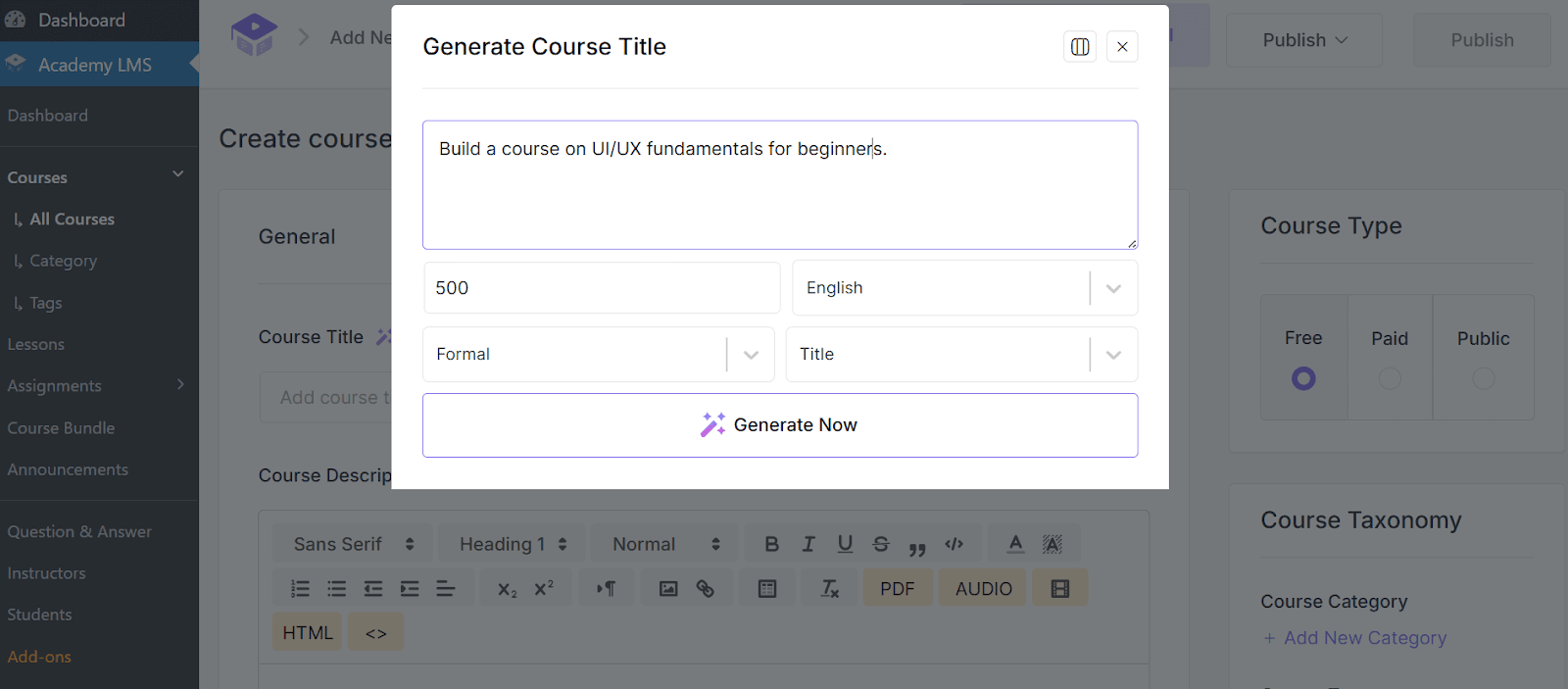
1.Click the AI icon next to Course Title.
2.Describe the course. Optionally set the length, language, tone and format.
3.Click Generate. Click Generate Again for more options.
4.Click Append to courses to use a title.
Generate a description
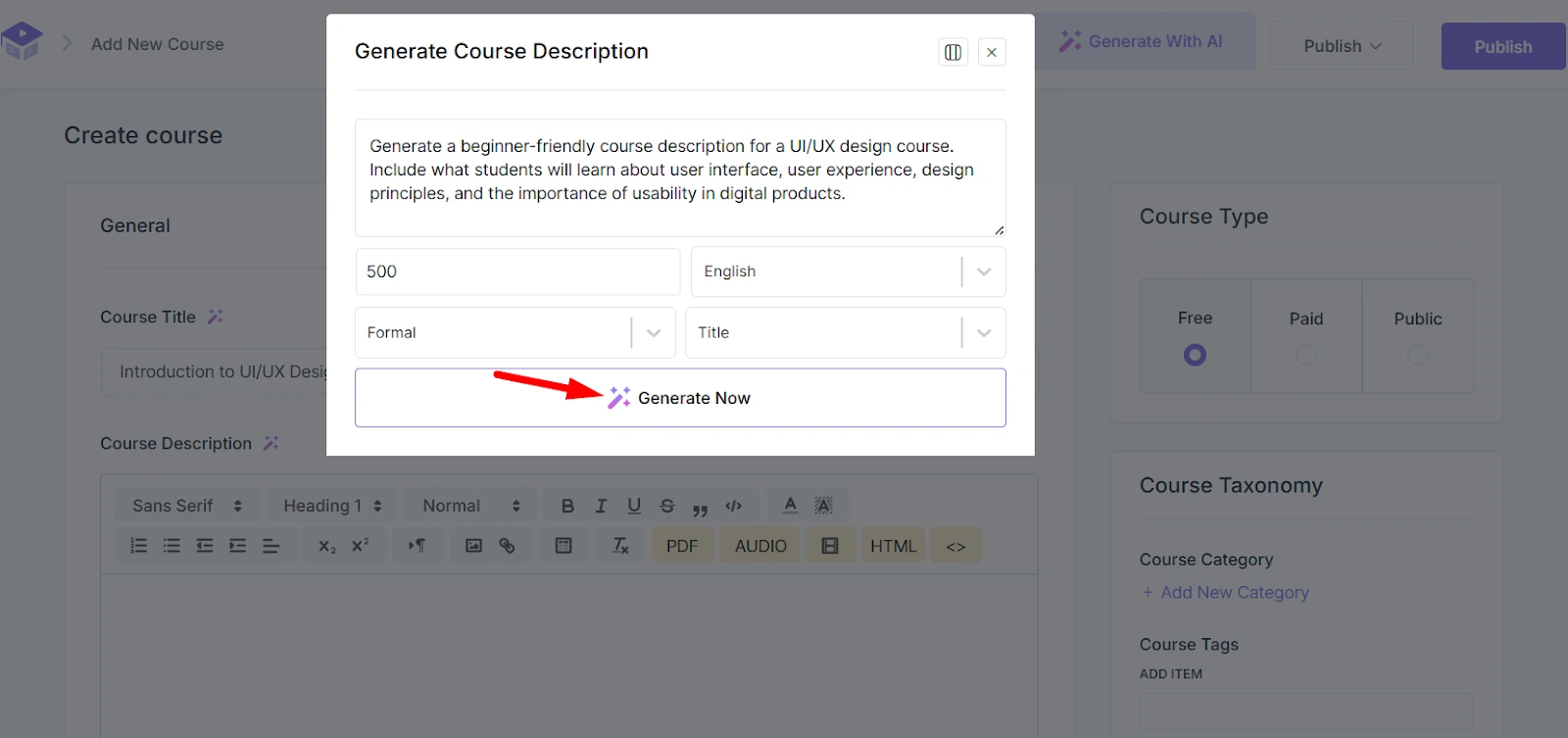
1.Click the AI icon next to Description.
2.Describe the topics, the audience and what students will learn.
3.Set the length, language, tone or format if you want.
4.Click Generate Now, then Append to Course.
Always read what AI Studio writes before you publish. It is a starting point, not a final draft.