









Rebuild the student and instructor dashboard with blocks. Instead of only changing settings, you open the dashboard’s layout in the block editor and add, remove or move any part of it.
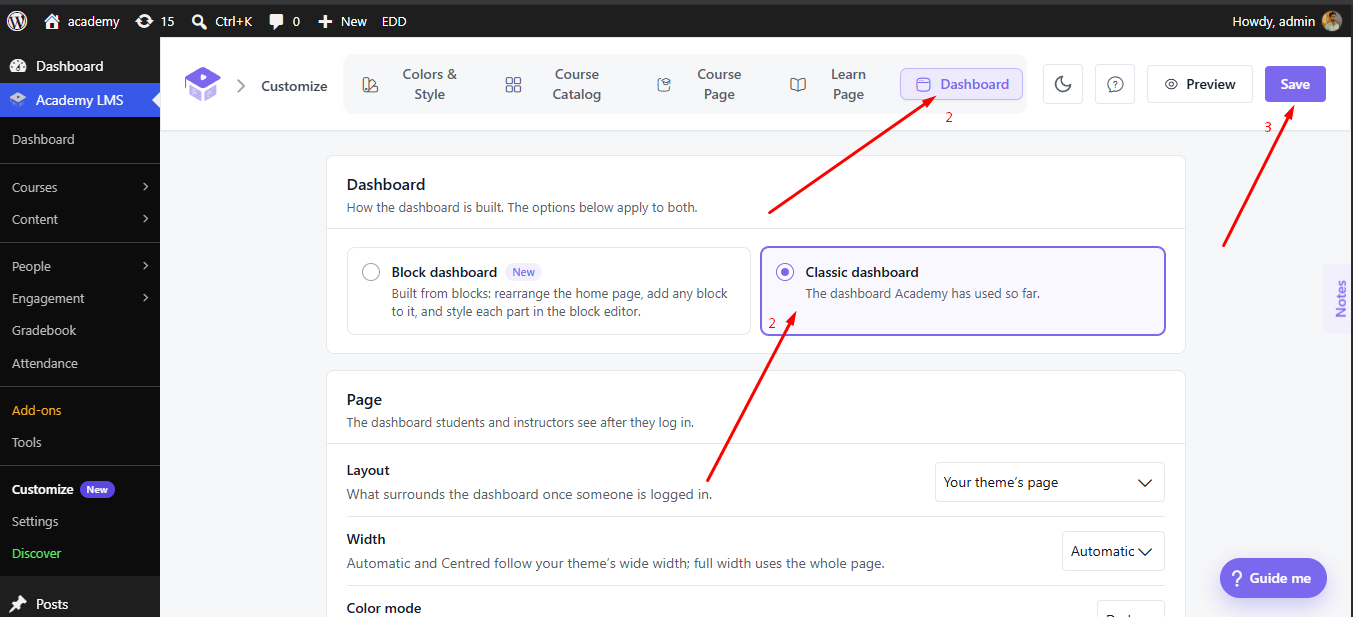
1. Switch to the block dashboard
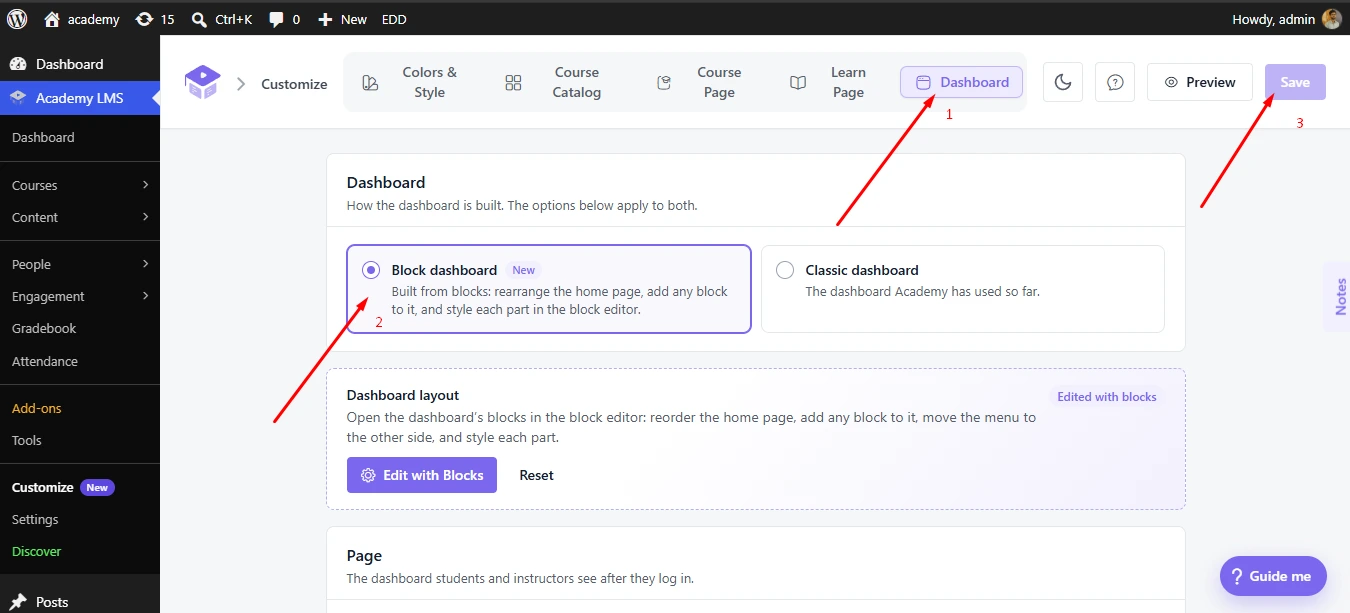
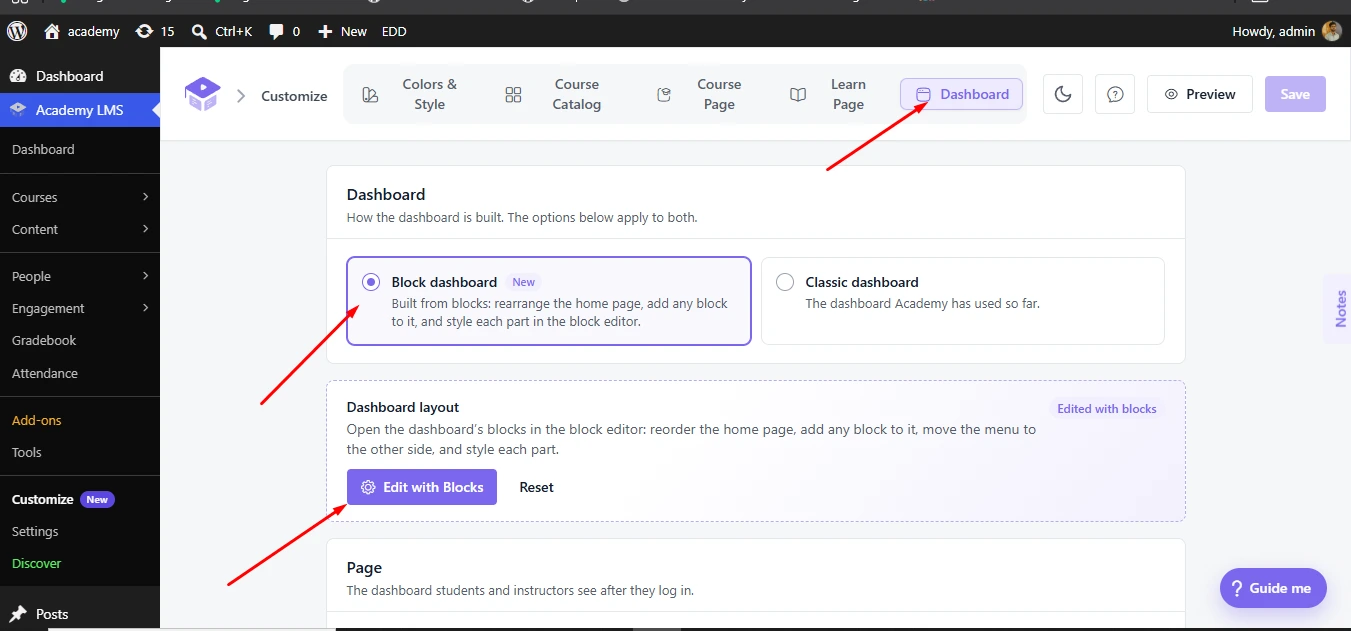
2. Open the layout
In the Dashboard layout panel, click Edit with Blocks.
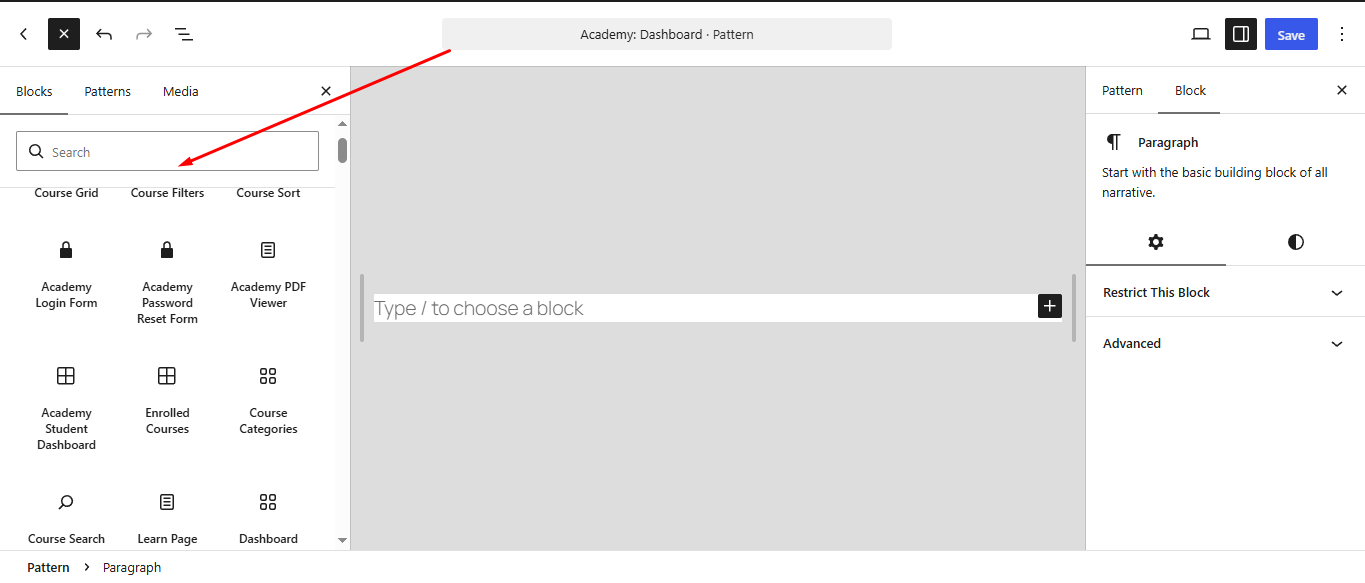
The block editor opens a pattern called Academy: Dashboard. It shows a live preview of the dashboard: the sidebar menu, top bar, welcome message, stat cards and course table.
3. Change the layout
Each part of the dashboard is its own block, so you edit it with the normal block editor tools.
|
To do this |
Do this |
|
Reorder the home sections |
Drag the welcome, stats, continue-learning or teaching-courses block up or down |
|
Add content |
Insert any block (a paragraph, an image, a third-party block) anywhere in the layout |
|
Move the menu to the other side |
Move the sidebar block to the other side of the content block |
|
Style one part |
Select its block and use the color, spacing and typography controls |
Click Save in the editor. The live dashboard updates straight away, as long as the Block dashboard is selected and saved in Customize.
The dashboard blocks
|
Block |
What it is |
|
|
The wrapper. Everything else sits inside it |
|
|
The menu |
|
|
The top bar |
|
|
The content area |
|
|
The welcome message |
|
|
The stat cards |
|
|
Continue learning |
|
|
The instructor’s courses |
The layout is stored as a synced pattern (a wp_block post).
Reset the layout
After you customize the layout, a Reset button appears next to Edit with Blocks. Click it to delete your layout and go back to the default arrangement.
Warning: Reset can’t be undone. Your custom layout is deleted.
Go back to the classic dashboard
Choose Classic dashboard in the Dashboard tab and save. Your block layout is not deleted, it is just not used. Switch to the Block dashboard again and it comes back, unless you reset it.