









The Academy Password Reset Form block gives students and instructors a self-service way to recover a forgotten password from any page on your site, instead of relying on the default WordPress lost-password screen.
How to access
1.Go to Pages > Add New (or edit an existing page) to open the block editor.
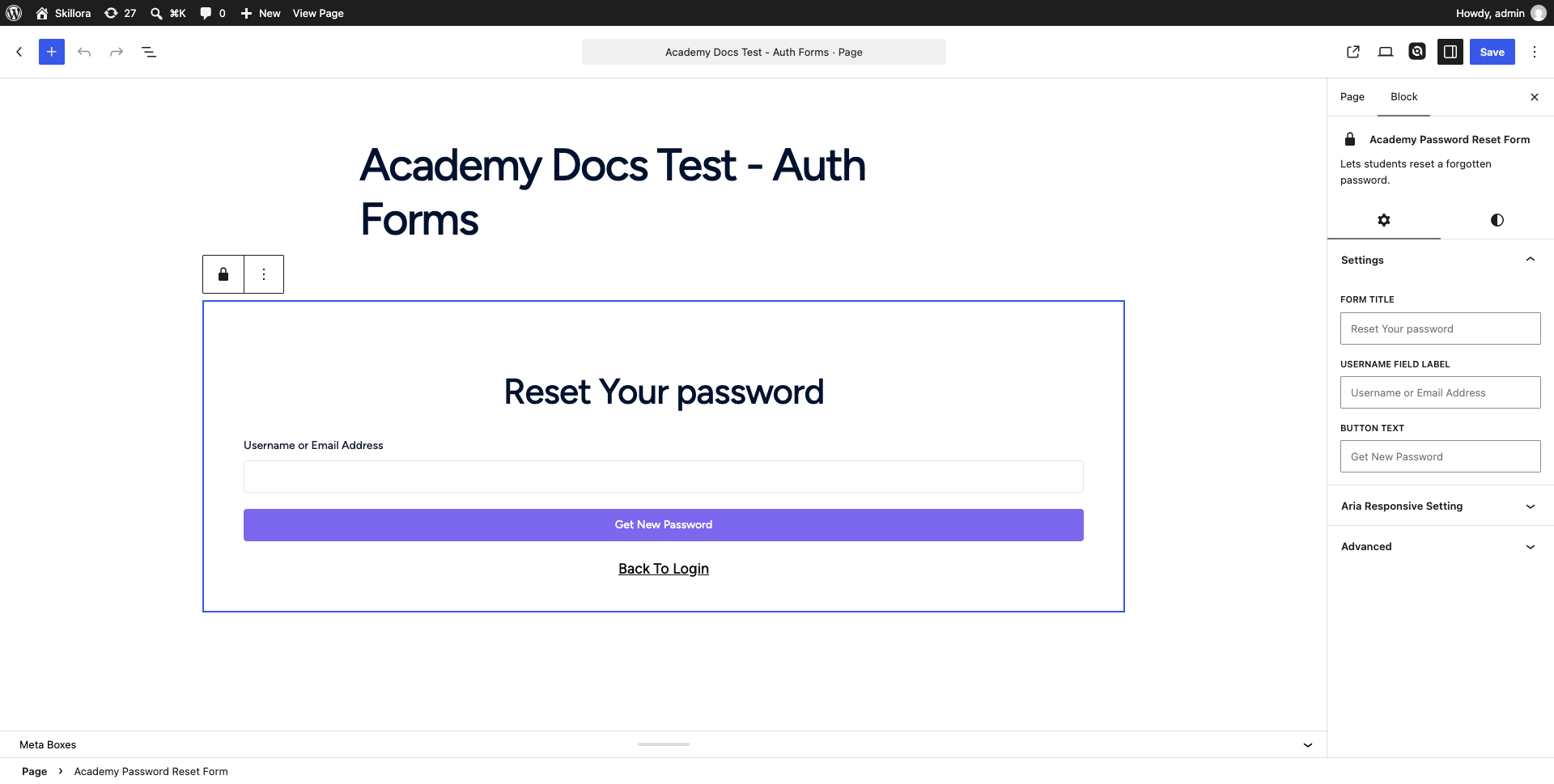
2.Click the block inserter (+) and search for Academy Password Reset Form. Select it to insert the block.
3.With the block selected, open the Block tab in the settings sidebar to customize the form title, field label, and button text.
1.Click Publish (or Update) and then View Page to see the rendered form.
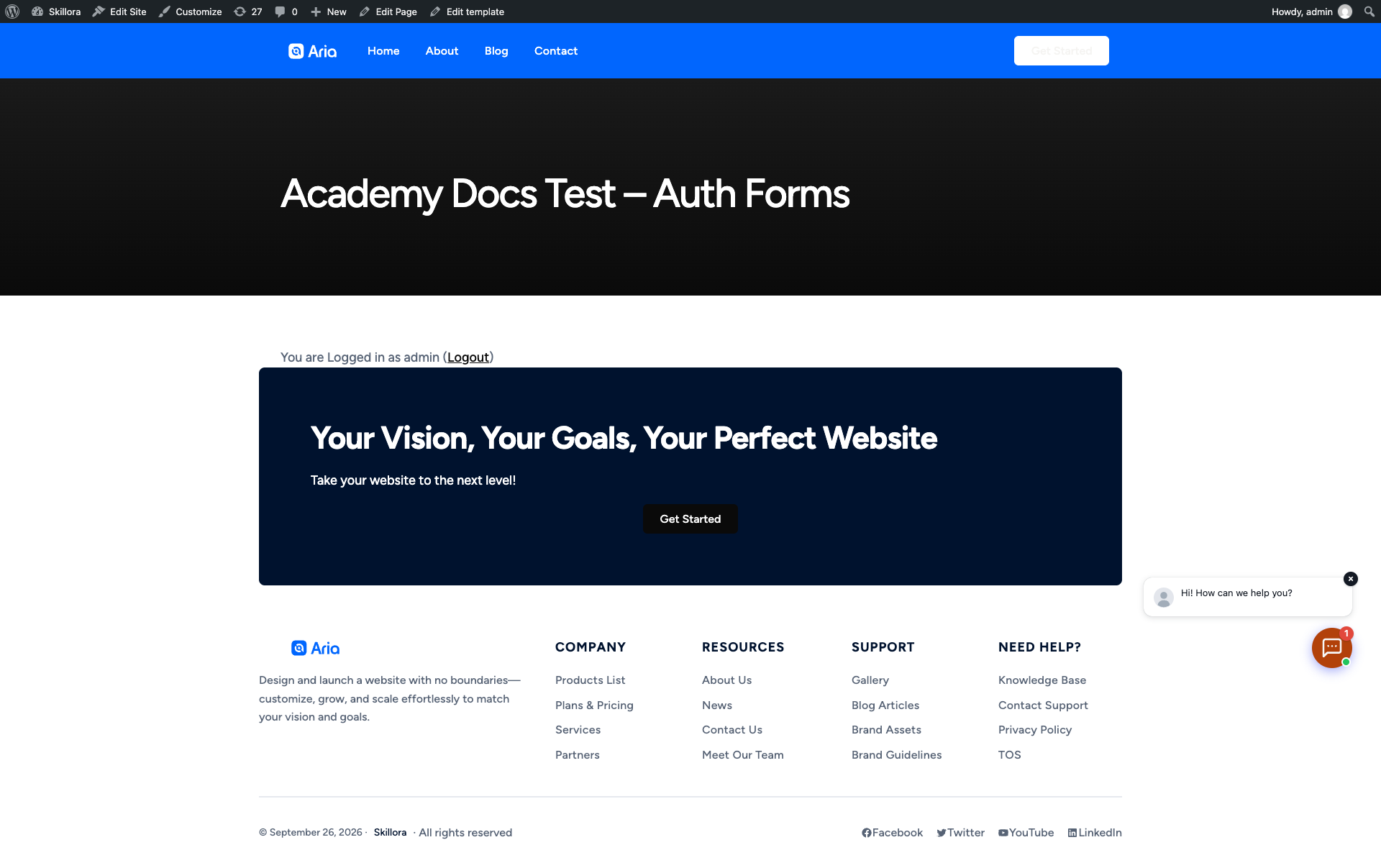
The screenshot above was taken while logged in, so the block shows a “You are Logged in” line rather than the form. A logged-out visitor sees the form exactly as it appears in the editor preview in step 3.
Block settings
Form title — heading text shown above the field. Defaults to “Reset Your password”.
Username field label — label and placeholder for the username/email input.
Button text — text on the submit button. Defaults to “Get New Password”.
The block also supports the standard WordPress Color, Typography, Border, and Spacing panels, and three block styles (Default, Card, Minimal).
A Back To Login link is included automatically below the form and points to Academy’s login/dashboard page, so visitors can return to signing in without leaving the flow.