









Getting Academy LMS running takes a few minutes, and keeping it up to date takes even less. This article covers installing the free plugin, adding Academy LMS Pro, activating your license, checking for updates, opting into beta releases, and rolling back if an update ever causes trouble.
Install Academy LMS (Free)
That’s it — the Academy LMS menu appears in your sidebar, and the setup wizard walks you through the basics.
Install Academy LMS Pro
Pro is a separate plugin that sits alongside the free one — installing it doesn’t replace anything.
.zip file.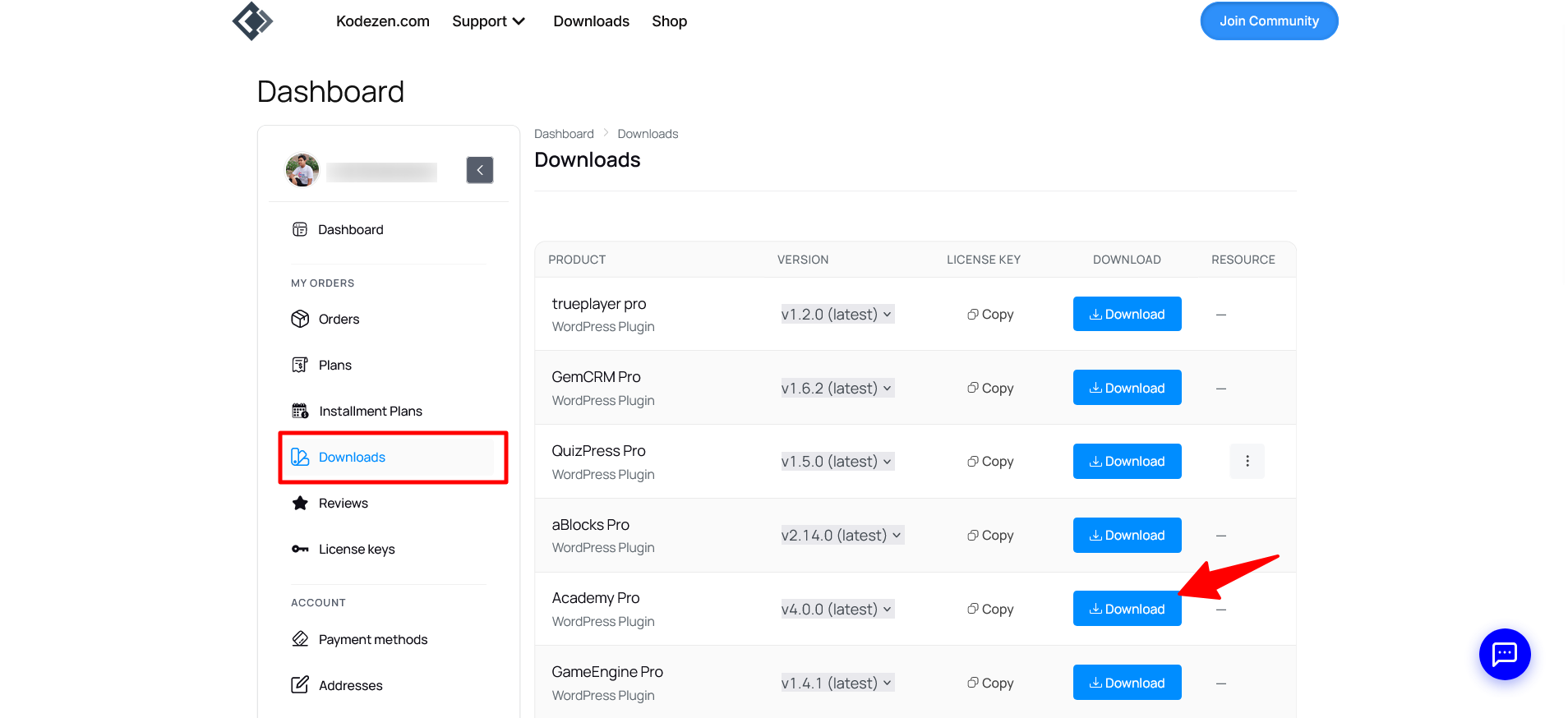
Once Pro is active, a License tab appears under Academy LMS → Settings — that’s where the next step happens.
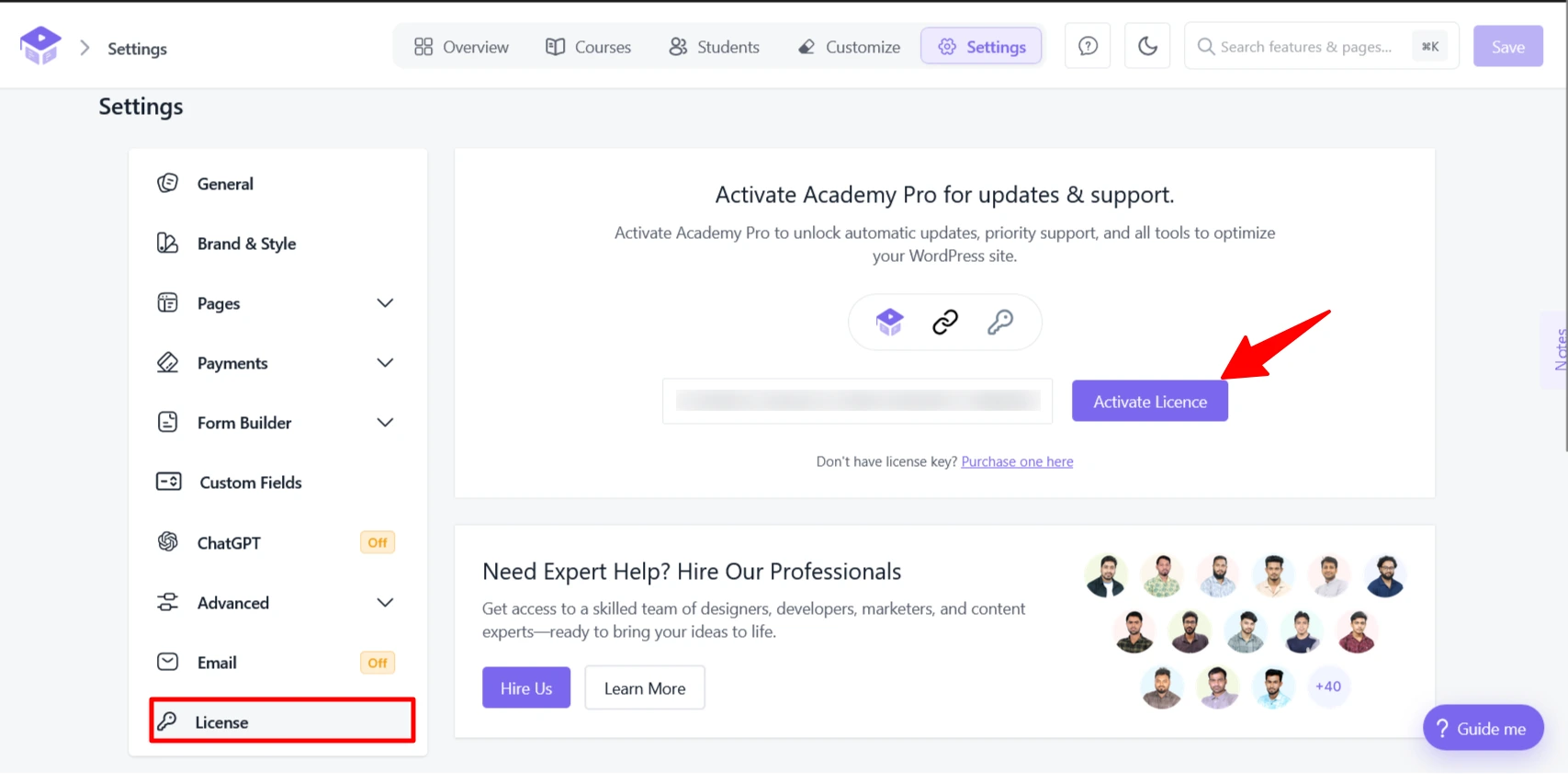
Note: the License tab, updates screen, beta option, and rollback tool described below are all part of Academy LMS Pro. A free-only install doesn’t include them.
Activate your license
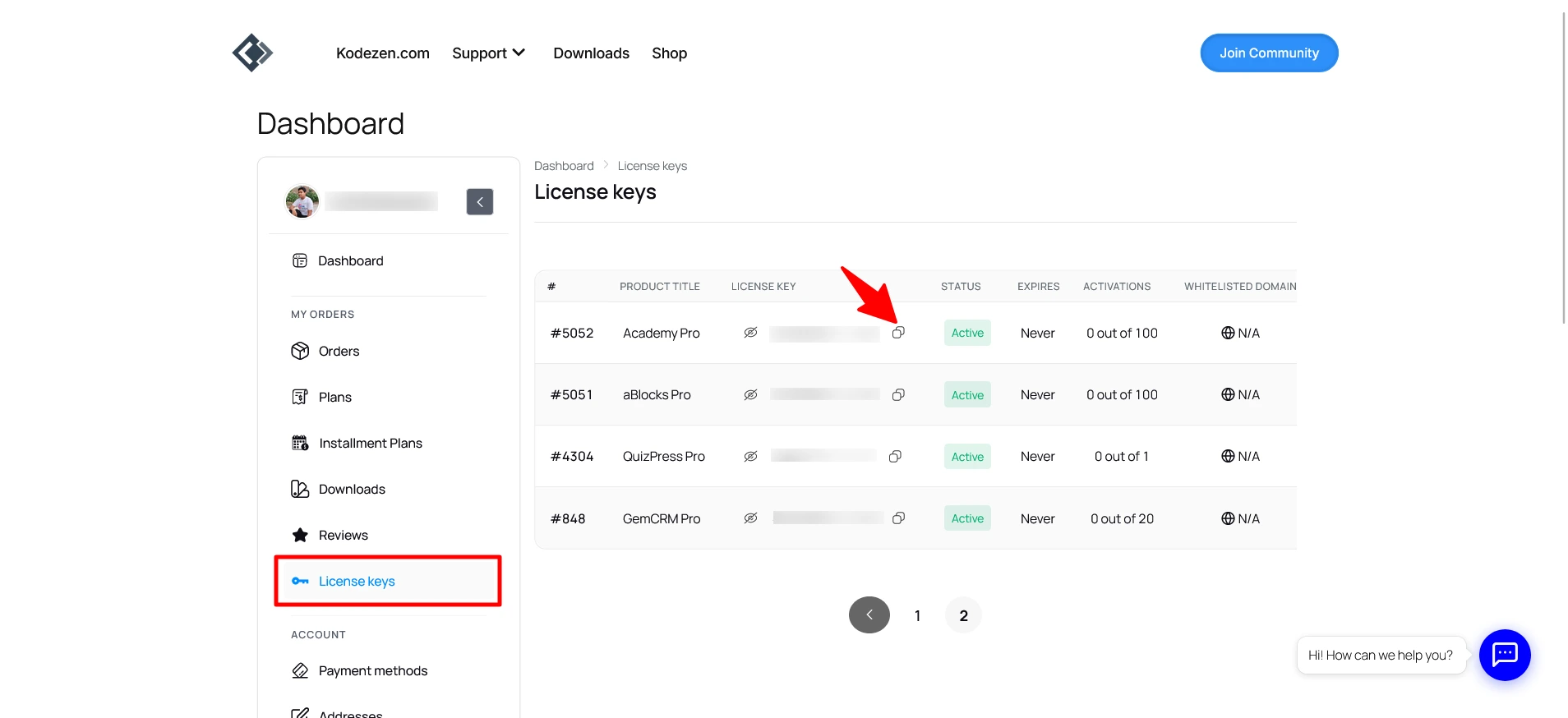
Once active, the page shows your license’s Status, when it was Last Checked, its Expires date, and how many sites you’ve activated it on (or Unlimited, depending on your plan). A Manage License link takes you back to your Kodezen dashboard if you ever need to move your license to a different site.
Don’t share your license key publicly, and don’t use it on more sites than your plan allows — the activation count on this page is exactly what your plan limits.
A red Expired status means updates and support have stopped until you renew; the plugin itself keeps working.
Check for and install updates
Still on Academy LMS → Settings → License, once your license is active you’ll see your Installed and Latest version side by side.
A small WP Auto-update indicator on the same screen shows whether WordPress’s own automatic updates are turned on for Academy LMS — toggle that from Plugins, not from here.
Get beta releases early
Want to try new features before they’re officially released? Turn on Receive beta updates on the License page. With it on, Check for updates and the update button will also offer pre-release versions. Turn it back off any time to return to stable releases only.
Roll back to a previous version
Something not working right after an update? You can go back.
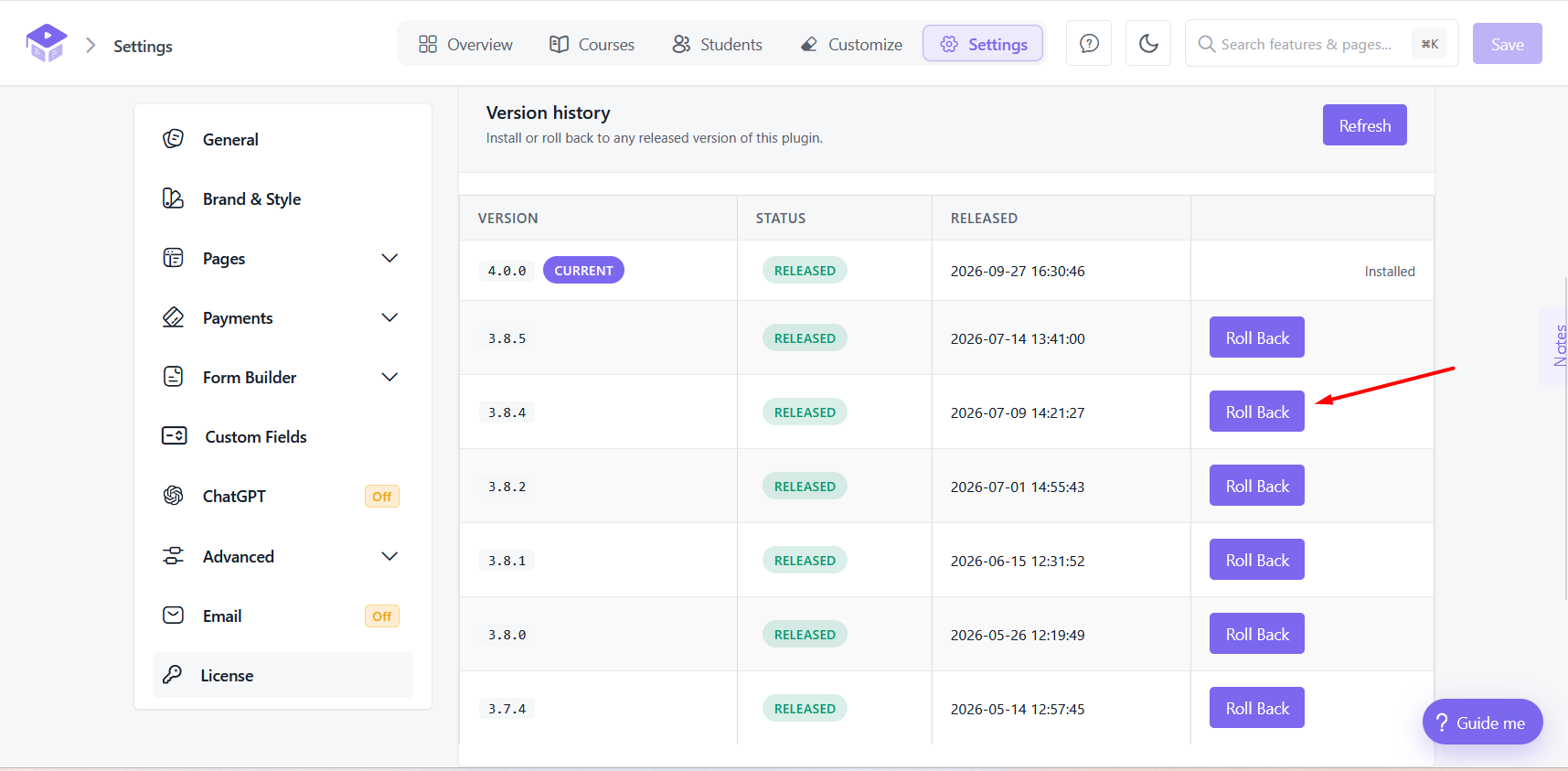
A version with significant changes may ask you to confirm before rolling back to it, and very old versions may show Rollback blocked if they’re no longer supported.
FAQ / Troubleshooting
My license key won’t activate.
Copy it directly from store.kodezen.com rather than typing it — a single mismatched character is the most common cause. Also check you haven’t reached your plan’s activation limit.
I don’t see a License tab in Settings.
That tab only appears once Academy LMS Pro is installed and active — the free plugin doesn’t include licensing, updates, or rollback.
The “Update” button isn’t showing even though I know there’s a new version.
Make sure your license is active — expired licenses stop receiving updates until renewed.
I don’t see Rollback for the version I want.
Very old versions can be marked as no longer supported and blocked from rollback for security reasons.
Still have questions?
Our support team is always happy to help — just reach out anytime.