Academy LMS 4.0 IS LIVE

00
Days
:
00
Hours
:
00
Minute
:
00
Second

MemberPress Integration

The MemberPress addon lets a membership decide who can take a course. Instead of selling each course on its own, you sell a membership and every course tied to it opens up for as long as that membership is active.

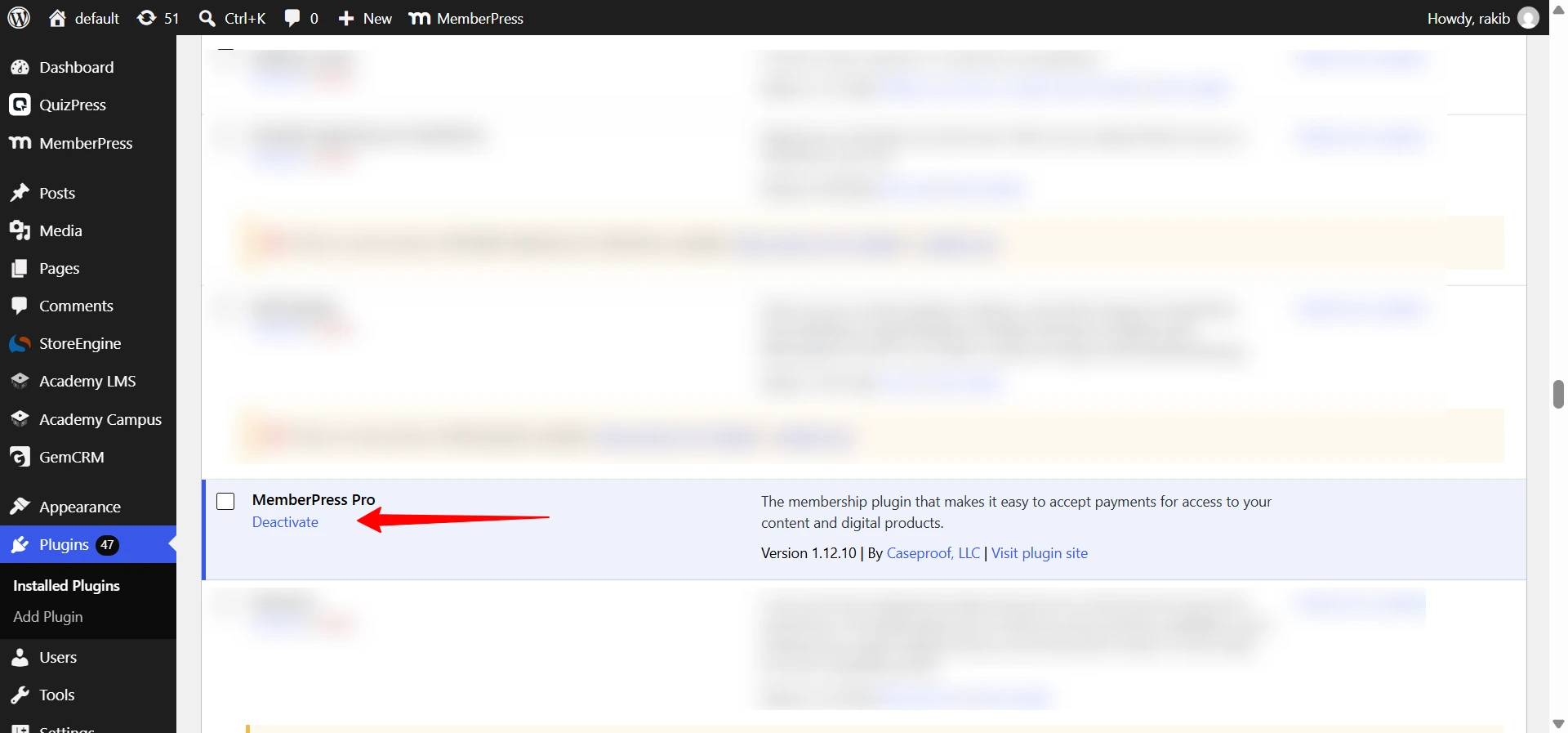
Note: This is a Pro addon and it needs the MemberPress plugin, which is premium and sold separately. Academy will not let you turn the addon on until MemberPress is installed and active.

Before you start

Academy LMS and Academy LMS Pro are both active.
MemberPress is installed and activated with a valid licence.
You are logged in as an administrator.

Step 1: Find the addon

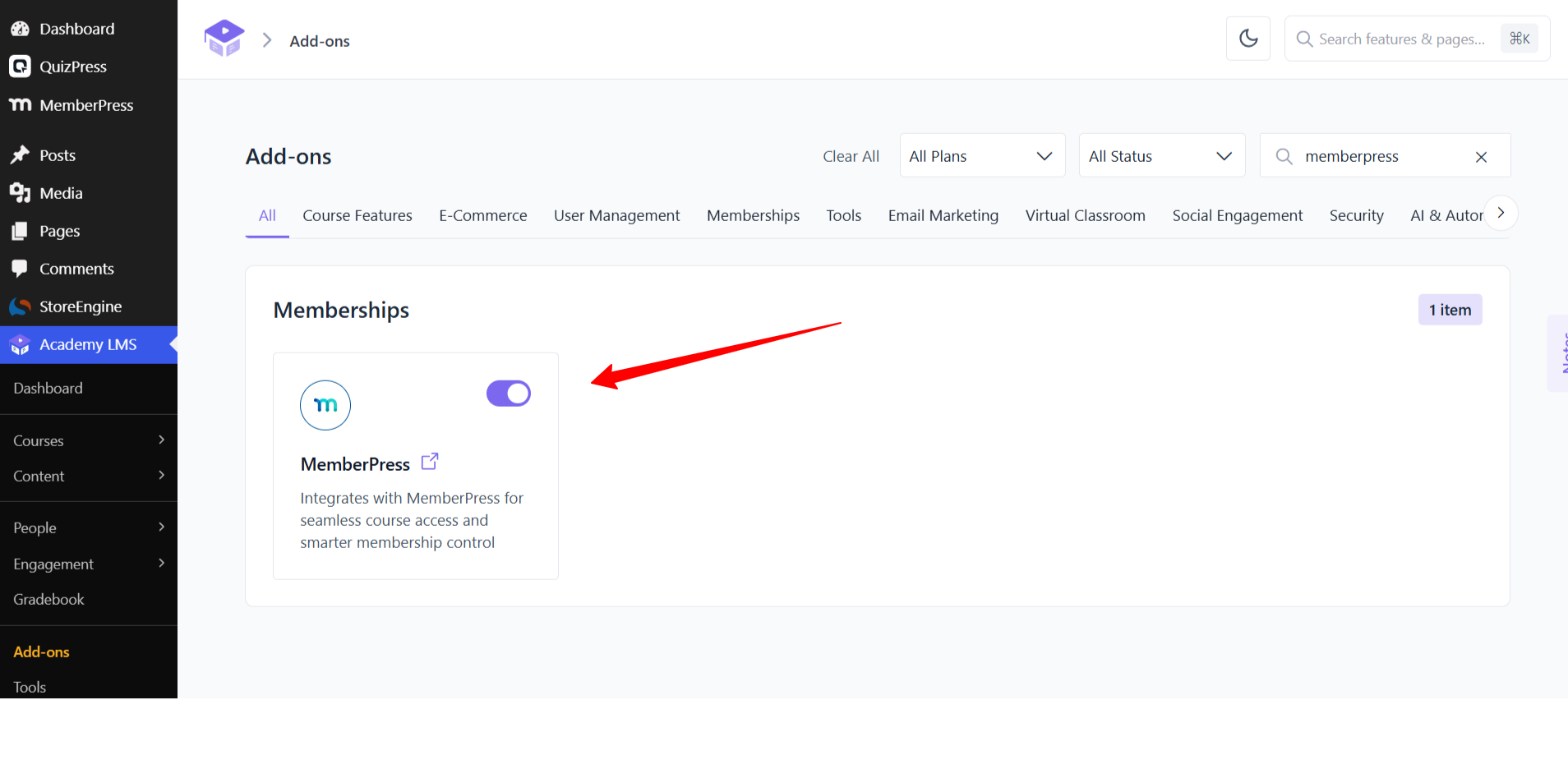
Go to Academy LMS → Add-ons and search for MemberPress. It sits under the Memberships category, described as integrating with MemberPress for course access and membership control.

Add-ons and search for MemberPress.

Step 2: Install MemberPress first

The addon depends on the MemberPress plugin. If you switch the toggle on before installing it, the toggle springs back and a Required Plugin MemberPress tooltip appears. Nothing is saved.

Install and activate MemberPress, then come back and switch the toggle on. This ordering catches most people out, so do it first.

Install MemberPress first

Step 3: Create a membership in MemberPress

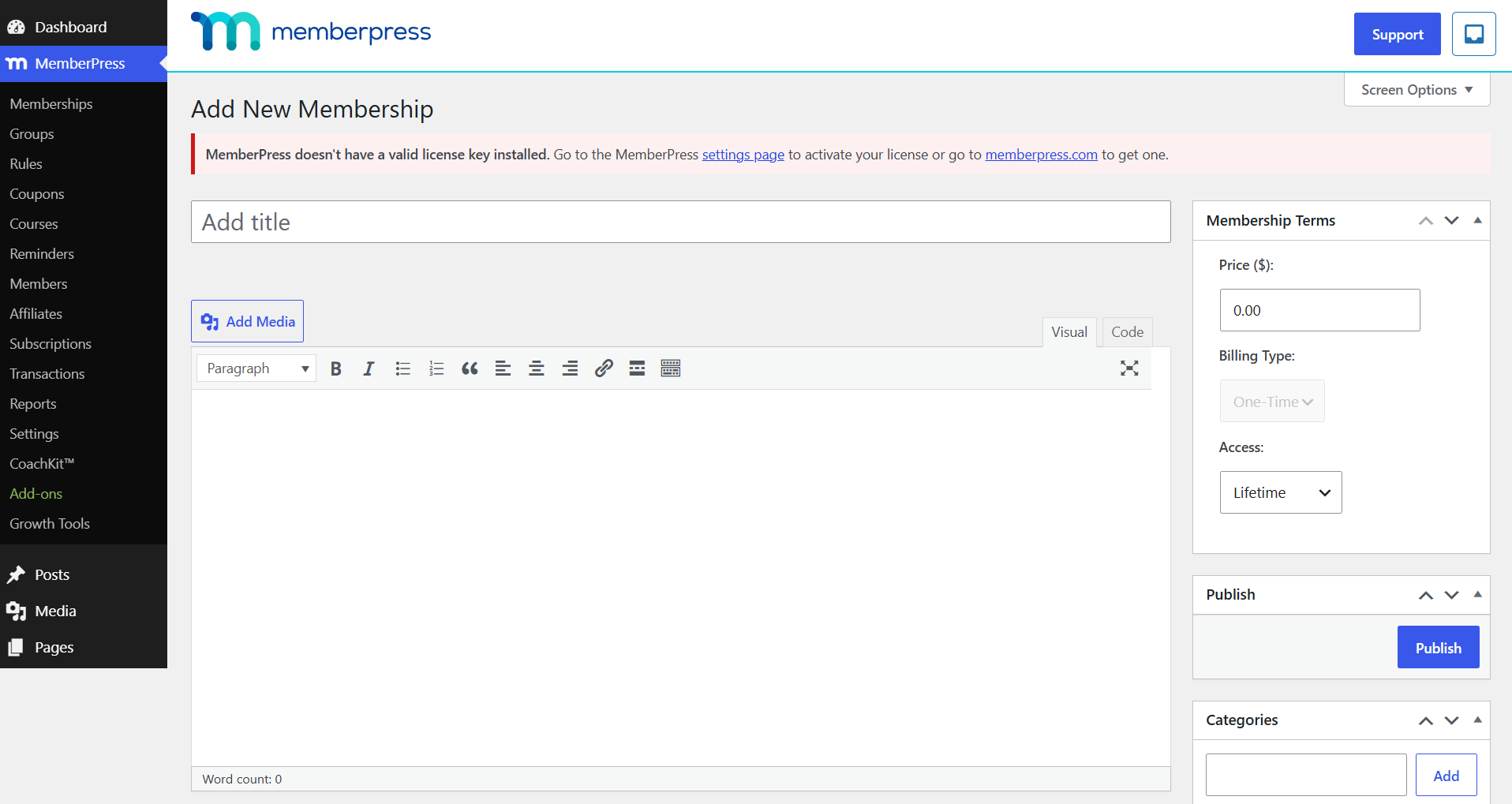
In the WordPress menu go to MemberPress → Memberships and click Add New. Give the membership a title and description, then set:

Setting

What it decides

Price

What the membership costs.

Billing Type

A one time payment or a recurring subscription.

Access

Lifetime, a fixed expiry date, or a length of time from signup.

The Registration, Permissions, Price Box and Advanced tabs under Membership Options control the signup form, who may buy, how the price is presented, and what happens after login. Publish the membership when you are done.

Create a membership in MemberPress

Step 4: Tie a course to the membership

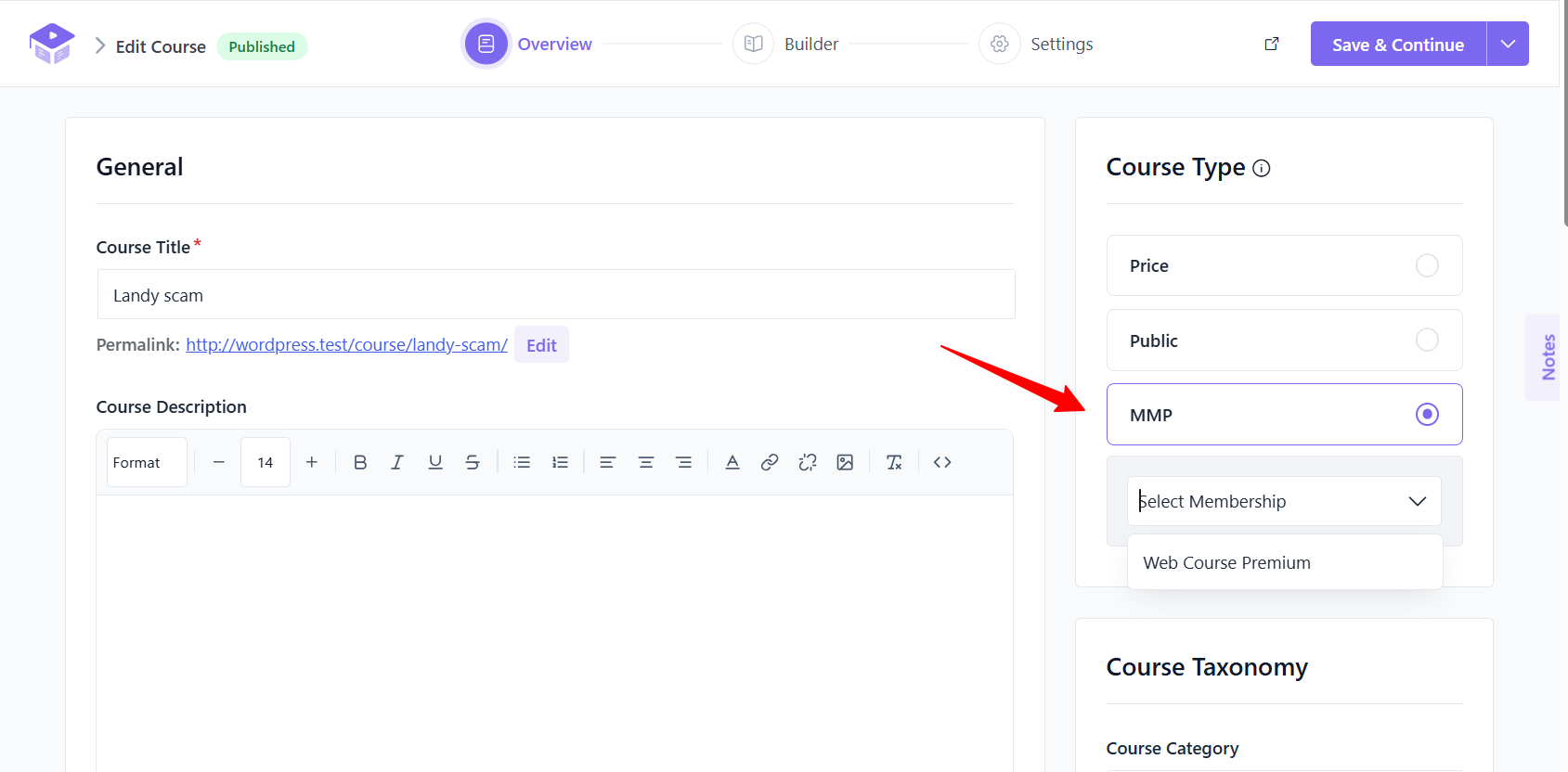
Open the course in Academy LMS and find Course Type. Alongside Free, Paid and Public there is now an MMP option, which stands for MemberPress. Choose it, then pick which membership or memberships unlock the course.

A course set this way is listed as a Membership course rather than showing a price, because access comes from the membership and not from buying the course.

You can point several courses at one membership, which is the usual setup: one subscription that opens a whole library.

Step 5: Add a member by hand (optional)

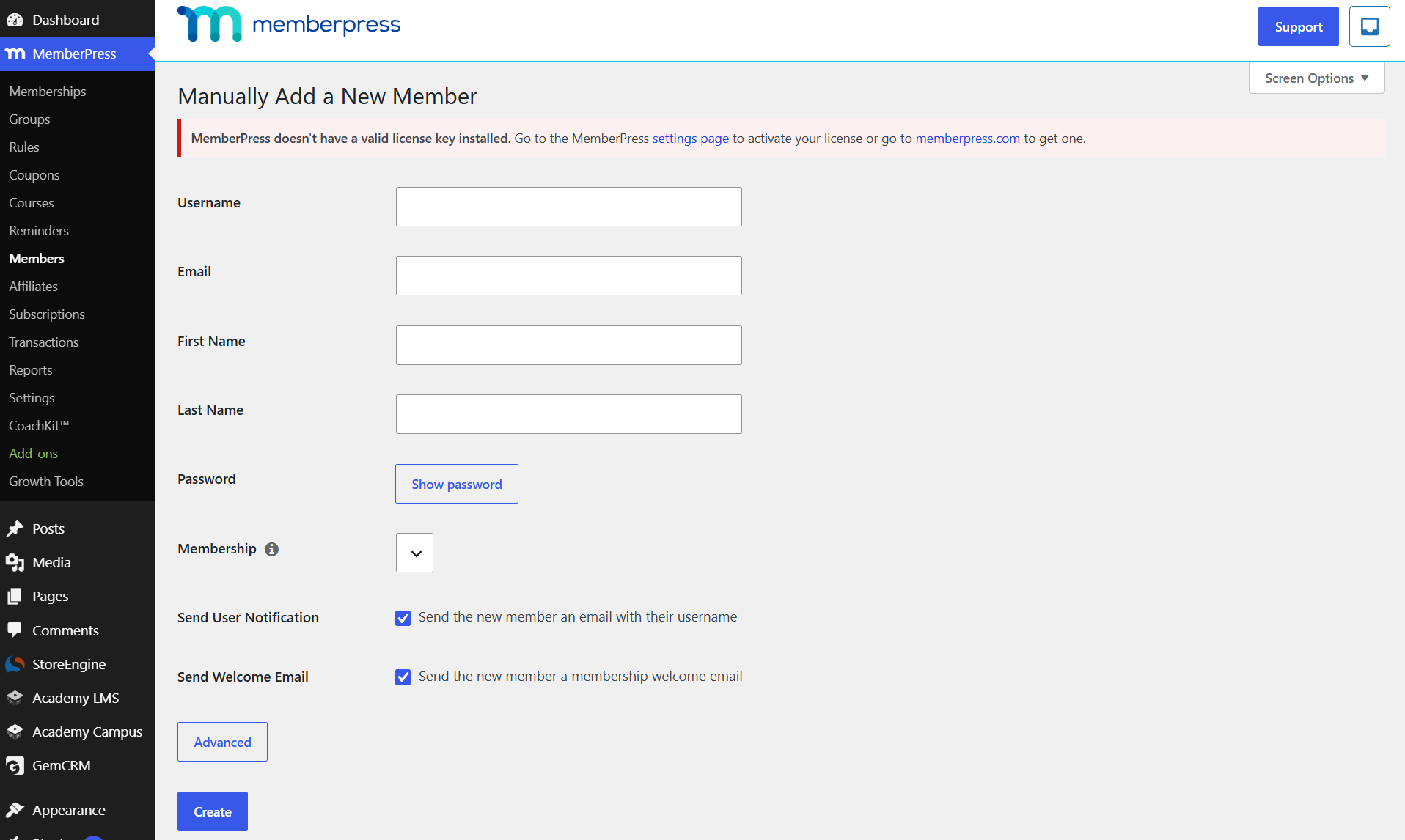
To grant access without a purchase, go to MemberPress → Members and click Add New. Fill in the username, email, first and last name and a password, pick the Membership from the dropdown, and click Create.

Two checkboxes control whether the person gets an account notification and a membership welcome email. Leave both on unless you are setting up test accounts.

Add a member by hand (optional)

How access actually works

Academy does not copy the membership onto the student. It checks MemberPress at the moment the student tries to open the course, so:

Buying the membership opens every course tied to it straight away.
When the membership lapses or is cancelled, access to those courses stops with it.
Renewing restores access without you touching the course.
A student can hold more than one membership, and gets every course any of them unlocks.

Troubleshooting

The addon toggle springs back with a “Required Plugin MemberPress” tooltip. MemberPress is not installed or not activated. Academy checks for memberpress/memberpress.php and refuses to enable the addon without it.

There is no MMP option on the course. The addon is off. Turn it on at Academy LMS → Add-ons once MemberPress is active.

A student bought the membership but cannot open the course. Check that the course’s Course Type is MMP and that the membership you selected is the same one they bought. A course left on Free or Paid ignores memberships entirely.

Access disappeared for an existing student. Their membership has expired or been cancelled. Academy reads the live status from MemberPress, so an expired membership closes the course immediately.