Academy LMS 4.0 IS LIVE

00
Days
:
00
Hours
:
00
Minute
:
00
Second

Create Course from YouTube Playlist

Building a course lesson by lesson can take a while, especially if the content you want to teach already exists as a YouTube playlist. Academy’s

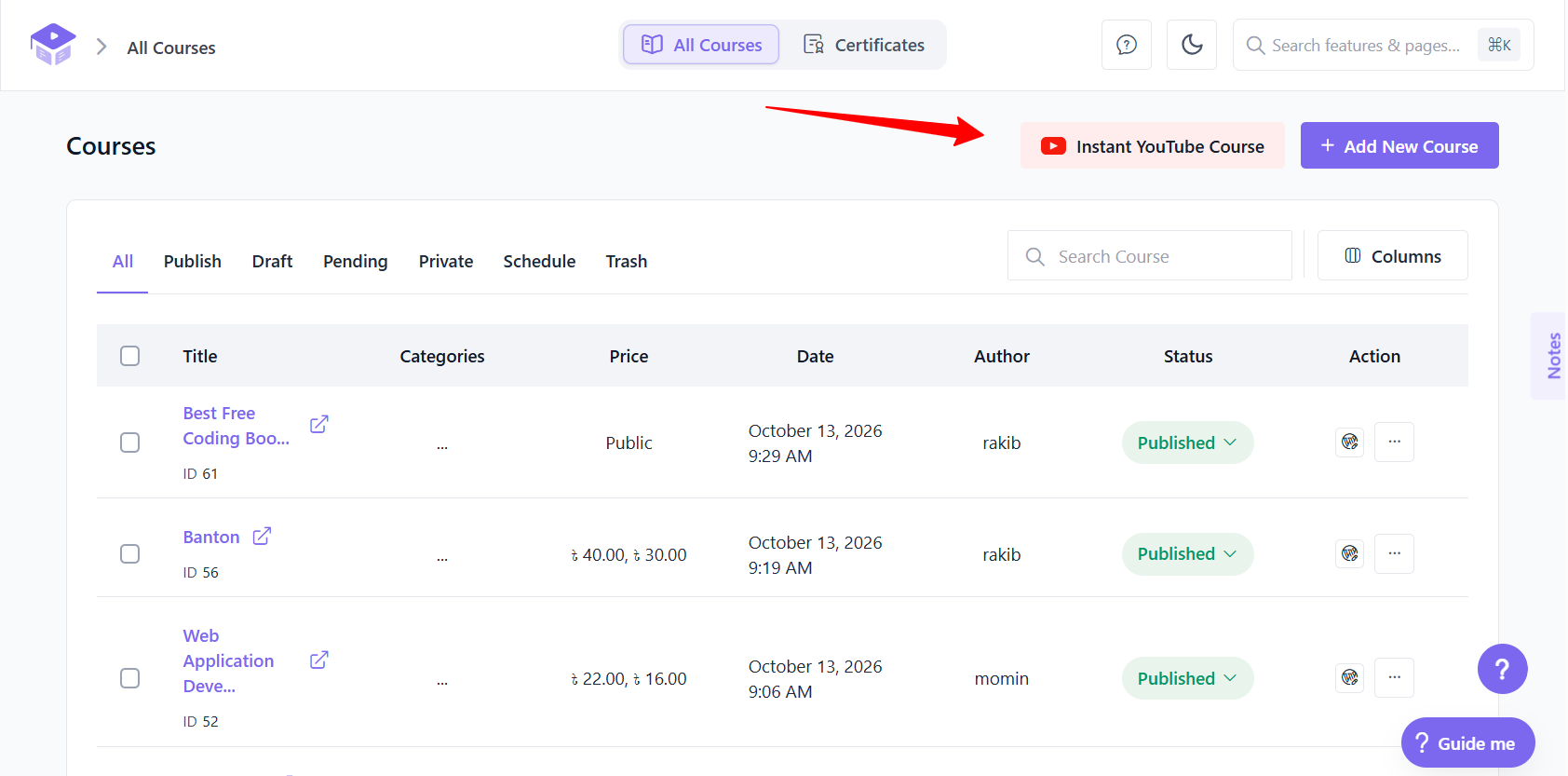
Instant YouTube Course

tool reads a public YouTube playlist and instantly turns it into a full course draft — one topic with one lesson per video, titled and ordered exactly as they appear in the playlist. It’s the fastest way to spin up a course for review or to use as a starting template you refine afterward.

This feature requires a YouTube Data API key (free from the Google Cloud Console) because Academy calls the YouTube API to read the playlist’s videos and metadata.

How to access / set up

Go to Academy LMS > Courses in your WordPress admin.
Click the Instant YouTube Course button in the top-right of the Courses screen (it shows a red YouTube icon).
Instant YouTube Course
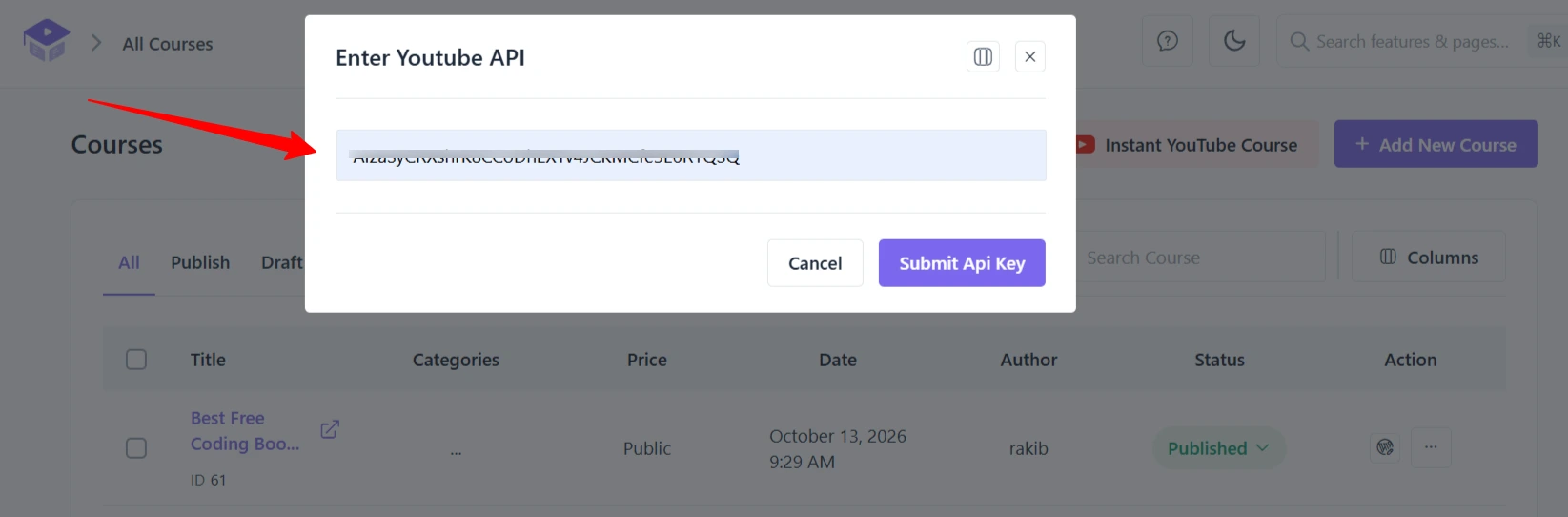
The first time you use the feature, a Enter Youtube API dialog appears since no key is saved yet. Paste your YouTube Data API v3 key into the field and click Submit Api Key.
Enter Youtube API
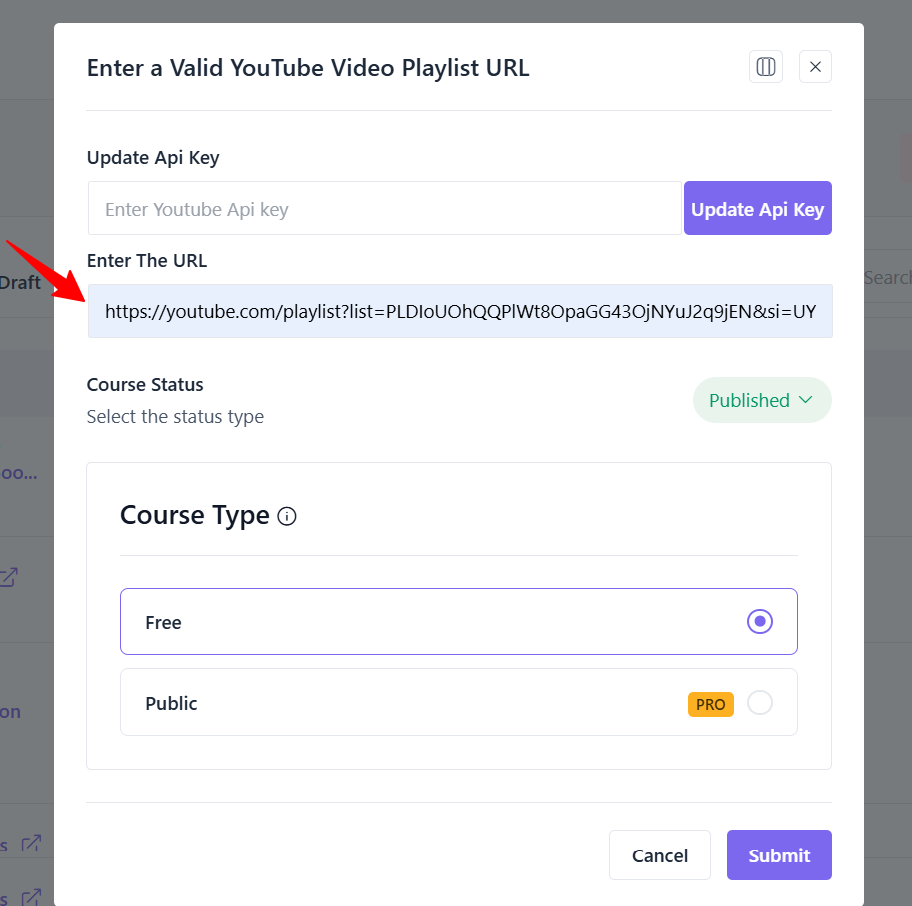
Once a valid key is saved, click the button again (now labeled Instant Course) to open the Enter a Valid YouTube Video Playlist URL dialog. Paste the full playlist URL (e.g. https://www.youtube.com/playlist?list=…) into Enter The URL.
Choose a Course Status for the generated course — Published, Draft, Pending, or Private.
Click Submit. Academy fetches the playlist, creates a new course, adds one topic, and adds a lesson for every video in the playlist (title, thumbnail, and video URL are pulled from YouTube automatically).
Open the new course in the Builder tab to review, reorder, or edit the generated lessons before publishing.

Field breakdown

Youtube Api key — your Google Cloud YouTube Data API v3 key; stored once and reused for future playlist imports.
Enter The URL — the full URL of the public YouTube playlist to import.
Course Status — the publish state to give the newly created course: Published, Draft, Pending, or Private.

What gets created

One new course, using the playlist’s title as a starting point.
One topic (curriculum section) inside the course.
One lesson per playlist video, in playlist order, each with the source video attached as the lesson’s video.

Because each lesson is created individually, a very long playlist can take a little time to import — let the request finish rather than closing the dialog.

Each lesson’s video source and playback settings can also be set manually on the Builder tab by adding a lesson and choosing a Video Source — YouTube, Vimeo, an external URL, or an uploaded file — which is the same lesson editor the playlist import populates automatically.

Obtain an API Key from Google Cloud Platform

To create a course from a YouTube Playlist, you’ll need an API key from the Google Cloud Platform. Follow these steps to get your key:

Visit the Google Cloud Console at https://console.cloud.google.com/welcome/.
Ensure you have an existing project in Google Cloud Platform, or create a new one by clicking on the project dropdown and selecting New Project. Follow the prompts to set up your project.

Enabling APIs and Services

Once your project is set up, you need to enable the YouTube Data API v3 to access YouTube playlist data. Here’s how:

APIs and Services
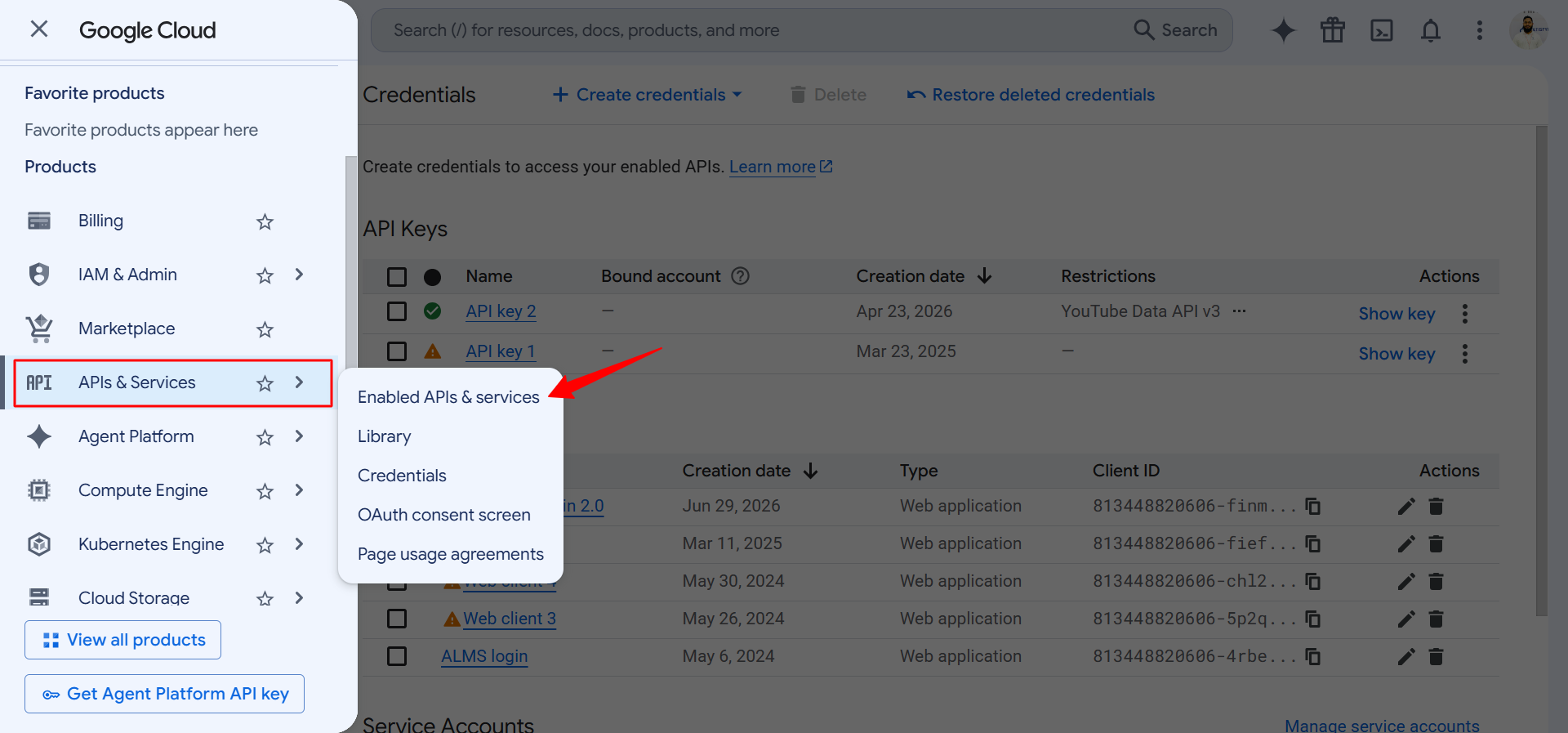
In the Google Cloud Console, locate the hamburger menu (three horizontal lines) in the top-left corner.
Hover over APIs & Services, then click on Enable APIs and Services from the submenu.
Enable APIs and Services
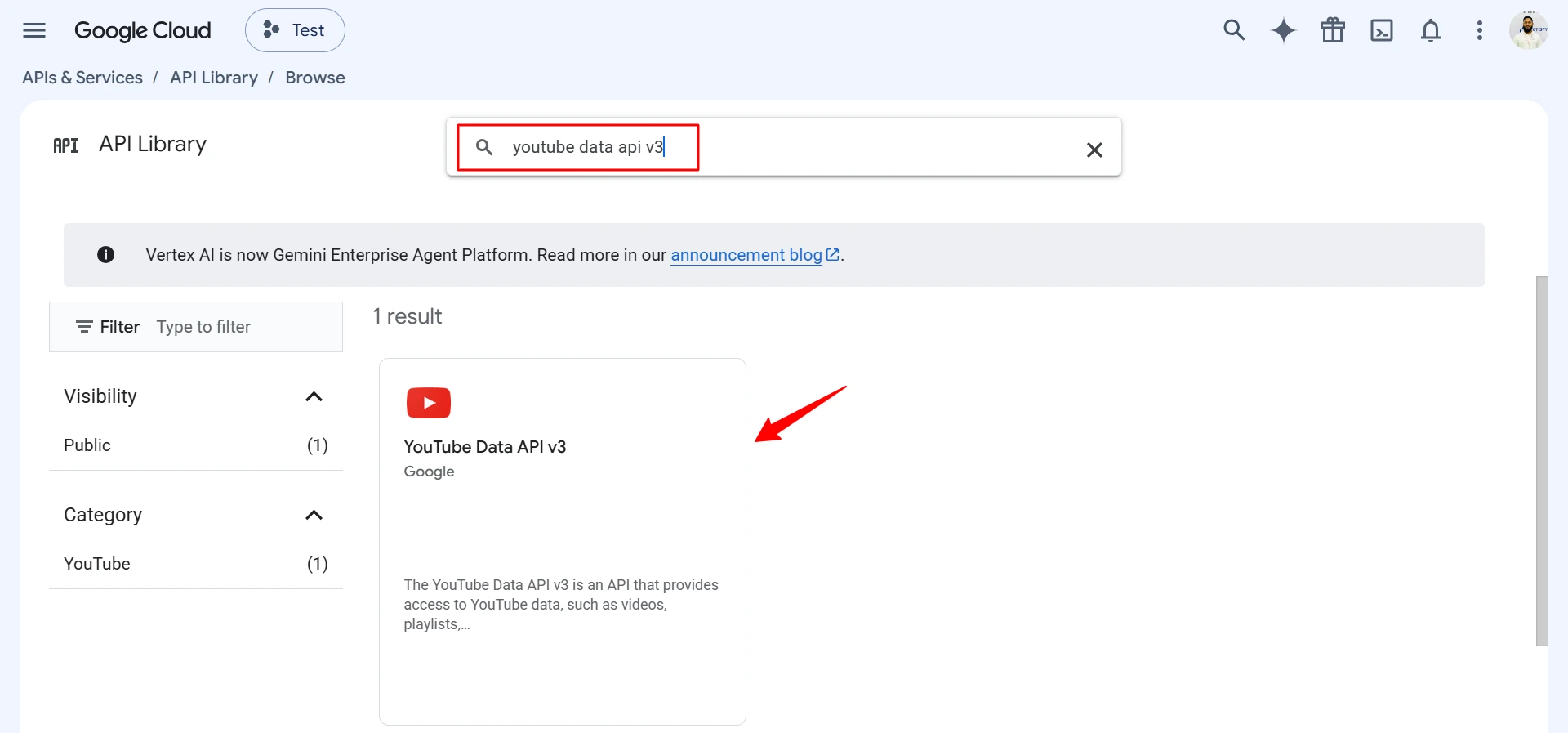
In the search bar, type YouTube to find the YouTube-related APIs.
Youtube API library
Select YouTube Data API v3 from the search results.
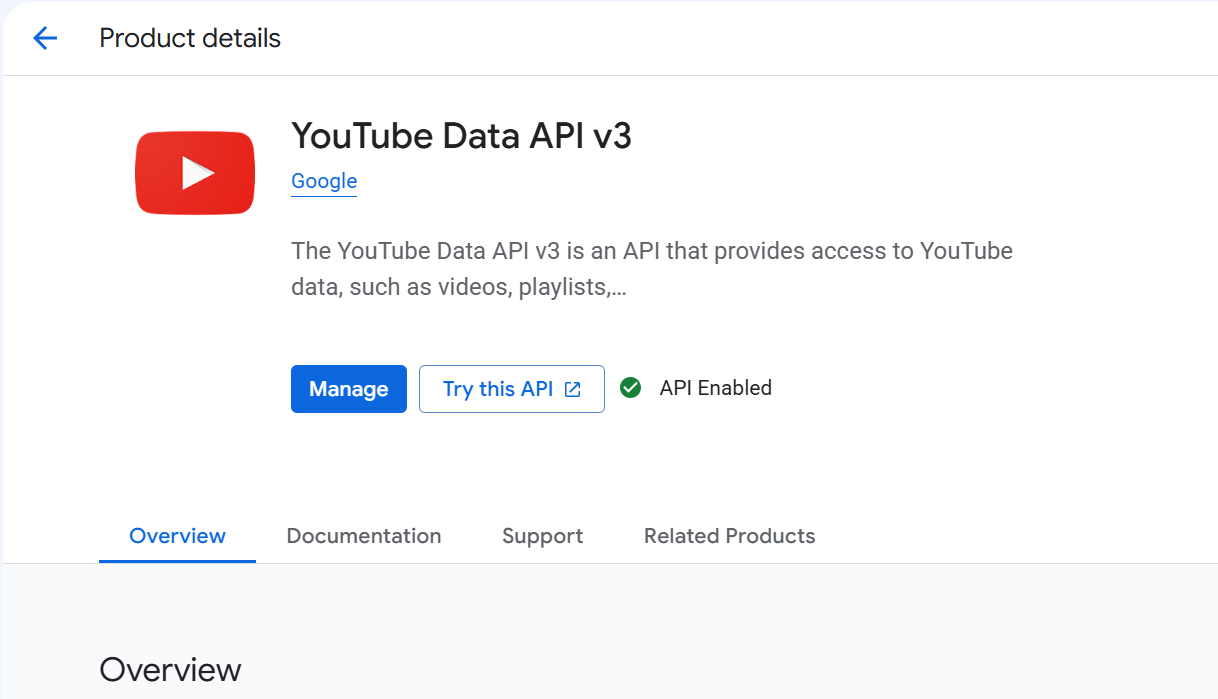
Click the Enable button to activate the API for your project.
Enable youtube API

Creating Credentials

With the YouTube Data API v3 enabled, the next step is to create an API key for authentication. Follow these steps:

Creating Credentials
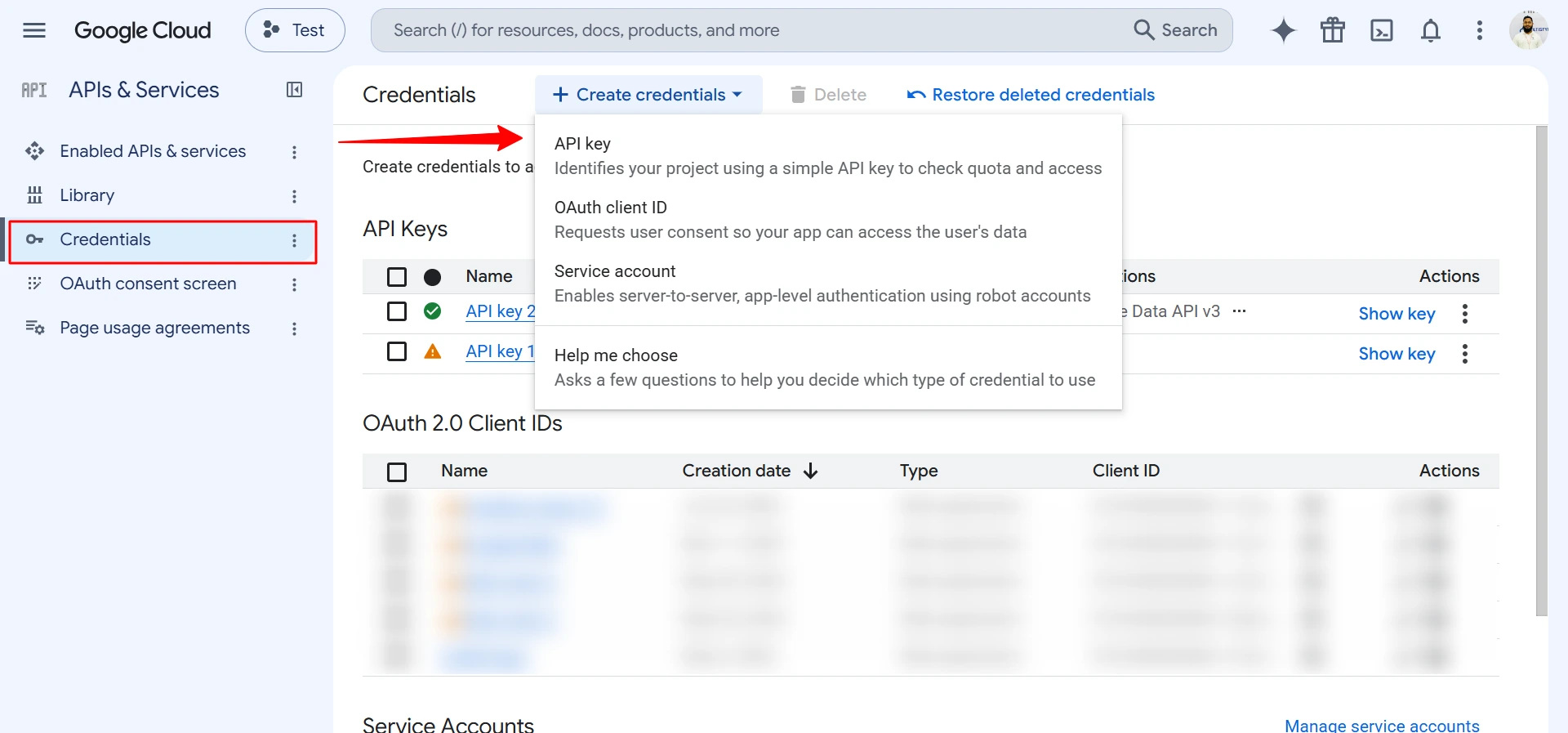
In the Google Cloud Console, navigate to the left-hand menu and click on Credentials.
Click on Create Credentials at the top of the page.
From the dropdown menu, select API Key. This generates the API key.
Create API key
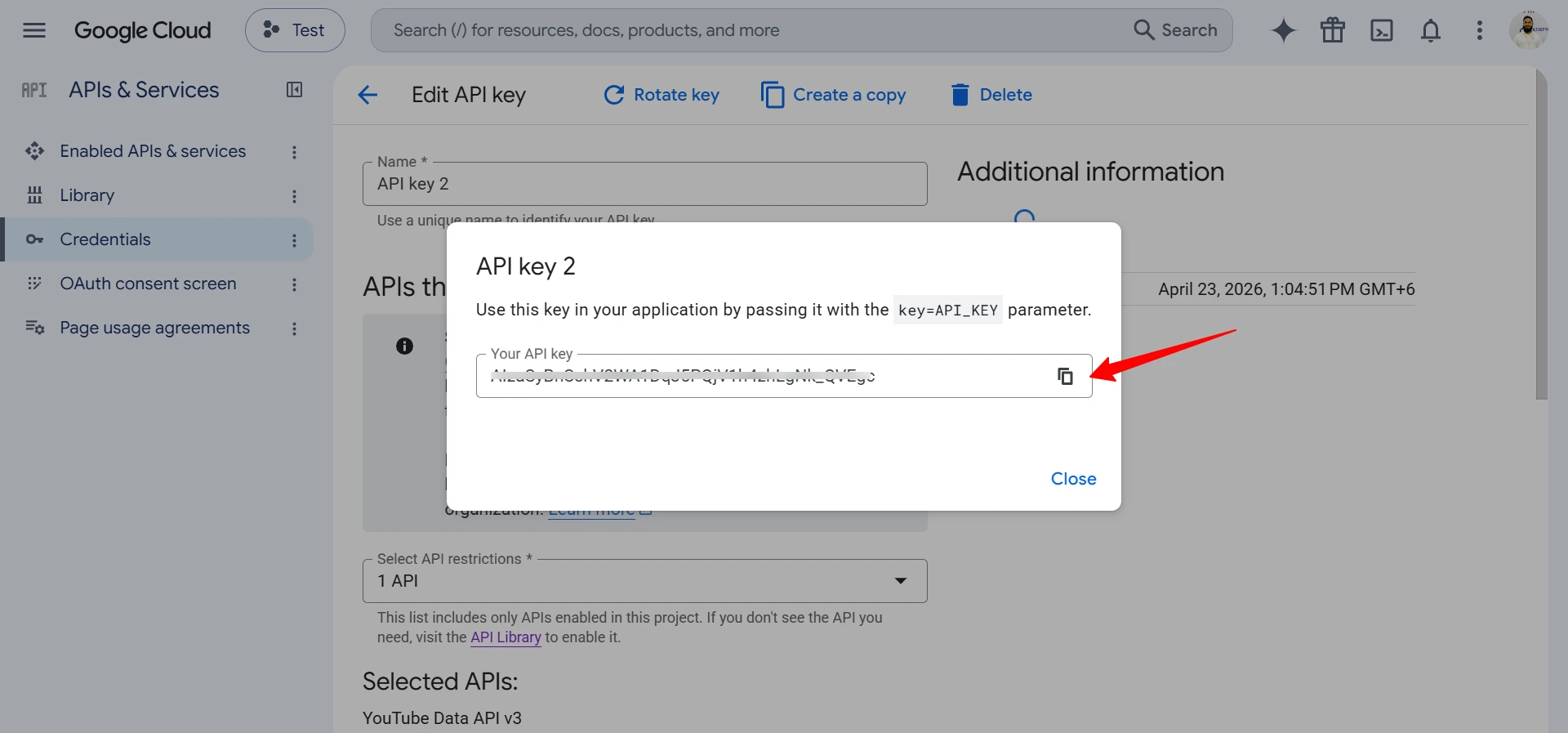
Once the API key is generated, click the Copy icon next to the key to copy it to your clipboard. Save this key securely, as you’ll need it for the next steps.