









Four small tools make the Academy LMS admin easier to use: Dark Mode, Global Search, Guide me and the About page. They show only in the Academy admin area, not on student pages. No setup is needed.
Admin Dark Mode
Switch the admin between light and dark.
1.Open any Academy LMS admin screen.
2.Click the moon icon in the top-right corner. In dark mode it shows a sun. Click it to go back.
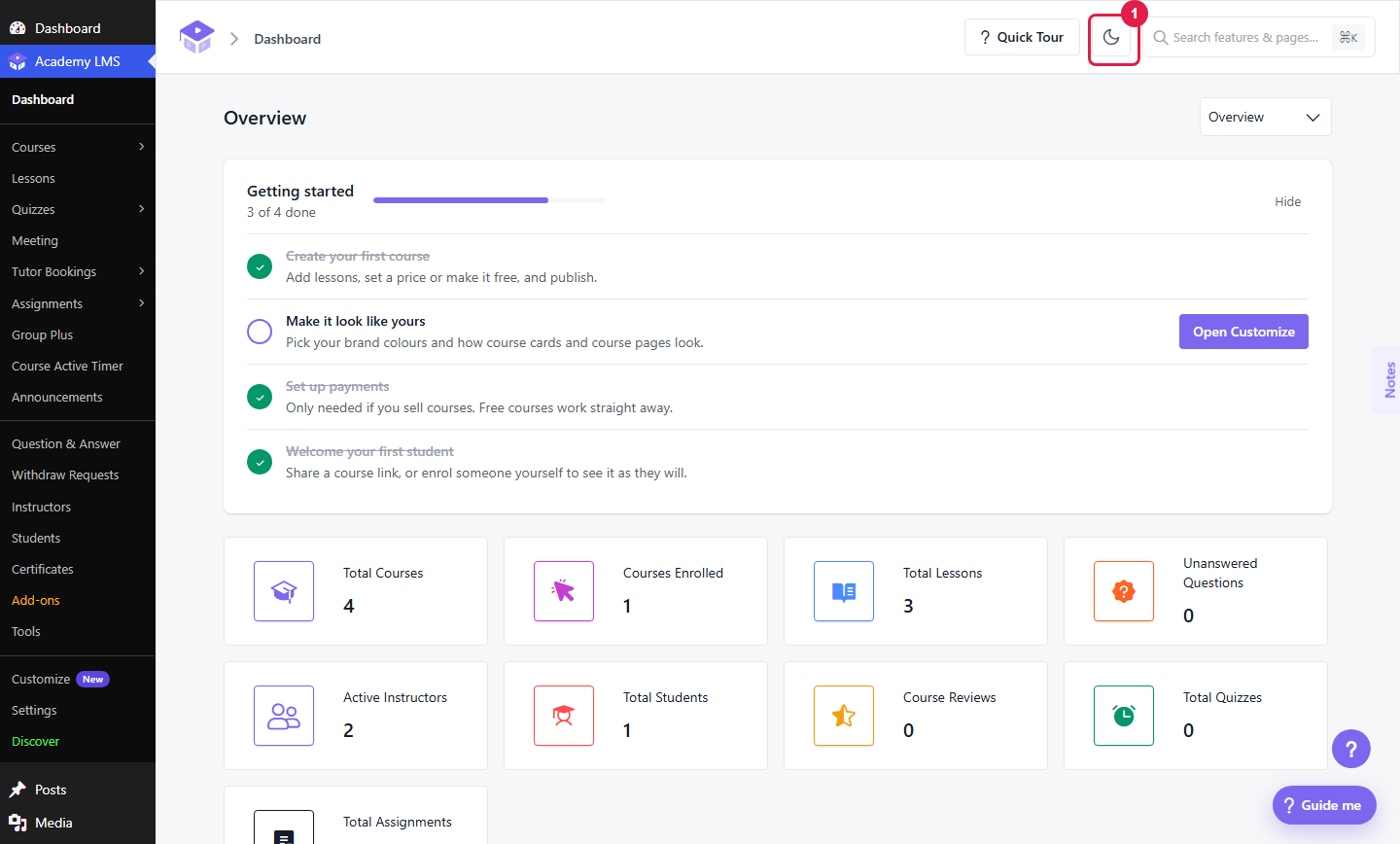
1.Moon icon: switch to dark mode
Mode
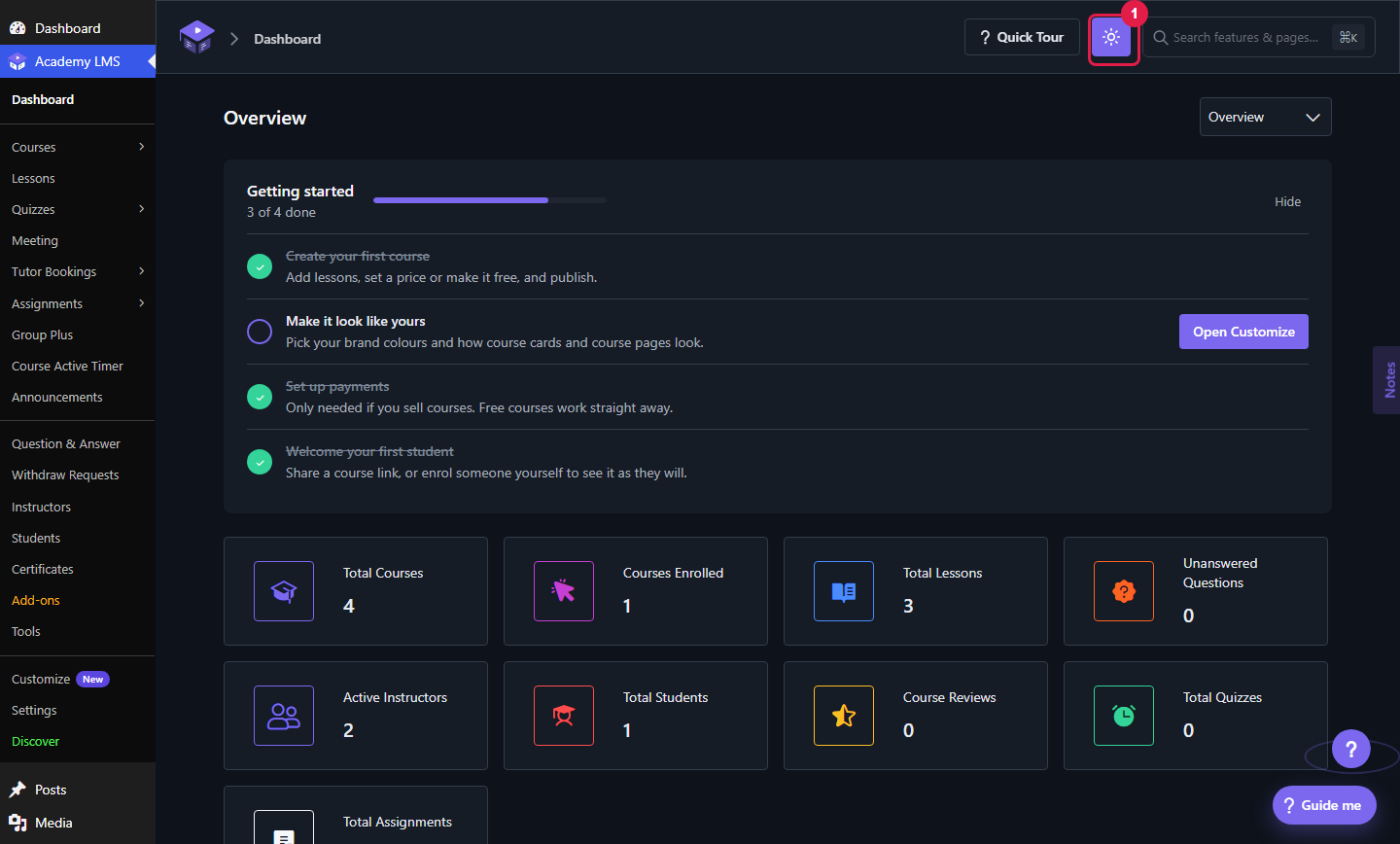
1.Sun icon: switch back to light mode
This changes the admin only. Course pages have their own light and dark switch.
Global Search
Find any screen or setting fast.
1.Click the search bar in the top-right corner, or press Ctrl + K (Mac: ⌘ + K).
2.Type a page name, a setting or a feature.
3.Use the arrow keys to move through the results. Press Enter to open one.
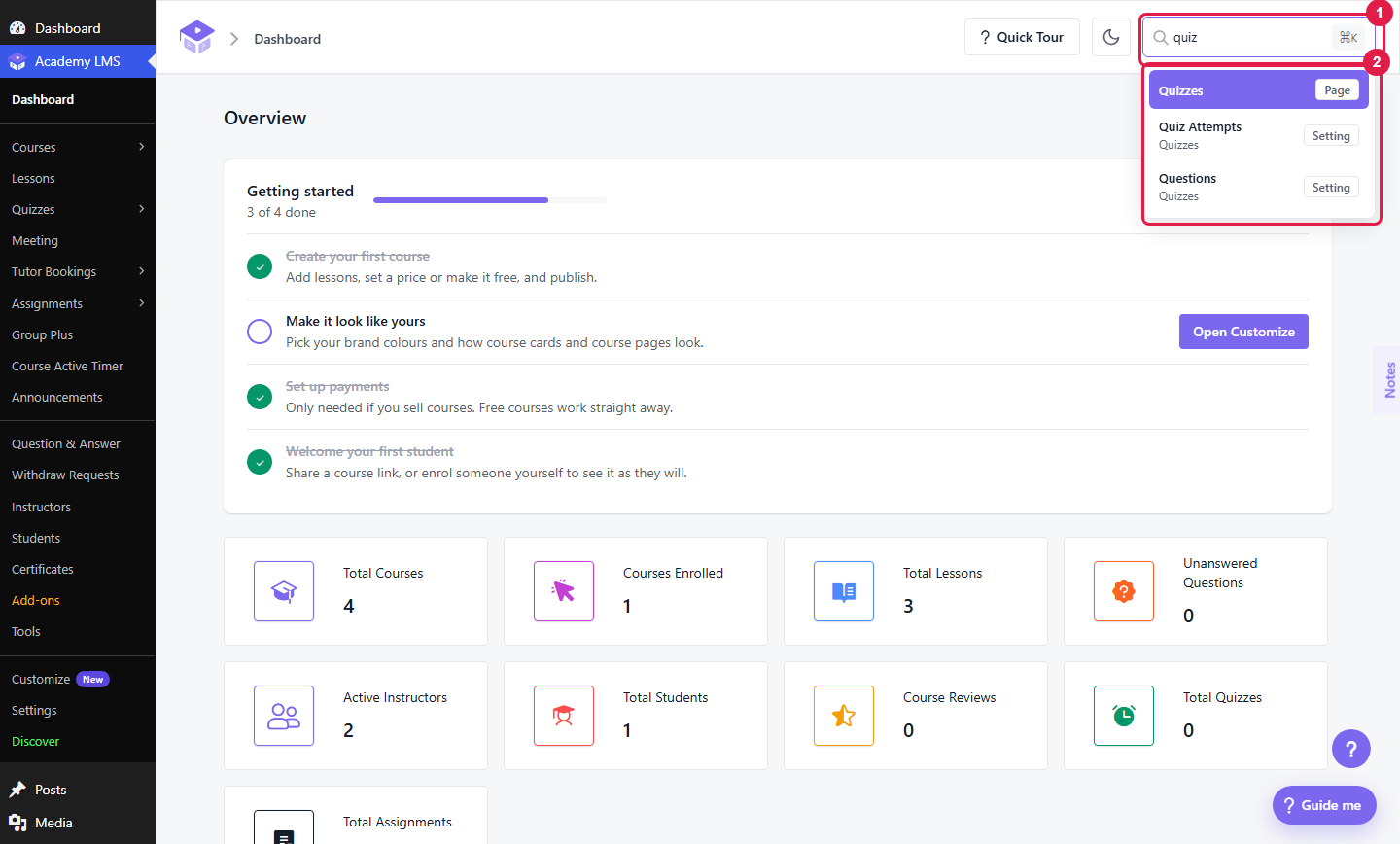
1.Search bar: the ⌘K hint shows the shortcut
2.Results: each one is labeled Page or Setting
Guide me
Get step-by-step help on any admin screen.
1.Click Guide me in the bottom-right corner.
2.Ask a question, pick a topic, or take the quick tour.
3.Answer the short question if it asks one.
4.Click Show me how. Guide me moves to the right screen and shows where to click.
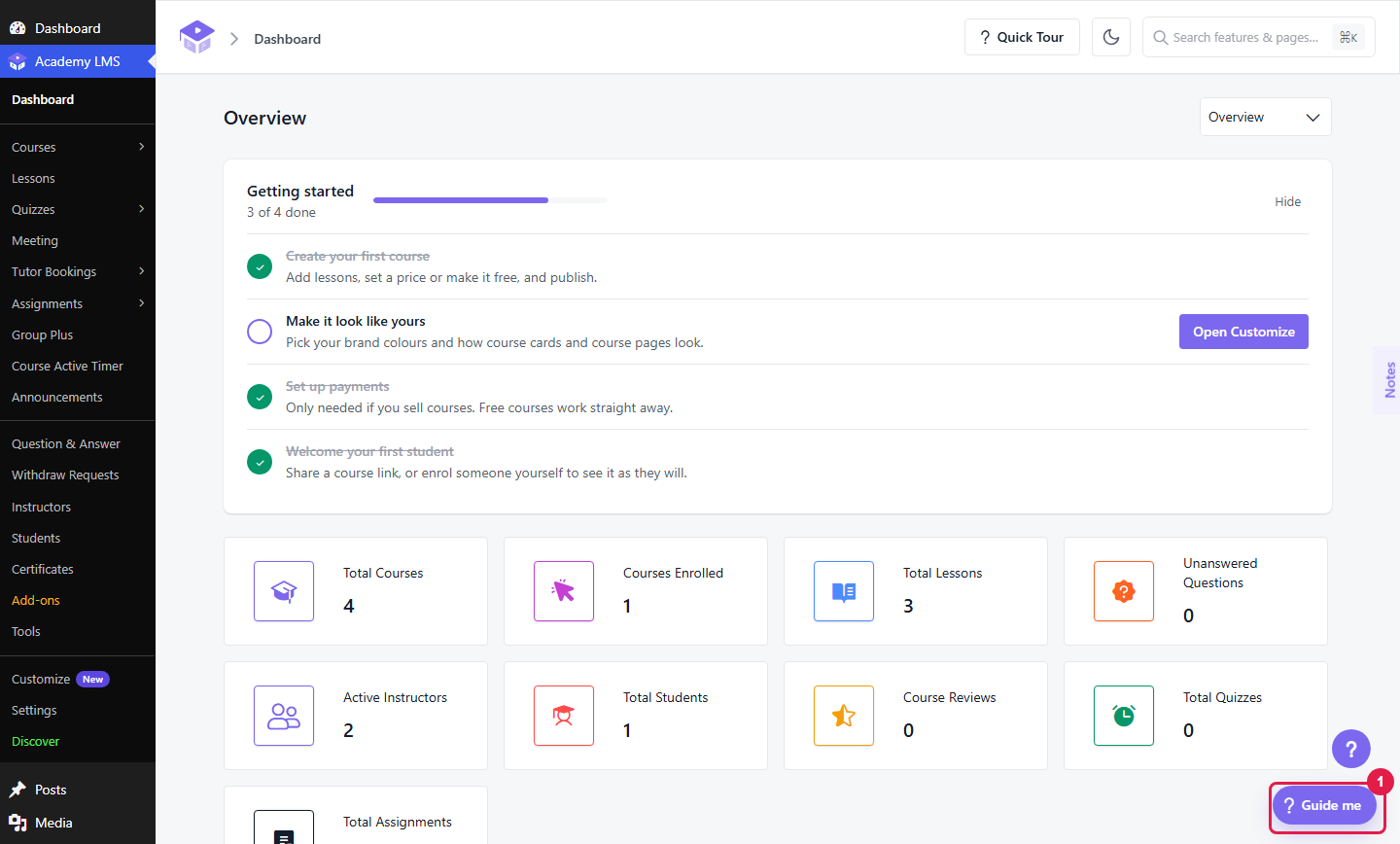
1.Guide me button
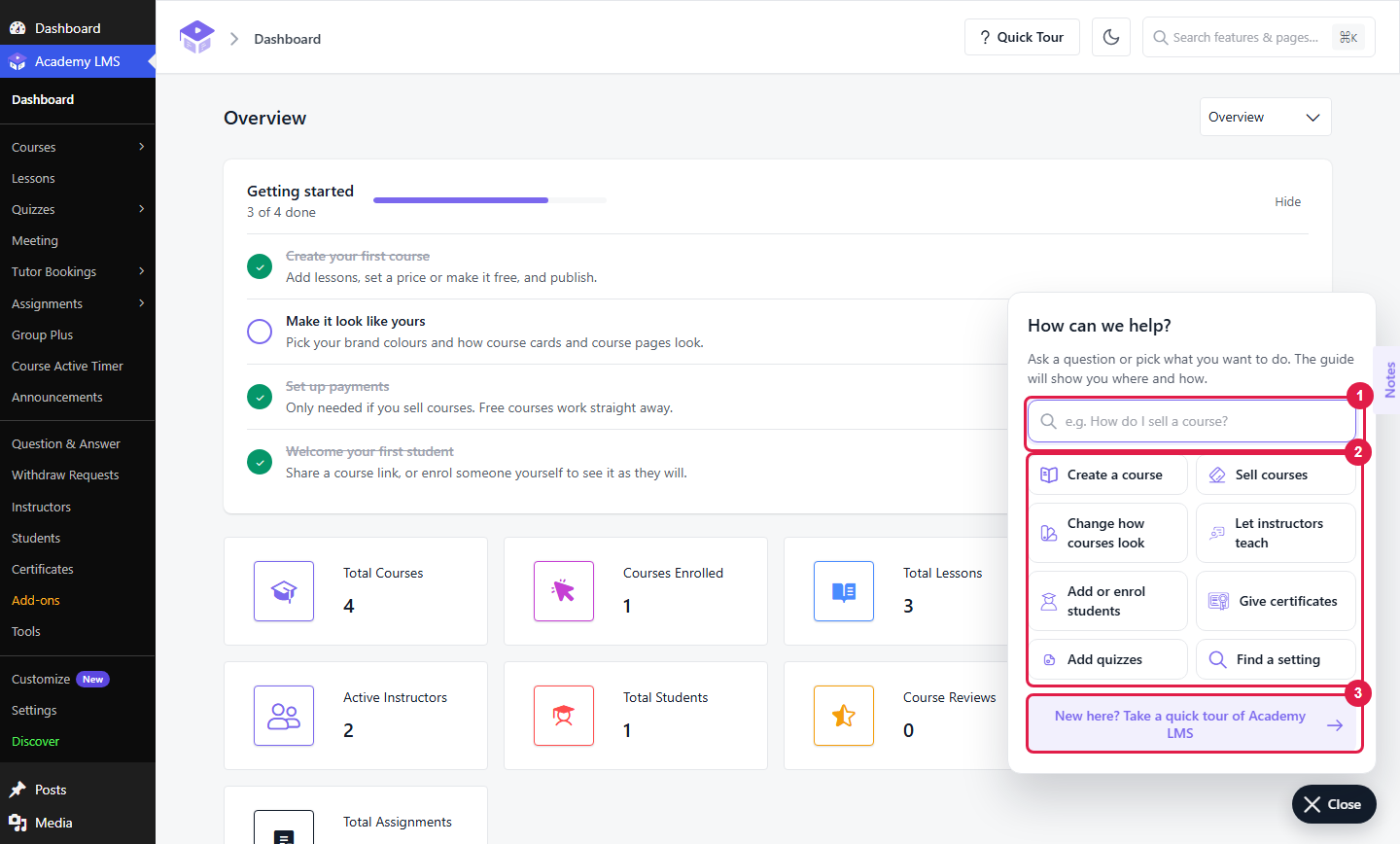
1.Question box: type something like “How do I sell a course?”
2.Topics: create a course, sell courses, change how courses look, let instructors teach, add or enrol students, give certificates, add quizzes, find a setting
3.Quick tour: “New here? Take a quick tour of Academy LMS”
Some topics ask a quick question first. Pick the answer that fits you.
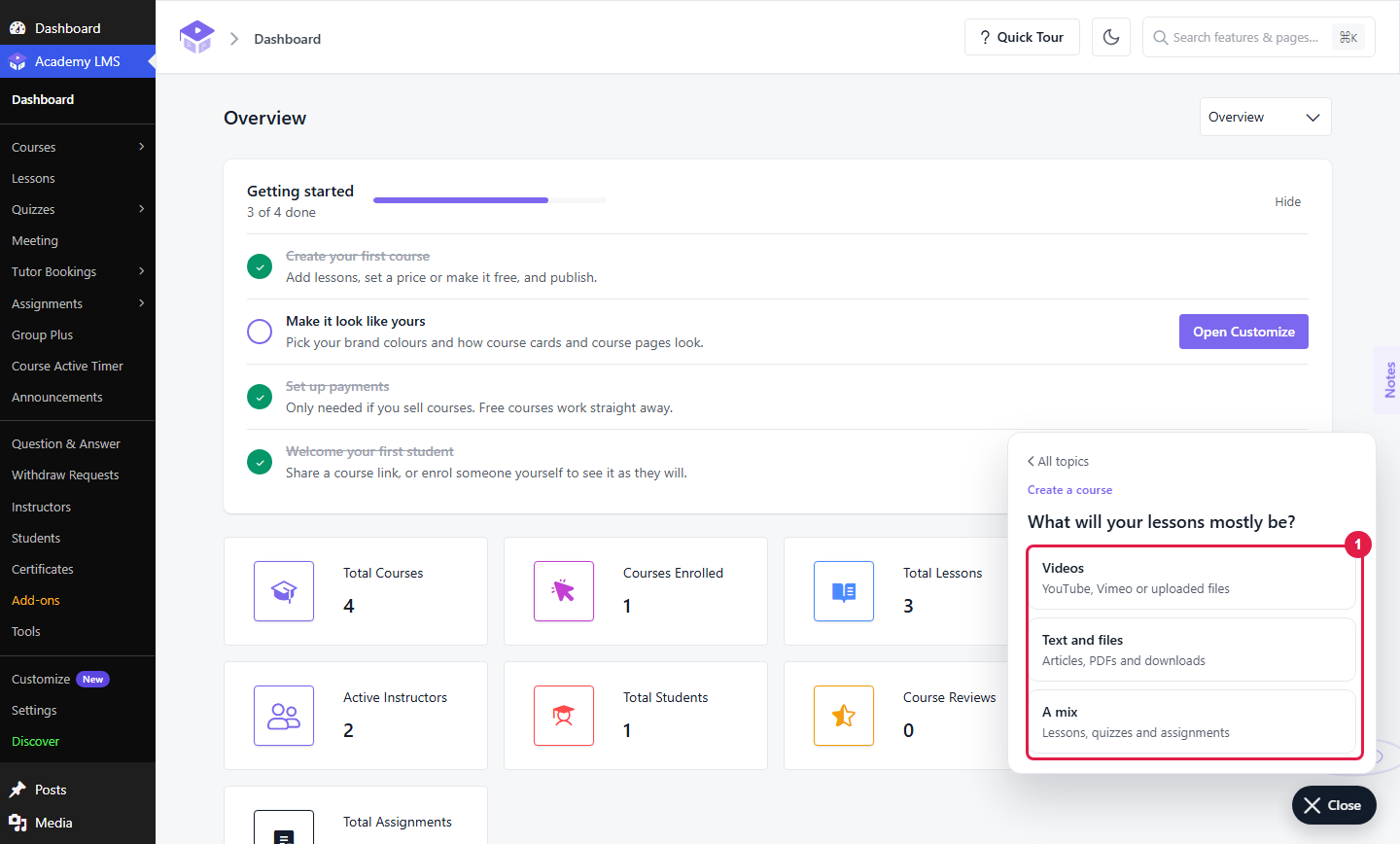
1.Answers: Videos, Text and files, or A mix
Guide me then shows your plan. Click Show me how to start.
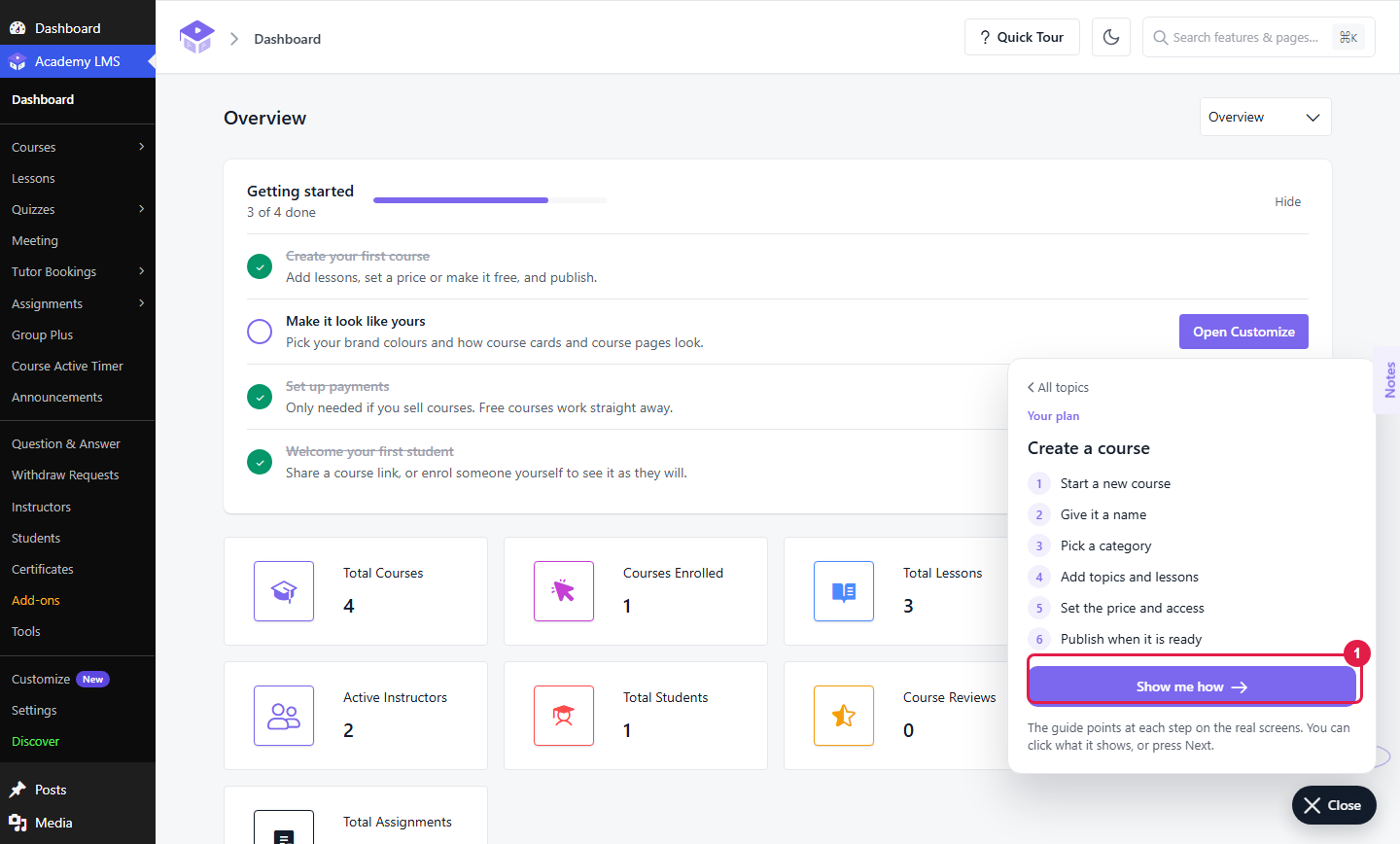
1.Show me how: starts the guide
Guide me opens the right screen and highlights the button to click.
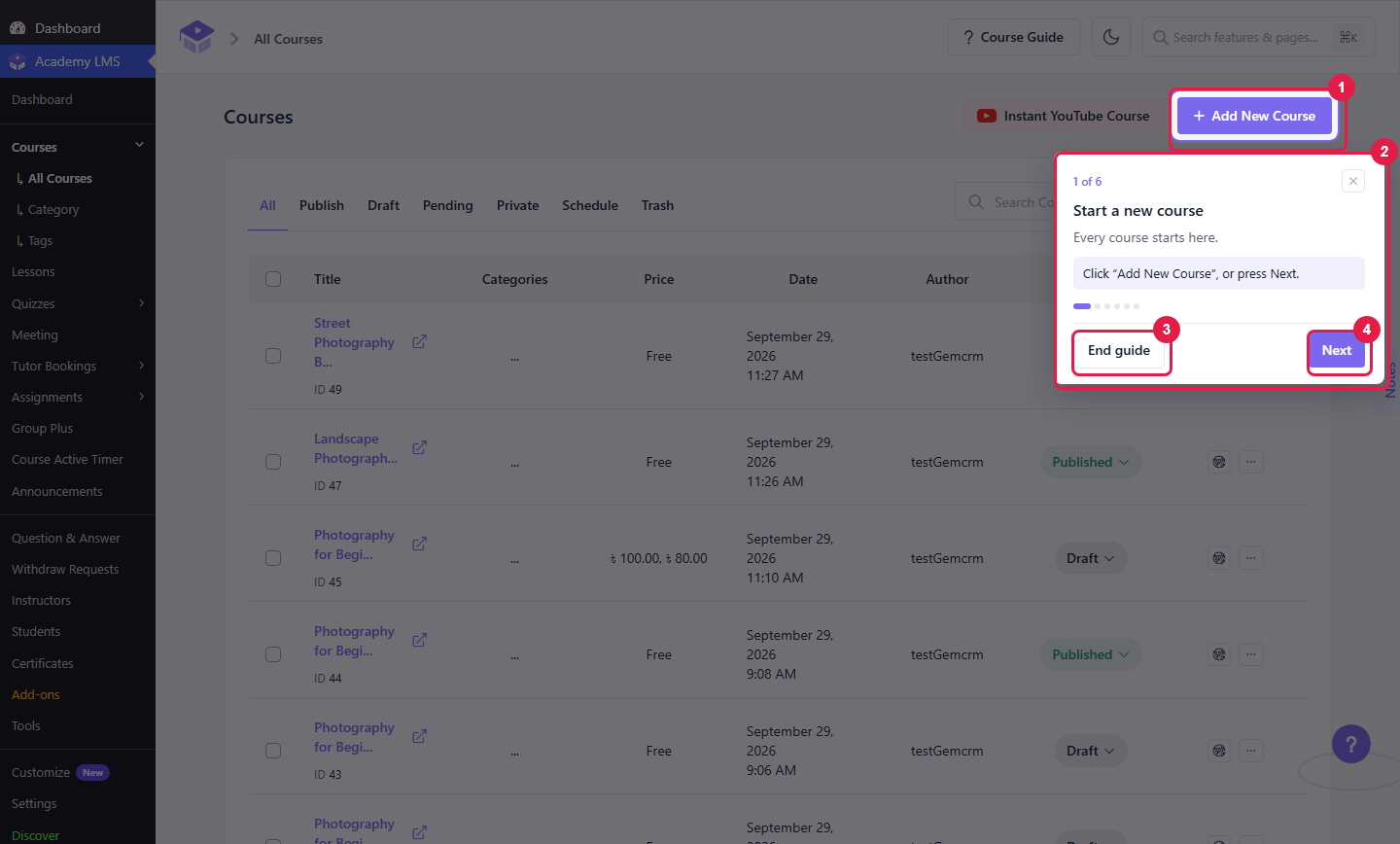
1.Highlighted button: click it, or press Next
2.Guide card: shows the step number, like “1 of 6”
3.End guide: stops the guide
4.Next: goes to the next step
If you leave a guide halfway, click Continue guide to carry on.
1.Continue guide (1 of 6): picks up where you stopped