









Track who attended your live classes, both online and in person. Online attendance can be recorded automatically. You can also mark or change attendance by hand.
1. Turn on the add-on
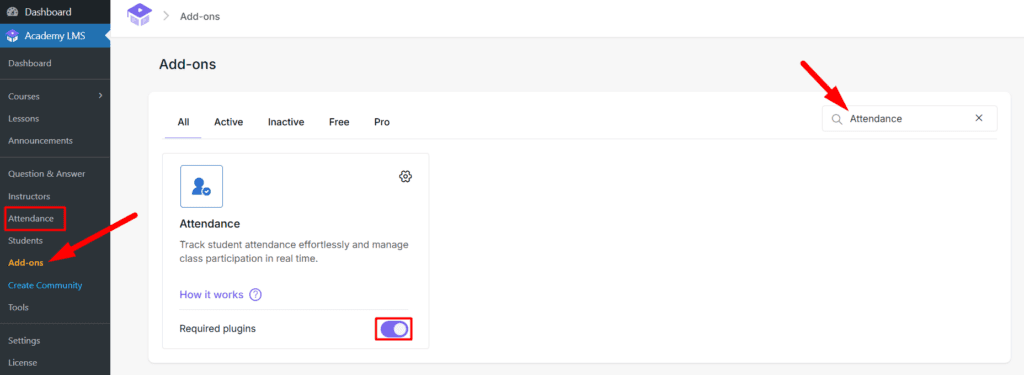
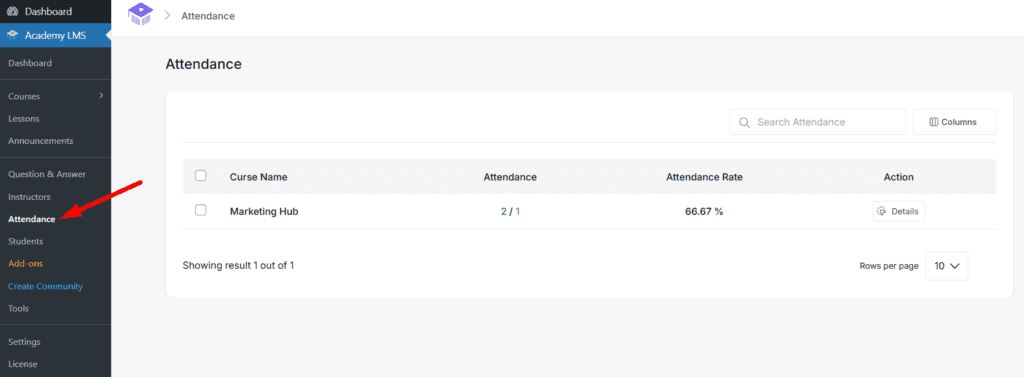
Go to Academy LMS → Add-ons, find Attendance and switch it on. An Attendance menu appears in Academy LMS.
2. Set up an online class
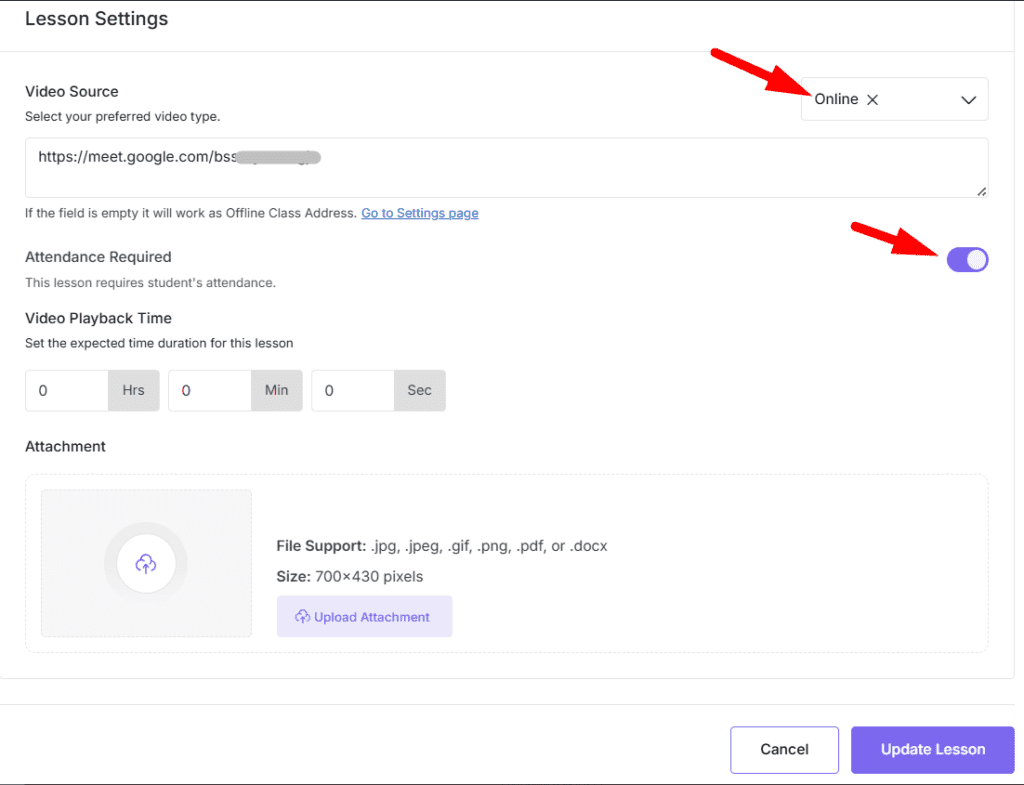
1.Open the lesson for the class and go to Lesson Settings.
2.Set Video Source to Online.
3.Paste the meeting link (Google Meet, Zoom or similar).
4.Choose how attendance is recorded with Attendance Required:
3. Set up an in-person class
Add the class address in the lesson’s settings. Students see it in the lesson.
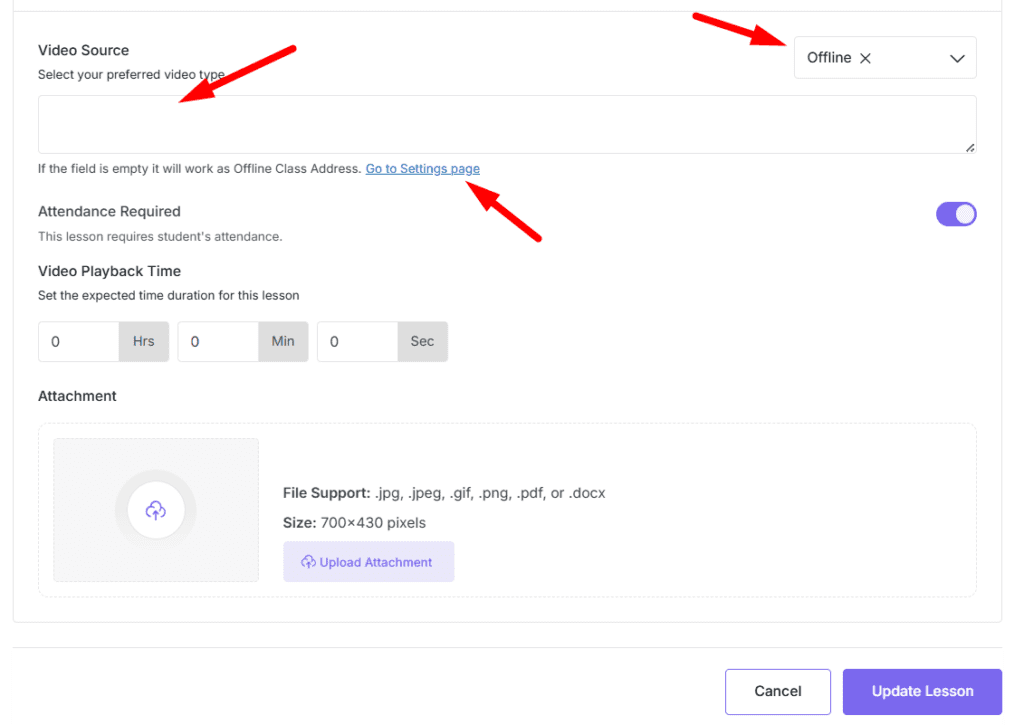
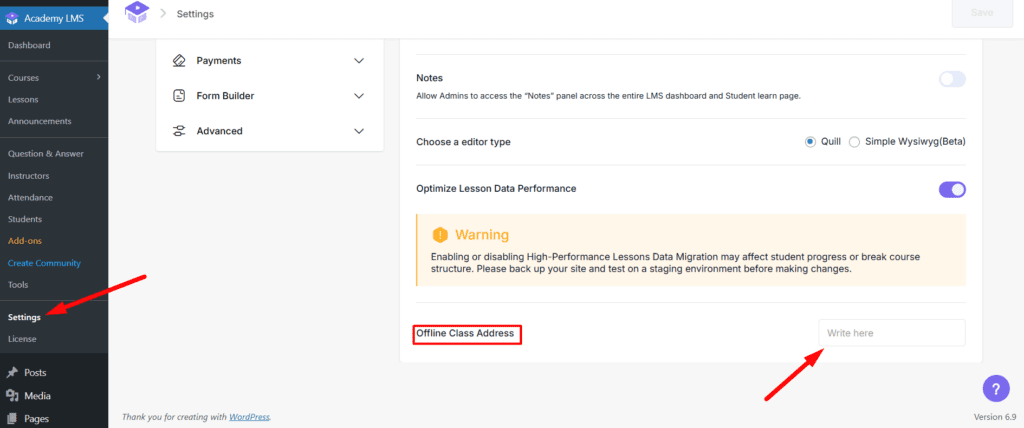
You can also set a default address for all in-person classes in the main settings. It is used whenever a lesson has no address of its own.
4. Manage attendance
1.Go to Academy LMS → Attendance.
2.Click Details next to a course.
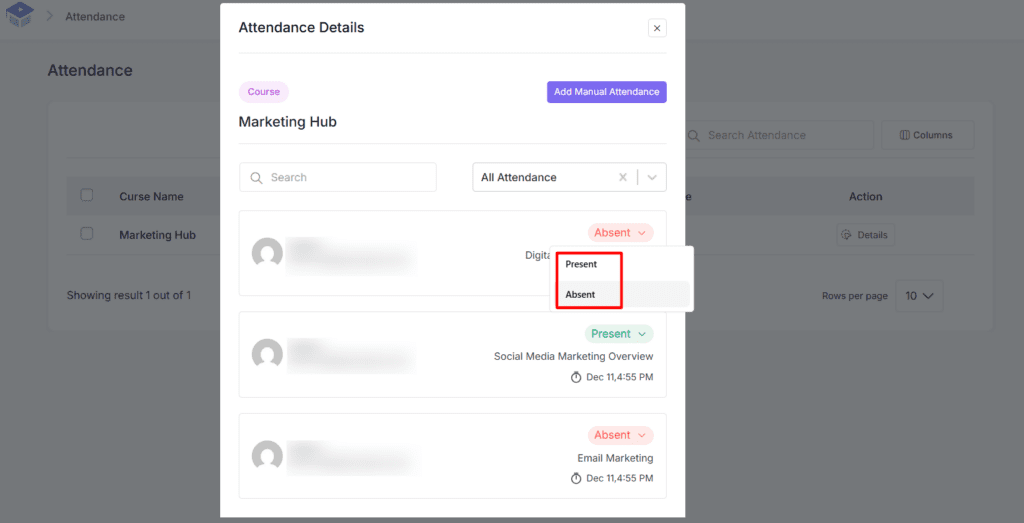
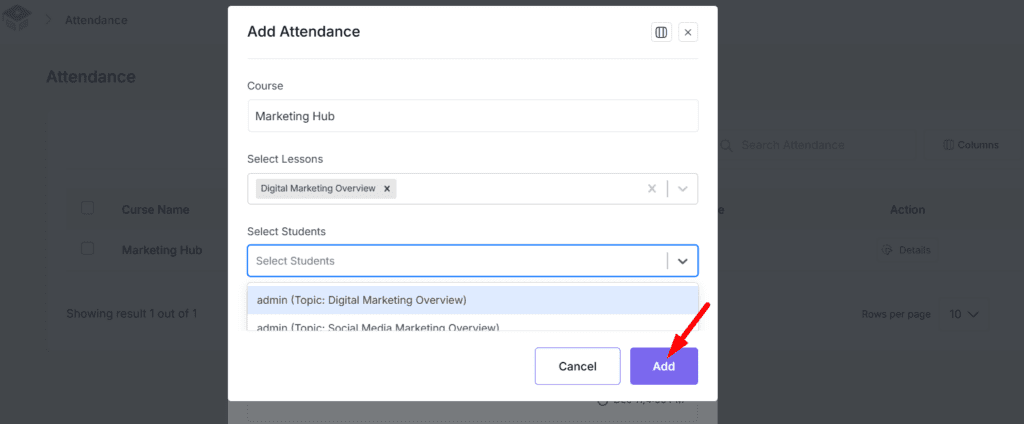
3.Mark any student Present or Absent, or add a student to the list by hand.
Present students show in green and absent students in red. You can also show attendance as a percentage.
To run the online classes themselves, see Live Classes with Zoom and Google Meet.