









Give someone access to part of the Academy LMS admin, without making them an instructor or a WordPress administrator. Pick the person, then tick the areas they can work in. This is a Pro add-on, listed as Role & Permission (Beta).
1. Turn on the add-on
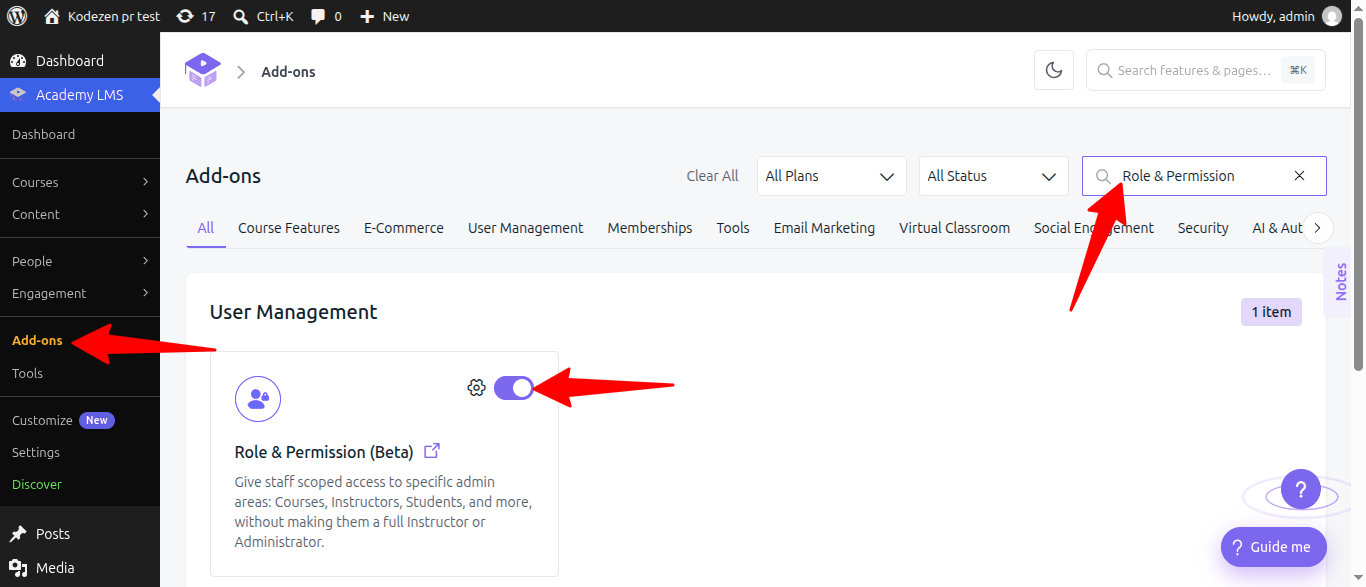
Go to Academy LMS → Add-ons, search for Role and switch on Role & Permission (Beta) (under User Management).
2. Open Manage Roles
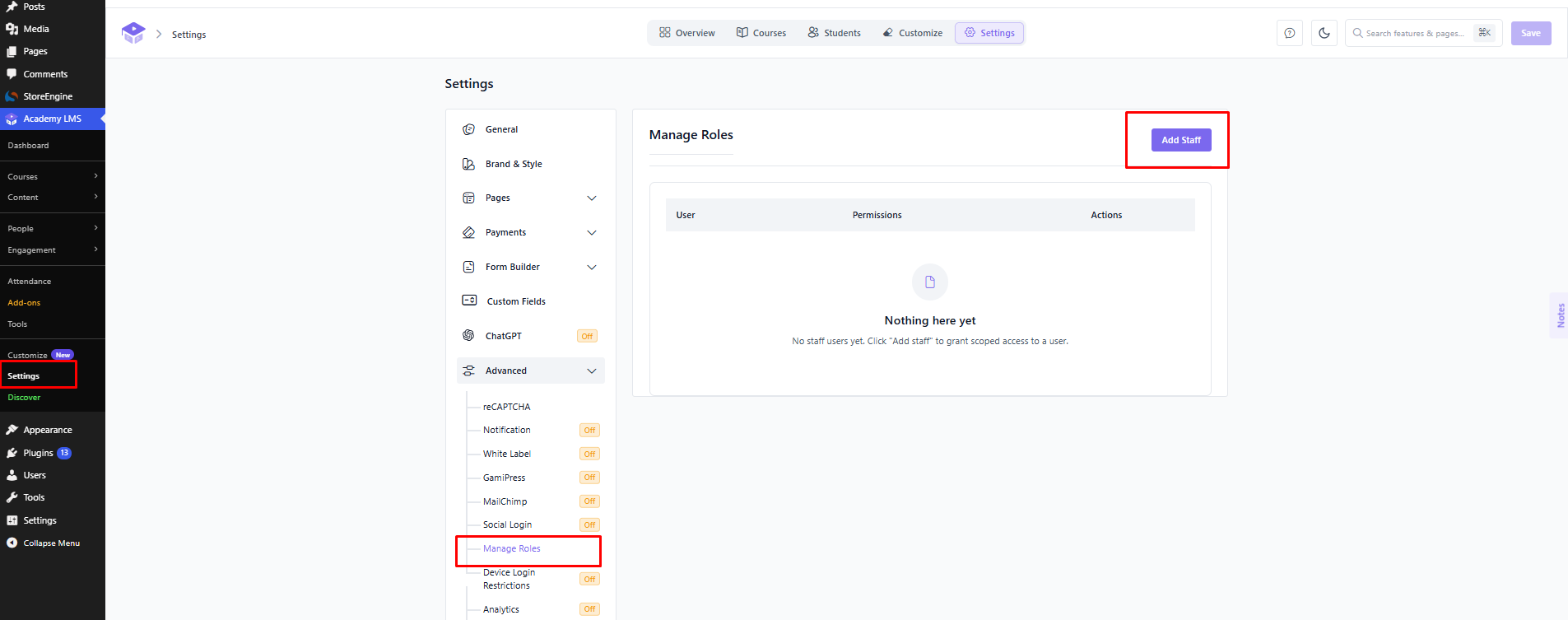
Go to Academy LMS → Settings → Advanced → Manage Roles. The list shows each staff member, how many permissions they have (“N granted”) and Actions.
3. Add a staff member
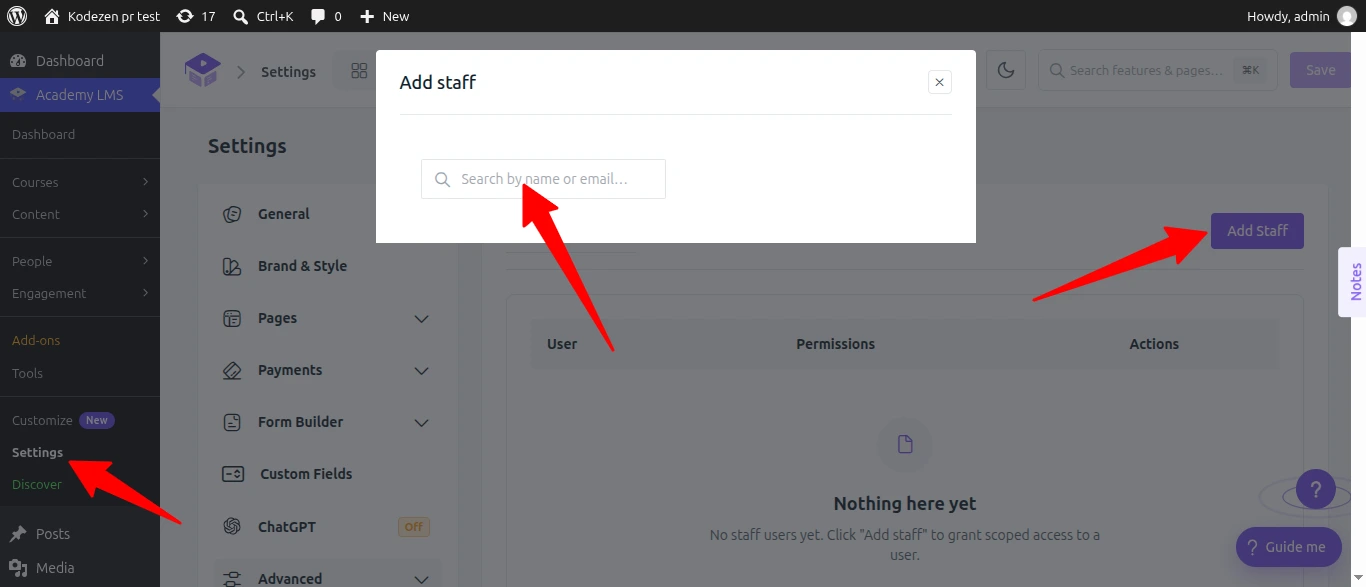
Click Add Staff, search by name or email and pick the person. They need a WordPress account already. They start with no permissions.
4. Grant permissions
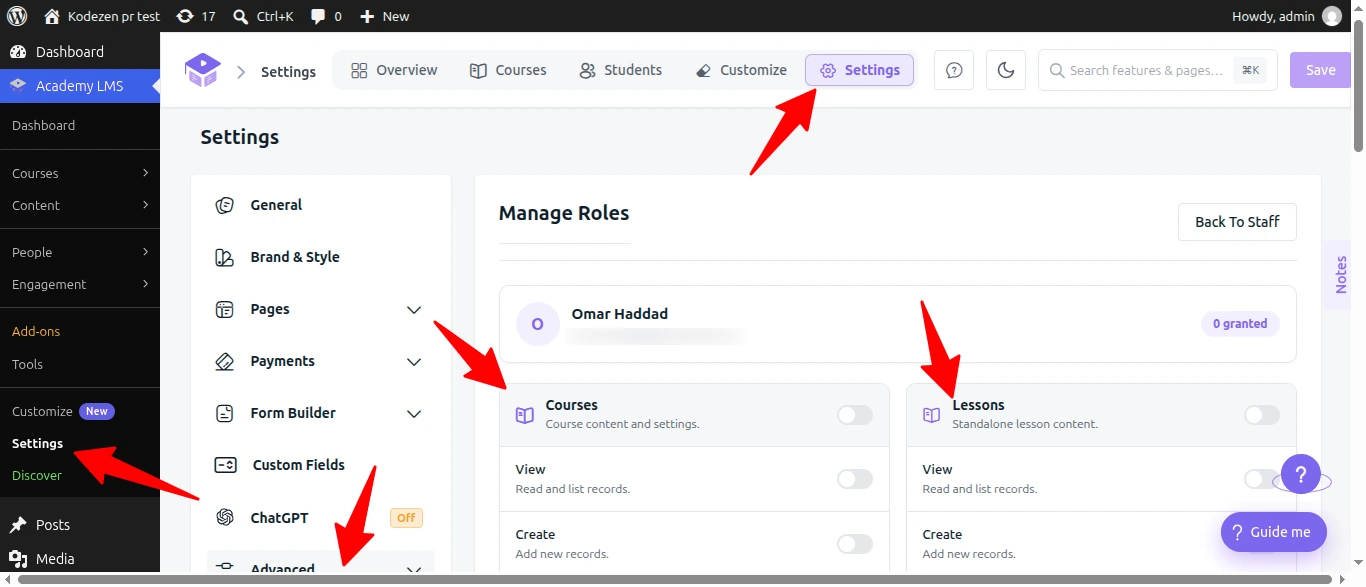
Open the person’s Actions menu and choose Edit. Permissions are grouped by admin area, such as Courses, Lessons, Instructors, Students, Announcements, Quizzes, Certificates, Assignments, Settings and more.
Only areas whose add-on is on are listed.
For each area you can grant:
|
Permission |
Allows |
|
The area itself |
Open and view that screen |
|
create |
Add new items |
|
update |
Edit items |
|
delete |
Remove items |
Granting create, update or delete also grants the view permission. Each area has a control to grant or remove everything at once. Changes save as you make them.
What the staff member sees
Menu items they can’t use are hidden, and blocked actions are checked on the server too, so a saved link won’t get them in. If they try something they’re not allowed to do, they see a message such as “You don’t have permission to create courses.”
The Academy Manager role
The add-on also adds an Academy Manager role you can give from the normal WordPress user editor. Use it for someone who needs broad Academy access. Use per-person permissions when you want to be precise.