









The Grade Book gives each student a final letter grade for a course. You set the grade scale once. Academy LMS then works out the grade from the student’s quiz and assignment scores. Grade Book is a Pro add-on.
1. Turn on the add-on
Go to Academy LMS → Add-ons, find Grade Book and switch it on.
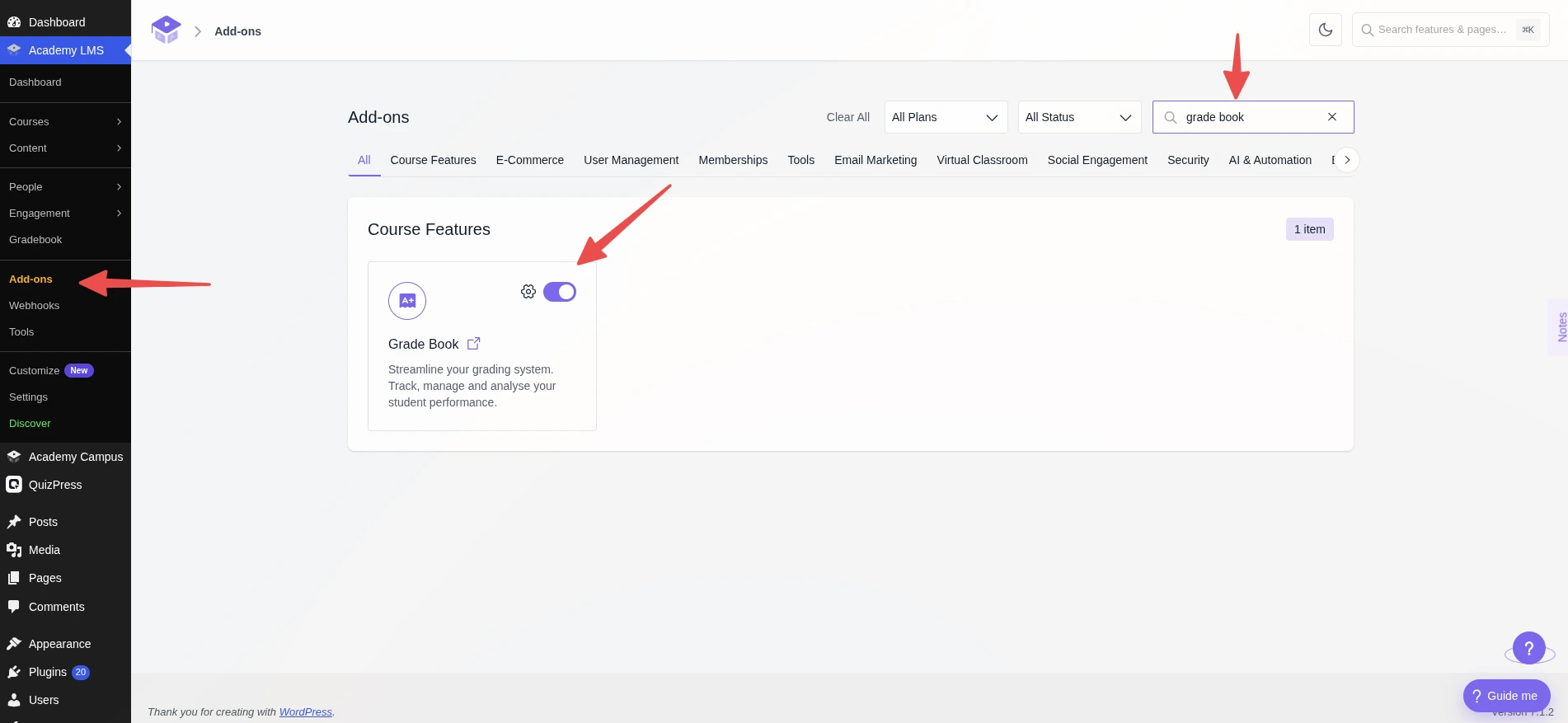
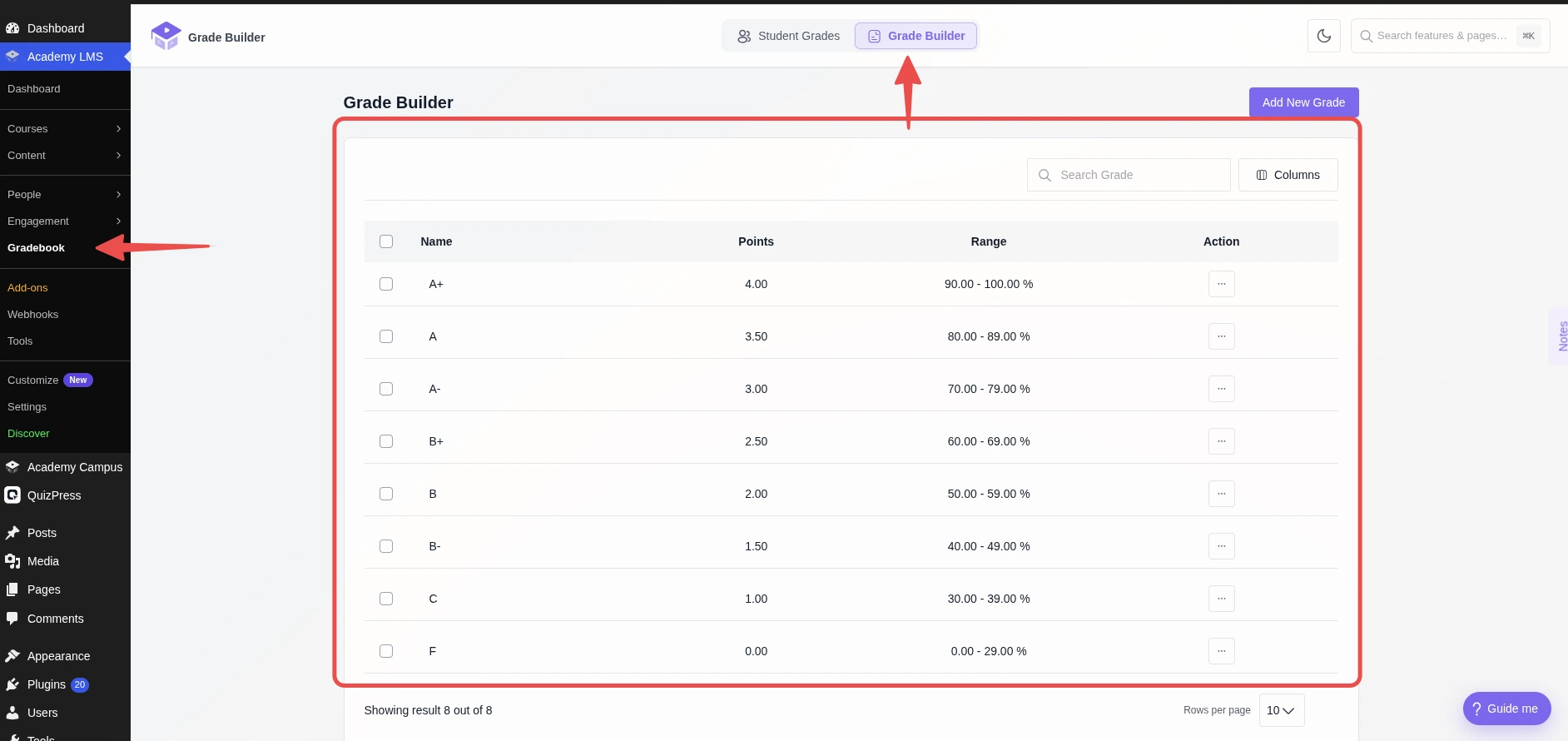
The first time, Academy LMS creates a default scale of 8 grades for you.
2. Set up your grade scale
A GradeBook menu appears with Student Grades and Grade Builder. Open Grade Builder.
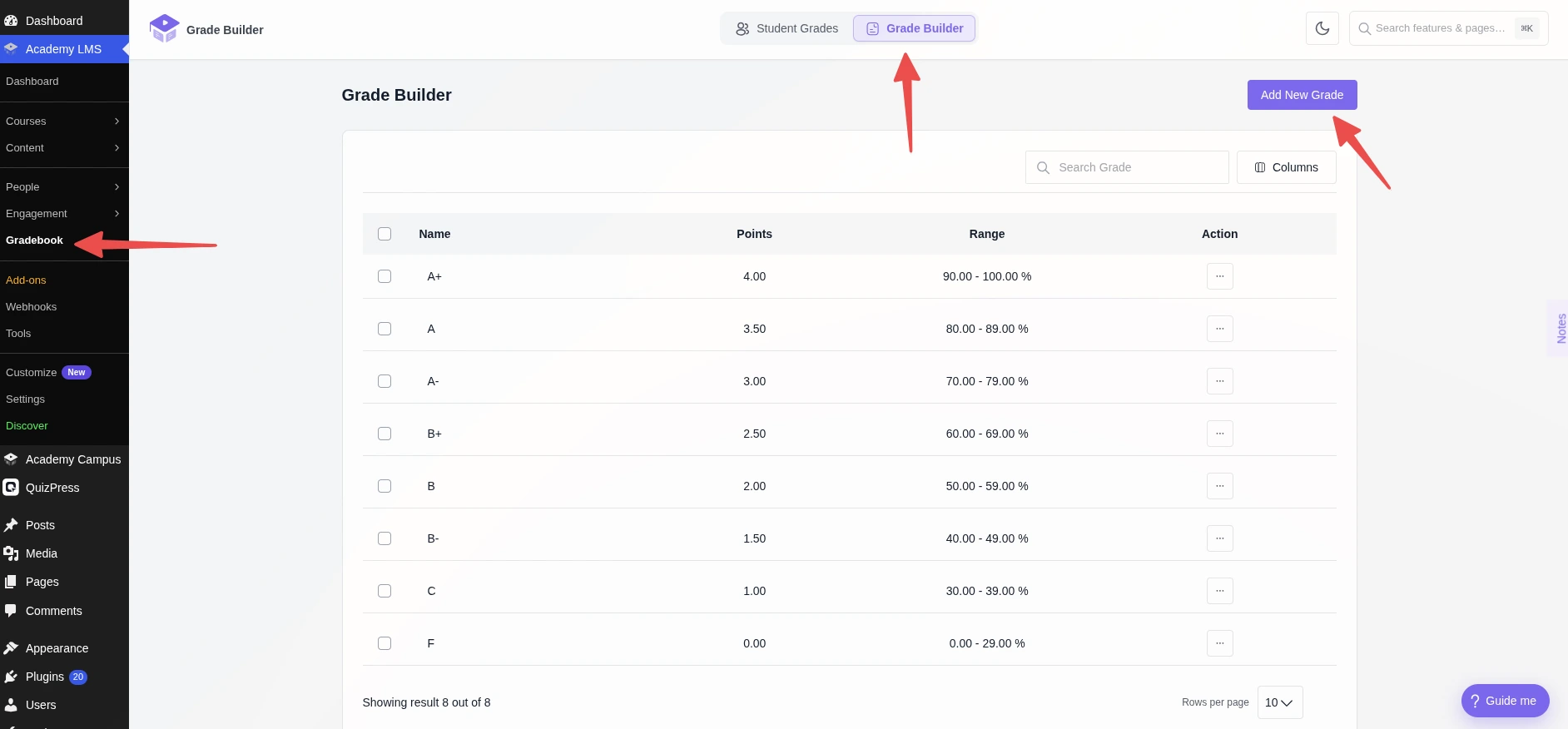
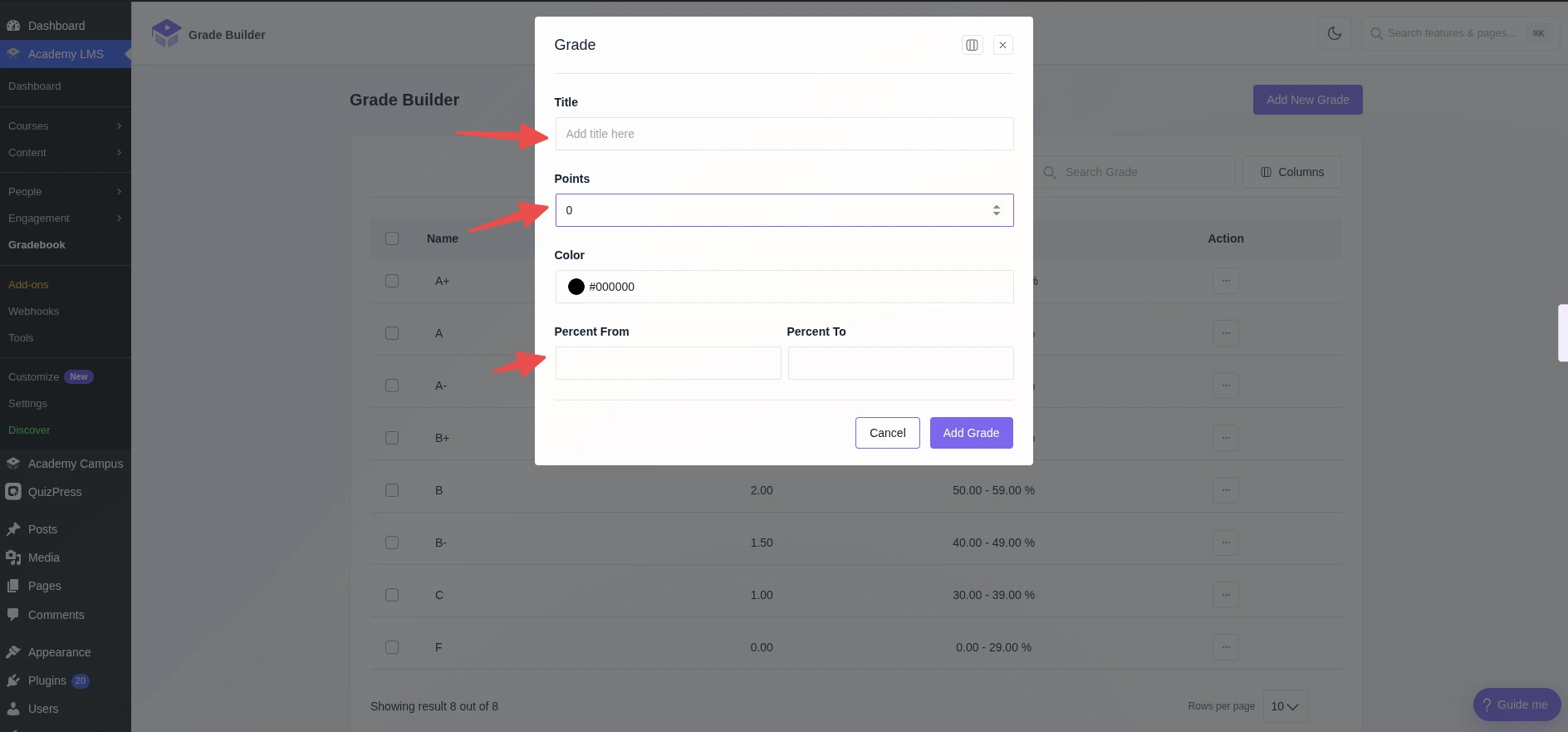
Click Add New Grade and fill in:
Click Add Grade. Edit or delete any grade from its Action menu.
Deleted every grade by mistake? Click Generate Grade to bring back the default scale.
3. See student grades
Go to GradeBook → Student Grades. Each row shows the student, the course (with its quiz and assignment count), Final Percent and Final Grade. Click Details for the full breakdown.
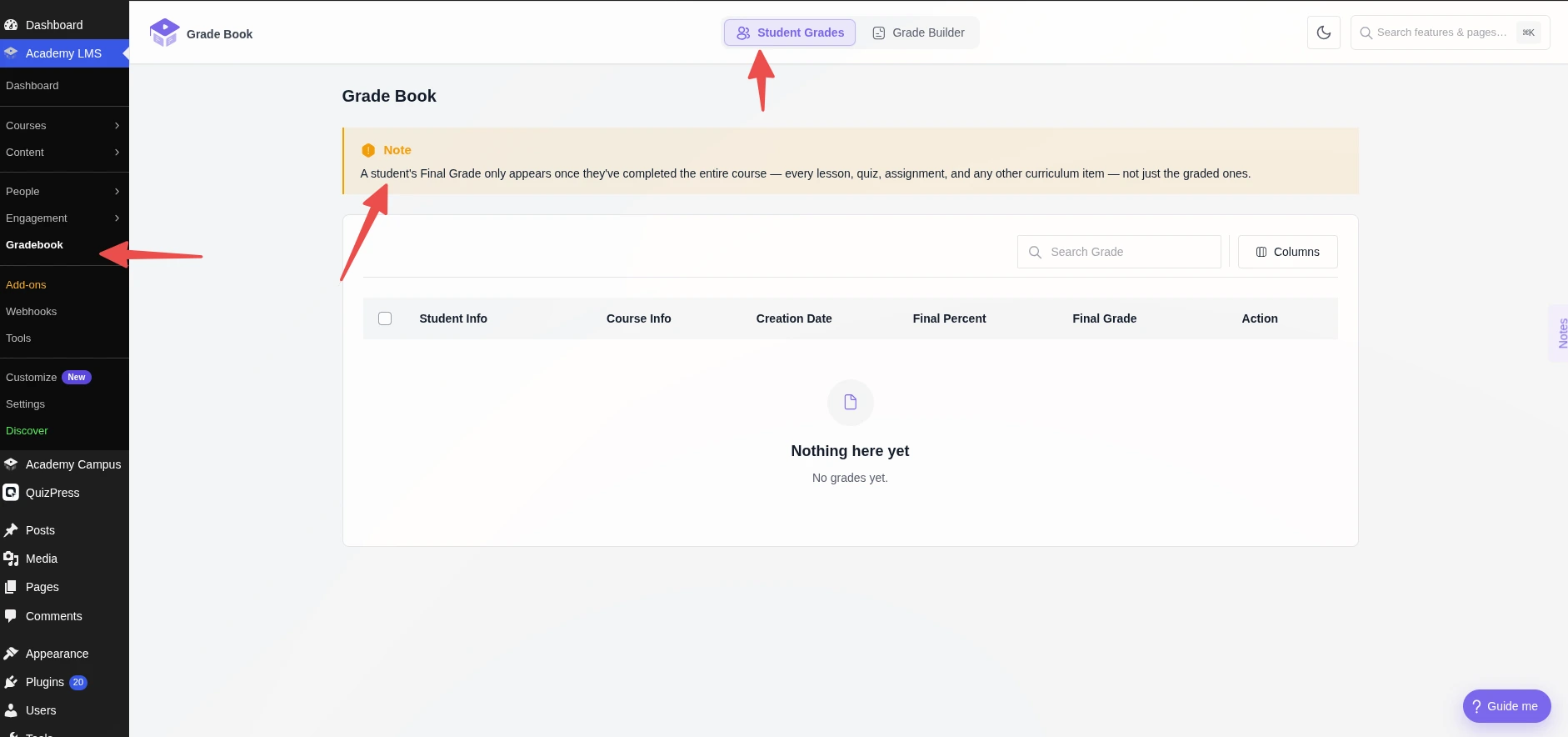
A student appears here only after they complete the whole course: every lesson, quiz, and assignment, not just the graded items.
You don’t need to attach the scale to each course. It applies to every course’s quizzes and assignments automatically.
Troubleshooting
A student who finished the course is missing from Student Grades. Check that every curriculum item is marked complete for them, including plain lessons. One unfinished lesson holds back the final grade.