









You can bring content from other tools into your lessons:
Presto Player: videos and audio with a custom player
H5P: interactive quizzes, presentations and videos
Canva: designs and presentations
Presto Player and H5P give you a shortcode. Canva gives you an embed link. You paste either into a lesson.
Where to paste it
In the lesson editor you have two places:
Lesson Content: paste the shortcode into the text. It shows inside the lesson.
Video Source: under Lesson Settings, choose Shortcode (Presto, H5P) or Embedded (Canva), and paste it in the box. It shows where the lesson video goes.
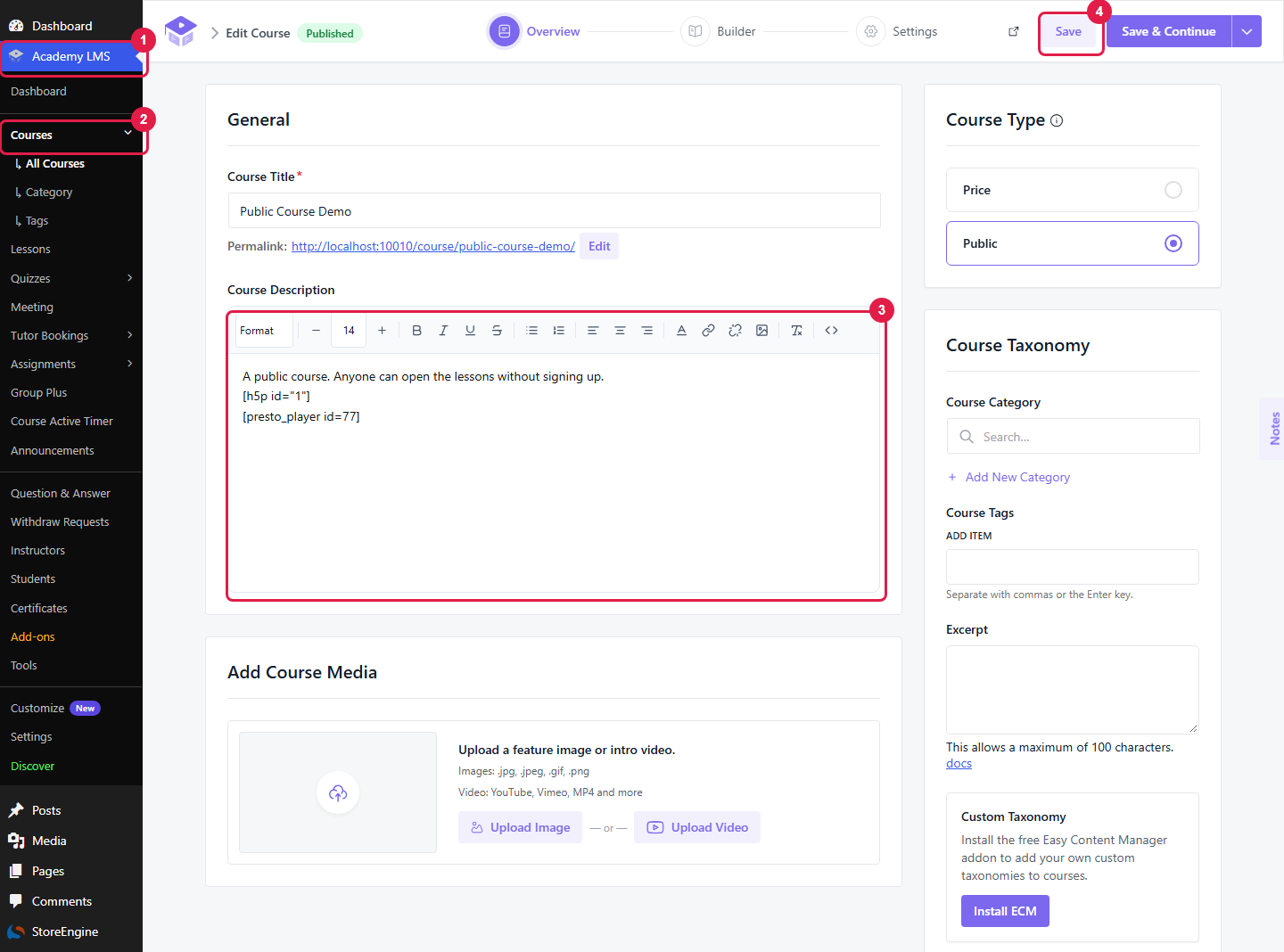
You can also paste a shortcode into the Course Description, or use it as the course intro video under Add Course Media → Upload Video → Shortcode.
You don’t need to turn on Enable Lessons PHP Render. The default learn page shows these shortcodes.
Presto Player {#presto}
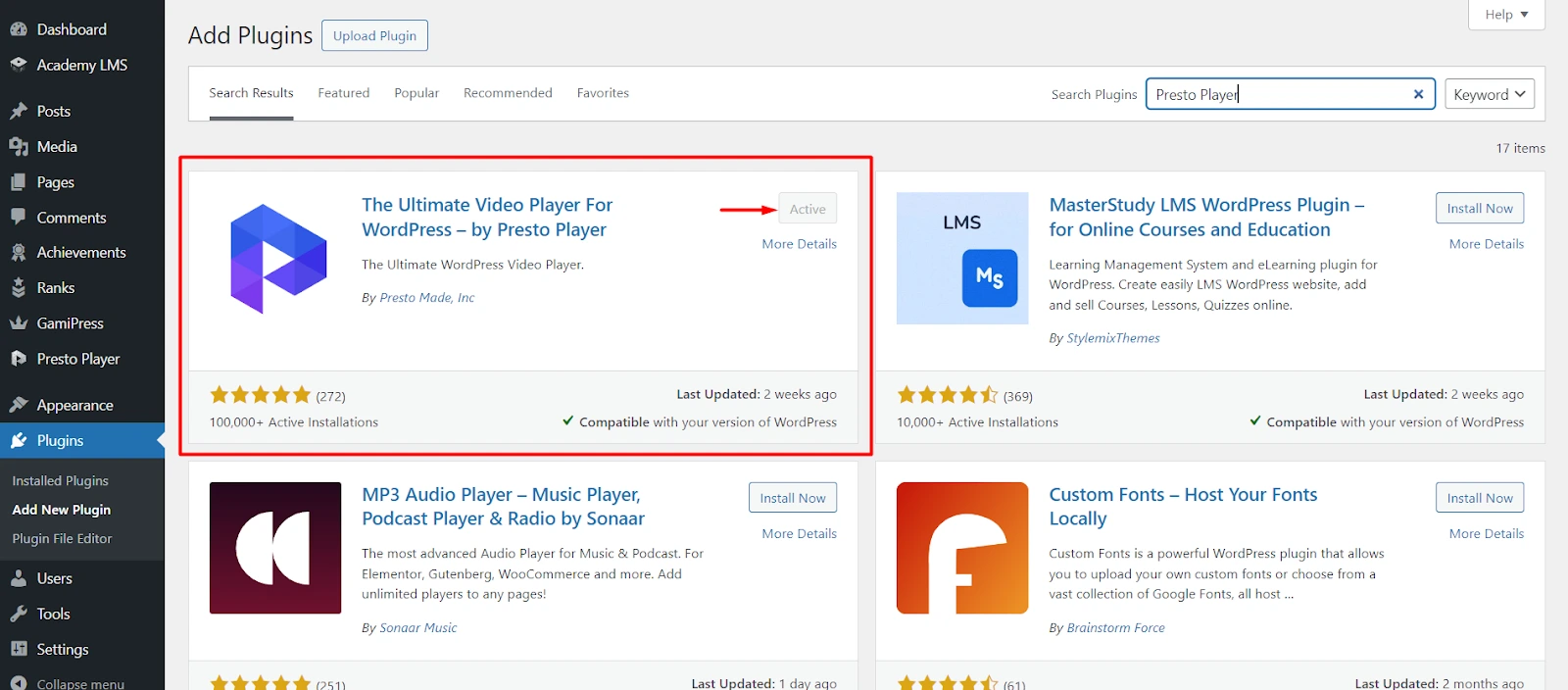
1.Go to Plugins → Add Plugin, search for Presto Player, click Install Now, then Activate.
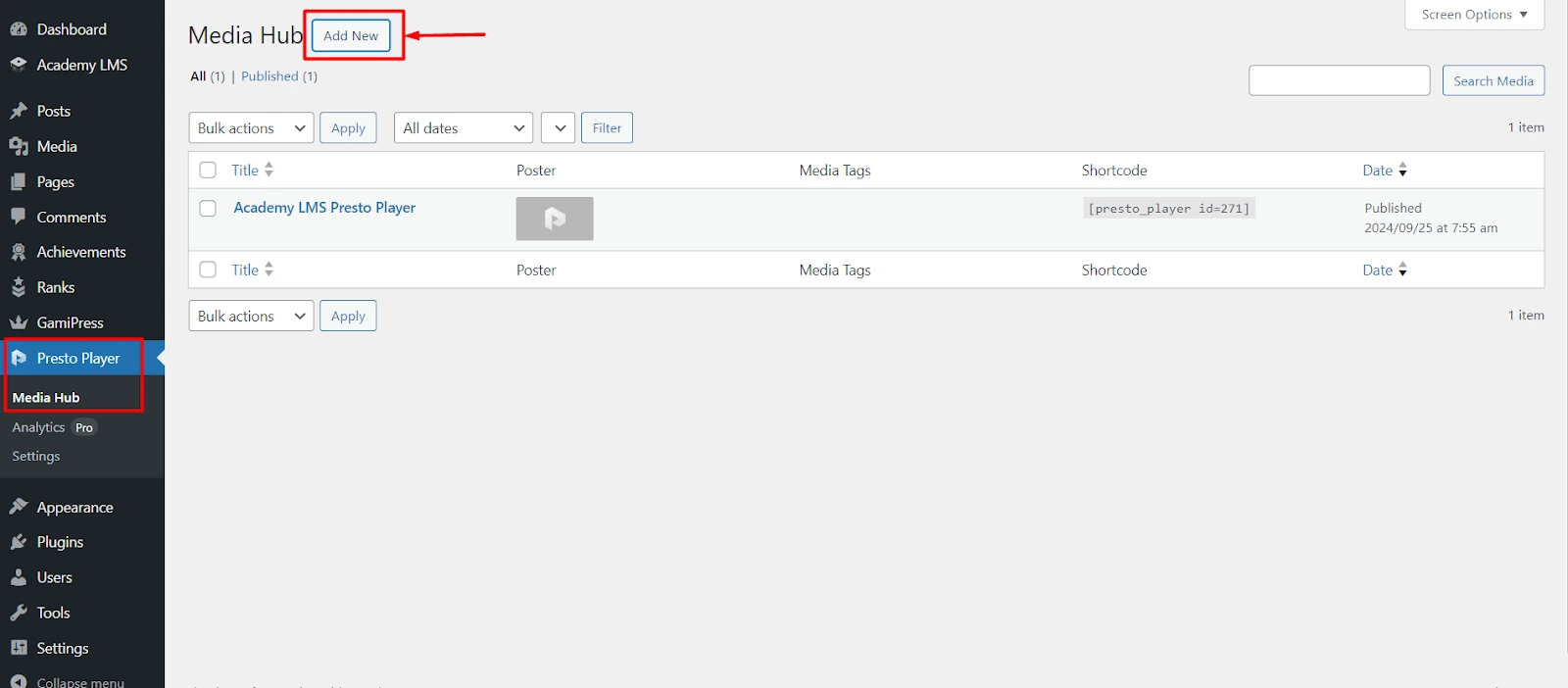
1.Go to Presto Player → Media Hub and click New Media (Add Media if the hub is empty).
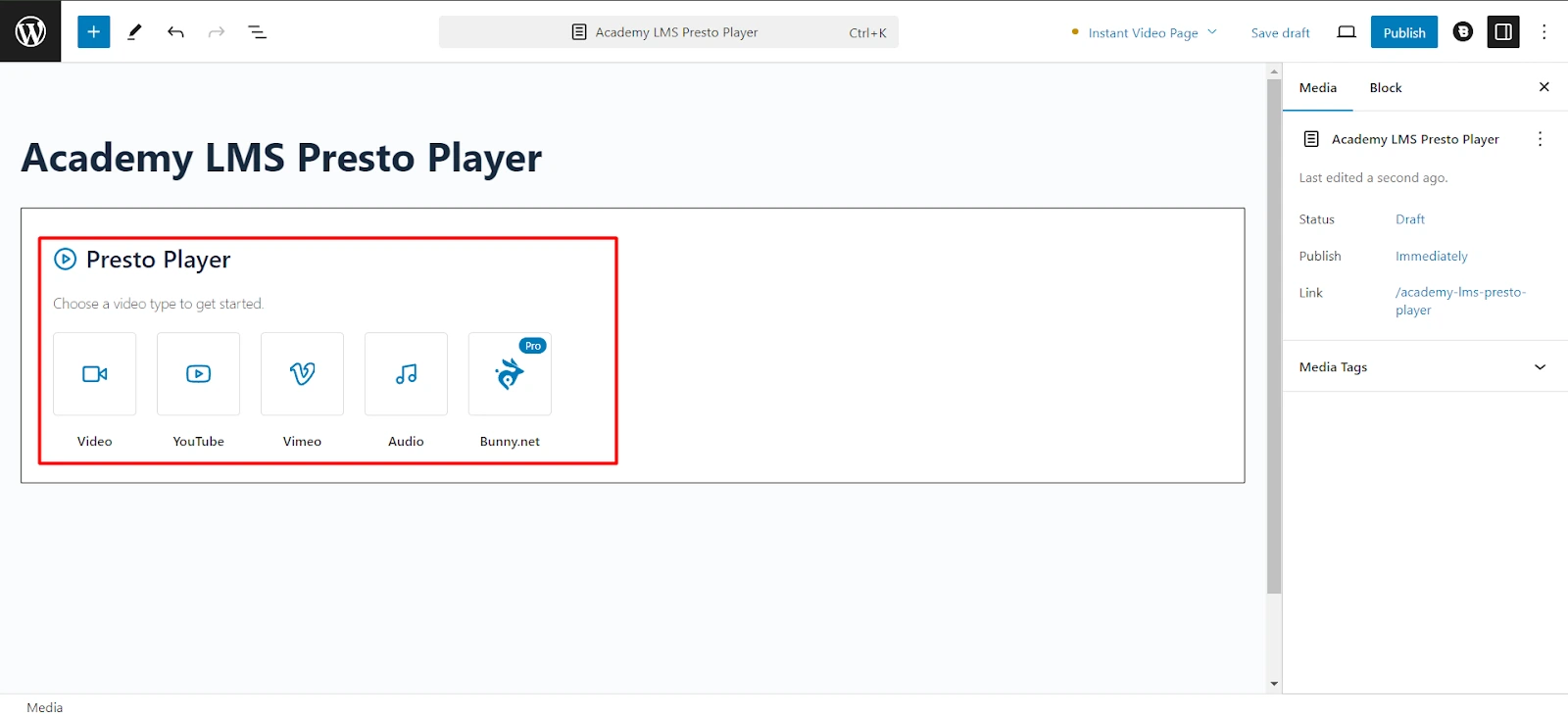
1.Type a title and choose the type: Video, YouTube, Vimeo, Audio or Bunny.net (Bunny.net needs Presto Player Pro). Add the video and click Publish.
1.Back in Media Hub, copy the shortcode from the Shortcode column, for example
[presto_player id=77].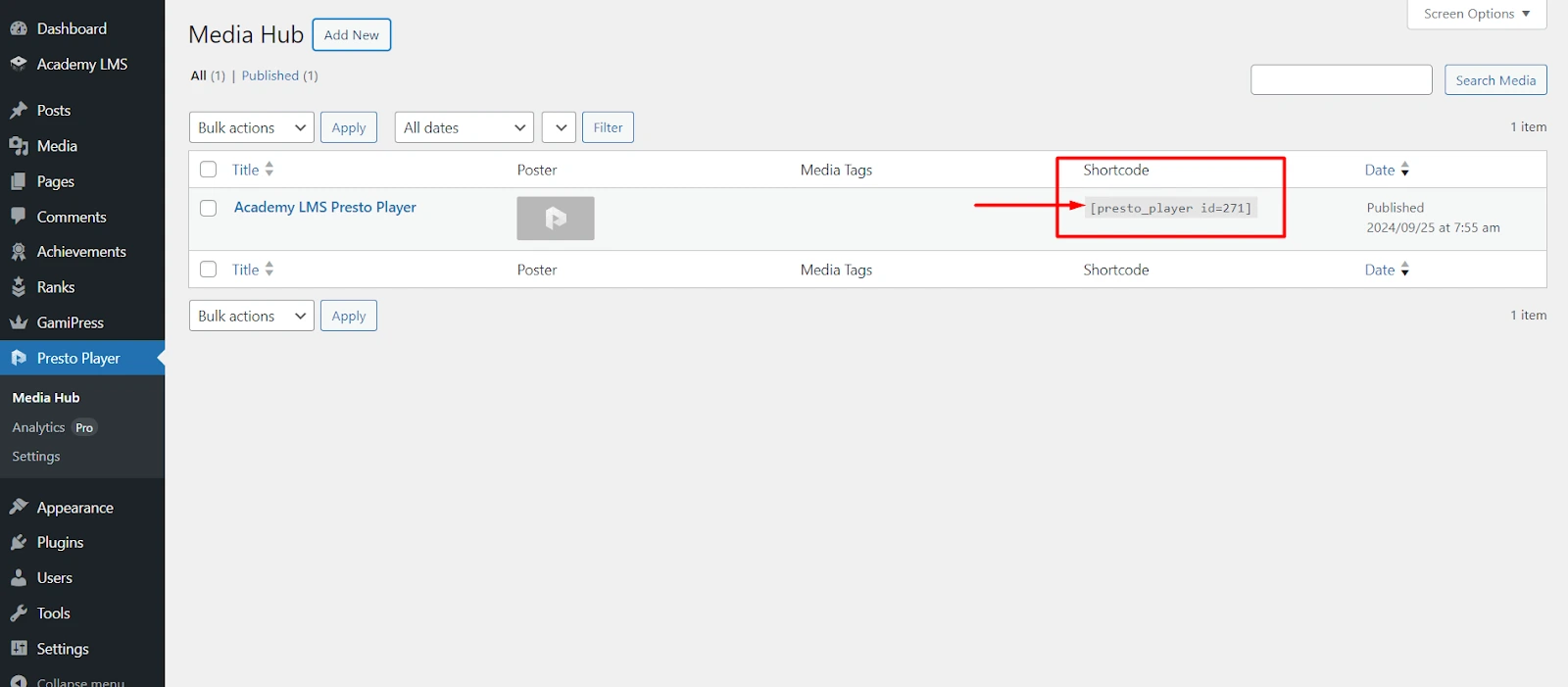
1.Paste it into a lesson as shown above.
H5P {#h5p}
H5P is for interactive content, such as quizzes, drag-and-drop tasks and interactive videos.
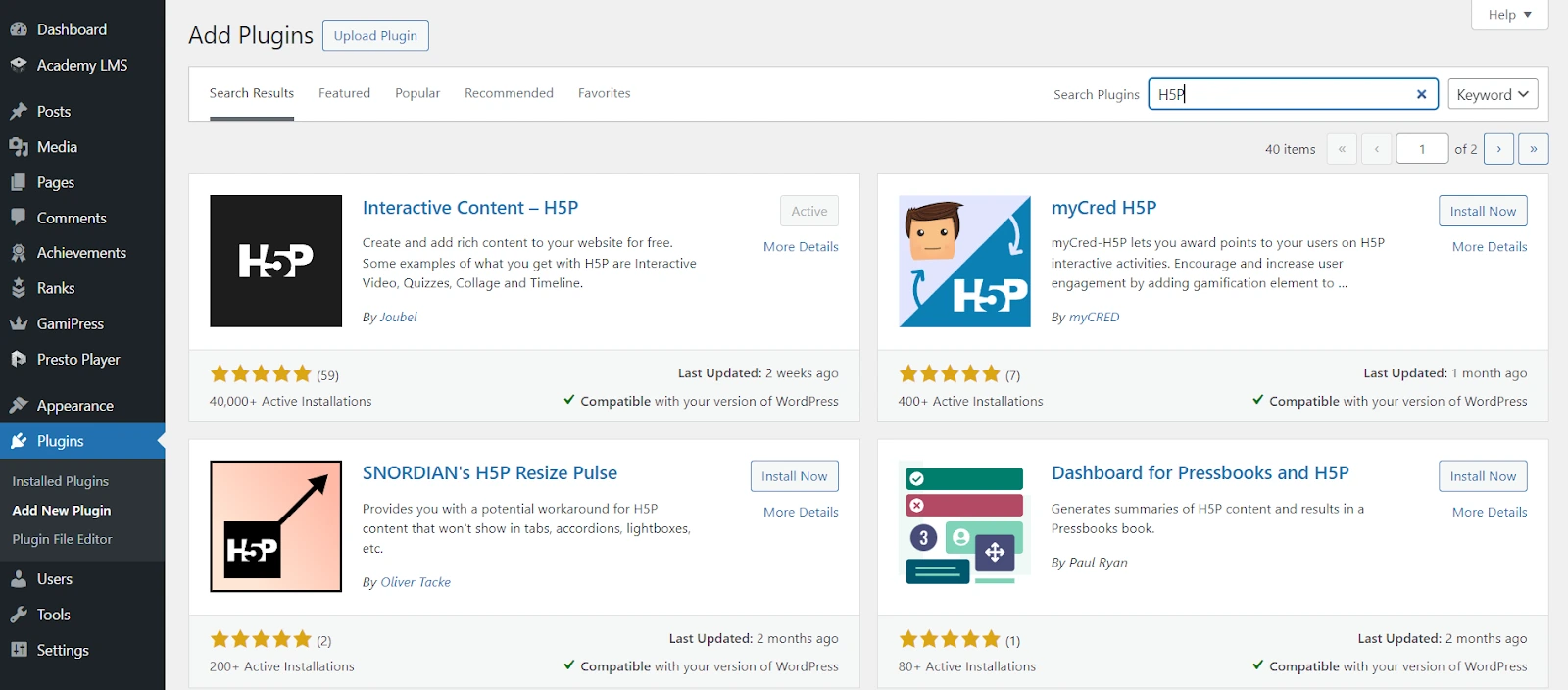
1.Go to Plugins → Add Plugin, search for H5P, install Interactive Content – H5P and activate it.
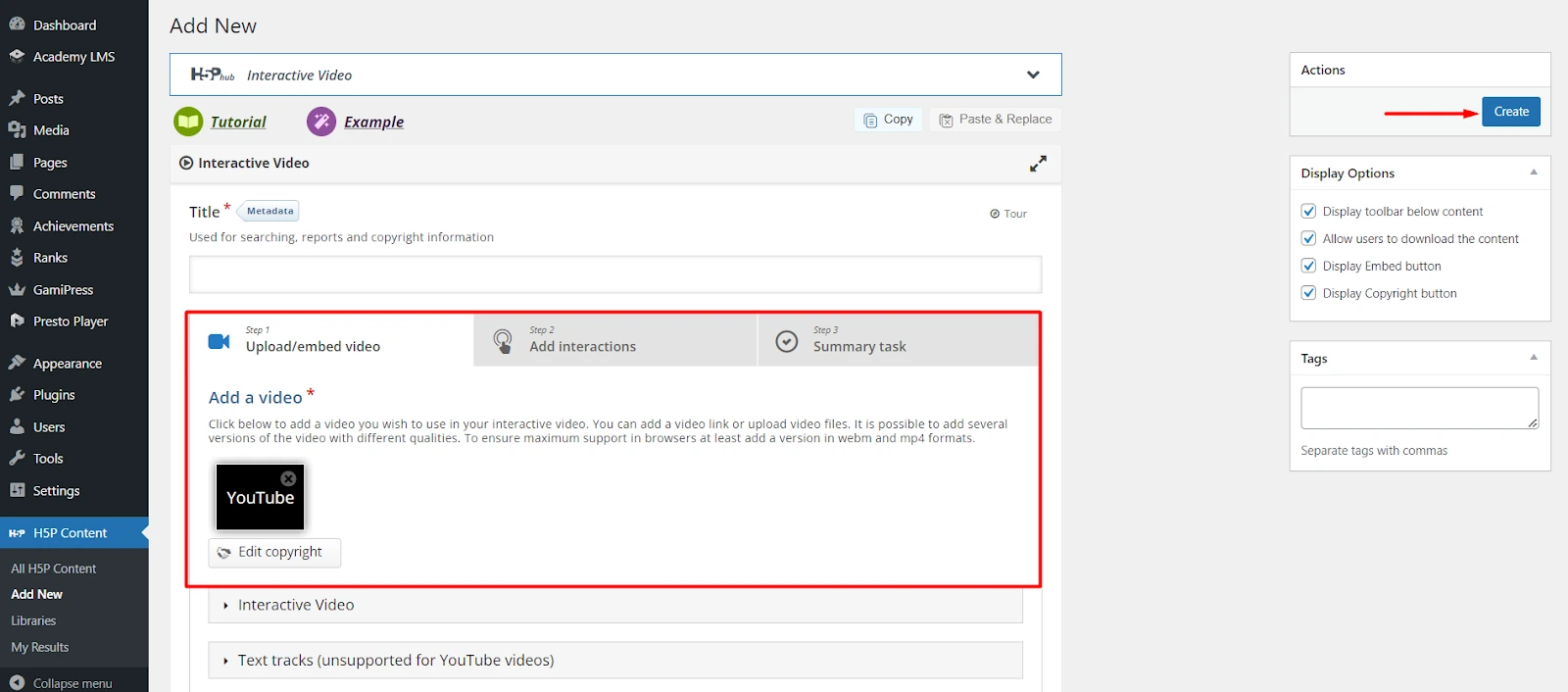
1.Go to H5P Content → Add New. The first time, follow the steps to connect to the H5P Hub.
2.Pick a content type, for example Multiple Choice. Fill it in and click Create.
1.Copy the shortcode from the Shortcode box on the right. It looks like
[h5p id="1"].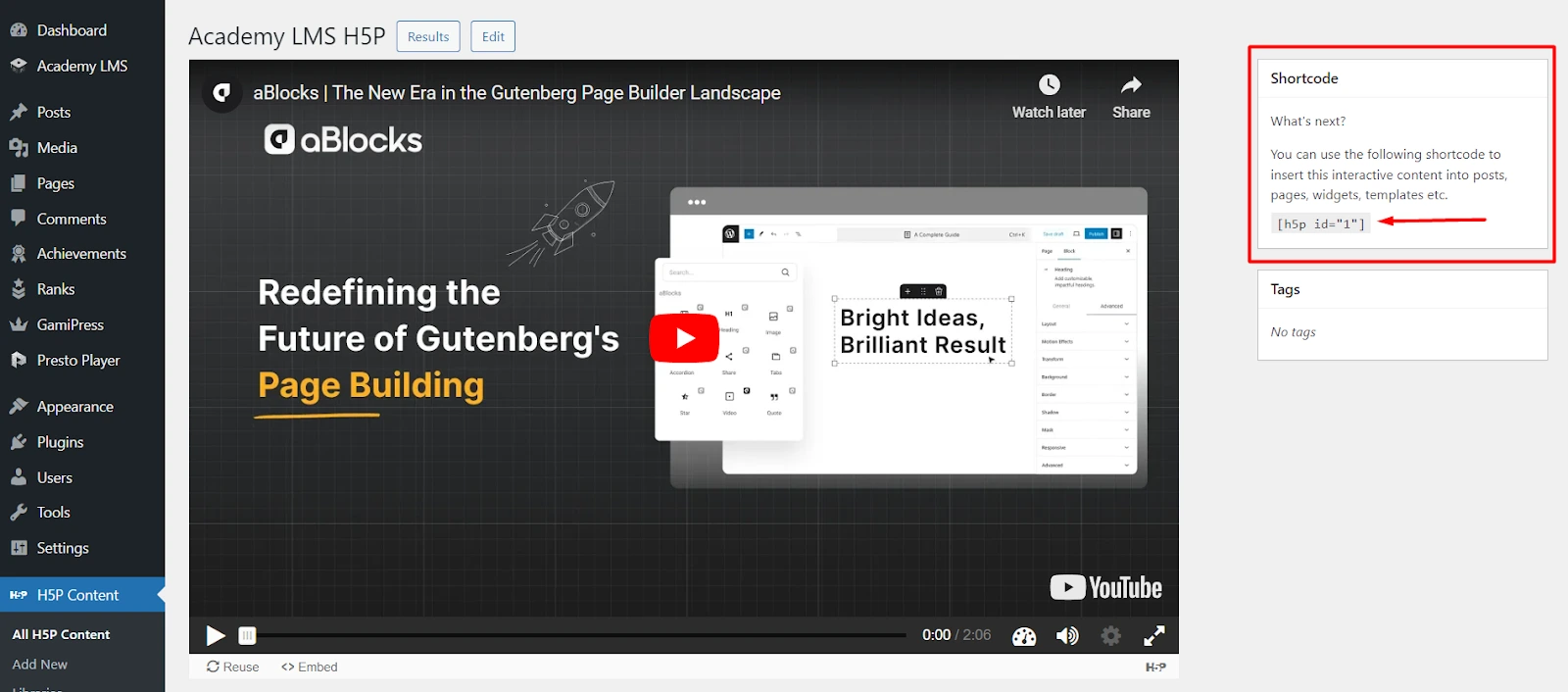
1.Paste it into a lesson as shown above.
Canva {#canva}
1.Open your design in Canva.
2.Click Share, then Embed.
3.Copy the Smart embed link.
4.In the lesson editor, set Video Source to Embedded and paste the link.
5.Click Publish Lesson and update the course.
See it on the learn page
Open the course and start the lesson. The Presto video, H5P activity or Canva design shows inside the lesson.