









Academy LMS needs a few WordPress pages to show courses, the student dashboard and the sign-up forms. It creates them for you when you activate the plugin. This guide shows how to check them, fix them and set clean course URLs.
The pages Academy LMS uses
|
Page |
What it shows |
|
Courses |
Your course catalog |
|
Dashboard |
The frontend dashboard for students, instructors and guardians |
|
Student Registration |
The student sign-up form |
|
Instructor Registration |
The instructor sign-up form |
|
Password Reset |
The password reset form |
|
Learn Page |
The page students take a course on |
Go to Pages in WordPress. Pages linked to Academy LMS show — Academy LMS next to their title.
Assign a page
If a page is missing or you want to use a different one:
Quicker option: use Re-generate Pages to create every missing page in one click.
Set up the dashboard page
Students and instructors land on the dashboard after they sign in. It needs its own page.
1. Add the dashboard to a page
Use the block or the shortcode. You need only one of them.
[academy_dashboard] to the page. This works in the classic editor and in page builders like Elementor.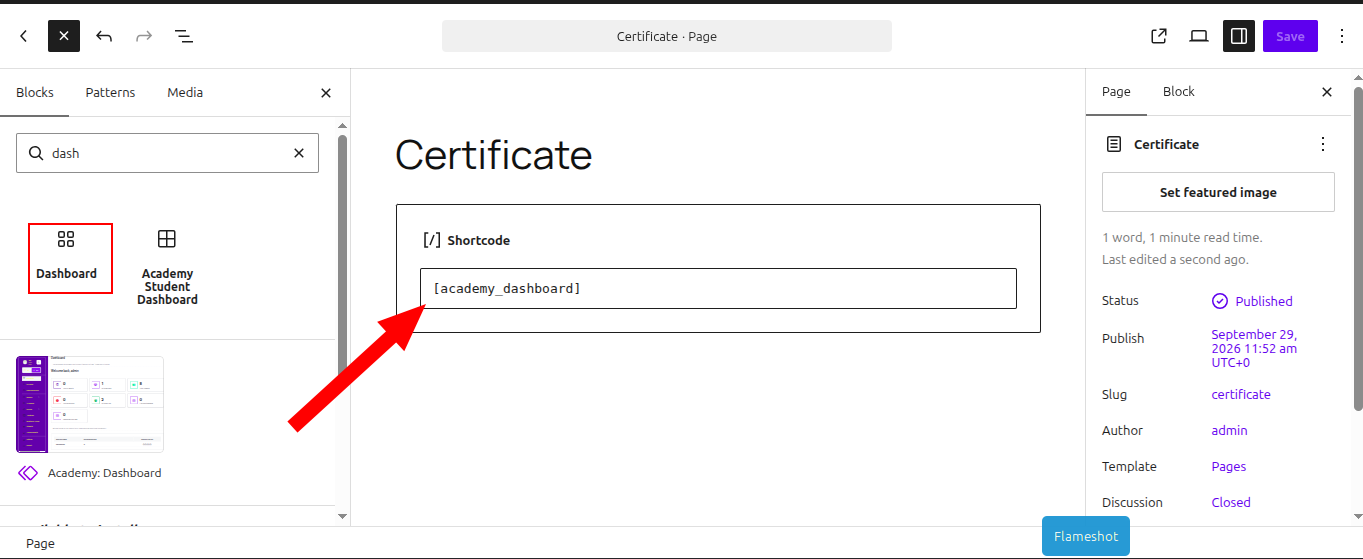
Publish the page. Nothing else is needed on it.
2. Tell Academy LMS which page it is
Visitors who are not signed in see a sign-in form on this page.
Good to know: dashboard areas
The dashboard shows only what fits the person: Learning for students, Teaching for instructors and Family for guardians. Someone who both teaches and learns can switch areas from their name and photo at the top of the menu, under Viewing as.
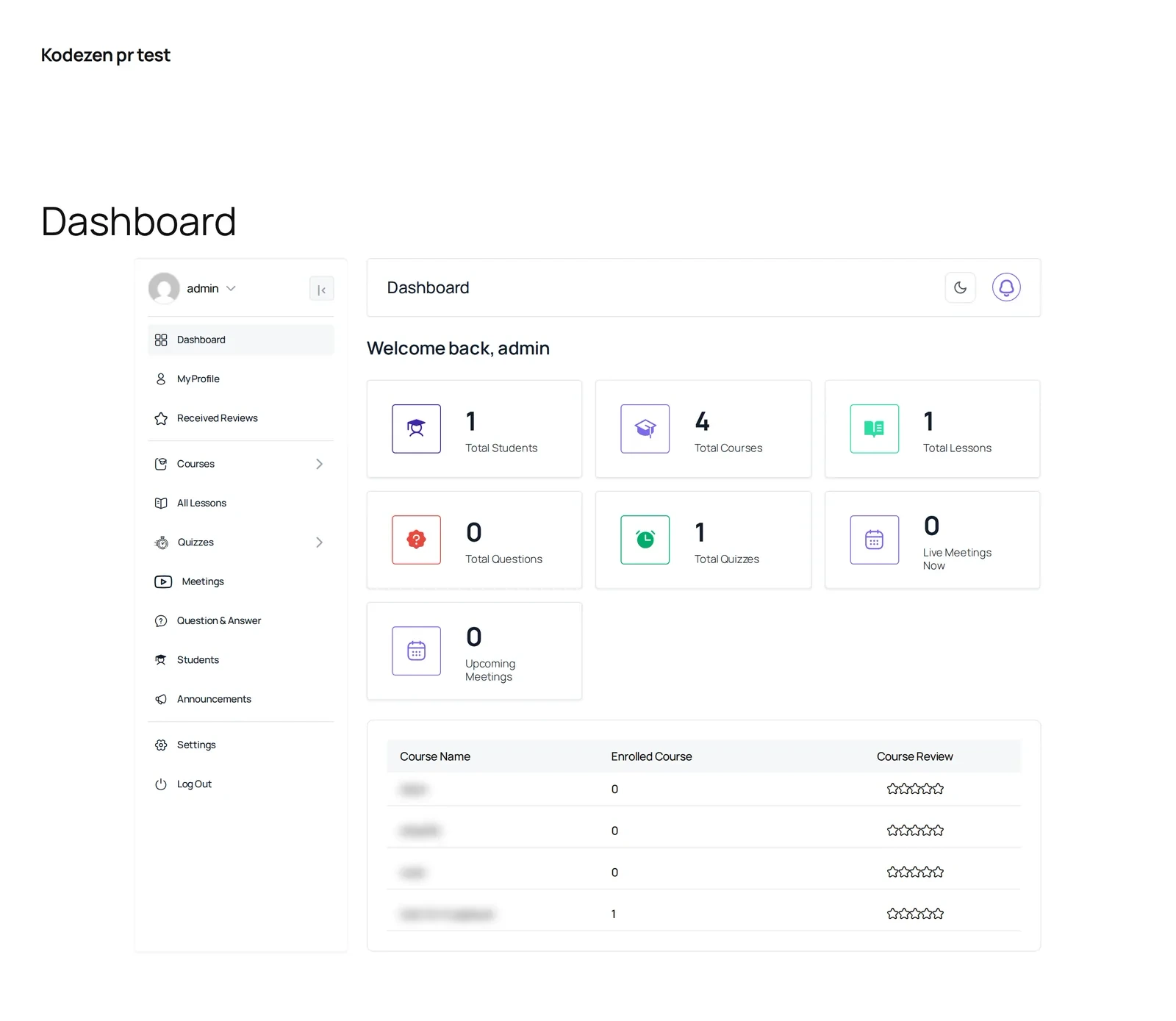
To change the dashboard’s menu, home page or colors, see Customize Screen.
Set your permalinks
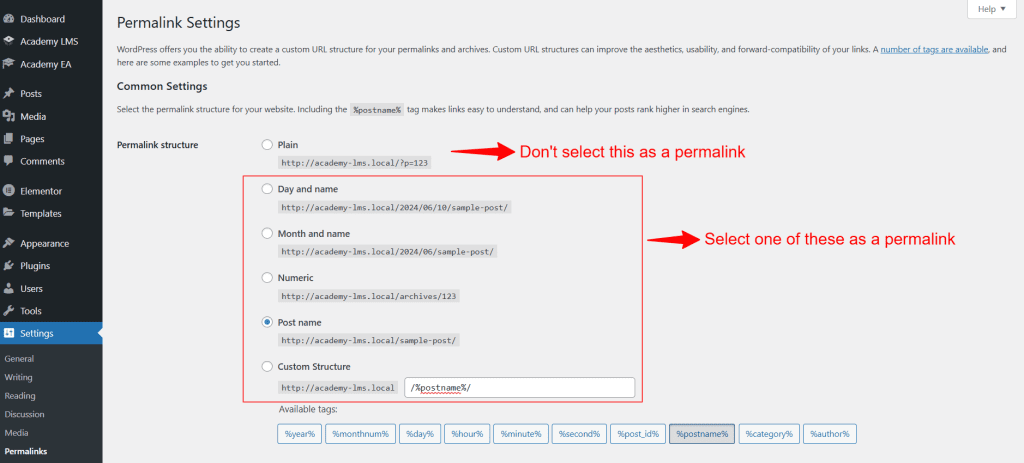
Permalinks control your course URLs. Academy LMS does not work well with WordPress’s Plain setting.
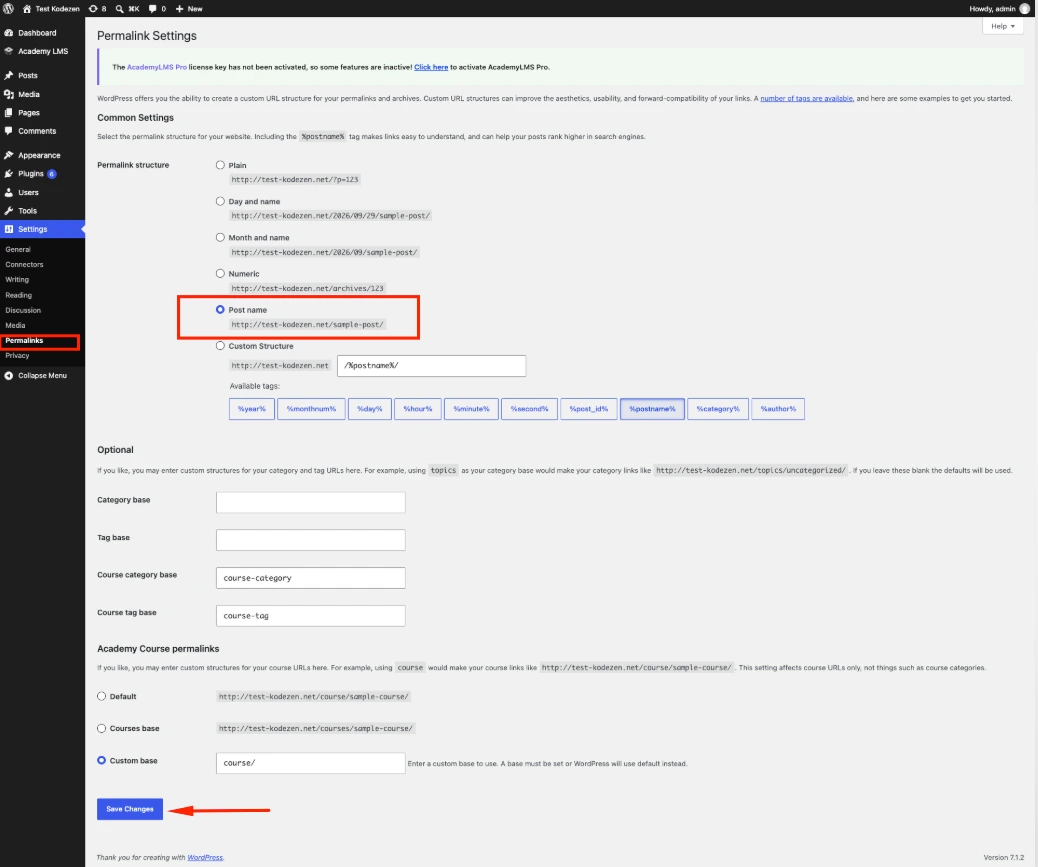
New URLs work right away. Lessons and quizzes follow the course URL automatically, for example /course/sample-course/lesson/lesson-name/.
Re-generate missing pages
If a page was deleted or lost after a theme change, Academy LMS can recreate it.
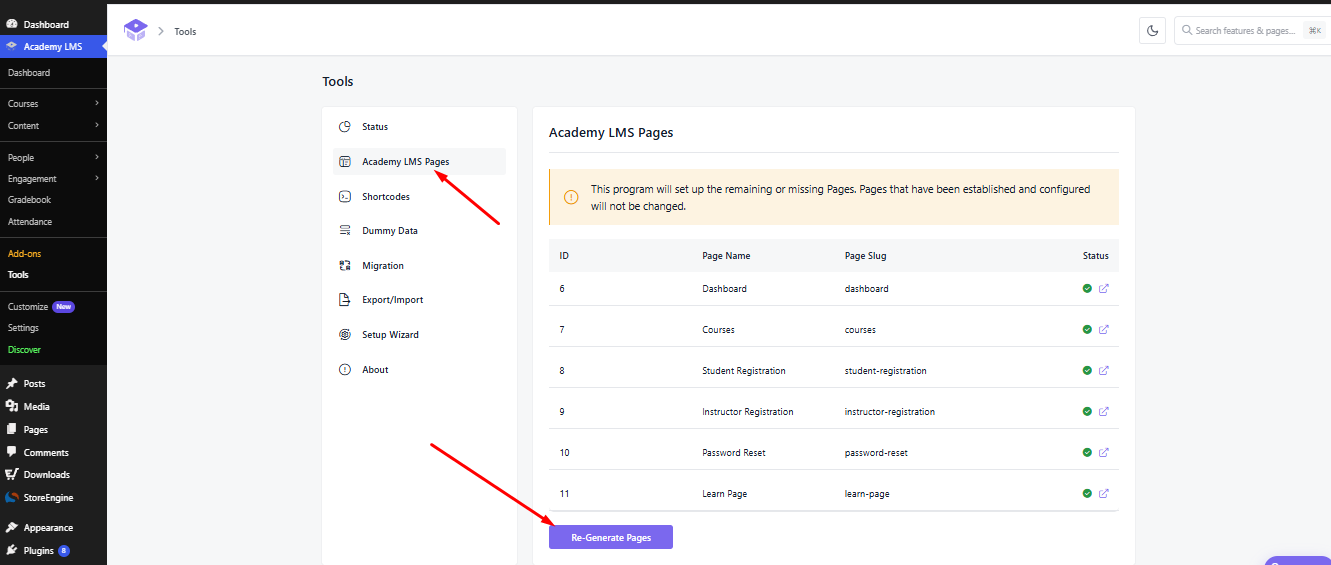
Academy LMS creates only the pages that are missing. Pages you have already set up stay as they are.