











Academy LMS provides an easy way to export both students and instructors into a CSV file. This allows administrators to quickly back up user information, analyze data, or migrate records.
Exporting Students
What Information Will Be Exported
When you export students, the CSV file will include the following details:
- user_id – Unique ID of the student in the system
- email – Student’s registered email address
- user_nicename – The public display username of the student
- user_registered – The date and time when the student registered on the site
- first_name – Student’s first name
- last_name – Student’s last name
- enrolled_courses – The titles of all courses the student has enrolled in
- completed_courses – The titles of the courses the student has successfully completed
- in_progress – The titles of the courses the student is currently working on
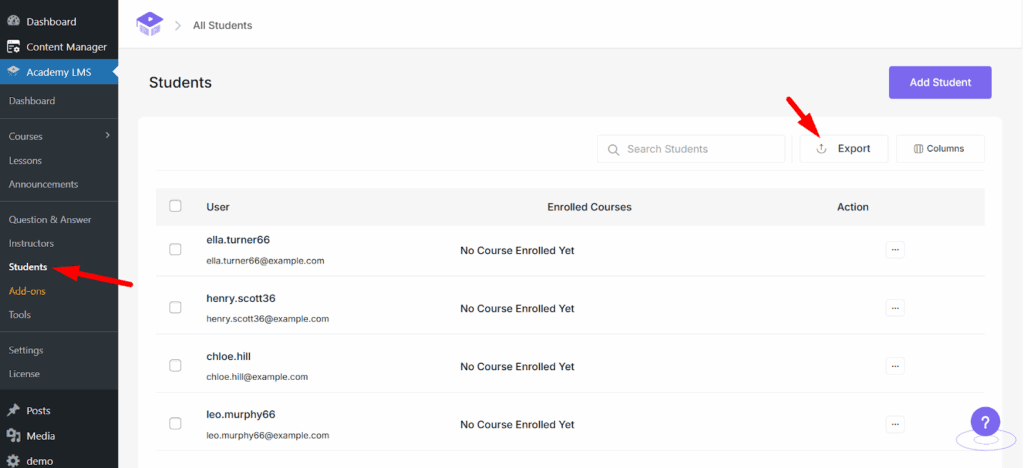
To export the student list:
Navigate to the Student Section. From your Academy LMS dashboard, go to the Students area. Locate the Export Option
Above the student table, you will see an Export button. Click the Export Button
Once clicked, Academy LMS will automatically generate a CSV file containing the details of your students.
The CSV file will be downloaded to your device. You can now open it with Excel, Google Sheets, or any text editor for further use.
Exporting Instructors
What Information Will Be Exported
When you export instructors, the CSV file will include the following details:
- user_id – Unique ID of the instructor in the system
- email – Instructor’s registered email address
- user_nicename – The public display username of the instructor
- user_registered – The date and time when the instructor registered on the site
- first_name – Instructor’s first name
- last_name – Instructor’s last name
- total_courses – The titles of all courses the instructor has created in Academy LMS
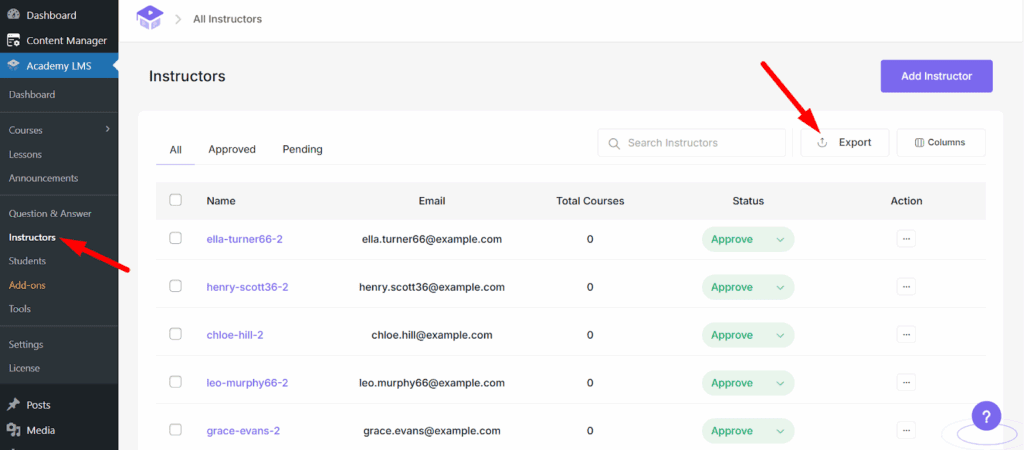
To export the instructor list, follow the same process:
Navigate to the Instructor Section. From your Academy LMS dashboard, go to the Instructors area.
Locate the Export Option. Just like in the Students section, you will see an Export button above the instructor table.
Click the Export Button. Academy LMS will automatically generate a CSV file with all instructor details.
The CSV file will be downloaded to your device, ready for analysis or backup.
Helpful docs:
Important Note on CSV Import
If you import users back into Academy LMS using the exported CSV file, only the basic information will be added:
- First Name
- Last Name
- Email Address
Other details such as user IDs, registration dates, course enrollments, completions, or progress will not be added during import.