











Academy LMS offers seamless integration with the WordPress Gutenberg editor, allowing you to visually create and manage lesson content with ease. This guide will walk you through the step-by-step process of editing lessons using Gutenberg, including how to enable this feature, use core blocks, and enhance your design with aBlocks.
Prerequisite: Disable Lesson High Performance Mode

To edit a lesson in Gutenberg, you must first disable the Lesson High Performance Mode. This is required to ensure compatibility with the Gutenberg editor.
How to Disable:
- Navigate to Academy LMS → Settings > General.
- Locate Lesson High Performance Mode.
- Toggle it OFF and save changes.
This will enable the default WordPress editor for lesson content.
Navigate to the Lesson Editor
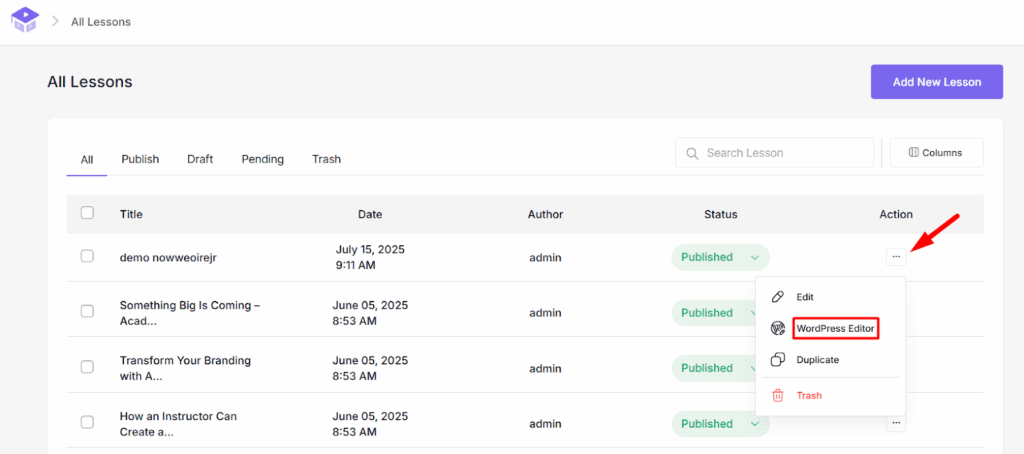
- From your WordPress dashboard, go to Academy LMS → Lessons.
- You’ll see a list of all your created lessons.
- Click the three-dot menu (︙) next to the lesson you want to edit.
- Select “WordPress Editor”.
This action will open the lesson in the default Gutenberg editor.
Editing the Lesson in Gutenberg
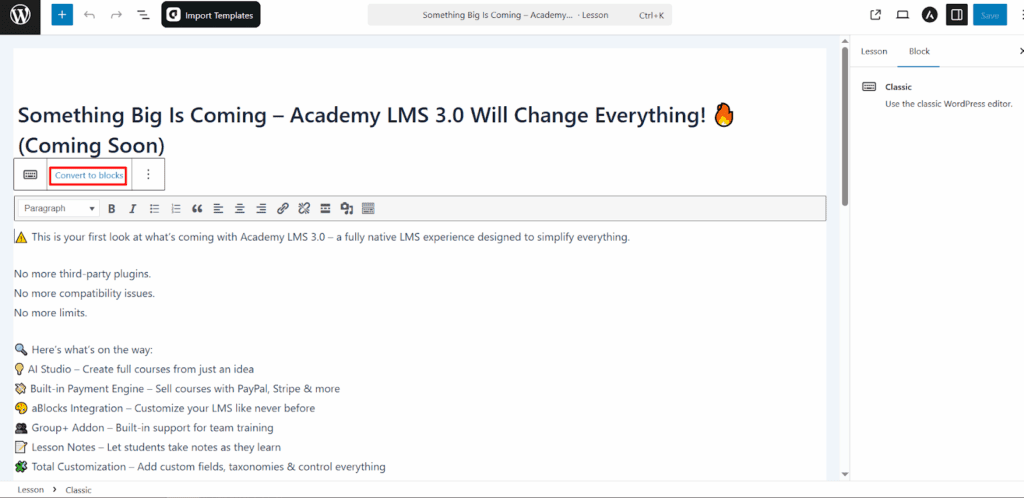
Once inside the Gutenberg editor:
- If the content appears in the Classic Block, click on the “Classic” block options.
- Choose “Convert to Blocks” – this transforms your content into native Gutenberg blocks.
- Now you’re ready to start editing with all the tools Gutenberg offers.
Designing with Gutenberg Blocks
Gutenberg provides a rich set of blocks to format and design your lesson content:
- Text and Heading blocks for content
- Image, Video, and Gallery blocks for media
- Quote, List, and Table blocks for structure
- Buttons and Columns for layout enhancements
You can rearrange, customize, and style each block visually—no code needed.
Supercharge Lessons with aBlocks (Optional)
To take lesson design to the next level, you can use aBlocks — our powerful Gutenberg-based page builder plugin.
Key Benefits:
- 70+ professionally crafted blocks
- Fully responsive and customizable
- Suitable for designing advanced layouts and features
Example Blocks to Use in Lessons:
- Heading Block – Introduce the lesson topic in style
- Accordion Block – Add FAQs or collapsible lesson notes
- Tabs Block – Organize multiple lesson sections
- Progress Bar – Show progress through lesson stages
- Pricing Table – Great for lessons with upgrade options
Note: You must have aBlocks installed and activated to access these blocks.
Saving and Publishing
After editing your lesson content:
- Click Update (if editing an existing lesson) or Publish (if it’s new).
- Your lesson will now reflect the new Gutenberg-designed content on the front end.
Editing lessons in Gutenberg gives you complete creative control over your Academy LMS content. Whether you’re using native WordPress blocks or enhancing the layout with aBlocks, the experience is flexible, visual, and user-friendly.
Take advantage of Gutenberg to create engaging, interactive, and beautifully designed lessons for your students.