











Academy LMS allows you to add mathematical equations to your courses using LaTeX, a powerful markup language for creating scientific and mathematical notations. By enabling LaTeX support, you can enhance your courses with professionally formatted equations that improve the learning experience.
Academy LMS v2.8.0 now offers built-in LaTeX support in its lesson and quiz editors, making it easier to add mathematical equations. In the section below, we’ll guide you through the complete process of incorporating equations into your Academy LMS courses using LaTeX.
Prerequisites
To write mathematical equations in your Academy LMS courses, ensure you install and activate the required plugins listed below.
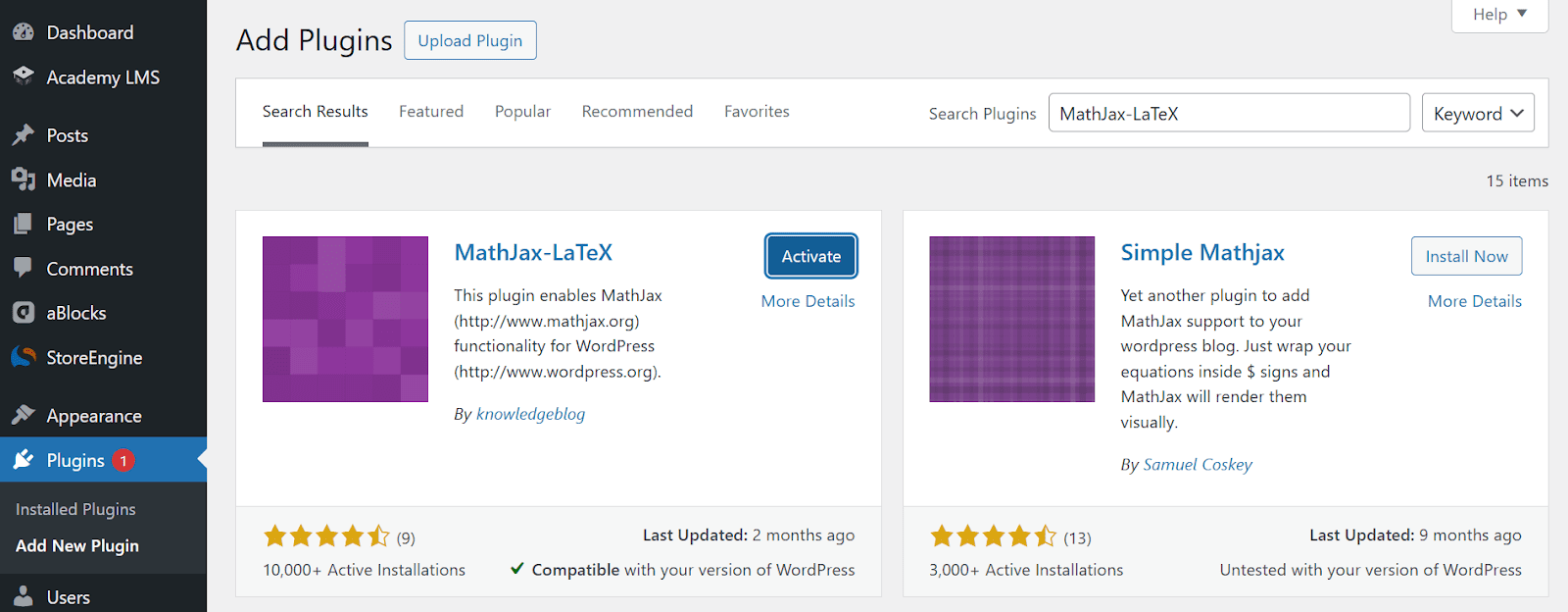
Adding Mathematical Equations
Once the plugin is activated, you can insert equations in your course content, quizzes, and lessons.
- Navigate to Academy LMS → Courses
- Select an existing course or create a new one
- Add or edit a lesson or quiz
- Use LaTeX syntax within double dollar signs ($$) to insert equations. For example:
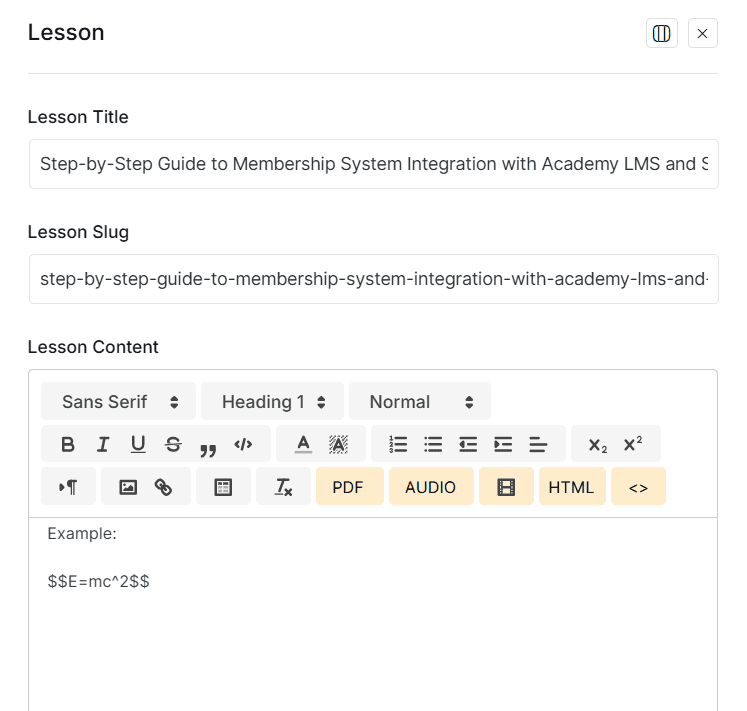
Once you’ve added the equations, save the lesson or quiz and review the output to ensure accuracy.
Note: Ensure you enclose your LaTeX syntax with the $$. Forexample: $$\sqrt{a^2 + b^2} = c $$.
Troubleshooting Display Issues
If you encounter issues with LaTeX equations, you can fix them by enabling the “Force Load” option. Navigate to WP Dashboard > Settings > MathJax-LaTeX, then toggle on the Force Load option.
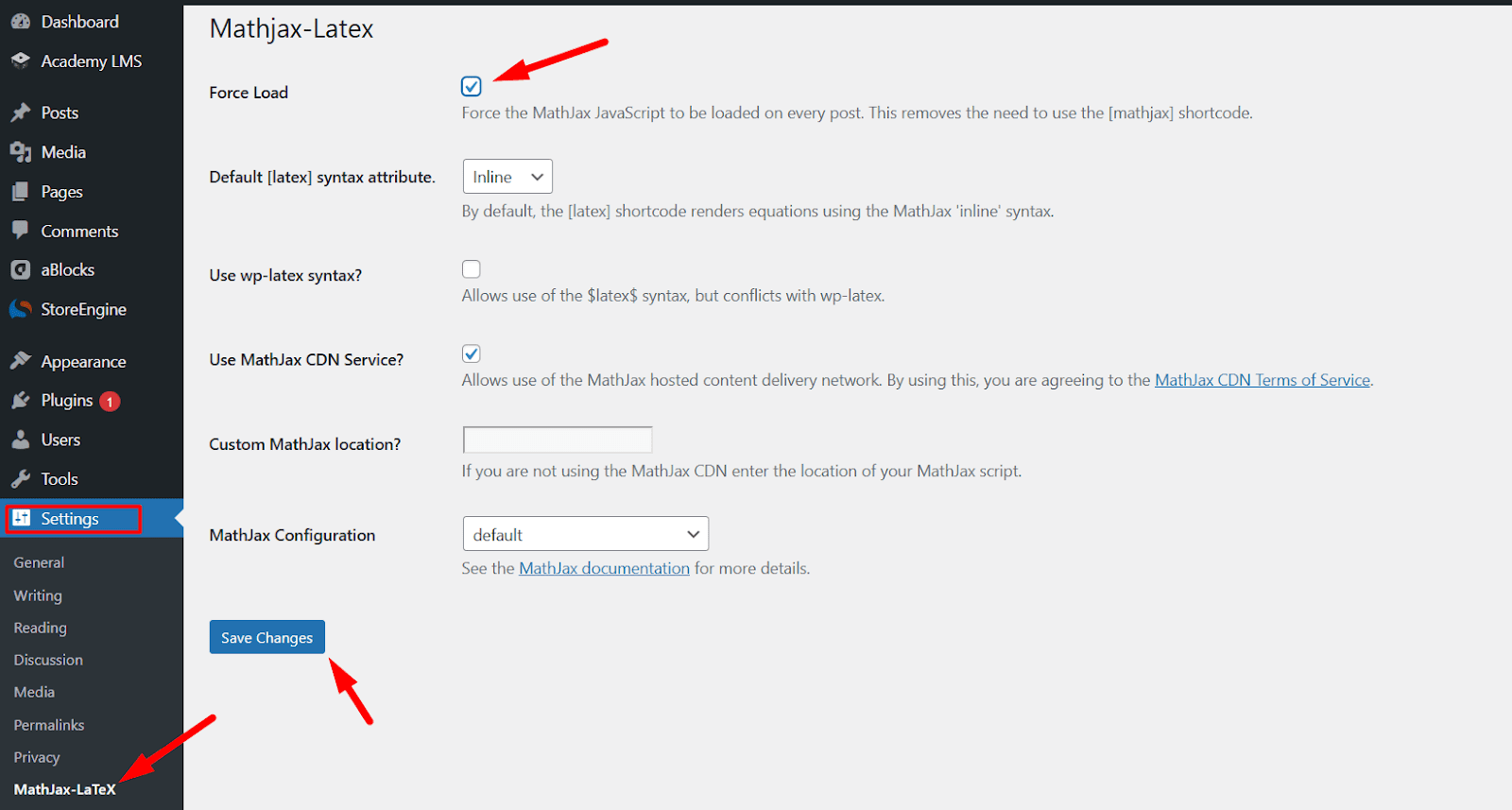
Click Save Changes, and refresh your lesson or quiz page to display the LaTeX equation correctly.