











Looking to make your eLearning website multilingual? With Academy LMS and WPML (WordPress Multilingual Plugin), you can easily translate your online courses into multiple languages — without needing to duplicate content or build separate sites.
Whether you’re serving students in different countries or simply want to offer content in more than one language, this integration helps you reach a global audience while maintaining a smooth WordPress experience.
In this guide, we’ll walk you through the steps to seamlessly integrate WPML with Academy LMS.
Required Plugins
Before getting started, make sure you have the following installed and activated:
- Academy LMS Free version
- Academy LMS Pro version
- WPML Multilingual CMS (Pro version)
You can install the free versions directly from your WordPress dashboard. For the Pro versions of WPML and Academy LMS, make sure you have valid licenses and downloads.
Addon Activation in Academy LMS
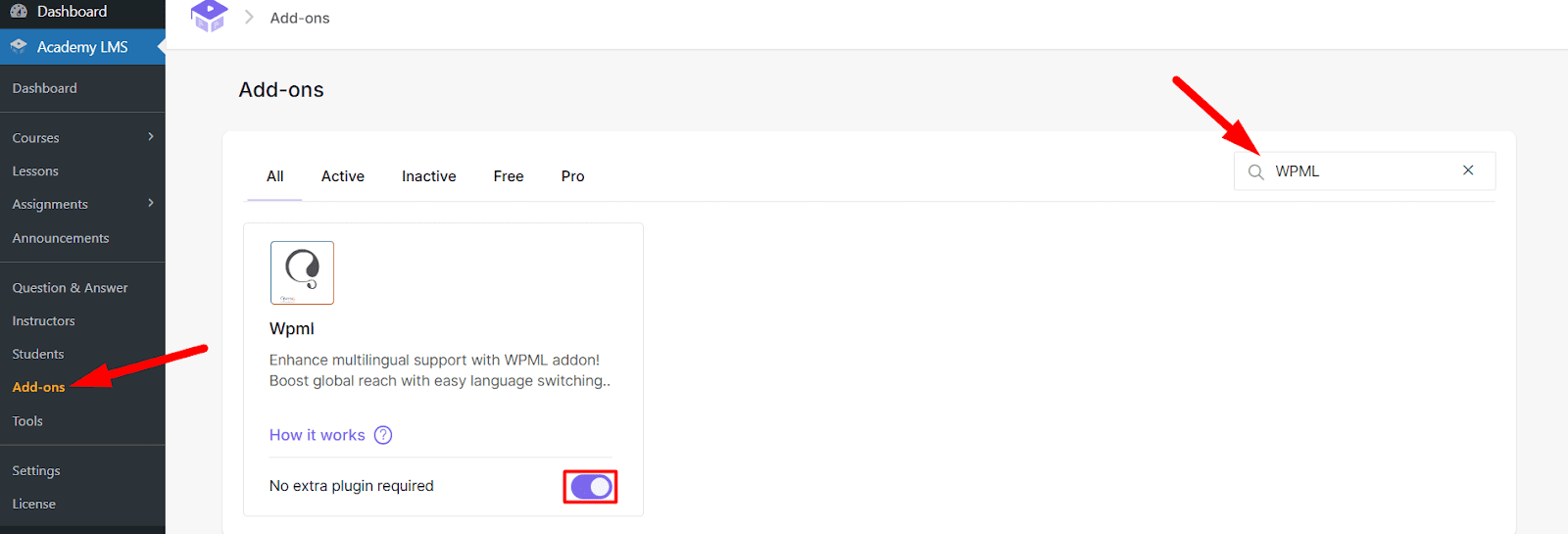
Once the required plugins are active, go to the Academy LMS → Addons section inside your WordPress dashboard. Find the WPML Integration addon and simply activate it. This will unlock the multilingual features for all Academy LMS components including course pages, lessons, quizzes, and certificates.
Set WPML Language URL Format
Next, head over to the WPML menu from your dashboard and click on Languages. Scroll down to the Language URL format section. From the available options, select “Language name added as a parameter”. This ensures that the translated content works seamlessly with Academy LMS dynamic pages. Don’t forget to save the settings before leaving the page.

Translate Your Course
Head over to the Courses section under Academy LMS in your dashboard. Here, you’ll notice small language icons next to each course title.

To translate a course, simply hover over the language you want to add. This will take you to a new course editor screen for that language. Create your course in the selected language — including its title, description, curriculum, and other settings — then publish it.
Once published, your learners will be able to access that course in their preferred language. In the footer of your website, students will find a language switcher that allows them to choose the language they want to learn in. If you’ve created content in that language, it will automatically display for them.

A Few Notes About Language Switching
The experience for students is seamless. For example:
- If a user selects English from the language switcher, only the courses created in English will be displayed.
- If they switch to French, only the French-translated versions of your courses will appear.
This ensures a fully localized experience without any confusion or content mixing.
Lesson Translation
Translating lessons with Academy LMS and WPML is simple — but there’s one key setting to keep in mind.
In your Academy LMS → Settings, look for the option:
Multilingual Support with WPML For Lesson
- If this setting is enabled (recommended), you can translate lessons directly using WPML without interruption.
- If this setting is disabled, lesson translation will not work unless you manually enable it.

Note: Please note that lessons, quizzes, and assignments must be translated manually. Automated translation or the use of WPML’s Advanced Translation Editor is not supported for these content types.
With WPML and Academy LMS working together, you’re now equipped to offer a smooth, multilingual eLearning experience. From global reach to localized learning, this integration helps you teach smarter and grow faster — no matter where your audience is located.
Let your content speak every language.