











The Password-Protected Course feature in Academy LMS allows you to restrict access to specific courses by requiring users to enter a password. This is useful for creating exclusive or private content. Follow the steps below to enable and configure this feature.
Step 1: Create or Edit a Course
Navigate to Academy LMS → Courses. Click on Add New Course or select an existing course you want to protect.
Step 2: Set Password
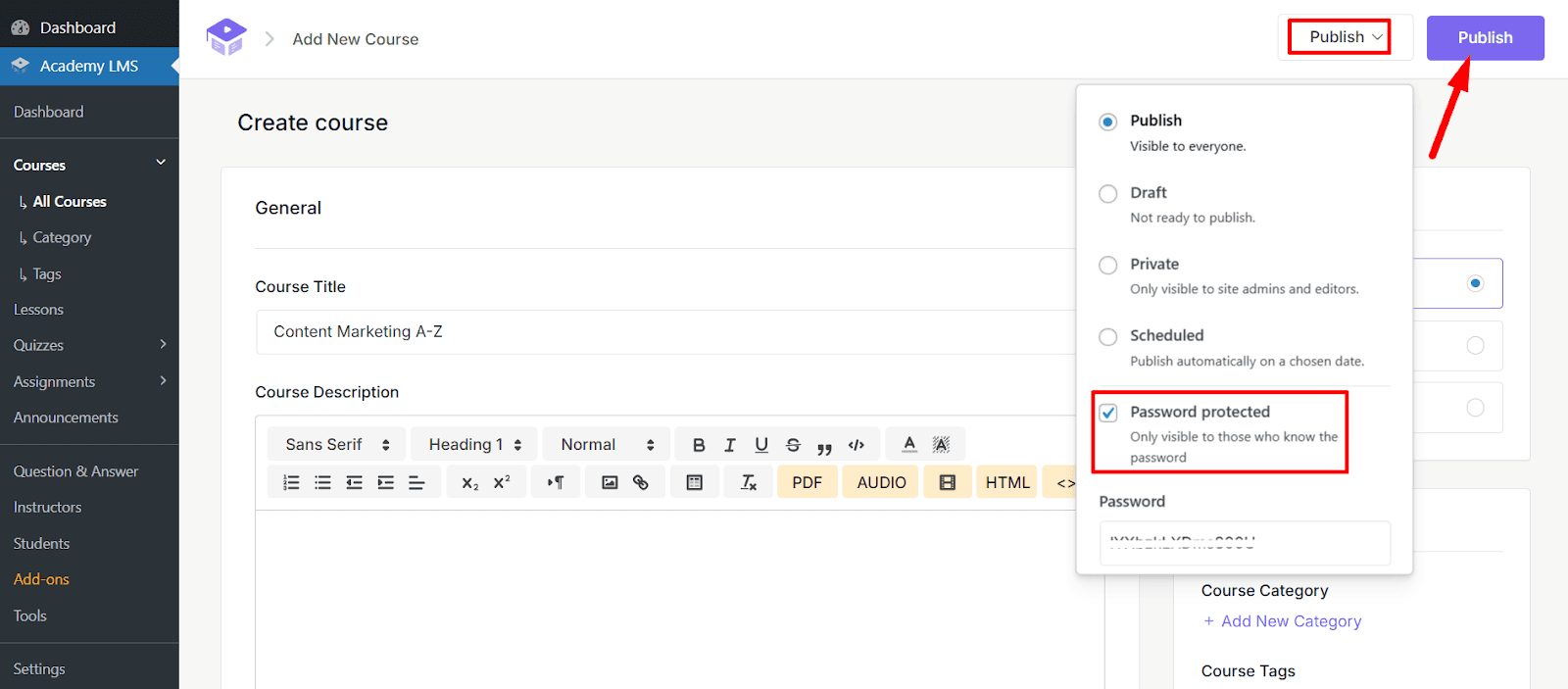
Set Password Protection In the course creation/editing screen, locate the Publish settings dropdown in the top-right corner.
Click on the dropdown menu to reveal publishing options. Select Password Protected from the list. A password field will appear. Enter a secure password that users will need to access this course. Click Publish or Update to save the changes.
Step 3: How Students Access the Password-Protected Course
When students visit the course page, they will see a lock icon and a message indicating the course is password-protected. Students must enter the correct password in the provided field to unlock the course.
Once the correct password is entered, the course content becomes accessible.

By enabling this feature, you can maintain control over who can access your course content, ensuring it reaches the intended audience.