











Streamline your student email marketing with ease.
Whether you want to send welcome sequences, nurture campaigns, or product updates—integrating SendFox with Academy LMS makes it effortless. With just a few steps, you’ll have all your enrolled students automatically added to your SendFox list, ready for targeted communication that drives engagement and retention.
In this documentation, we’ll walk you through how to seamlessly connect SendFox with Academy LMS and enable powerful automation that works for you.
Connect SendFox with Academy LMS. To integrate SendFox with Academy LMS, follow these simple steps:
1. Install the SendFox WordPress Plugin
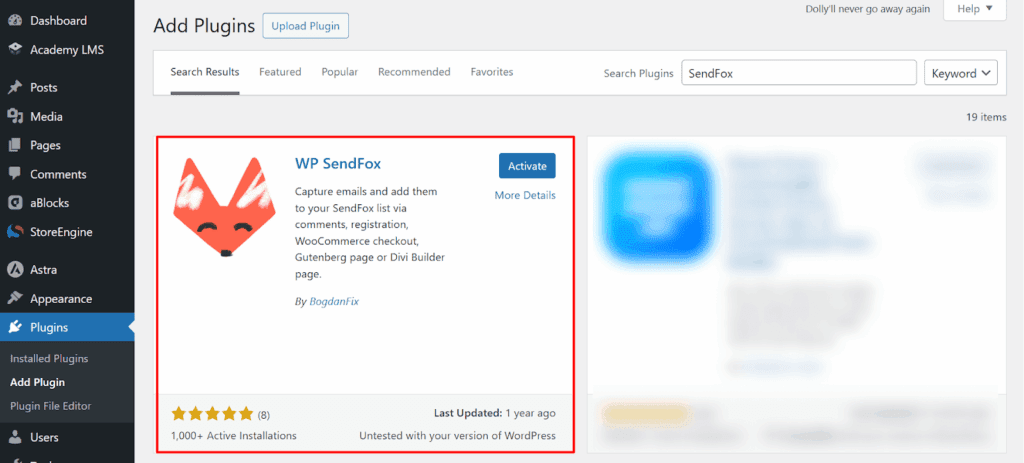
First, you’ll need to install and activate the official SendFox WordPress plugin.
- Go to your WordPress dashboard.
- Navigate to Plugins > Add New.
- Search for “WP SendFox” in the WordPress repository.
- Click Install and then Activate the plugin.
2. Add Your SendFox API Key
After activation, you’ll be redirected to the SendFox settings menu.
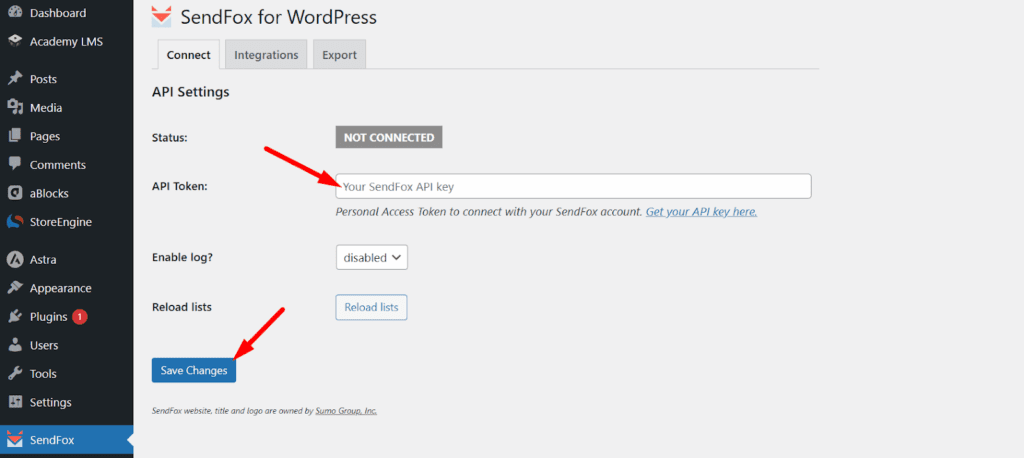
Here’s how to get your API key:
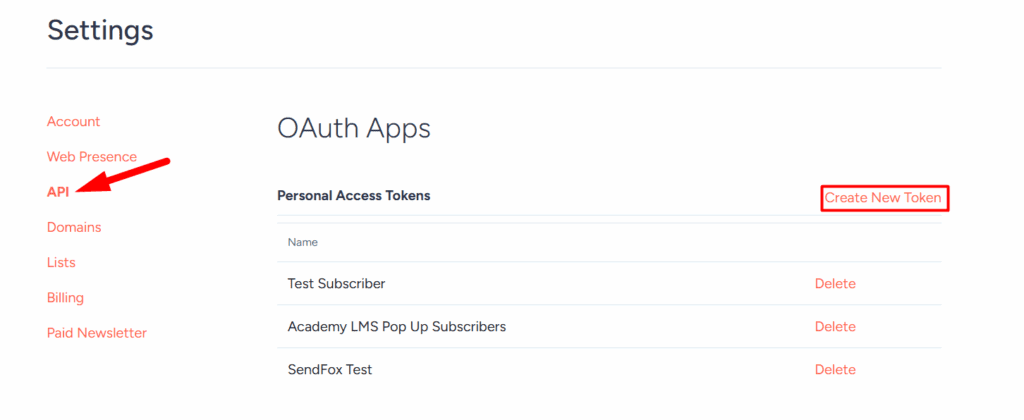
- Log into your SendFox account.
- Visit your Account Settings > API section.
- Create and copy your API key (or use an existing one).
Back in WordPress:
- Paste your API key into the SendFox API field.
- Click Save Changes.
You’ll receive a confirmation message indicating SendFox is now connected with your Academy LMS.
3. Sync Your SendFox Lists
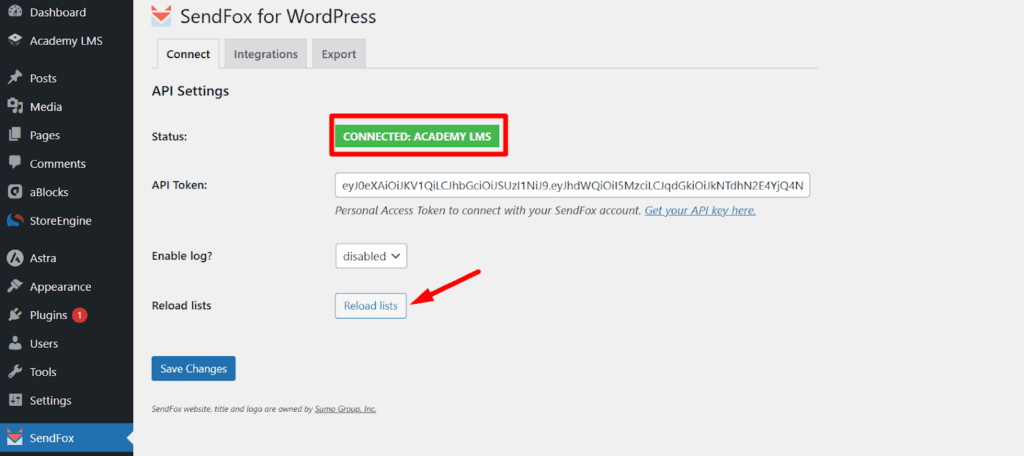
After connecting the API:
- Click on the “Reload Lists” button to fetch and sync all your active SendFox email lists.
- Once the lists are loaded, click Save Changes again to finalize the integration.
Enable the SendFox Addon in Academy LMS
To start syncing enrolled students to your SendFox list, you’ll need to activate the SendFox addon inside Academy LMS.
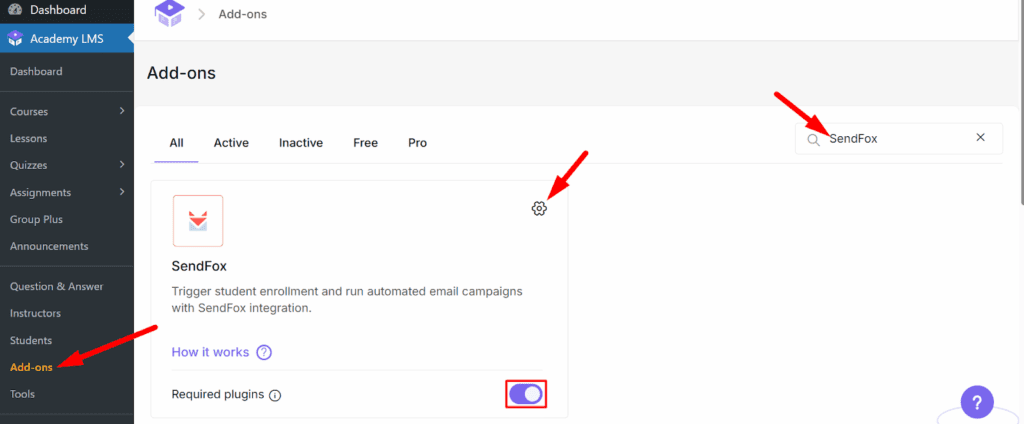
Go to Academy LMS > Addons. Search for the SendFox addon. Toggle the switch to enable it. Click the settings gear icon to configure the addon.
Alternative Path via Settings:
Alternatively, you can access the addon by:
- Going to Academy LMS > Settings > Advanced.
- Locate the SendFox section.
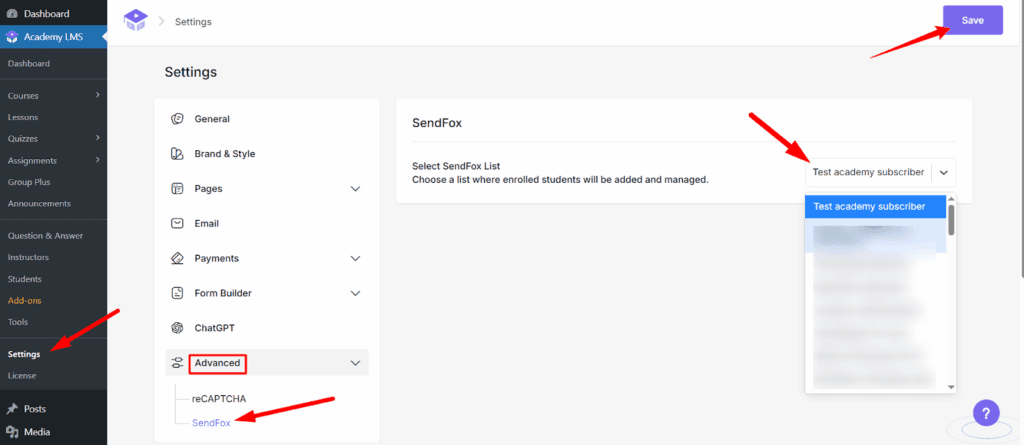
Select Your Preferred Email List
Within the SendFox settings:
- Choose the email list where you want to send your enrolled students.
- Click Save Settings.
Now, each time a student enrolls in a course, their email will be automatically added to the selected SendFox list—allowing you to launch newsletters, onboarding emails, or campaign sequences right away.
That’s it—you’ve successfully connected SendFox with Academy LMS. This integration not only saves you time but opens the door to more personalized, timely communication with your learners. Start building stronger relationships, improving course engagement, and increasing your conversions—one automated email at a time.
Need help or have feature suggestions? We’d love to hear from you. Stay tuned for more enhancements!