










Academy LMS SCORM is your gateway to a seamless eLearning experience on your WordPress site. This comprehensive documentation will guide you through effortlessly importing SCORM courses, monitoring learner progress, and generating insightful reports.
With Academy LMS SCORM, you can harness the power of SCORM standards to transform your WordPress site into a fully SCORM-compliant Learning Management System (LMS).
Academy LMS Support SCORM version 1.2 and 2004. Let’s start the process of learning how to use SCORM content in Academy LMS.
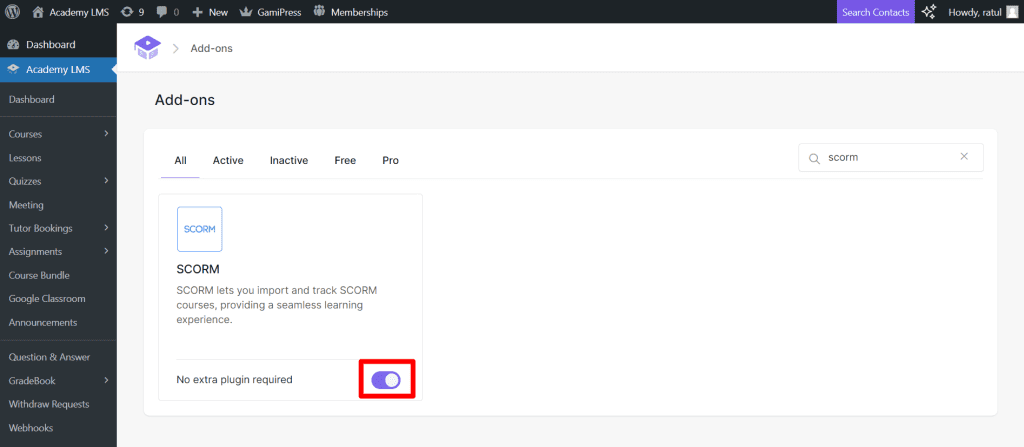
Enable Academy LMS SCORM Addon
First, enable the Academy LMS SCORM addon from the Academy LMS addons menu. Then scroll down, and you will find the SCORM addon. Toggle the button and enable the addon.
Upload SCORM Content
After enabling the SCORM addon it turns to add your SCORM content to a course. Create a new course by setting the title, description, and all the necessary things. Then you can see a Upload SCORM Package under course builder. This is the option for upload your SCORM content.

From there click on Choose File and upload your SCORM file. After uploading the file publish your course if you are creating a new one, or update the course if you are using an existing course for SCORM content.
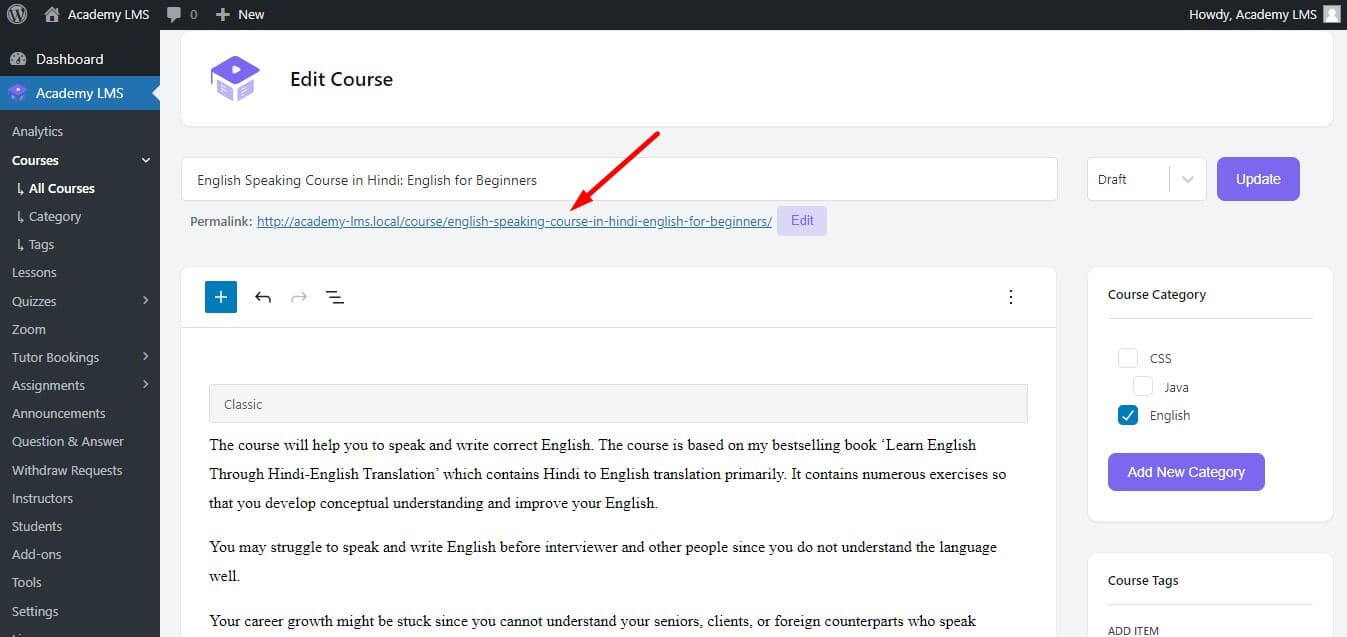
Then click on the Permalink. Now start the course. Here you can see your SCORM content.
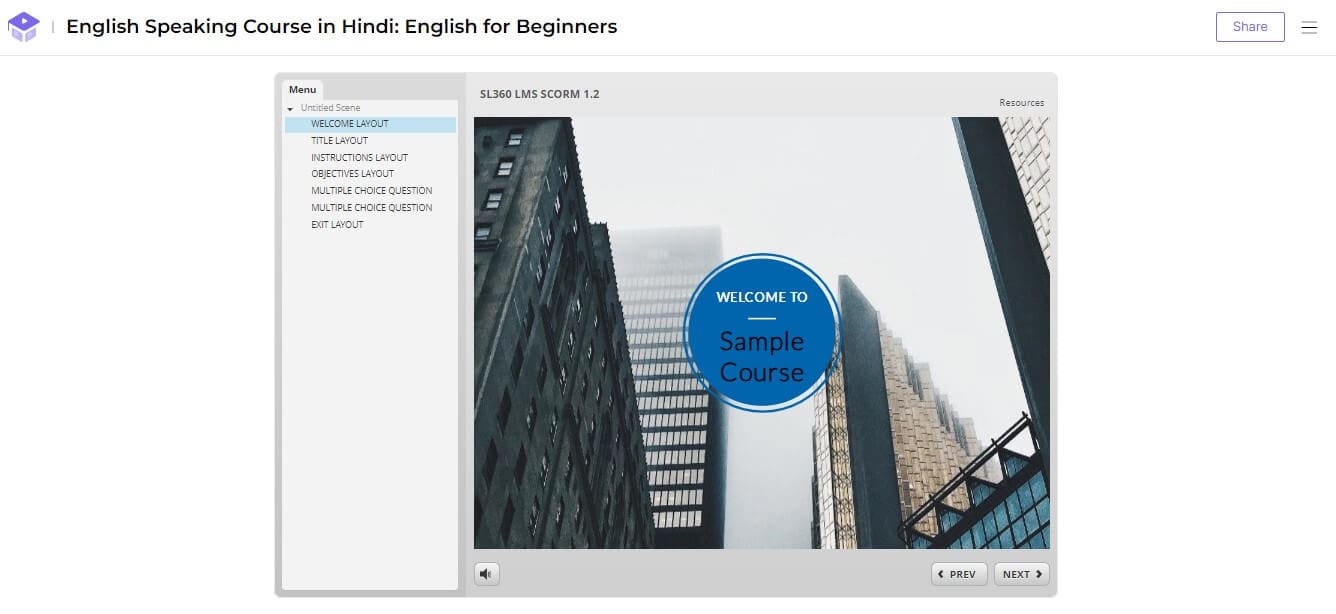
Note: Here is something you need to know about the SCORM course in Academy LMS. If you add SCORM content to any of your existing courses, all of your previously created lessons, quizzes, assignments, and other course content not will be available.
SCORM Analytics for Students

Get a clear overview of student progress in SCORM courses with topic-level analytics. Track topic completion status and percentage completed to better understand learner engagement and course progression.
Using SCORM Files in Individual Lessons
Academy LMS allows you to not only use SCORM at the course level but also embed SCORM files into individual lessons, providing more flexibility in structuring your learning content.
How to Add SCORM to a Lesson:
Go to your Academy LMS Dashboard → navigate to the Course menu.
Select an existing course or create a new one.
Inside the course builder, switch to the Lessons tab.
Click Add New Lesson or edit an existing lesson.
Alternatively:
You can also go to Academy LMS > Lessons from the Academy LMS sidebar and create or edit lessons directly from there.
Scroll down slightly until you find the SCORM Upload section.
Upload your SCORM-compliant ZIP file here.
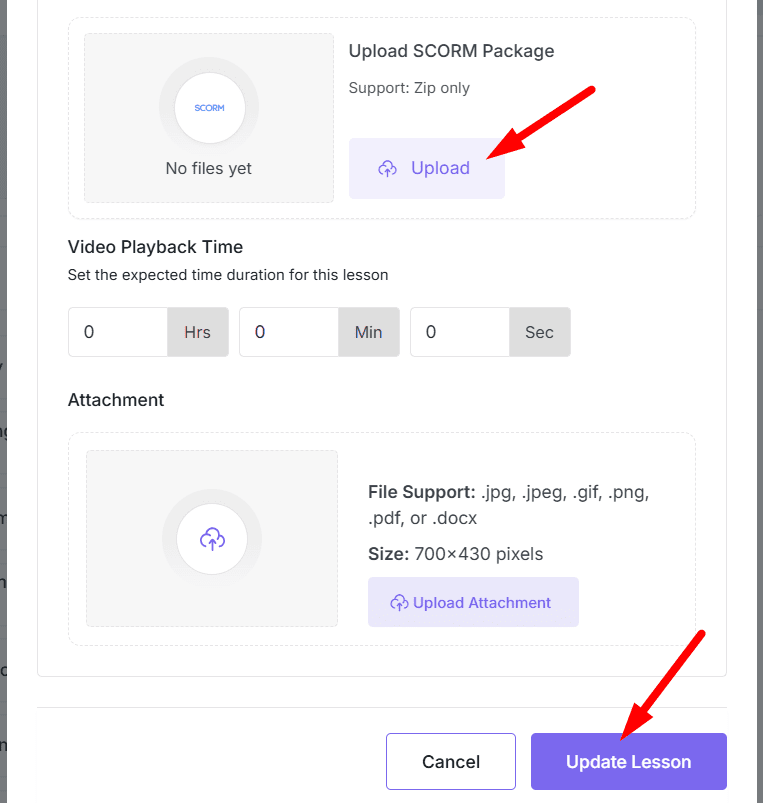
Note: Once a SCORM file is uploaded for a lesson, the standard video lesson options will be automatically disabled to avoid conflict. The lesson will now fully rely on the SCORM package for its content and interactivity.
This setup is ideal for breaking down complex SCORM modules into smaller parts or mixing SCORM-based lessons with non-SCORM content within the same course.
Resume SCORM Courses from Where Left Off
Students can now resume SCORM courses exactly where they left off. No need to start over—this feature ensures a smooth, uninterrupted learning experience by saving their last activity automatically.
SCORM Course Certificate Download Option
Automatically generate and download certificates upon completing SCORM-based courses. This new option allows learners to showcase their achievements instantly, just like regular Academy LMS courses.
This is how to use SCORM content in Academy LMS. If you need some more assistance please join our Facebook community to ask questions, and subscribe to our YouTube channel for Academy LMS video tutorials. You can also follow us on Twitter.