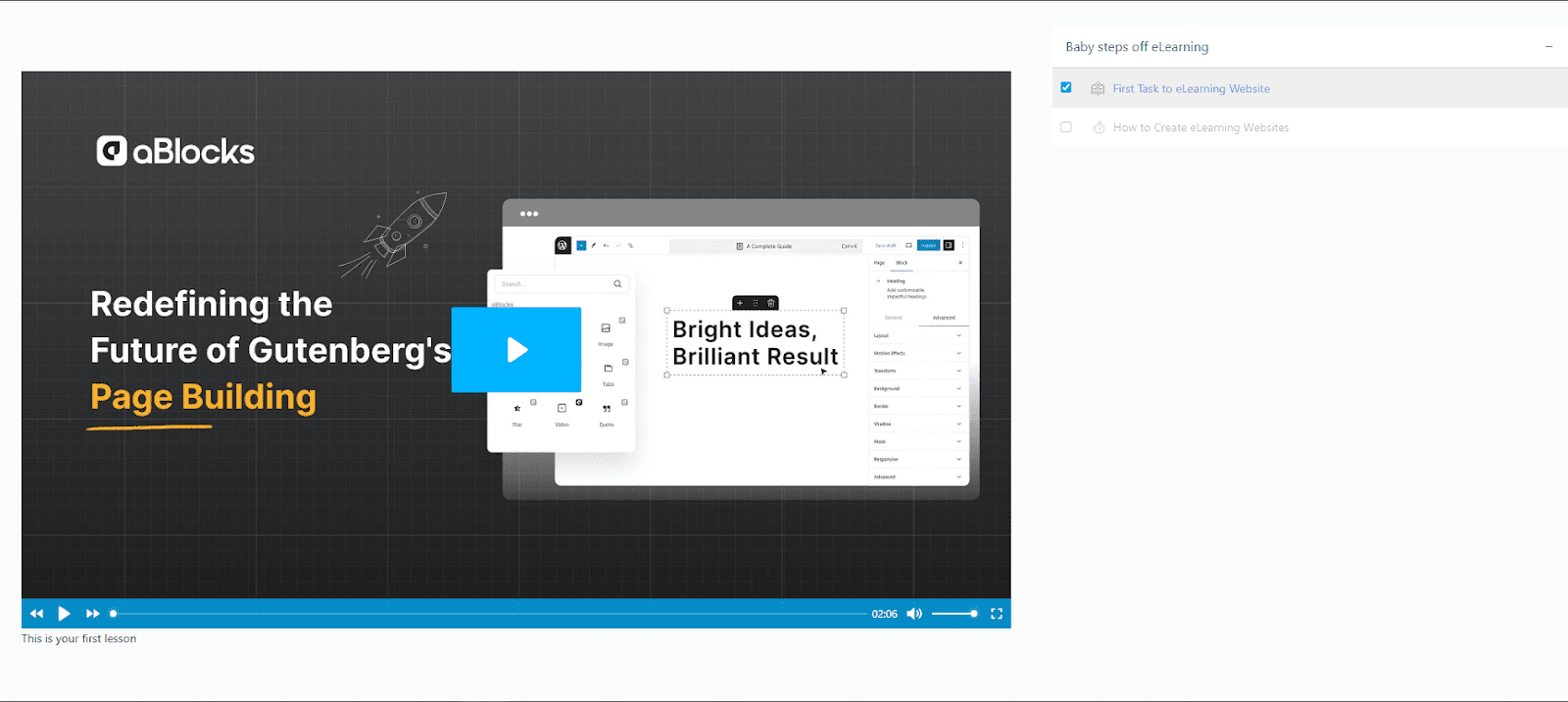








Presto Player is a powerful media player plugin that works well with Academy LMS to enhance course content. Follow these simple steps to integrate it:
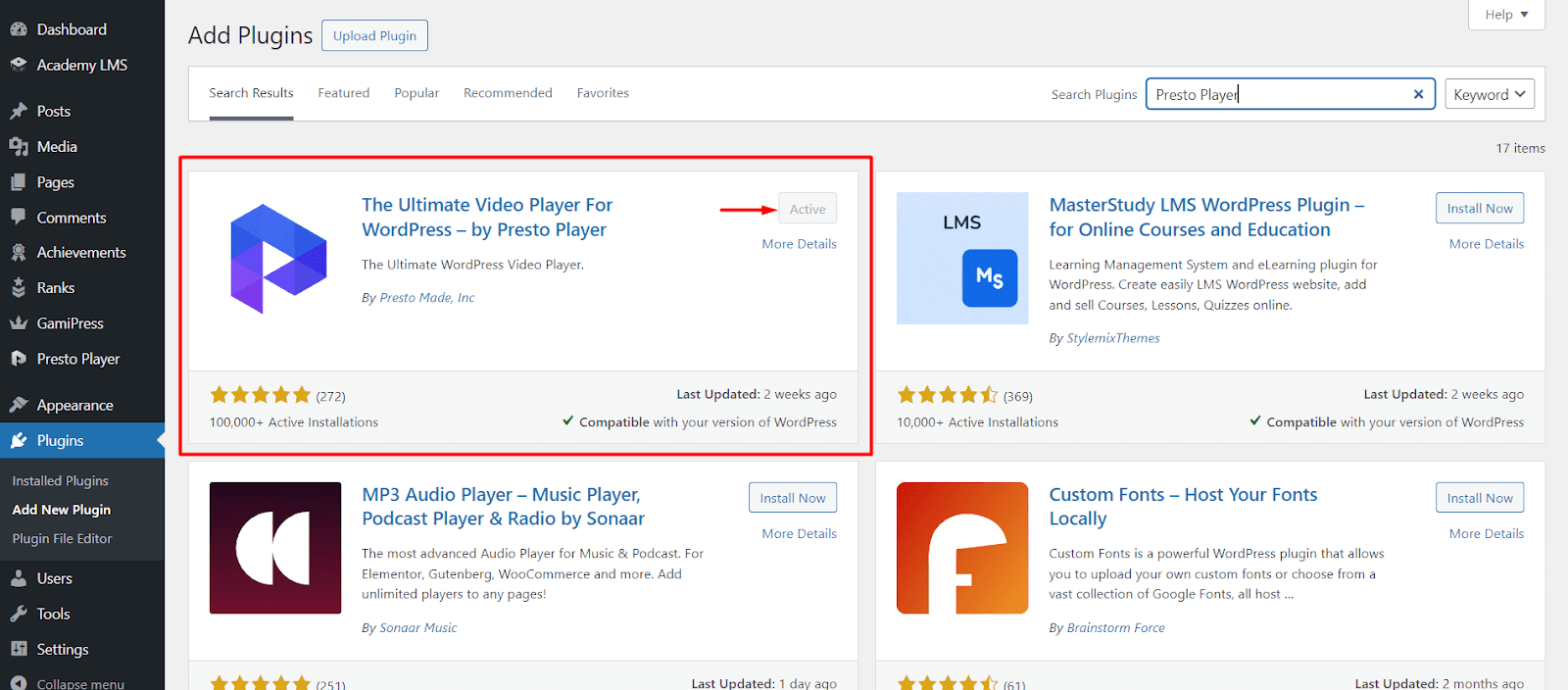
Step 1: Install and Activate Presto Player
First, install and activate the Presto Player plugin on your WordPress site.
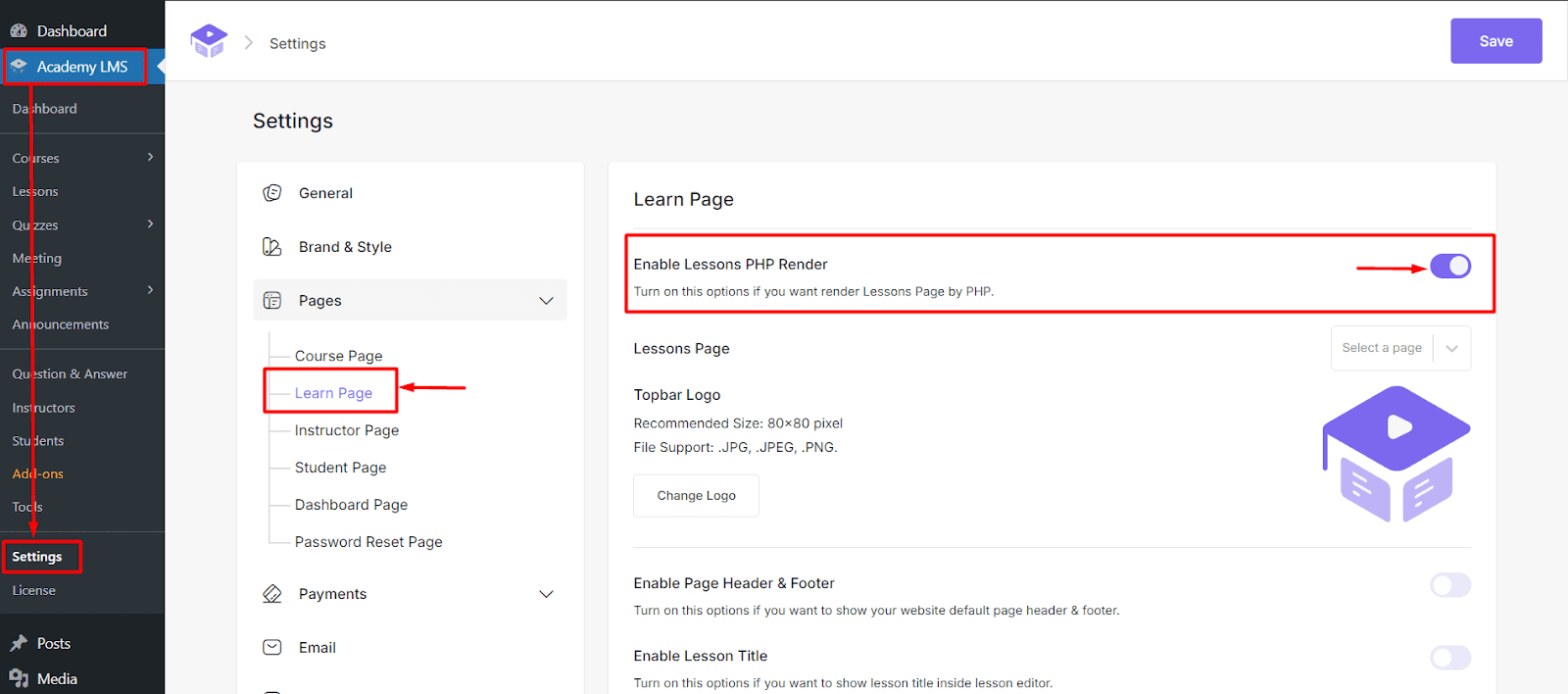
Step 2: Enable Lesson PHP Render in Academy LMS
Go to Academy LMS > Settings > Pages, and locate the “Learn Page” settings. Make sure to enable the “Enable Lessons PHP Render” option.
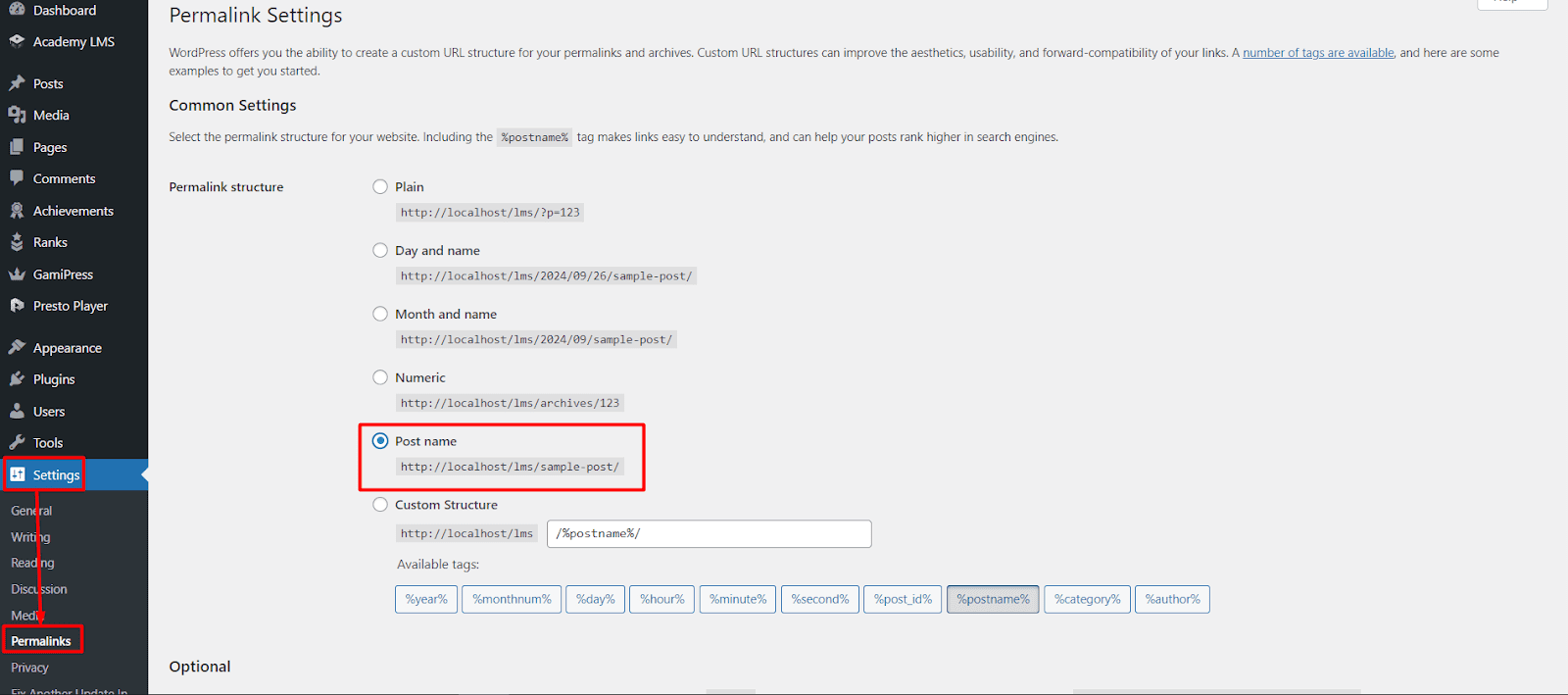
Important Note: Kindly change the permalink from WordPress > Settings > Permalinks. And select the Post Name.
Step 3: Add Media in Presto Player
Navigate to Presto Player > Media Hub and click Add New.
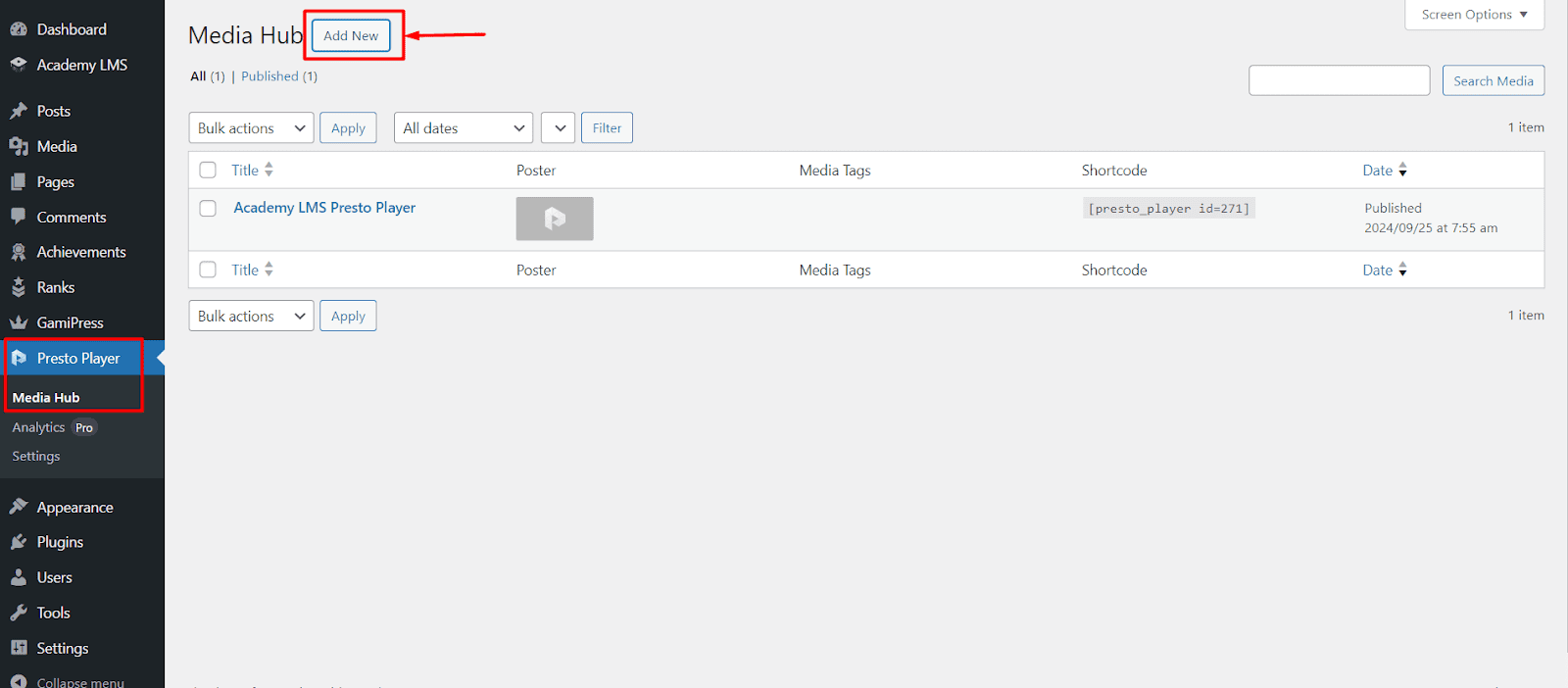
Choose the type of media you’d like to upload:
- Video
- YouTube
- Vimeo
- Audio
- Bunny.net
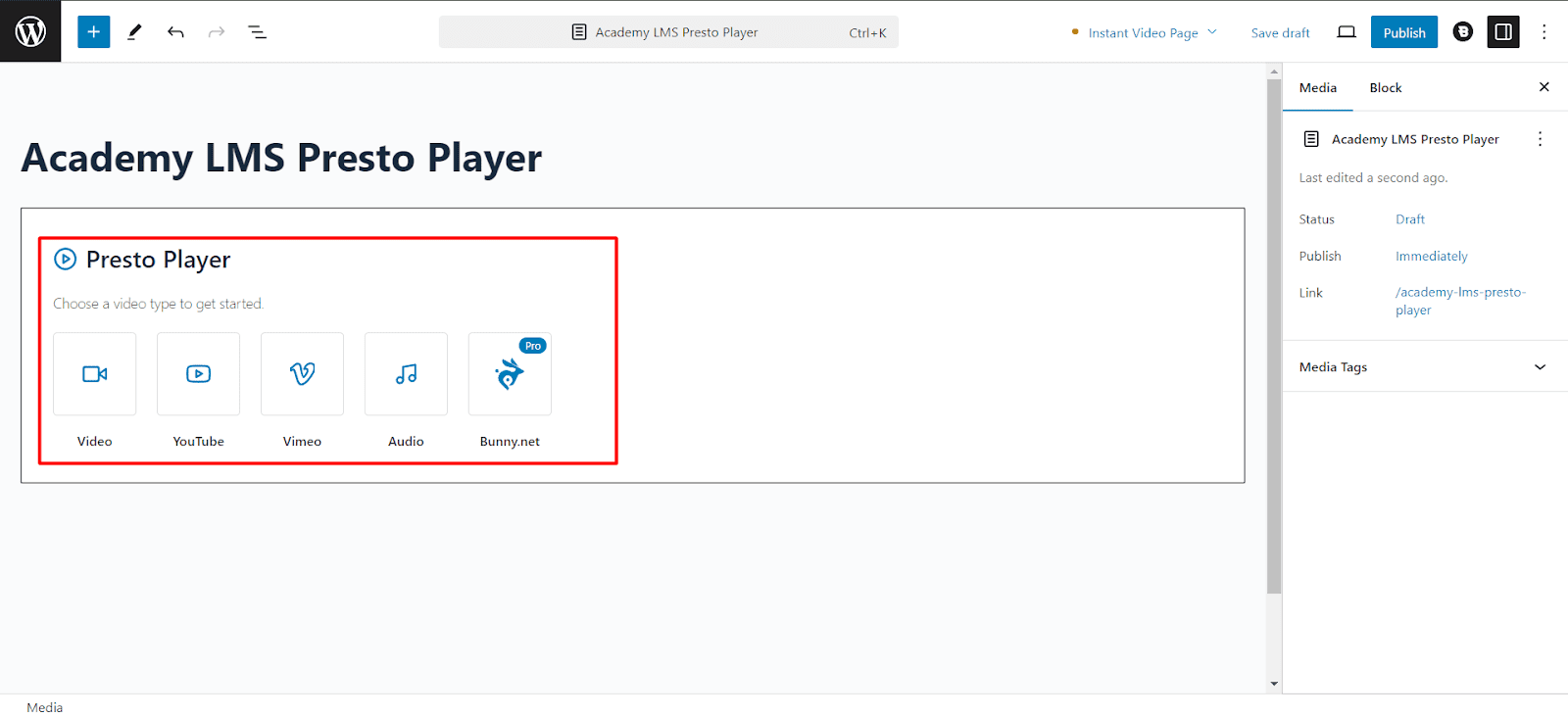
Enter a title for the media and click Publish.
Step 4: Copy the Shortcode
Once the media is published, return to the Presto Player Media Hub. Copy the shortcode that appears.
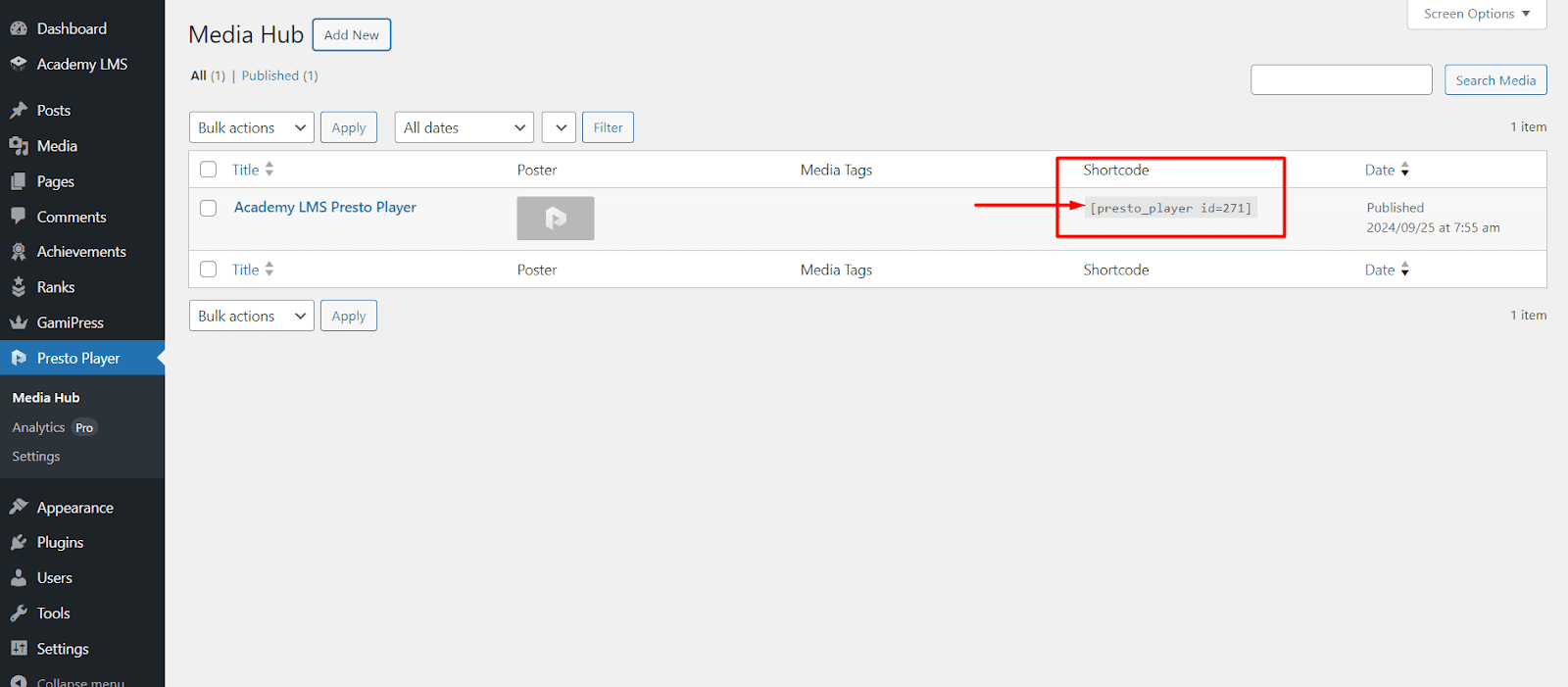
Step 5: Add the Shortcode to Academy LMS Course
You can now use the shortcode in various places within your courses:
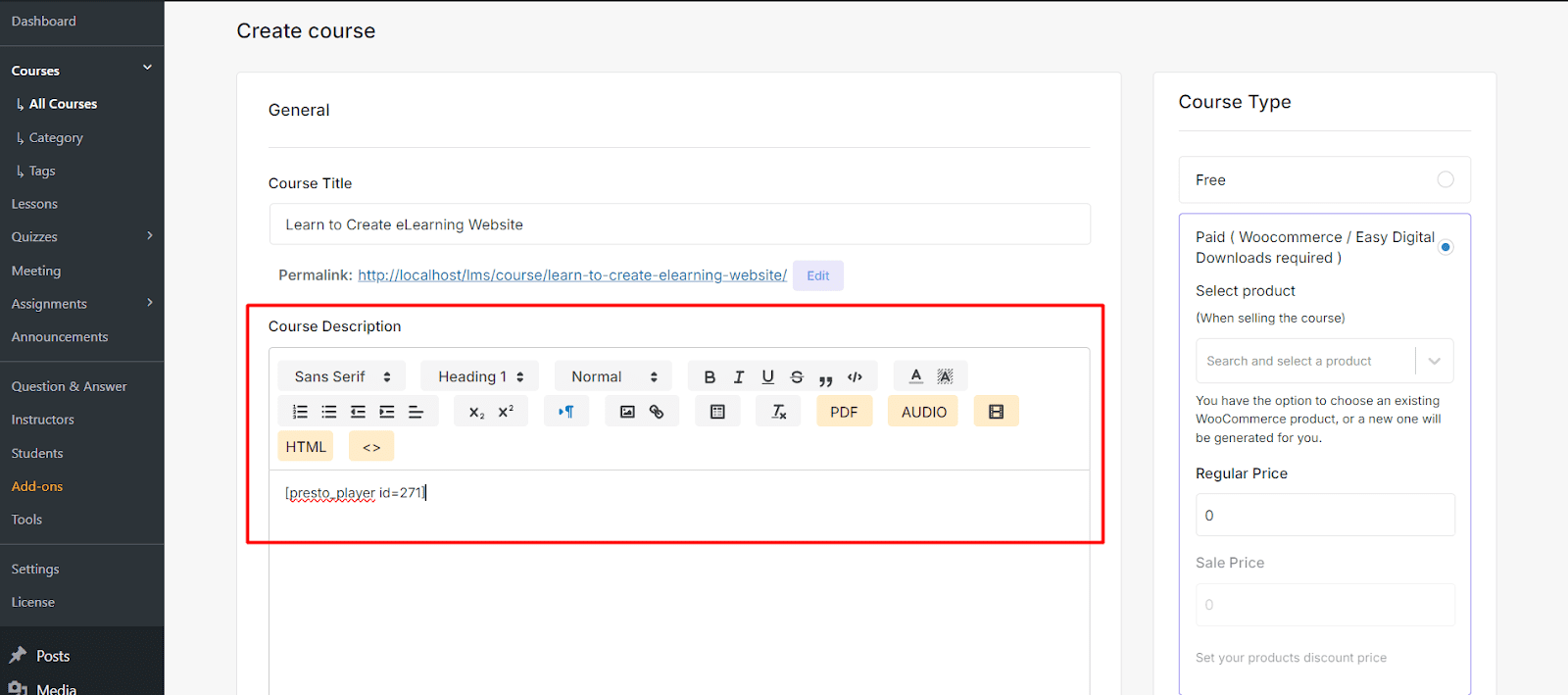
Course Description
Create or edit a course in Academy LMS, then paste the shortcode in the “Course description” section. The video will appear in the description area.
Course Intro Video
Select Shortcode from the dropdown and a Shortcode placing text box will appear. Paste the shortcode in the “Course Intro Video” section.
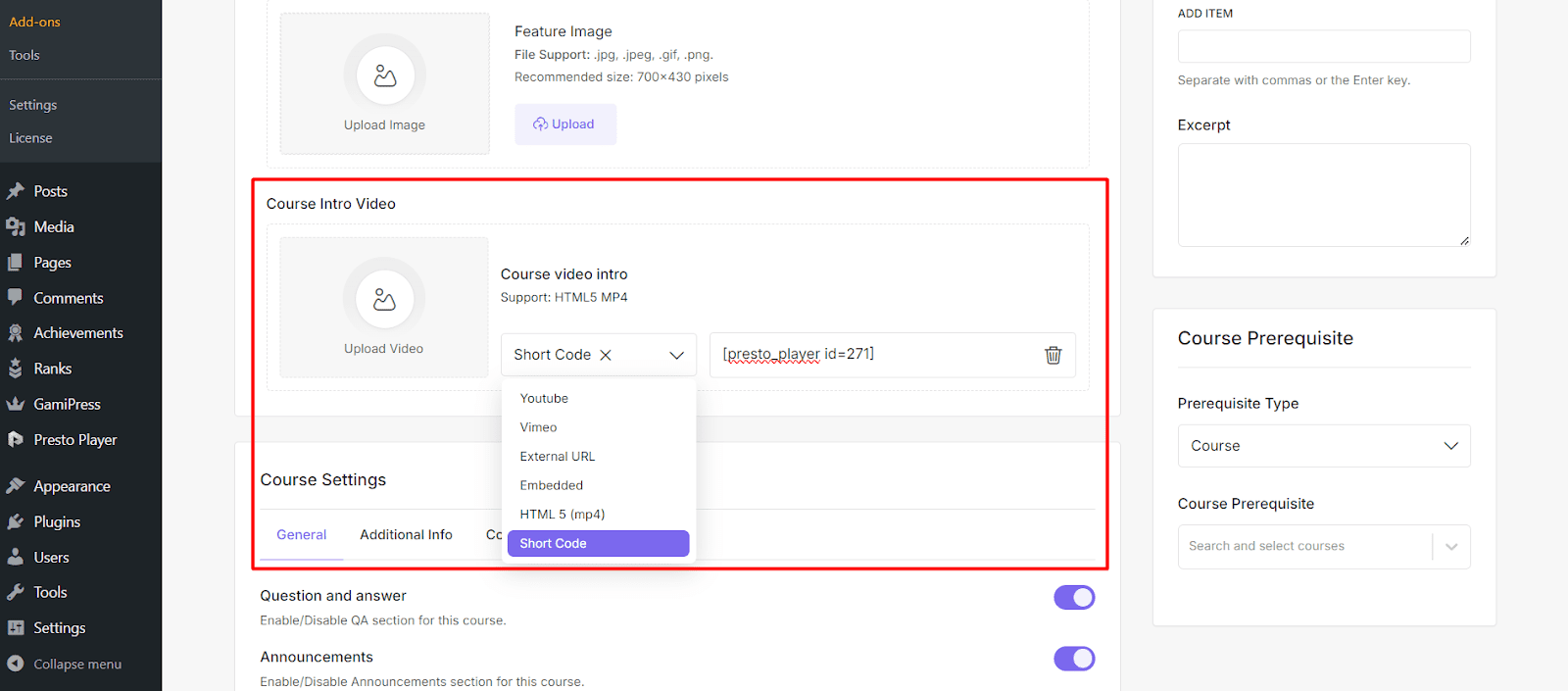
This will display the video in the course header.
After adding the shortcode, click Update to save changes.
Step 6: Use Presto Player in Lessons
To add the video to lesson content, there are 2 places you can show.
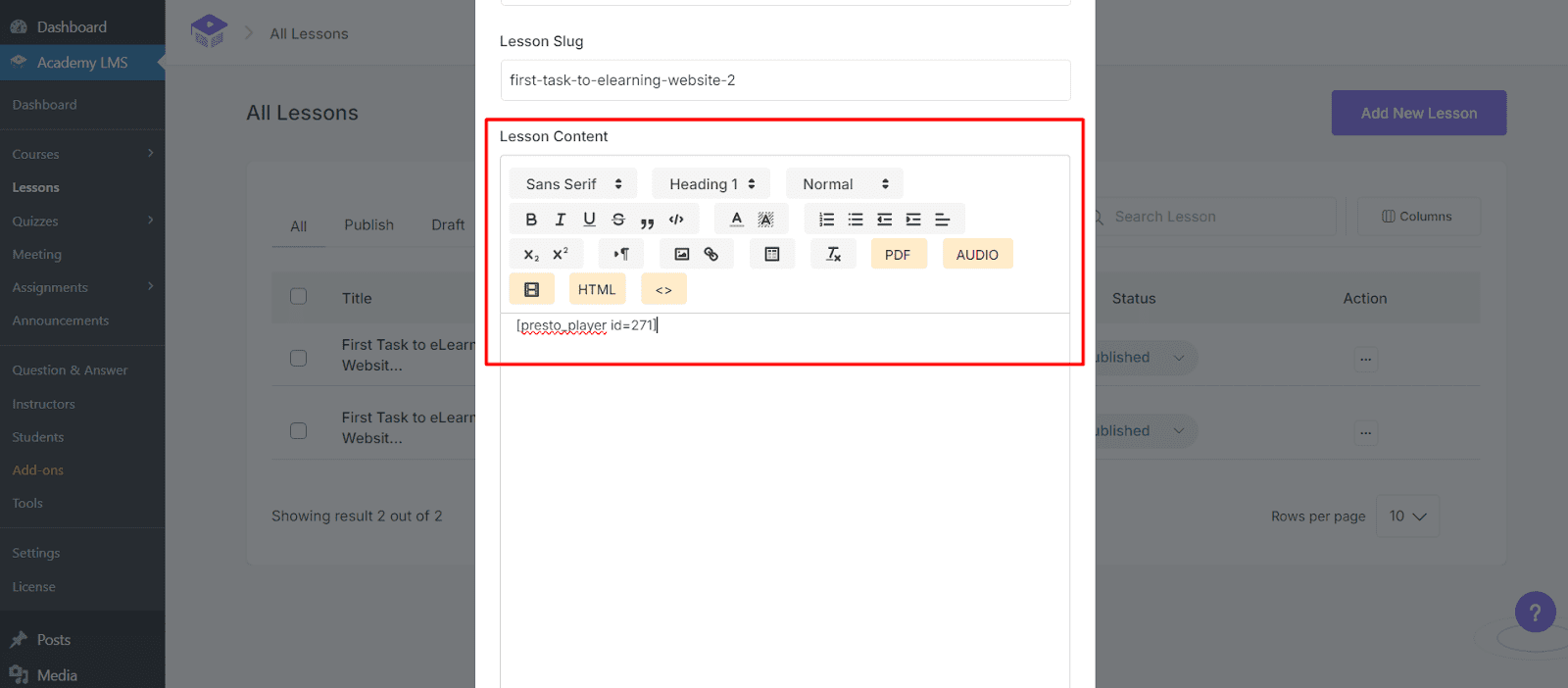
Paste the shortcode in the Lesson Content section.
Also you can show the video in a specific video section inside lessons. For that, go to Lesson Settings, set the “Video Source” to Shortcode. Paste the shortcode into the Video URL box.
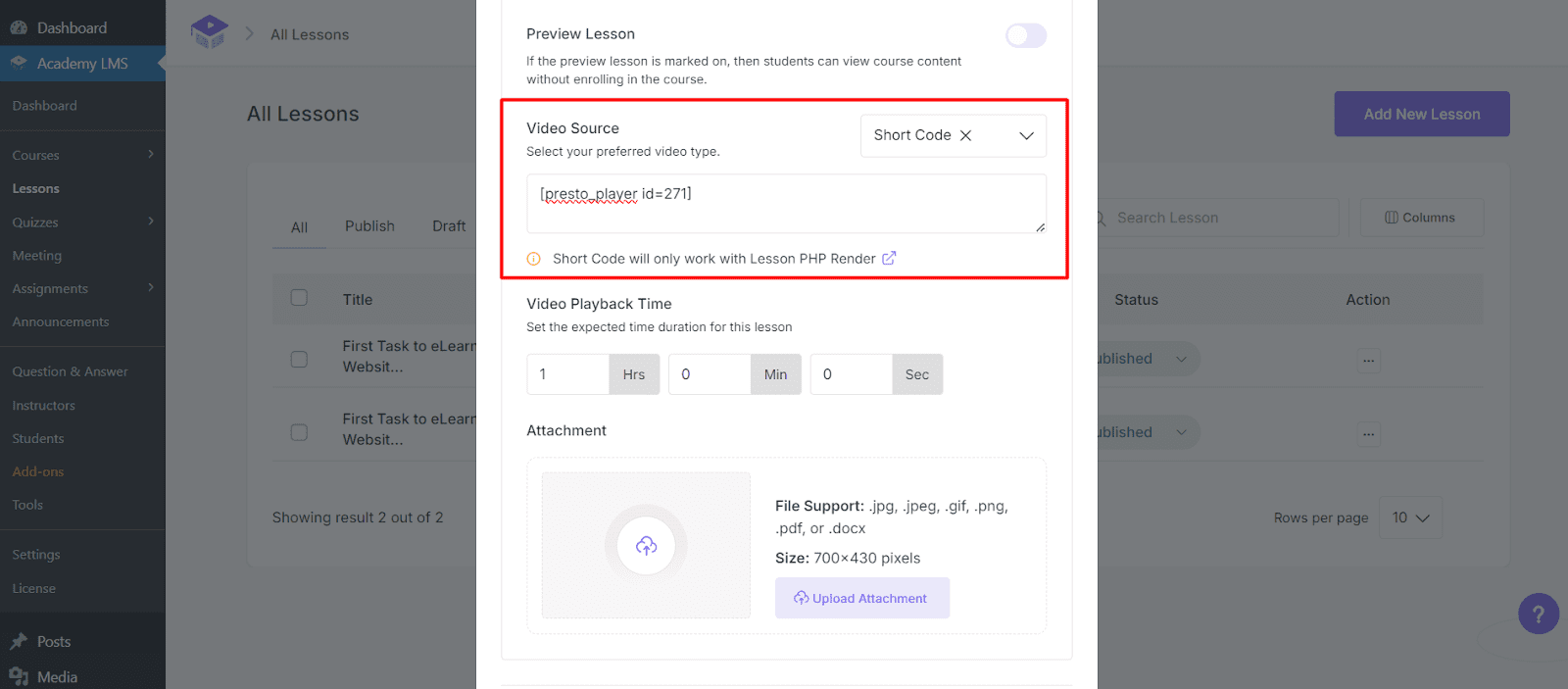
Don’t forget to click Update Lesson to save the changes.
And that’s it! You’ve successfully integrated Presto Player with Academy LMS to enhance your courses with multimedia content.
Here’s how it will display in the Learn Page: