











This guide explains how to use MemberPress, one of the most powerful WordPress membership plugins, to control course access in Academy LMS, enabling membership-based access rules for courses and learning materials.
Prerequisites
Before you begin, ensure the following are installed and active on your WordPress site:
✅ Academy LMS Free Version (latest)
✅ Academy LMS Pro (latest)
✅ MemberPress — a premium WordPress membership plugin (with an active license)
✅ Academy LMS MemberPress integration addon enabled from the Academy LMS Add-ons section
Once everything is active, follow the steps below to connect access control via MemberPress.
Activate the MemberPress Integration Addon
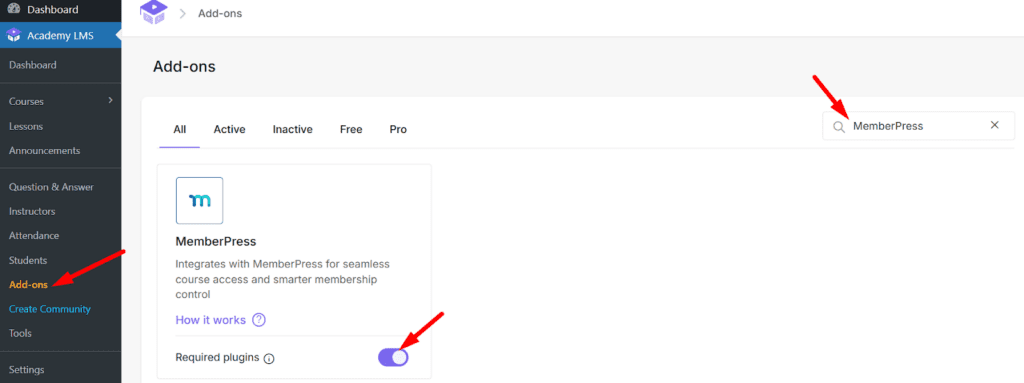
From your WordPress dashboard, go to Academy LMS → Add-ons. Find MemberPress Integration and switch it on.
This tells Academy LMS to honor MemberPress membership rules when restricting course access.
Create Membership Levels in MemberPress
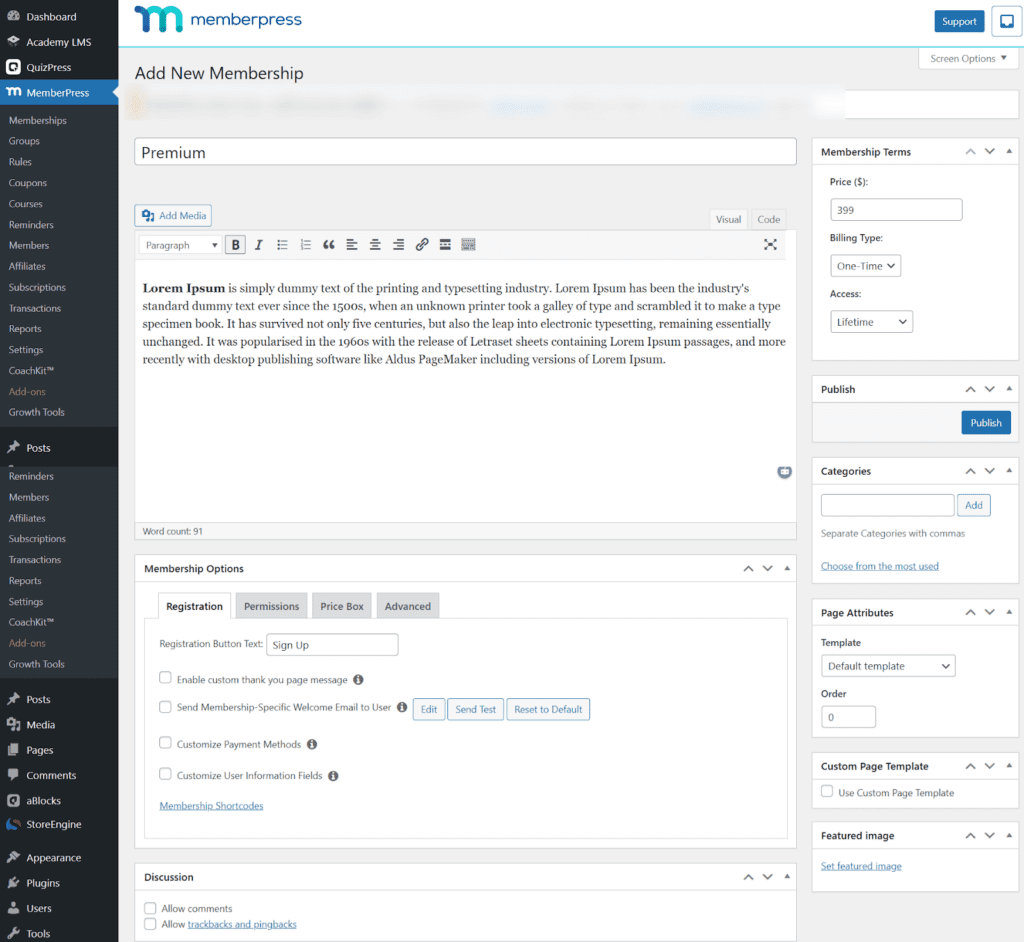
You will need membership tiers that define access permissions. Navigate to MemberPress → Memberships in your WordPress admin. Click Add New to create a new membership level (e.g., Basic, Premium, Elite).
Membership Details
- Title: Name your plan (e.g., Full Stack Digital Marketing). This is shown to users.
- Description: Explain what’s included. This content appears on the membership page.
Pricing & Duration (Sidebar)
- Price: Set the membership cost.
- Billing Type: Choose One-Time or Recurring.
- Access: Define access length (Lifetime, Fixed expiry, or time-based).
Membership Options (Tabs)
- Registration: Customize signup button text, thank-you pages, or welcome emails.
- Permissions: Control who can purchase this plan.
- Price Box: Adjust how the plan appears on pricing or group pages.
- Advanced: Redirect users after login or hide the plan from public view.
Organization (Sidebar)
- Categories & Tags: Organize memberships for easy management.
- Page Attributes: Choose a WordPress template if needed.
- Featured Image: Add a visual for the membership plan.
Publish
- Click Publish to activate the membership, or save it as a Draft if it’s not ready yet.
Assign a MemberPress to Academy LMS Courses
After creating your membership levels:
- Go to Academy LMS → Courses.
- Open an existing course or Add New.
- On the Course Edit screen, locate the Course Access/Type settings area.
- Instead of free/paid/public/, select MMP
- Choose the MemberPress level(s) from the drop-down that grant access to this course.
- For example, only premium members can access advanced modules.
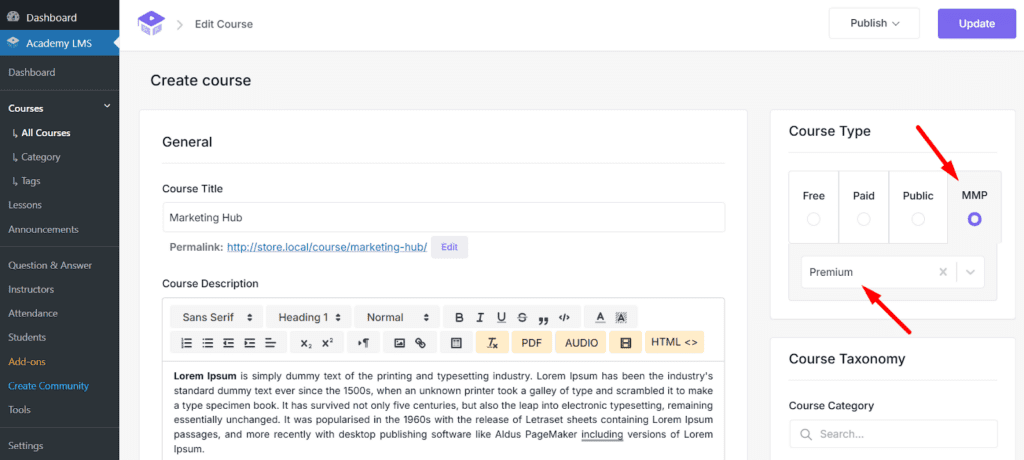
Once saved, only users with an active corresponding membership in MemberPress can enroll in or view the course content.
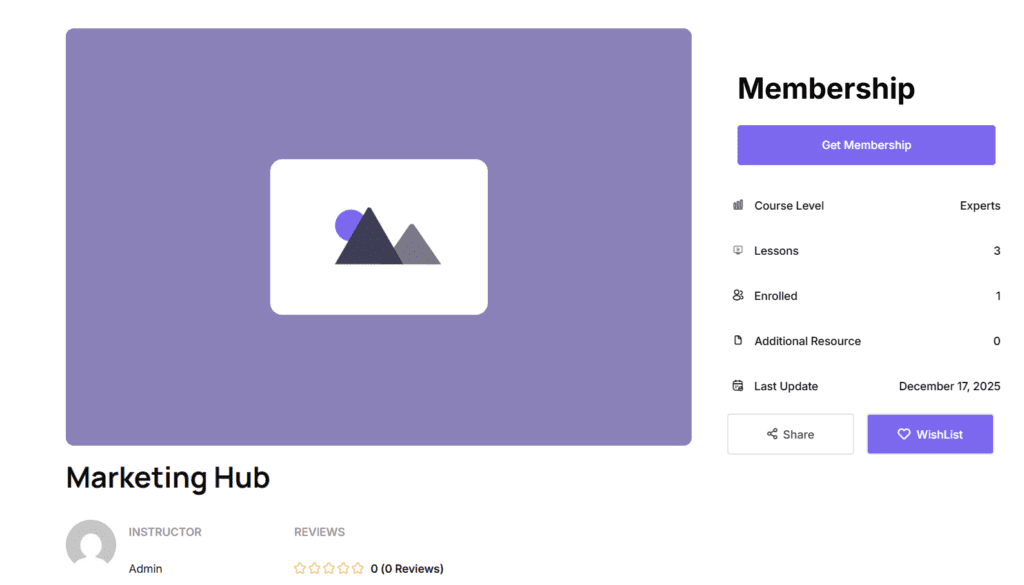
Here is the preview of the created membership with MemberPress. Students will now need to purchase the selected membership to access and enroll in this course.
Manual Membership Assignment (Optional)
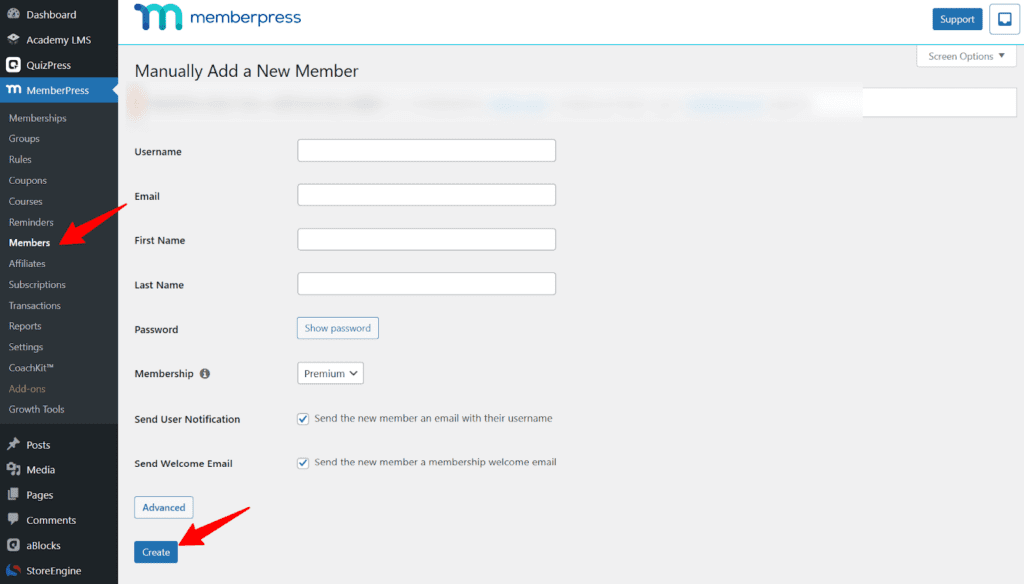
Administrators can manually assign a MemberPress membership to a user when needed. To do this, go to MemberPress → Members, click Add New, fill all the inormaiton for the user and the appropriate membership level, then save the changes. This method is useful for granting instant access to courses, handling special cases, or managing users without requiring a purchase flow.
Important Notes & How It Works
Access Control vs. Enrollment
Assigning a MemberPress membership to a course restricts who can enroll in the course, based on their membership status.
MemberPress Doesn’t Auto-Unenroll by LMS Functionality
Unlike some other integrations (e.g., LearnDash + MemberPress), Academy LMS doesn’t automatically unenroll a user from a course when their membership expires — they will simply lose access until membership is renewed.
Revenue Tracking
Unlike dedicated marketplace or instructor payout systems, this integration focuses on access control and monetization, not instructor revenue splitting or commission management.
Recurring Revenue & Subscription Management
MemberPress handles billing, subscription renewals, and cancellations, which Academy LMS leverages for access gating. This lets you sell recurring memberships that unlock student access to course libraries.
Note: MemberPress includes strong access rules and authentication features, which makes controlling Academy LMS enrollments robust and straightforward.