











The Attendance Add-on for Academy LMS helps administrators keep track of student participation in both online and offline classes. Whether your class takes place through a meeting platform (like Google Meet or Zoom) or in a physical classroom, this add-on makes it easy to monitor attendance, mark students present or absent, and stay updated on student engagement.
Once enabled, the add-on automatically gathers student activity—such as joining online classes through provided meeting links or completing lessons—and organizes everything in a central Attendance panel. Administrators can also manually adjust attendance records whenever necessary.
Enable the Attendance Add-on
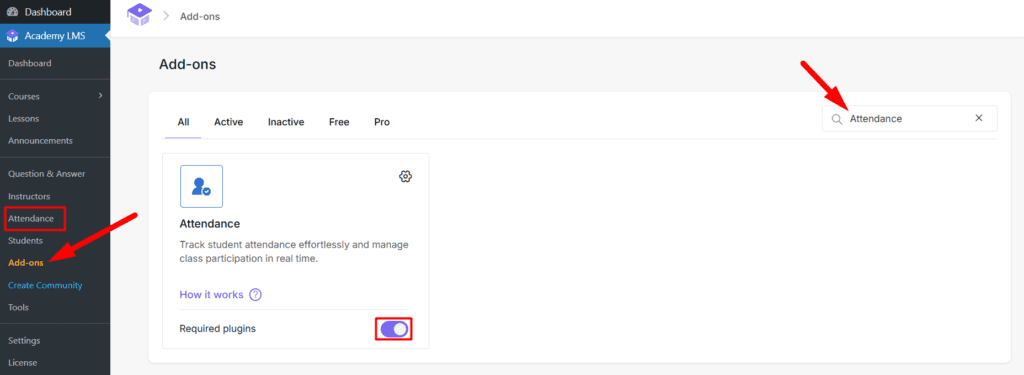
To activate the Attendance Add-on, follow these simple steps:
- Go to your WordPress Dashboard.
- Navigate to Academy LMS → Addons.
- Look for the Attendance Add-on in the list.
- Toggle the switch to turn it ON.
After activation, a new menu called Attendance will appear inside the Academy LMS main menu.
Attendance Menu Summary
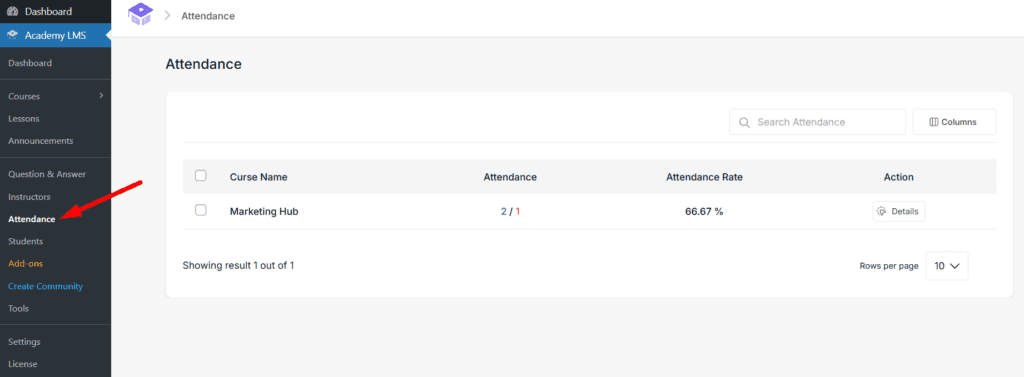
Navigate to Academy LMS → Attendance from the WordPress dashboard.
his screen lists all courses configured for attendance, showing key metrics for each. These metrics include the Course Name, the current Attendance count (number present out of the total), and the overall Attendance Rate.
Administrators can use the Details button next to any course to access the individual student attendance records, where they can manually update a student’s status to Present or Absent. The interface also provides functional tools such as a search bar, options to customize visible columns, and controls for pagination.
Online Course Attendance Setup (Virtual Classes)
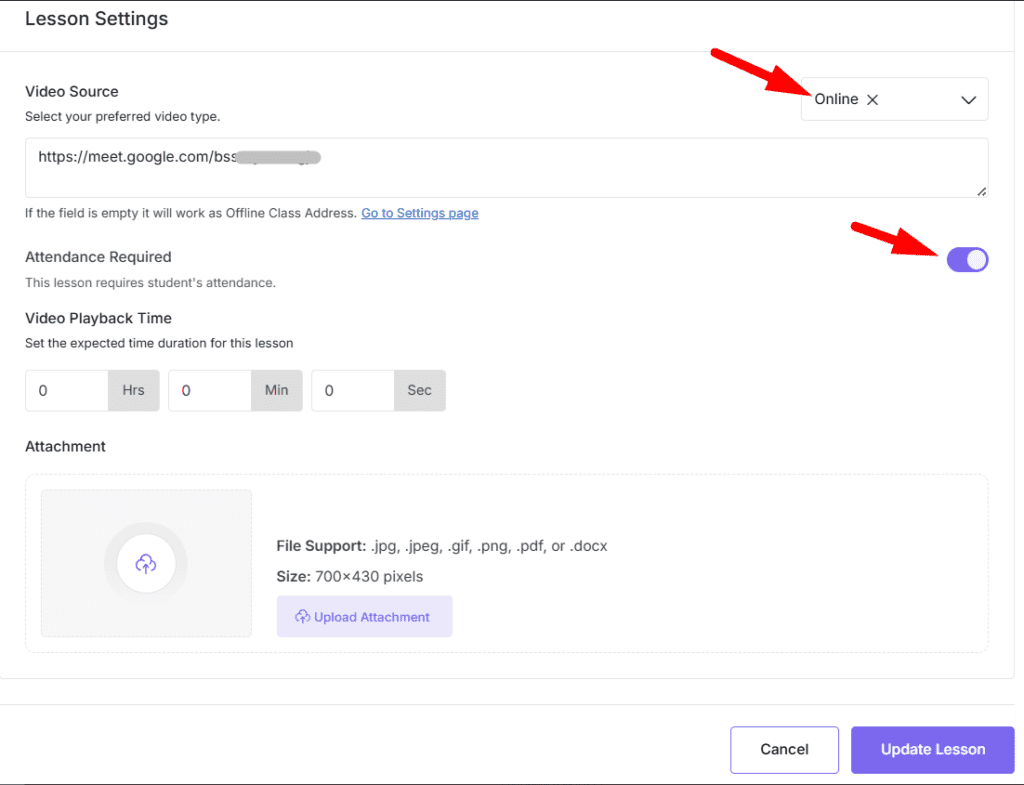
To enable attendance tracking for an online (virtual) class, you must configure the Lesson Settings for that specific lesson.
1. Access Lesson Settings
Navigate to the lesson you wish to set up for online attendance.
2. Set the Course Type
- Locate the Lesson Settings section.
- Find the Video Source option.
- Ensure the source is set to Online.
3. Provide the Meeting Link
In the text field located directly below the Video Source, enter the meeting link (e.g., Google Meet or Zoom URL) that students will use to join the virtual class.
4. Configure Attendance Requirement
- Locate the Attendance Required option under the lesson settings.
- Toggle the switch On or Off based on your needs.
- If OFF: Student presence is automatically recorded when they join the meeting link and mark the lesson as complete.
- If ON: Attendance is required, meaning an admin must manually set the student’s status to present, even after they complete the lesson.
Attendance Tracking Overview (Post-Setup)
Once setup is complete, the course and its attendance status will appear in the main Attendance Menu:
- The course will be listed in the Attendance menu.
- You can see the total attendance count and rate.
- The Details button allows you to manage individual student attendance records for that virtual lesson.
Managing Student Attendance
Whenever a student joins the class using the meeting link, their information becomes available in the Academy LMS Attendance menu.
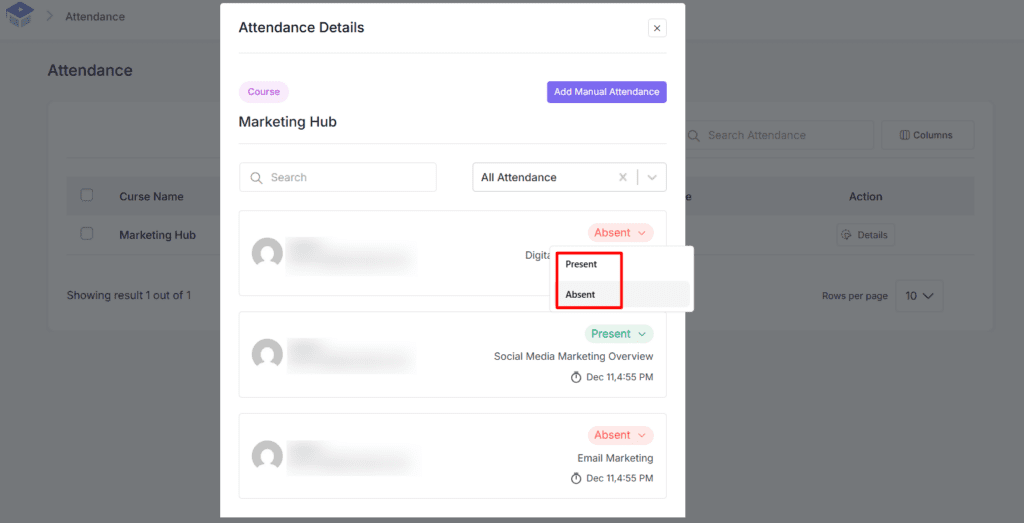
View and Set Status:
- By clicking beside the course in the Attendance list, the admin can view the student attendance for that meeting.
- From there, the admin can manually set any student as Present or Absent.
- Admins can also manually add students to the attendance list and set their status.
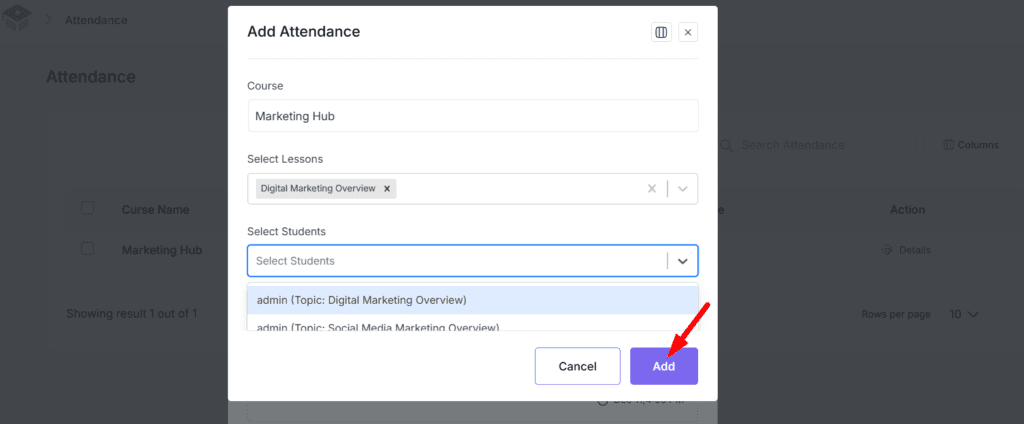
Attendance Report:
- The list uses Green to indicate a Present student and Red to indicate an Absent student.
- The attendance list also provides an option to display the percentage of students present for the course.
Offline Course Attendance Setup (In-Person Classes)
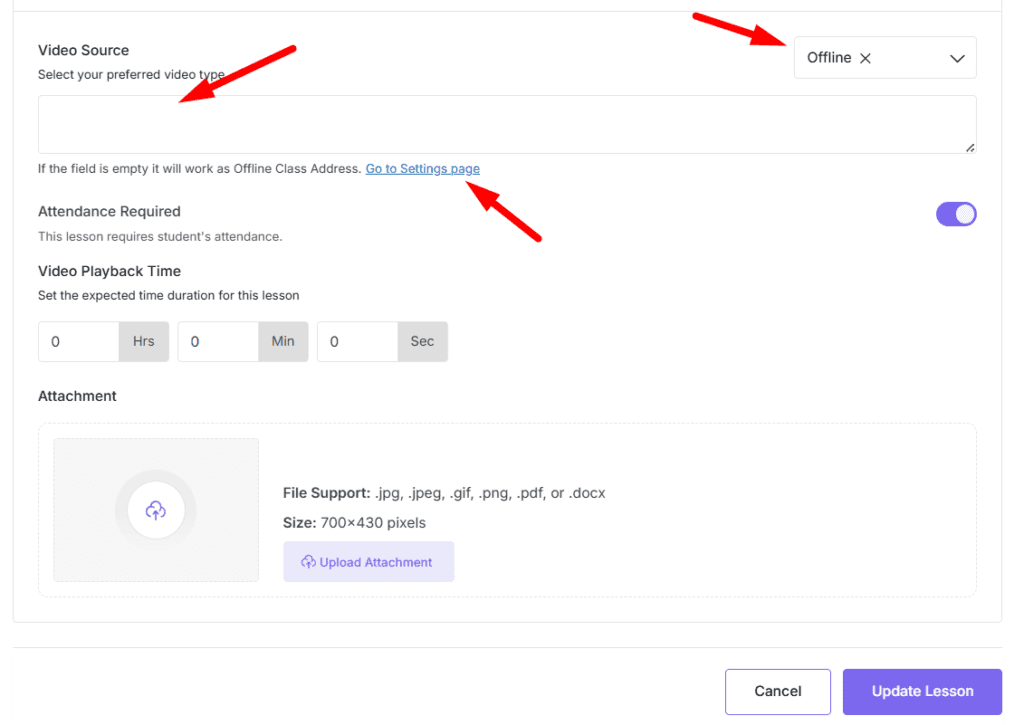
For courses that are held physically, the add-on allows administrators to set the location.
- Set Address in Lesson: For offline courses, the admin has an option within the lesson section to set a physical offline course address. This address will inform students of the class location.
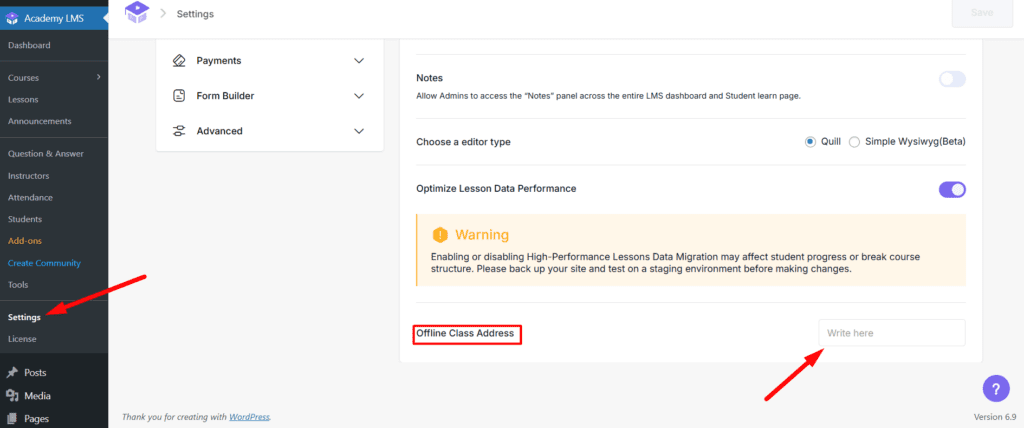
- Platform-Wide Default Address: If the platform uses a single location for most offline classes, the admin can set the address from the main settings. This address will then be displayed for all offline courses. If no address is set inside the lesson settings, the default address added in the global settings will automatically be displayed for that offline course.
Conclusion
The Academy LMS Attendance Add-on provides an essential, streamlined solution for attendance management across all course types. By supporting both automated tracking for online classes via meeting links and location setting for offline classes, it ensures accurate and flexible recording of student participation, greatly assisting administrators and instructors in course supervision.