
You may already have an interactive course containing slides, videos, assessments, simulations, or branching activities. The challenge is delivering it through WordPress without rebuilding every lesson.
This is where a SCORM WordPress LMS can help. It lets you upload a ready-made learning package, deliver it to students, and record their progress from your WordPress platform.
In this guide, you will learn what SCORM is, how it communicates with an LMS, and how to upload, deliver, test, and manage SCORM packages in WordPress.
What Is SCORM?
SCORM stands for Sharable Content Object Reference Model. It is a collection of technical standards that helps digital learning content communicate with a compatible learning management system.
Think of a SCORM package as a portable box. It can contain lessons, slides, videos, animations, quizzes, simulations, and instructions that tell an LMS how to launch the content and record learner activity.
Course creators build this content with an authoring tool and export it as a ZIP file. The same package can work across compatible platforms without rebuilding the course.
How Does SCORM Work with a WordPress LMS?
WordPress does not handle SCORM packages by itself. It requires a compatible LMS plugin or integration that can launch the package and receive the data it reports.
The basic process has three stages:
The package contains a manifest file that describes its structure and launch location. When a student opens the content, the package communicates with the LMS to send information such as progress, completion status, score, or resume position. The exact data available depends on how the package was created and what the LMS supports.
What You Need Before Getting Started
Prepare the following items before uploading your package:
Finalize the content in your authoring tool before exporting it. Academy LMS can deliver the package, but it generally cannot edit the slides, interactions, or internal assessments stored inside it.
How to Upload a SCORM Package with Academy LMS
Academy LMS provides SCORM functionality through its Pro add-on and supports both SCORM 1.2 and SCORM 2004. You can upload one package as a complete course or place smaller packages inside individual lessons.
Here is how to publish a complete SCORM course.
Step 1: Install Academy LMS and Academy LMS Pro
Install and activate the free Academy LMS plugin on your WordPress website. You will also need Academy LMS Pro because the SCORM integration is a Pro feature.
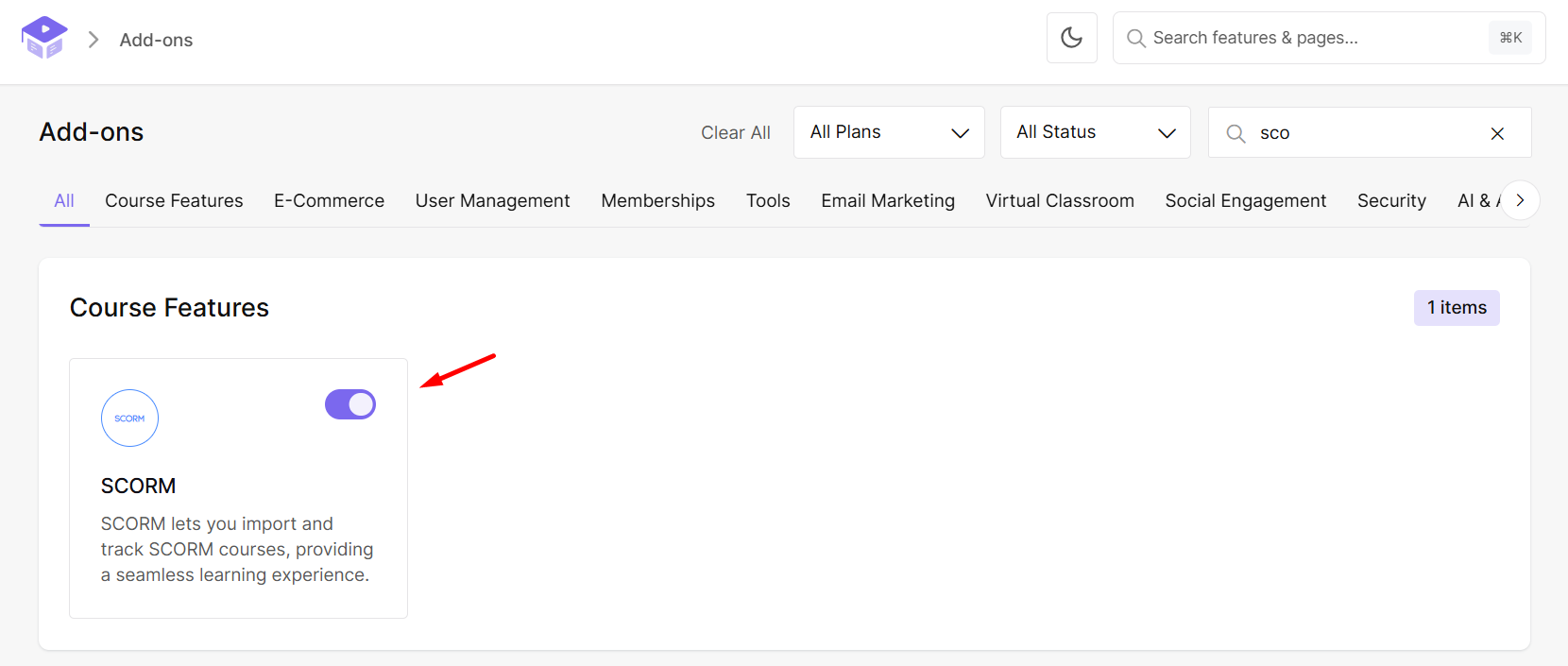
Step 2: Enable the SCORM Addon
Open your WordPress dashboard and navigate to the Academy LMS Addons area. Find the SCORM add-on and enable its toggle.
Once activated, the SCORM upload option becomes available in the course and lesson interfaces.
Step 3: Create or Edit a Course
Go to the Academy LMS course area and create a new course. Add its title, description, featured image, access method, pricing, and other necessary information.
You can also open an existing course. However, understand the difference between course-level and lesson-level SCORM before uploading a package to a course that already contains lessons or quizzes.
Step 4: Upload the SCORM ZIP Package
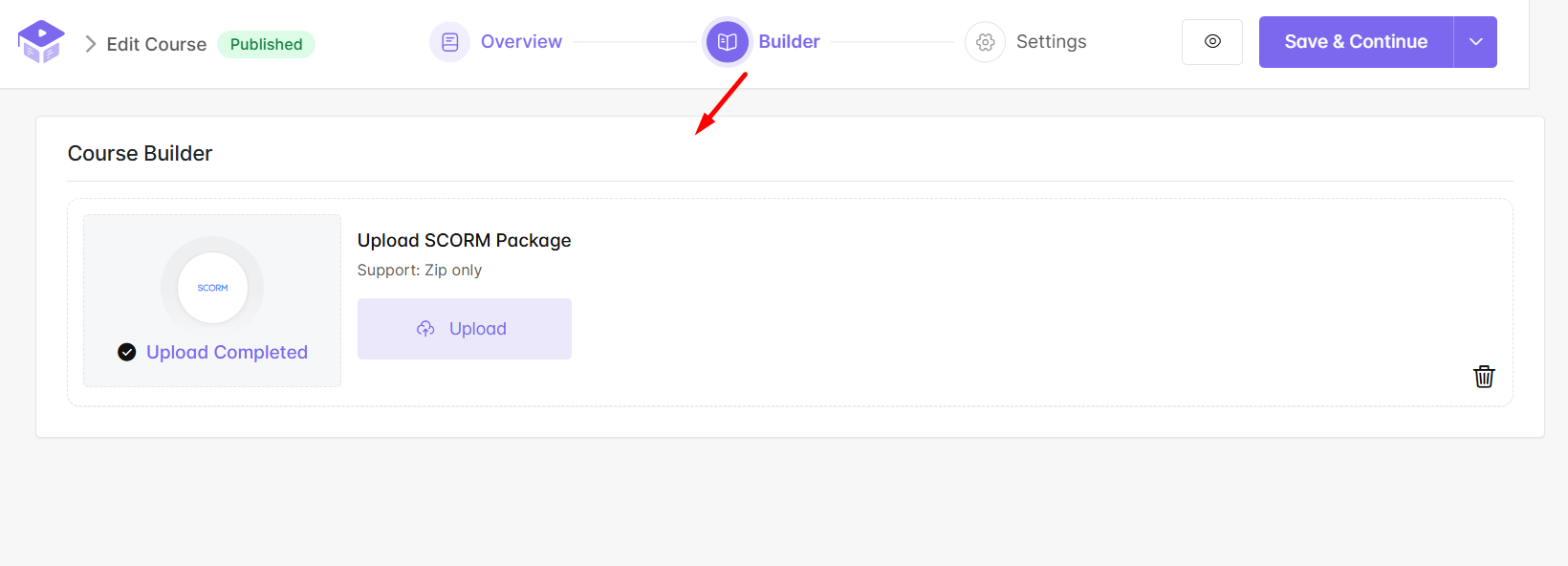
Inside the course builder, locate the Upload SCORM Package option. Select the ZIP package exported from your authoring tool and upload it without manually extracting the archive.
After the upload finishes, save your changes. Publish the course if it is new, or update it if you are editing an existing course.
Step 5: Preview the Course
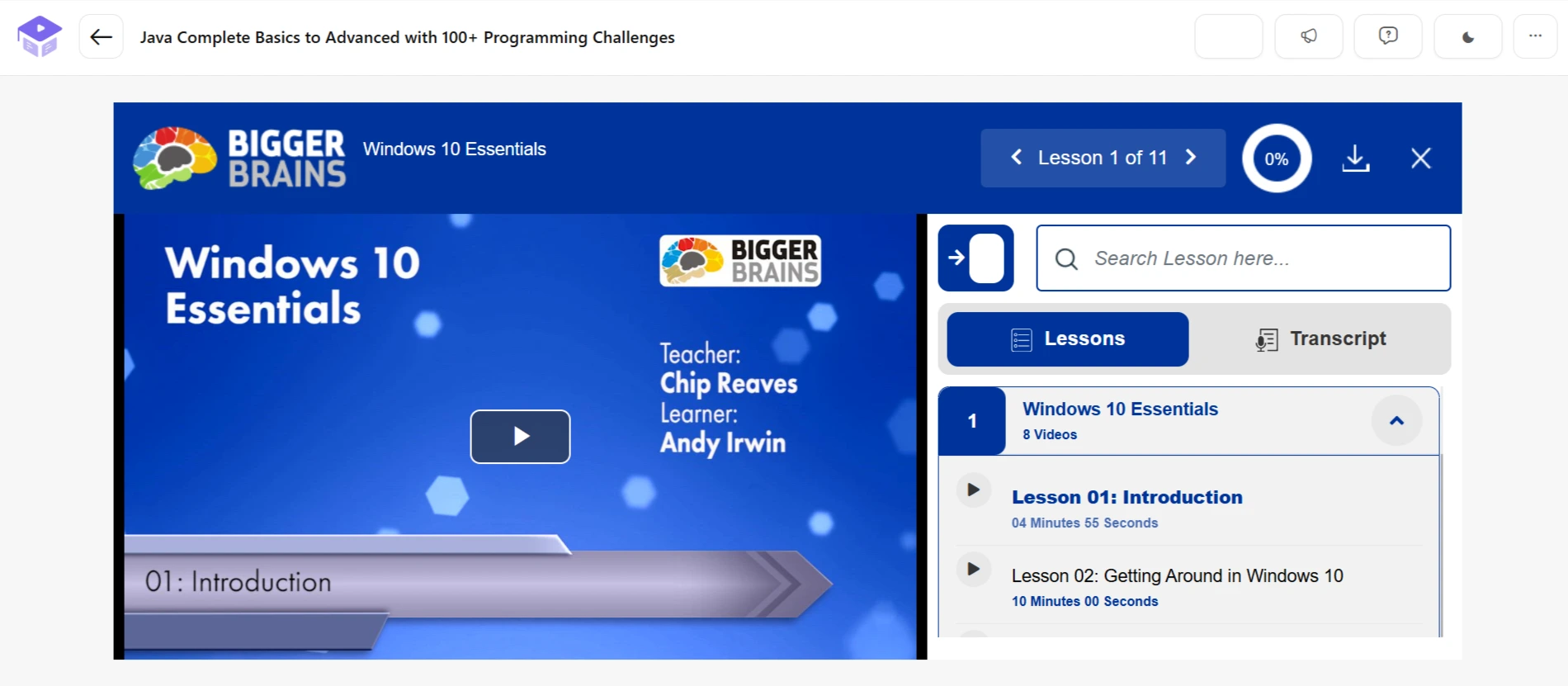
Open the course permalink and start the course. Confirm that the content loads inside the player and that its navigation and interactions work correctly.
An administrator preview alone is not enough. Later in this guide, we will test the complete experience from a student account.
How to Add SCORM to an Individual Lesson
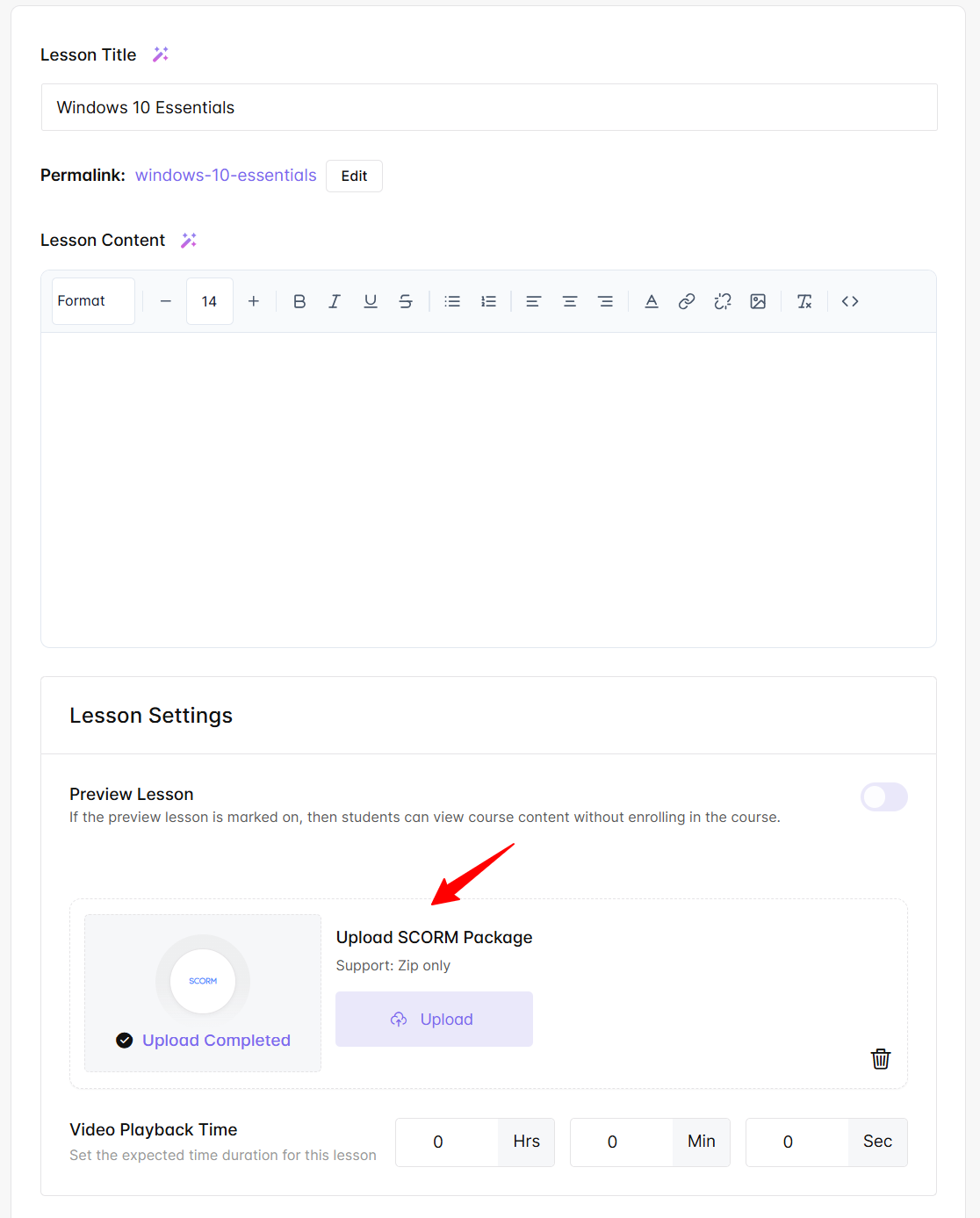
You do not have to use one package for the entire course. Academy LMS also lets you add SCORM content to an individual lesson. This approach is useful when you want to combine interactive modules with regular text, video, quizzes, assignments, or other course topics.
Follow these steps:
You can also create or edit a lesson from Academy LMS → Lessons and use the SCORM upload field there.
When you add a SCORM package to a lesson, its regular video lesson options are disabled to avoid a content conflict. The SCORM package becomes the primary content of that lesson.
Course-Level vs. Lesson-Level SCORM
Choosing the correct upload method is important because the two options create different course structures.
|
Course-level SCORM |
Lesson-level SCORM |
|
Uses one package as the complete course |
Uses a package as an individual lesson |
|
Best for a ready-made SCORM course |
Best for a mixed curriculum |
|
Regular lessons, quizzes, and assignments in that course are not displayed |
Can be combined with regular Academy LMS topics |
|
Offers a faster way to publish a complete package |
Provides more control over the curriculum structure |
If your ZIP file already contains the complete learning journey, use the course-level option. If you want to combine SCORM activities with Academy LMS lessons, quizzes, or assignments, use lesson-level SCORM instead.
Important: Uploading a course-level package to a course that already has regular curriculum content will prevent that existing content from appearing for students.
How Academy LMS Tracks SCORM Learning
A SCORM integration should do more than display interactive content. It should also help you understand whether students are progressing through it.
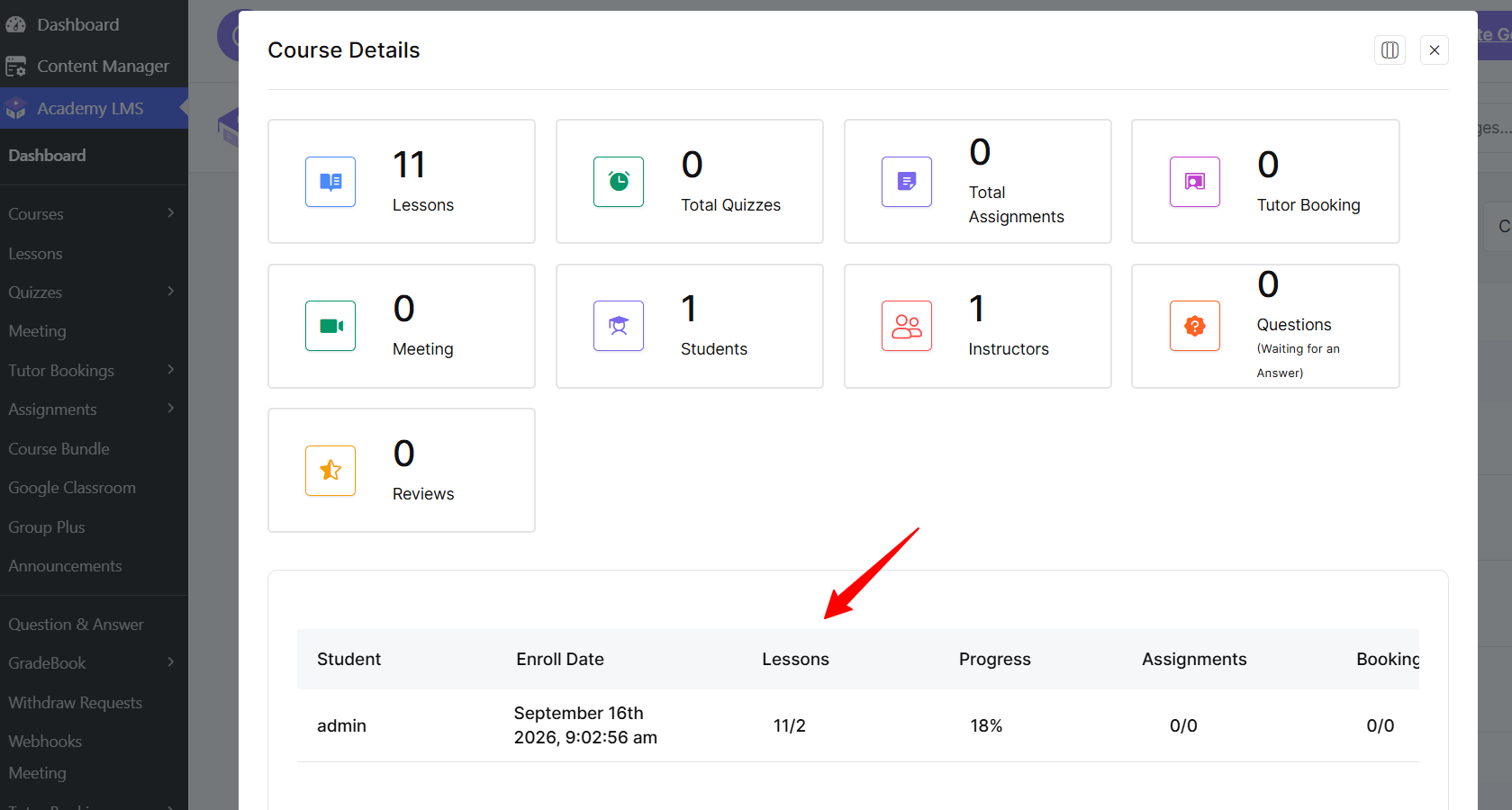
Academy LMS provides topic-level analytics for SCORM learning. Depending on the data reported by the package, you can review information such as:
Academy LMS can also save the student’s latest activity so the package can resume from where the student stopped. This is especially useful for longer modules that cannot be completed in one session.
After the required SCORM content is completed, a student can also access a course certificate, provided the certificate is configured and the package reports completion correctly.
Remember that the original package controls much of this communication. Configure its completion, success, score, and resume rules correctly in the authoring tool before exporting it.
When Should You Use SCORM?
SCORM is valuable, but it is not necessary for every lesson. Use the following comparison to choose the most suitable content method.
|
Use SCORM when |
Use native Academy LMS lessons when |
|
You already have a SCORM package |
You are creating new content in WordPress |
|
The content has branching, simulations, or advanced interactions |
You need text, video, audio, or straightforward lessons |
|
You are moving content from another compatible LMS |
You expect to edit the content frequently |
|
You need to preserve the original interactive experience |
You want to manage quizzes and assignments separately |
|
You want to reuse the package across compatible systems |
You want direct control over every course topic |
You can also combine the two approaches. For example, use a SCORM lesson for a simulation and native Academy LMS topics for videos, discussions, quizzes, and assignments.
Test the SCORM Course Before Publishing
Always test the course before enrolling real students. Use a separate student account or an incognito browser window and complete the same journey that a learner will follow.
Check whether:
You can also test the package in a service such as SCORM Cloud before uploading it to WordPress. If it fails there as well, the problem is likely related to the package or its export configuration rather than the LMS.
Common SCORM Problems and Solutions
The ZIP Package Does Not Upload
Check your WordPress and server upload limits. Large packages may exceed the permitted file size or PHP execution time. Also confirm that you are uploading the original SCORM ZIP package rather than an incorrectly recompressed folder.
The Package Uploads but Does Not Launch
The package may have an invalid structure or missing launch file. Re-export it from the authoring tool and test it in a SCORM testing environment. Avoid changing its internal files unless you understand the package structure.
Student Progress Does Not Update
Review the tracking and reporting settings in the authoring tool. Make sure the package sends progress, completion, or success information. Test with a fresh student attempt after making changes.
The Course Does Not Resume Correctly
Confirm that the package stores suspend or resume data. Revisit the export settings and test by completing part of the module, closing it, and returning with the same student account.
The Certificate Is Not Available
Check whether the package has reached and reported its completed status. Also verify that the certificate is enabled and correctly assigned to the course.
Existing Lessons Are No Longer Visible
This is expected when a package is added at the course level. Remove the course-level package and use SCORM inside individual lessons if you want to maintain a mixed curriculum.
Important Limitations and Best Practices
SCORM simplifies content portability, but you should understand its limitations.
For a smoother experience, keep the editable source project and exported ZIP file backed up. Use the correct SCORM version, configure completion rules before export, and test every update with a student account on both desktop and mobile devices.
Final Thoughts
SCORM gives you a practical way to reuse interactive learning content in WordPress instead of rebuilding every activity manually. With Academy LMS, you can upload a complete SCORM 1.2 or SCORM 2004 course, add smaller packages to individual lessons, review learner progress, let students resume their activity, and provide certificates after completion.
The key is choosing the correct structure. Use course-level SCORM for a complete ready-made package and lesson-level SCORM when you want to combine interactive modules with native Academy LMS content. Finally, test the package thoroughly before making the course available to students.
Frequently Asked Questions
Does WordPress support SCORM by default?
No. WordPress needs a compatible LMS plugin or SCORM integration to launch packages and record learner data.
Which SCORM versions does Academy LMS support?
Academy LMS supports SCORM 1.2 and SCORM 2004 packages.
Can I edit a SCORM package inside WordPress?
You can manage how the course is delivered, but you cannot directly edit the internal slides, interactions, or assessments. Make those changes in the original authoring tool and export the package again.
Can I combine SCORM with regular Academy LMS lessons?
Yes. Add SCORM packages to individual lessons when you want to combine them with regular lessons, quizzes, assignments, or other topics.
Can students resume a SCORM course later?
Yes. Academy LMS can save the learner’s latest activity and resume the package from that position when the package provides the required resume data.
Can students receive a certificate for a SCORM course?
Yes. A certificate can become available after the SCORM course is completed, provided the course certificate is configured and the package reports completion correctly.