
Tracking student performance is an important part of managing any online course. Instructors need to understand how well learners are progressing, which assessments they are struggling with, and whether they are meeting the learning objectives.
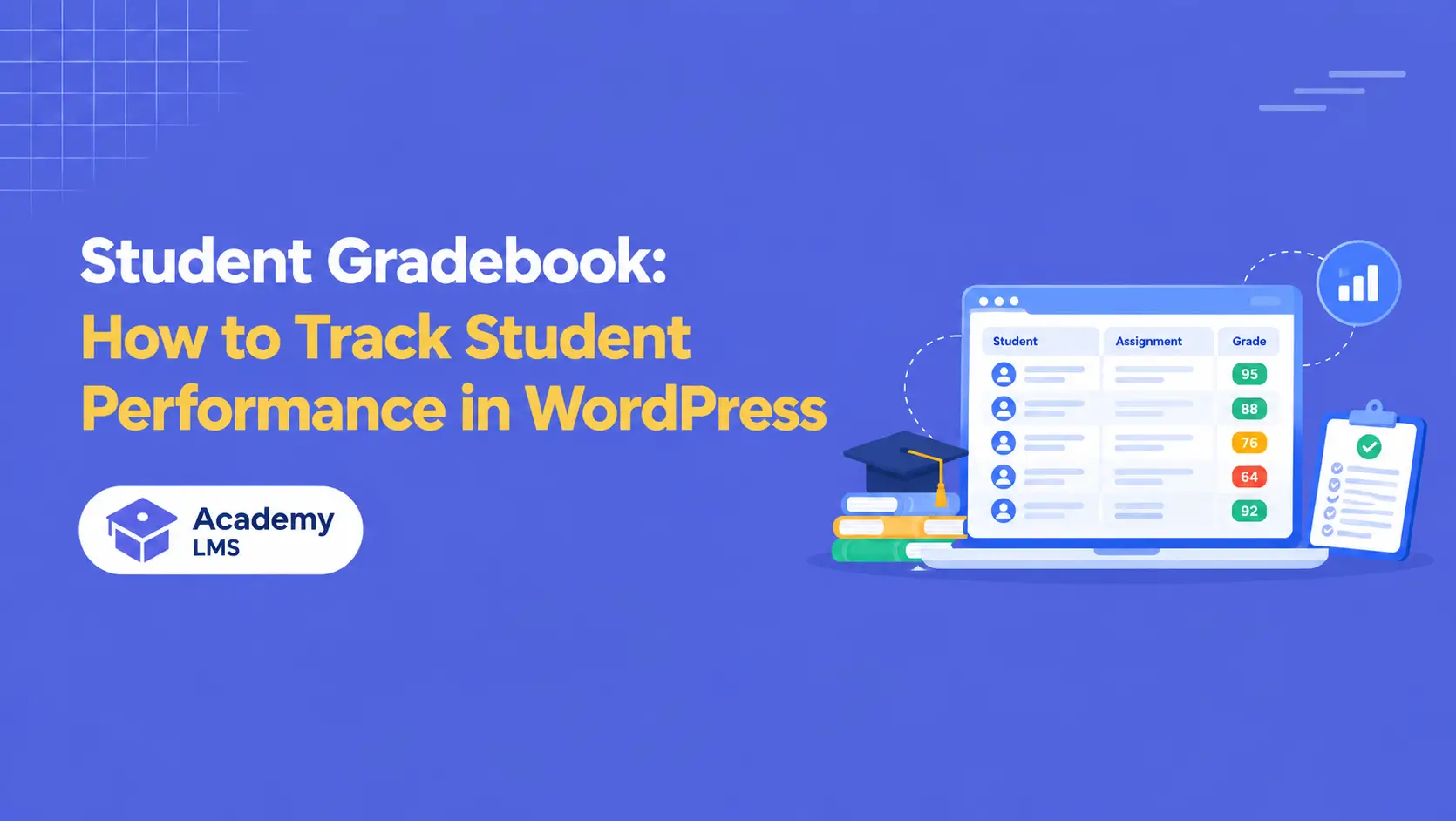
A student gradebook provides a centralized way to organize this information. Instead of checking quiz results, assignment grades, and course progress separately, instructors can use gradebook data to get a clearer picture of student performance.
For WordPress LMS websites, this type of functionality can make performance tracking easier for instructors while giving students better visibility into their own results.
In this guide, we’ll explain what a student gradebook is, how an online gradebook works, how you can use Academy LMS as a practical WordPress LMS example, and which student performance metrics are useful to track.
What Is a Student Gradebook?
A student gradebook is a digital system used to record, organize, and review student grades and performance information.
In an online learning environment, a gradebook can bring together results from different learning activities, such as:
For example, a course may contain five quizzes and three assignments. Instead of checking each assessment separately, instructors can use a centralized gradebook or reporting system to understand how a learner is performing across the course.
A simple gradebook might contain information like:
|
Student |
Quiz |
Assignment |
Final Exam |
Overall Grade |
|
John |
85% |
90% |
88% |
88% |
|
Sarah |
92% |
87% |
94% |
91% |
|
David |
72% |
78% |
75% |
75% |
The main purpose of a gradebook is not simply to store numbers. It helps instructors interpret student performance and make better decisions about teaching and learning.
How Does an Online Gradebook Work?
An online gradebook stores student performance information digitally and makes it accessible through an LMS or educational platform.
The general workflow is:
Create course → Add assessments → Students complete assessments → Results are recorded → Instructor reviews performance
For example, an instructor creates a WordPress course and adds quizzes at the end of different modules. Students complete the quizzes, and their scores are recorded by the LMS.
The instructor can then review the results without manually maintaining a separate spreadsheet.
Depending on the LMS, additional information may also be available, such as course progress, completion status, assessment attempts, and other learner activity.
This makes an online gradebook particularly useful for courses with many students or multiple assessments.
Student Gradebook Use Case With Academy LMS
Academy LMS provides a practical way to create courses, add lessons and assessments, and review student grades. To demonstrate how a student gradebook works in a WordPress LMS, let’s walk through a complete Academy LMS workflow.
Step 1: Create a Course in Academy LMS
Start by going to Academy LMS → Courses → All Courses from your WordPress dashboard and click Add New Course.
Academy LMS provides three main sections for course creation:
In the Overview section, add your course title, description, feature image, course type, category, and other basic information.
For this example, create a course called WordPress Development.
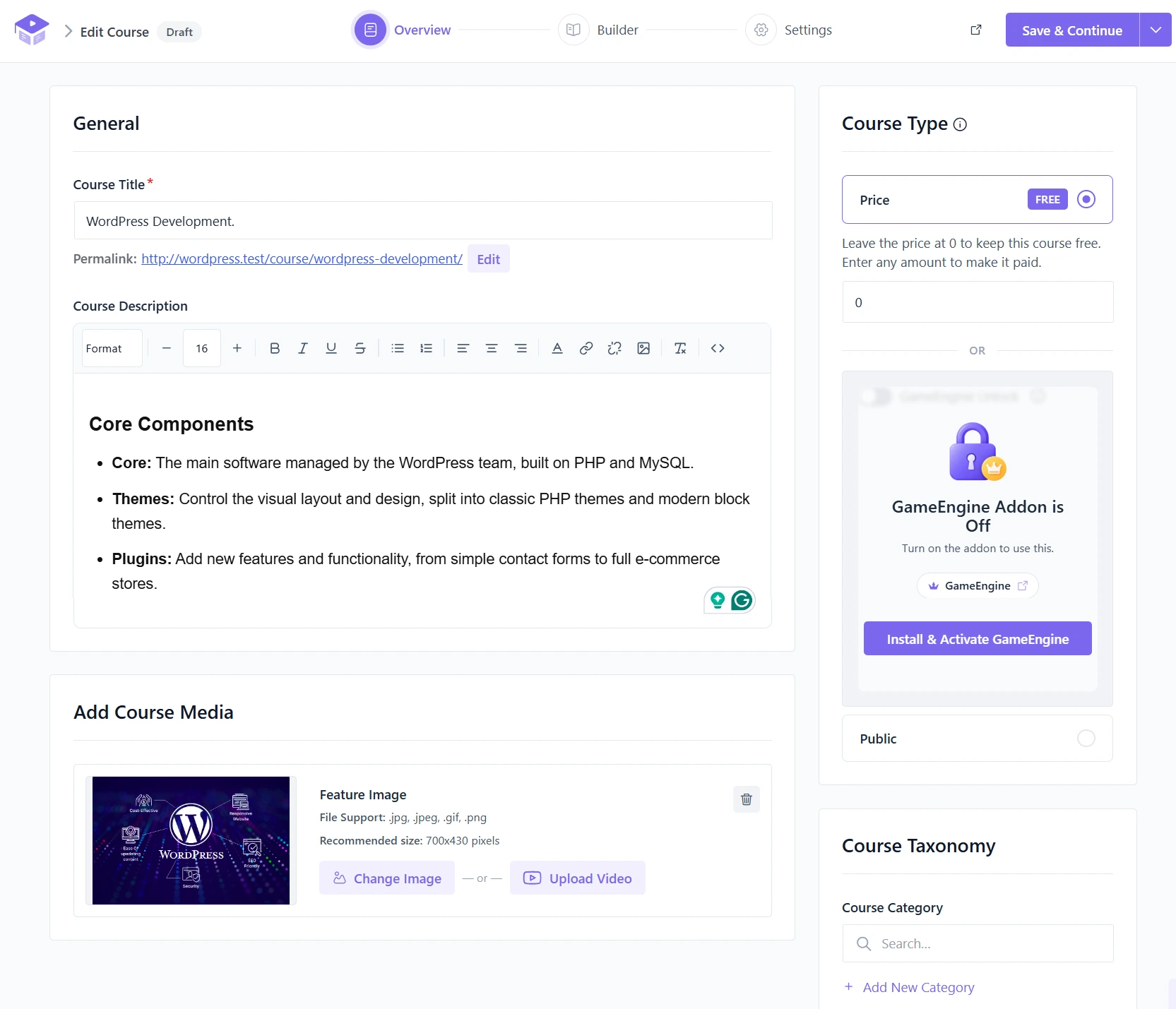
Show the course creation screen with the course title and basic course information.
Step 2: Build the Course Curriculum
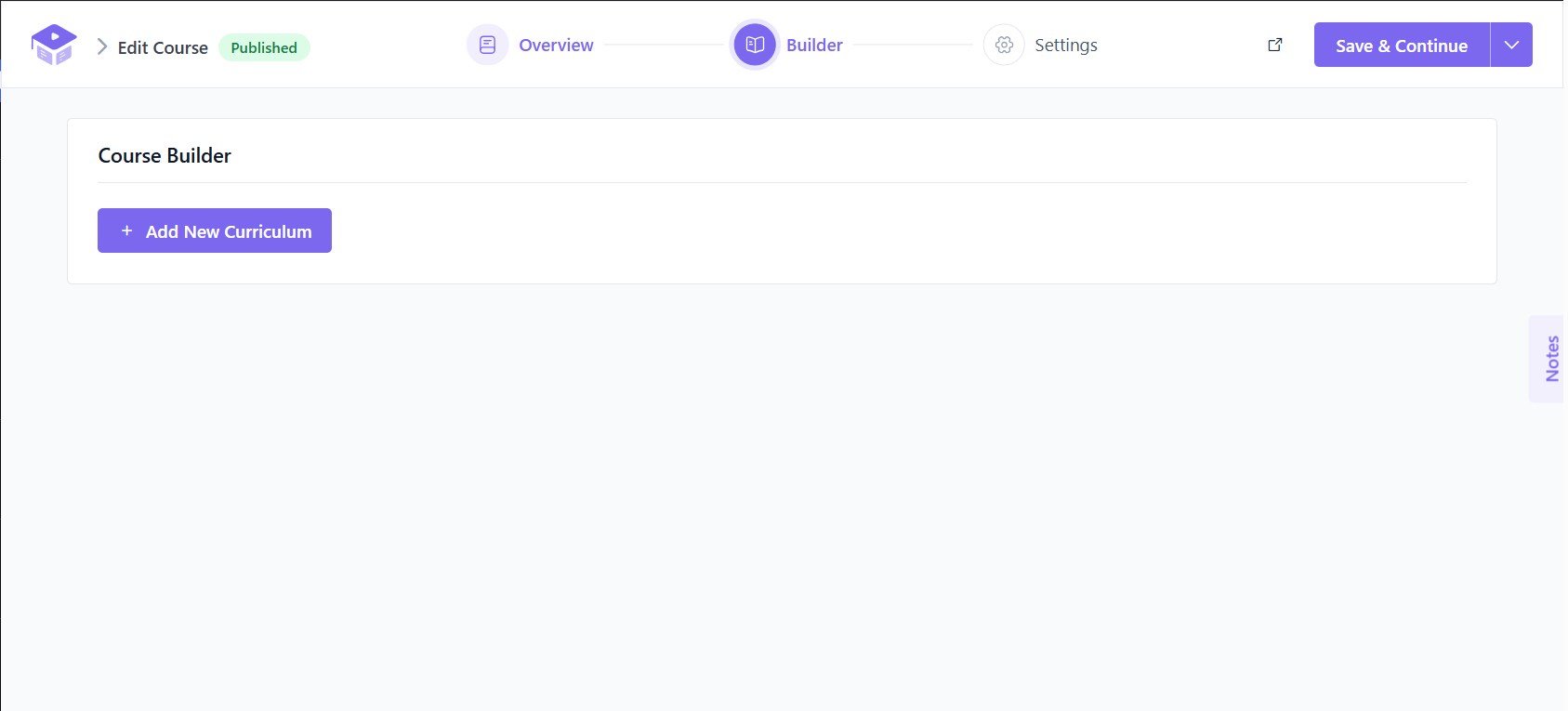
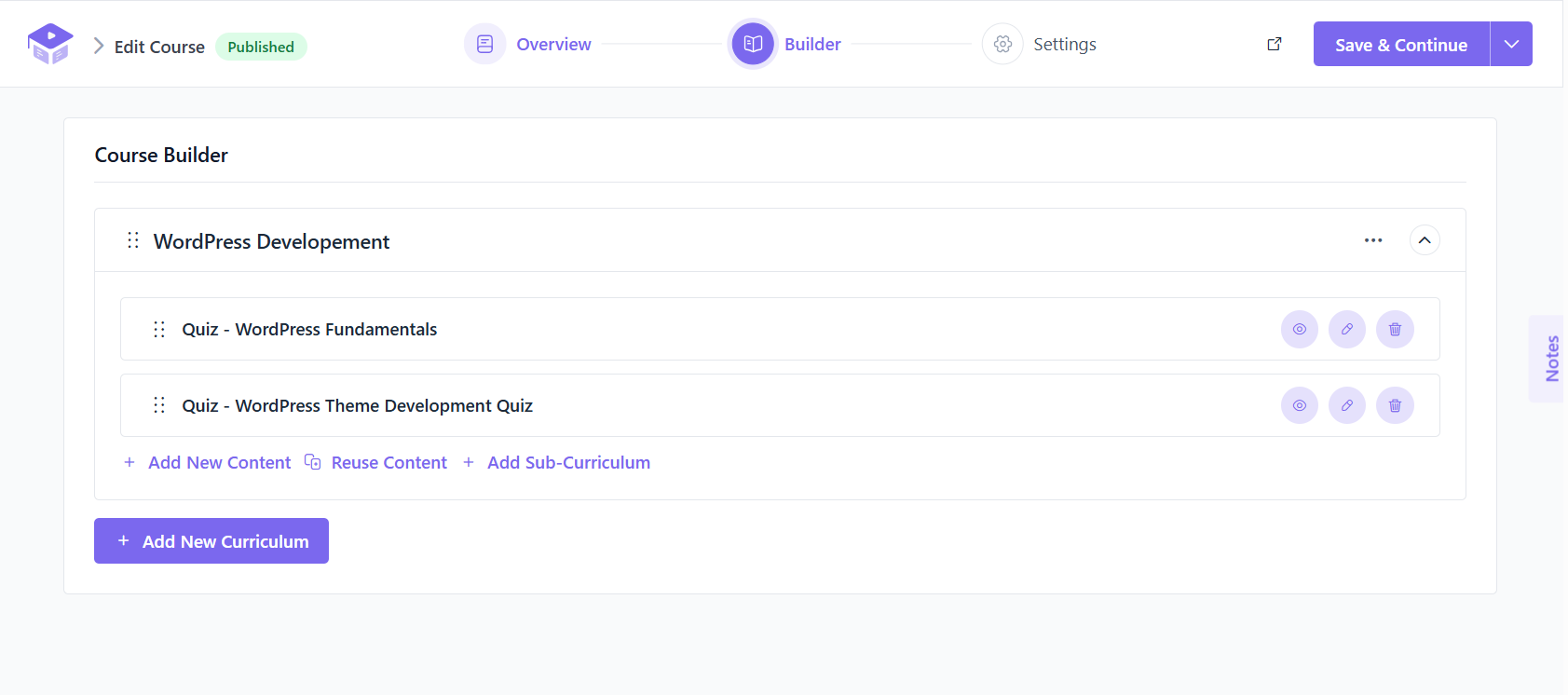
Next, open the Builder section and click Add New Curriculum.
A curriculum works like a chapter or section of your course. Create sections based on the topics students need to learn.
For example:
WordPress Development
Inside each curriculum, use Add New Content to add lessons, quizzes, and other available course content.
Step 3: Enable and Create Quizzes
To evaluate students’ understanding, enable the Quizzes addon from Academy LMS → Add-ons.
Then go to Academy LMS → Quizzes → All Quizzes and click Add New Quiz.
You can add questions, configure quiz rules, and set the appropriate quiz options.
For the WordPress Development course, you could create quizzes such as:
After creating a quiz, add it to the appropriate course curriculum using Add Content → Quiz.
Step 4: Add Assignments
If you want students to demonstrate practical skills, you can also add assignments.
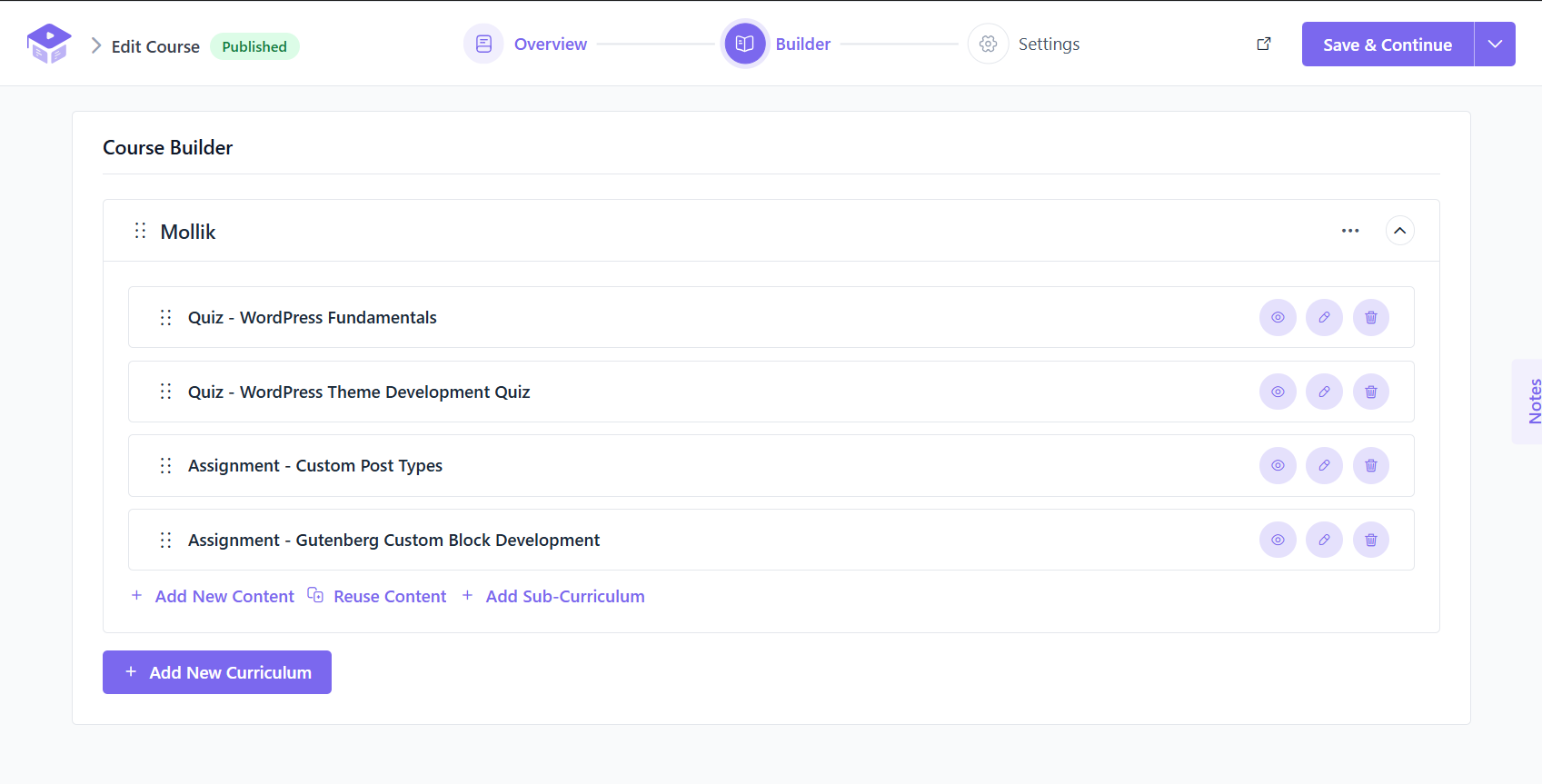
First, enable the Assignment add-on from Academy LMS → Add-ons. Then open the course, go to the Course Builder, and use Add Content → New Assignment.
For example:
When creating an assignment, define the total points and minimum passing points.
Step 5: Configure the Grade Book
To use Academy LMS’s Grade Book functionality, configure the grading system through the Grade Book add-on.
You can define:
For example:
|
Grade |
Percentage |
|
A+ |
90–100% |
|
A |
80–89% |
|
A- |
70–79% |
|
B |
60–69% |
|
C |
Below 60% |
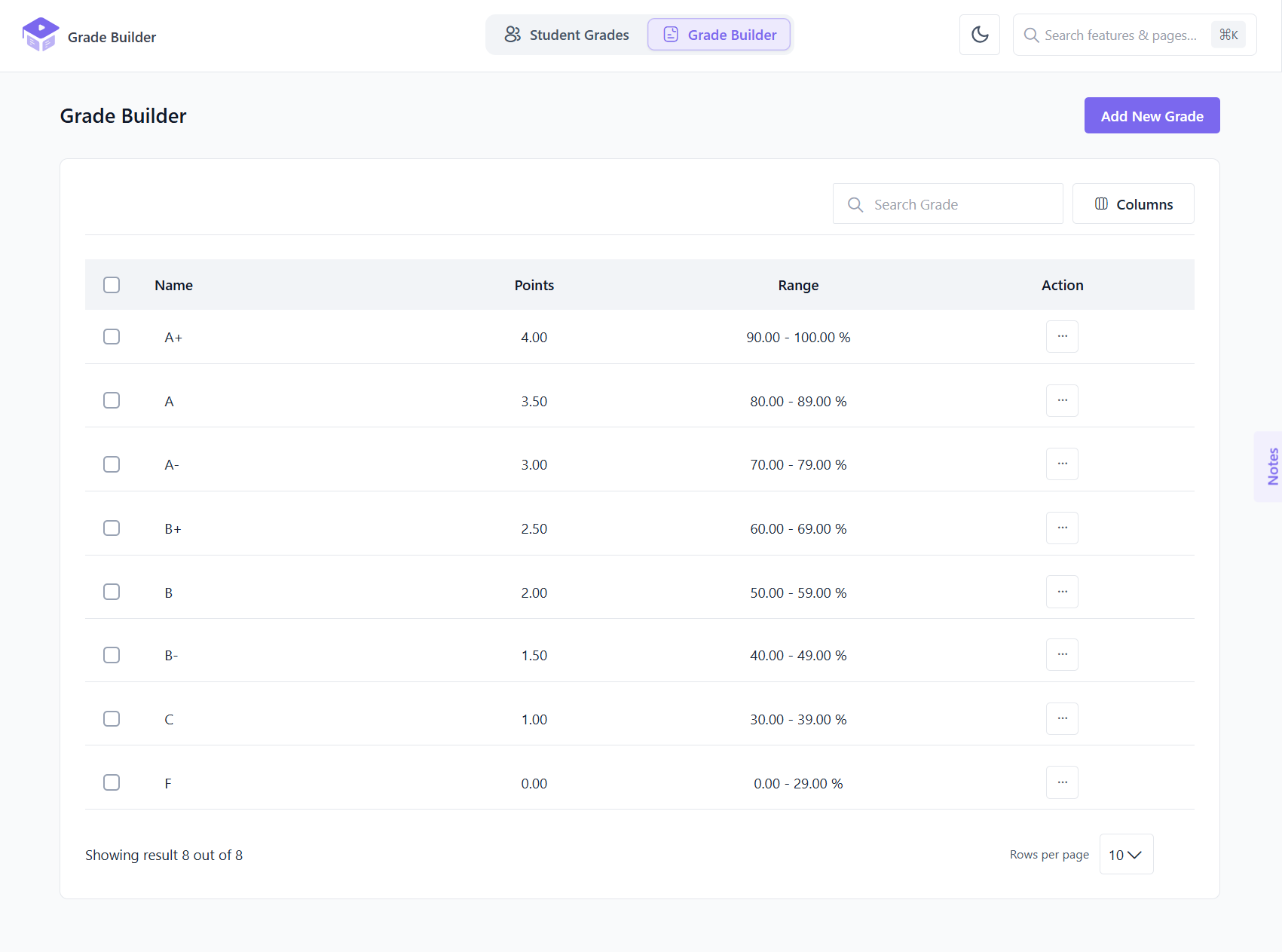
Once the grades are configured, they can be used to evaluate student performance.
Step 7: Students Complete the Course and Assessments
Students can now enroll in the course, complete the quizzes, and submit assignments.
For example, Sarah completes:
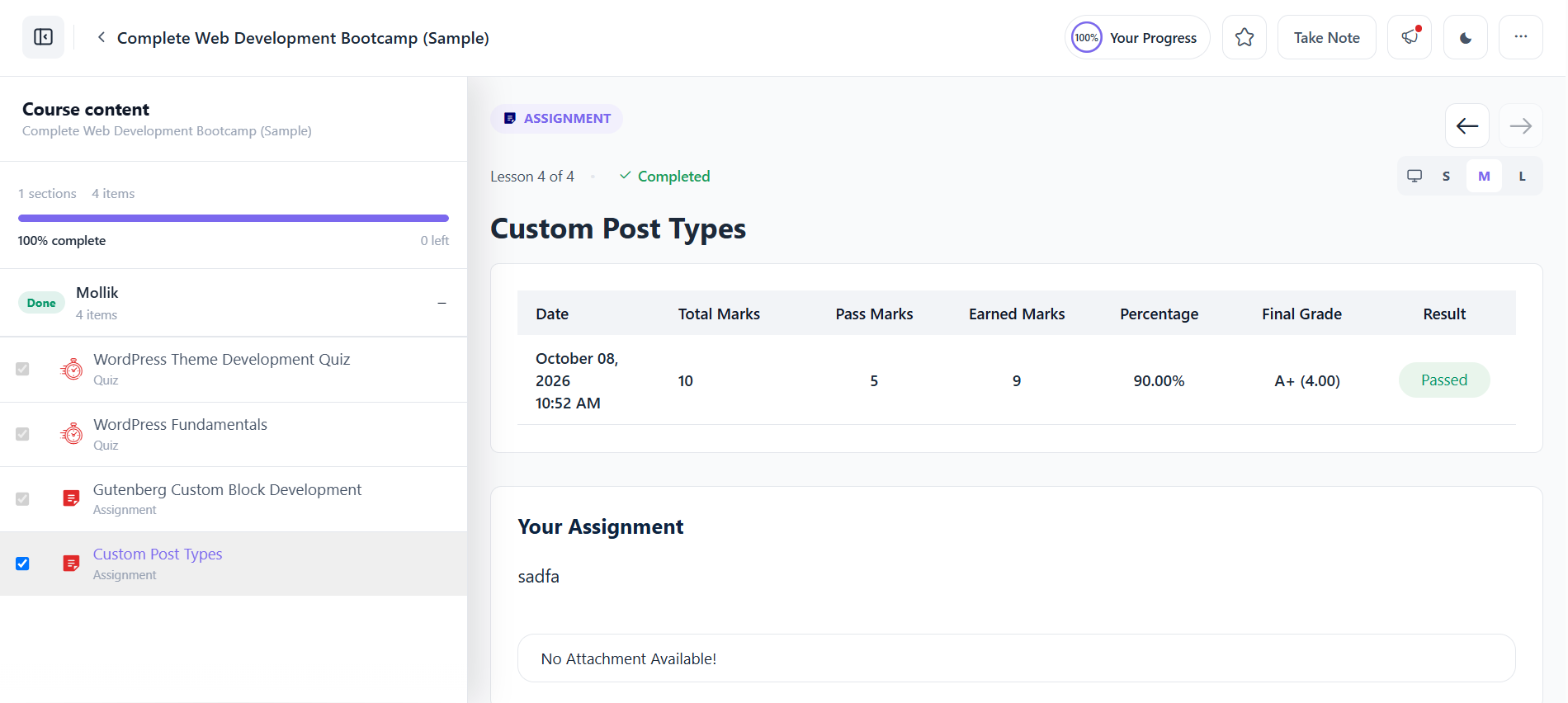
These assessment results provide the data needed to evaluate her overall performance.
Step 8: Review Student Grades
Once students complete the course assessments and assignments have been reviewed, instructors can access grade information through:
Academy LMS → Grade Book → Student Grades
From there, click Details for the relevant student to view their grade information.
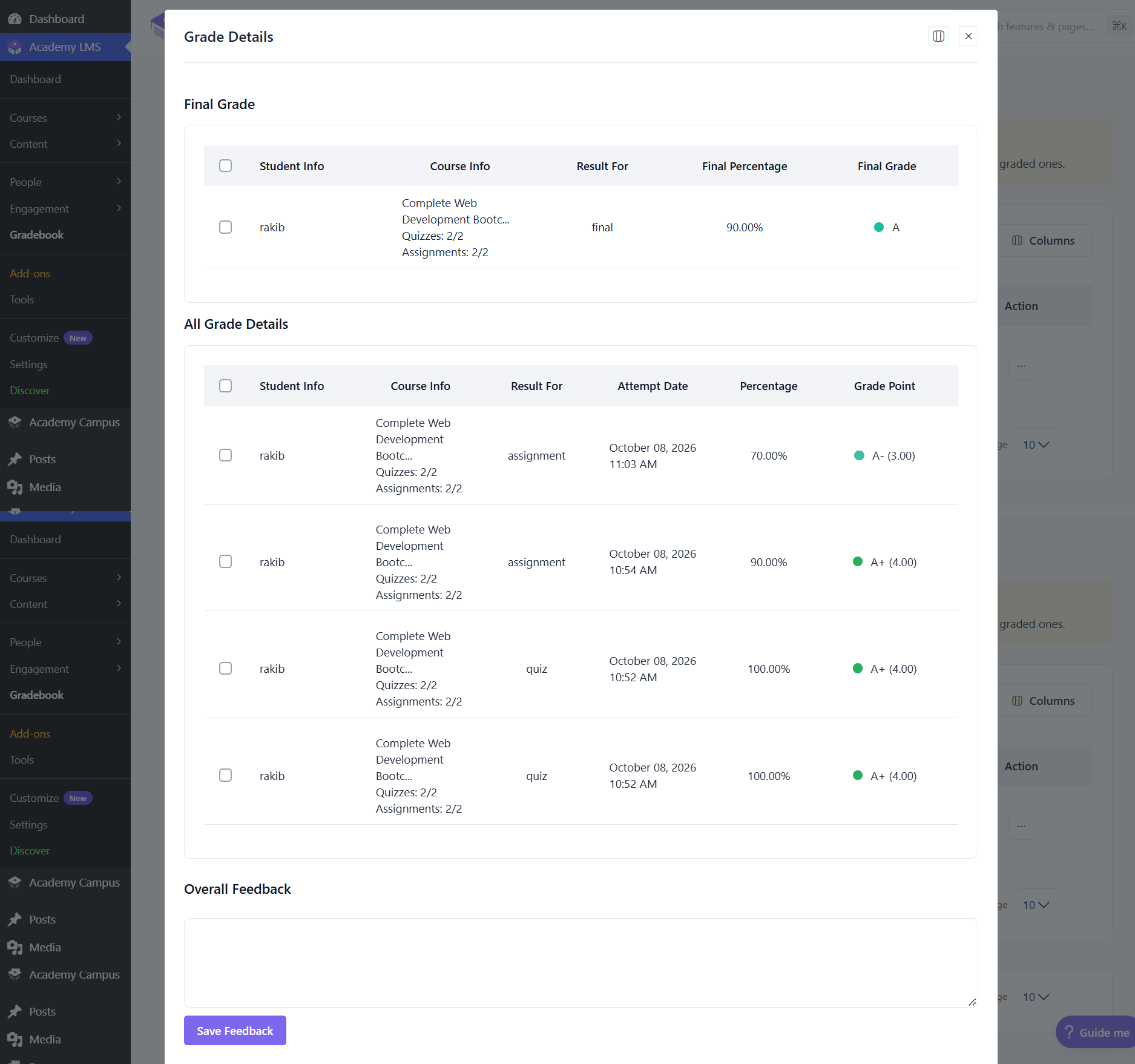
This gives instructors a centralized view of student grades instead of requiring them to check every assessment separately.
Step 10: Students View Their Grades
Students can also view their grades from the course dashboard.
According to the Academy LMS Grade Book workflow, students can open the relevant course from their Course Dashboard, click Details, and view their quiz and assignment grade information.
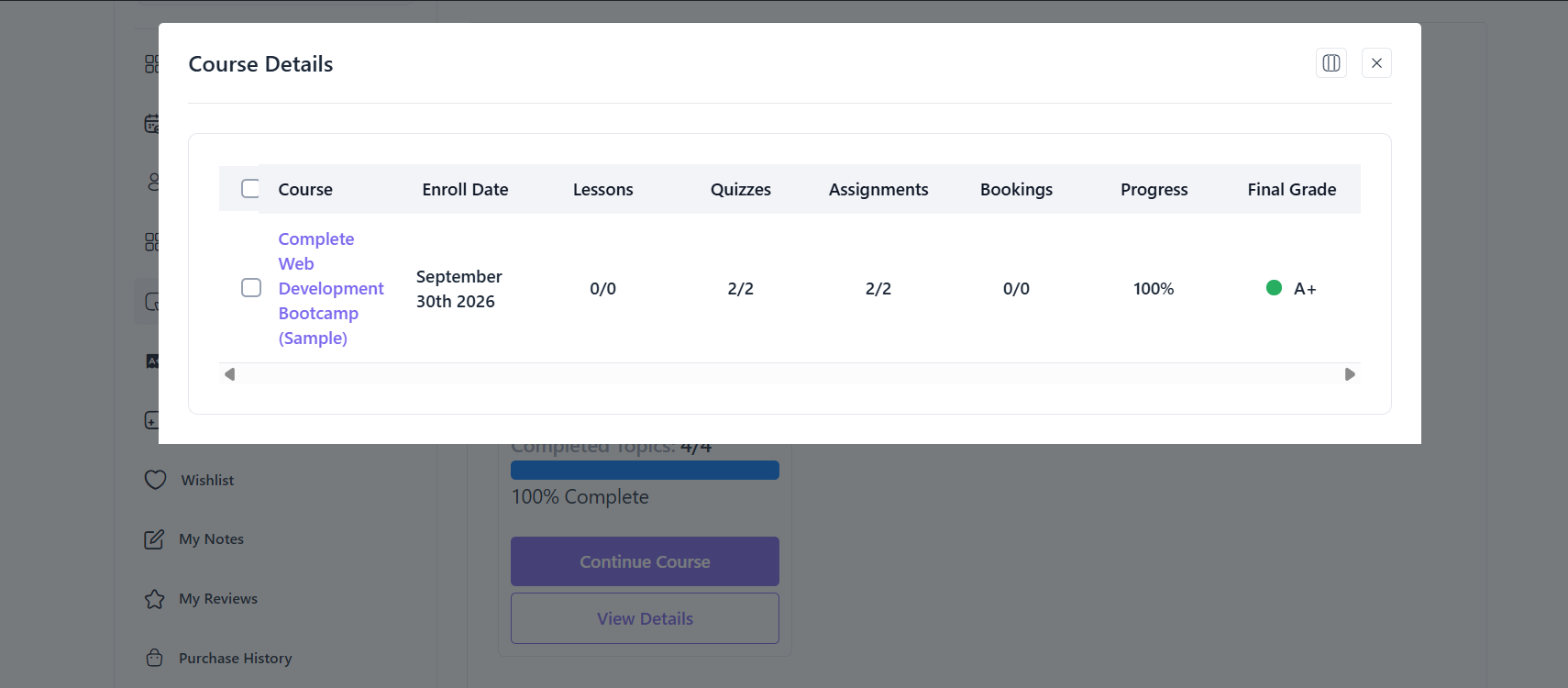
This gives learners a clearer understanding of their own performance and helps them identify areas where they may need to improve.
Step 11: Use the Results to Track Performance
Once grades are available, instructors can use them to understand student performance.
For example, if Sarah performs well on quizzes but receives lower scores on practical assignments, the instructor may conclude that she understands the concepts but needs more hands-on practice.
The instructor can then provide:
This is where a student gradebook becomes more than a place for storing scores. It can help instructors turn assessment results into actionable insights about student learning.
What Are School Performance Metrics?
If you’re wondering what school performance metrics are, they are measurable indicators used to evaluate student learning, progress, engagement, or academic performance.
In an online learning environment, useful performance metrics can include:
Not every course needs to track every possible metric.
For example, a programming course may place greater importance on practical assignments, while a theory-based course may rely more heavily on quizzes and exams.
The key is to choose metrics that are directly connected to the course learning objectives.
Important Student Performance Metrics to Track
Once student assessment data is available, instructors need to know which metrics are actually useful.
Assessment Scores
Assessment scores are one of the most basic metrics in a gradebook.
For example:
These scores help instructors understand how students perform in individual assessments.
However, one assessment score should not always be treated as a complete measure of a student’s ability.
Average Grade
An average grade provides a quick overview of a learner’s performance across multiple assessments.
For example:
Average grade: 88%
This can be useful for quickly identifying students who are performing above or below expectations.
However, instructors should look beyond the average when making decisions. A student may have a good overall grade while still struggling with one important topic.
Course Completion
Course completion shows how much of the course a student has completed.
For example:
Course progress: 75%
This metric is especially useful for online courses because a student may enroll in a course but stop progressing before completing all lessons.
Combining completion data with grades can help instructors identify learners who are falling behind.
Quiz Performance
Quiz performance can help instructors understand whether students have understood specific concepts.
For example:
|
Quiz |
Average Score |
|
WordPress Basics |
91% |
|
Theme Development |
84% |
|
Plugin Development |
68% |
If students consistently receive low scores on one quiz, the instructor may want to review the related lesson or assessment.
Assignment Performance
Assignments can measure practical application rather than simple knowledge recall.
For example, in a WordPress development course, students might be asked to:
Assignment grades can therefore provide valuable information about practical skills.
Assessment Attempts
The number of attempts can provide additional context about a student’s result.
For example, two students might both receive 90%.
However:
Student A: 90% on the first attempt
Student B: 90% after four attempts
The final score is the same, but the learning journey is different.
If your LMS provides attempt data, instructors can use it alongside grades to better understand performance.
Pass/Fail Rate
Pass/fail rate shows how many students successfully meet a defined assessment or course requirement.
For example:
40 students enrolled
34 students passed
6 students did not pass
This produces an 85% pass rate.
A consistently low pass rate may indicate that students need additional preparation or that an assessment is too difficult.
Teacher Gradebook vs. Student Gradebook Viewer
Although both are related to grades, a teacher gradebook and a student gradebook viewer serve different purposes.
Teacher Gradebook
A teacher gradebook is designed for instructors and administrators.
It may allow teachers to:
For example, an instructor may discover that several students are struggling with the same topic.
The teacher can then improve the lesson or provide additional learning resources.
Student Gradebook Viewer
A student gradebook viewer focuses on an individual learner’s performance.
Depending on the LMS, students may be able to see:
Students should only have access to information they are authorized to view.
This separation between teacher and student views is important for both usability and privacy.
Why Is a Student Gradebook Important?
A student gradebook can provide several benefits for both instructors and learners.
For instructors, it can make grade management and performance monitoring more efficient.
For students, it can provide greater transparency into their learning progress.
Some key benefits include:
A gradebook is therefore more than a place to store scores. When used correctly, it can support better teaching and learning decisions.
Student Gradebook Software: Features to Look For
When choosing student gradebook software for a WordPress LMS, consider whether it supports the features your course actually needs.
Assessment Integration
The gradebook should work with the assessment types used by your LMS.
For example, if your course uses quizzes and assignments, their results should be easy to review.
Automatic Grade Calculation
Automatic calculations can save instructors significant time.
If a course has multiple assessments with different weights, calculating final grades manually can become difficult.
A suitable system can calculate results according to the defined grading rules.
Student-Specific Views
Students should be able to view their own relevant performance information without accessing another learner’s grades.
This makes the gradebook easier to use and helps protect student privacy.
Teacher Dashboard
A teacher dashboard should make it easy to find student and course performance information.
Useful filters or organized reports can become particularly important when an instructor manages a large number of learners.
Course-Level Reporting
Individual student data is useful, but instructors may also need to understand overall course performance.
Course-level reporting can help answer questions such as:
Progress Tracking
Grades are more meaningful when viewed alongside course progress.
For example:
Student A: 90% average, 95% course completion
Student B: 90% average, 40% course completion
Both students have the same average grade, but their learning progress is very different.
Free Online Gradebook vs. WordPress LMS Gradebook
A free online gradebook can be useful for basic grade management.
For example, an instructor might use a simple gradebook to record:
This may be enough for a small class.
However, an LMS-integrated gradebook can provide a more connected experience because course content, assessments, and learner data can exist within the same learning environment.
A typical WordPress LMS workflow might look like:
Course → Lessons → Quizzes → Assignments → Results → Performance Tracking
This can reduce the need to maintain separate systems.
If you’re running a complete online learning platform, integrating performance tracking with the LMS can be more efficient than maintaining a separate spreadsheet or standalone gradebook.
How to Make Grade Tracking More Effective
Having a gradebook doesn’t automatically guarantee better learning outcomes. Instructors should use the collected information strategically.
Set Clear Grading Criteria
Students should understand how their final grade will be calculated.
For example:
Clear grading criteria make the evaluation process more transparent.
Review Performance Regularly
Don’t wait until the end of a course to review student performance.
Regular reviews can help instructors identify struggling learners early enough to provide support.
Combine Grades With Progress
A student’s grade should be considered together with their course progress.
For example, a learner with a high grade but very low completion rate may require a different type of intervention than someone who is consistently progressing.
Provide Meaningful Feedback
A grade tells students how they performed, but feedback explains how they can improve.
Instead of only showing:
Score: 70%
provide useful comments about strengths, weaknesses, and the next steps for improvement.
Student Gradebook Example for an Online Course
Consider an online WordPress course with the following grading structure:
|
Assessment |
Weight |
|
Quiz 1 |
15% |
|
Quiz 2 |
15% |
|
Assignment 1 |
20% |
|
Assignment 2 |
20% |
|
Final Exam |
30% |
A student’s gradebook could display:
|
Assessment |
Score |
Weight |
|
Quiz 1 |
90% |
15% |
|
Quiz 2 |
85% |
15% |
|
Assignment 1 |
88% |
20% |
|
Assignment 2 |
92% |
20% |
|
Final Exam |
86% |
30% |
The LMS can use the defined weights to calculate the student’s overall grade.
This approach is more efficient than manually calculating the final grade every time a new assessment is completed.
Common Mistakes When Using a Gradebook
A gradebook provides useful data, but instructors still need to interpret that data carefully.
Focusing Only on Grades
Grades are important, but they don’t always explain why a student is struggling.
Consider grades alongside course progress, attempts, participation, and feedback whenever possible.
Using Too Many Metrics
Tracking every available metric can make performance reports unnecessarily complicated.
Focus on the metrics that directly support your course objectives.
Ignoring Assessment Quality
If most students consistently receive very low scores on the same assessment, don’t immediately assume that students lack knowledge.
Review the assessment itself.
The questions may be unclear, overly difficult, or poorly aligned with the course material.
Not Providing Feedback
Grades without feedback may tell students where they stand but not how to improve.
Use assessment results as an opportunity to provide useful and actionable feedback.
Final Thoughts
A student gradebook provides a centralized way to organize and understand learner performance in a WordPress LMS.
By bringing assessment results, grades, and progress information together, instructors can more easily identify learning gaps, monitor student progress, and provide targeted feedback.
Academy LMS can serve as a practical example of how courses and assessments can be organized within a WordPress LMS. When creating content about specific Academy LMS features, always verify the current version and interface before publishing screenshots or feature-specific claims.
Whether you are looking for a teacher gradebook, online gradebook, student gradebook viewer, free online gradebook, or student gradebook software, the goal should be to make performance information useful for both instructors and learners.
A well-organized gradebook should not simply store scores. It should help instructors understand student performance and use that information to create a more effective learning experience.
Frequently Asked Questions
What is the difference between a teacher gradebook and a student gradebook viewer?
A teacher gradebook is designed for instructors to review and manage student performance, while a student gradebook viewer allows individual learners to view their own grades, results, and progress.
What are school performance metrics?
School performance metrics are measurable indicators used to evaluate student learning and academic progress. Examples include assessment scores, average grades, completion rates, pass rates, and course progress.
Can I use a gradebook with a WordPress LMS?
Yes. WordPress LMS platforms can provide different types of assessment, grading, and reporting functionality. The exact features depend on the LMS and its current version.
Is a free online gradebook enough for an online course?
A free online gradebook may be enough for basic grade tracking. However, an LMS-integrated solution can be more convenient when you need to connect grades with courses, lessons, quizzes, assignments, and student progress.