
If you want to create an online course website on WordPress, a good theme is only the start. A theme controls how your site looks, while a learning management system (LMS) plugin handles courses, lessons, quizzes, student enrollment, and payments.
This guide walks you through the process using Academy LMS, a WordPress LMS plugin. You’ll learn how to check your hosting requirements, install the plugin, build your first course, configure payments, and prepare your site for launch. You’ll also understand which features are available for free and which require Academy LMS Pro.
Before you start, note that Academy LMS 4.0 introduced major changes to the admin interface, so older tutorials and screenshots may not match what you see. This guide links to the official documentation to help you follow the current setup instructions.
What You Need to Create an Online Course Website on WordPress
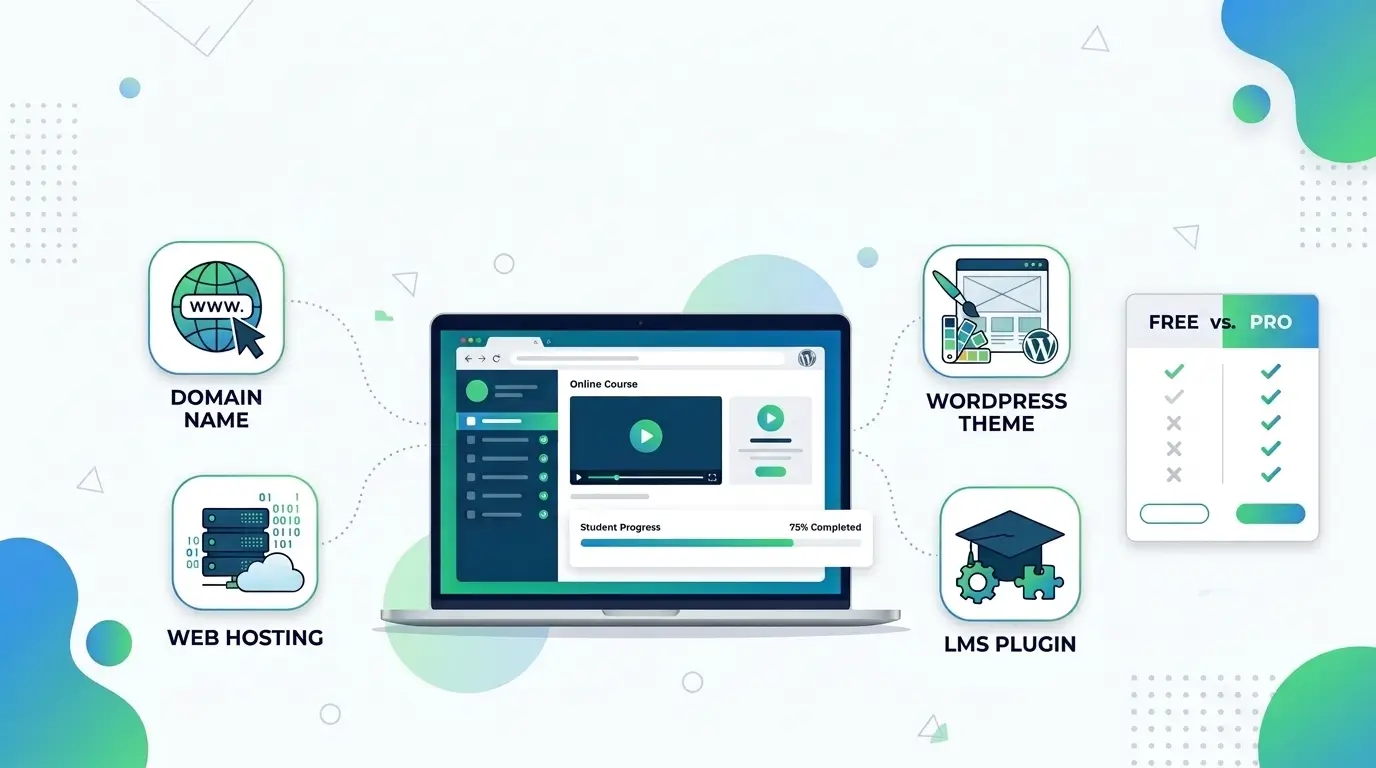
Before you create an online course website on WordPress, you need a few essential things: a domain name, reliable web hosting, a WordPress theme, and a learning management system (LMS) plugin.
Your domain name gives your website its online address, while web hosting stores your website’s files and content. A WordPress theme controls the site’s appearance, and an LMS plugin helps you create and manage courses, lessons, quizzes, and student enrollment.
Academy LMS provides the tools you need to build and manage your online courses directly from your WordPress dashboard.
System Requirements
Before installing Academy LMS, check whether your hosting environment meets the official system requirements. Meeting these requirements helps ensure that the plugin can run properly on your website.
Here are two important requirements to keep in mind:
You should also review the official documentation for the latest requirements for WordPress, MySQL, MariaDB, and server configuration. If you plan to sell courses online, make sure your hosting environment supports the payment gateway you intend to use.
For installation instructions, follow the official Academy LMS Installation and Activation Guide.
Free vs. Pro: What Can You Do With Each?
Academy LMS offers a free plugin and a separate Pro plugin, so you can choose the option that best fits your course website’s needs.
The free version provides essential tools for creating and managing online courses, including course content, lessons, quizzes, and course pages. It’s a practical starting point if you want to build your website and organize your learning materials without immediately investing in a premium plan.
If you need more advanced course management capabilities, Academy LMS Pro may offer additional options depending on the feature and current plan. These may include features such as content drip, gradebook functionality, course bundles, and multi-instructor management.
Before upgrading, review the official Features, Add-ons, and Pricing pages to confirm which features are currently available and which plan includes them.
Choosing the right version from the beginning can help you build a course website that meets your current needs while leaving room to expand as your online education business grows.
Step-by-Step: Set Up Your Online Course Website
Step 1: Get Hosting and a Domain Name
To create an online course website on WordPress, you first need a domain name and web hosting. Your domain name is your website’s address, while web hosting stores your website’s files and makes them accessible to visitors.
Recommended hosting providers for WordPress LMS websites:
Tips for choosing a hosting plan:
Once you have purchased your domain and hosting, use your provider’s WordPress installation tool to set up your website. After installation, log in to your WordPress dashboard at yourdomain.com/wp-admin, replacing yourdomain.com with your actual domain name.
Step 2: Choose and Install a WordPress Theme
Now that WordPress is installed, it’s time to choose a design for your website. Go to Appearance → Themes → Add New Theme, search for a suitable theme, and click Install and then Activate.
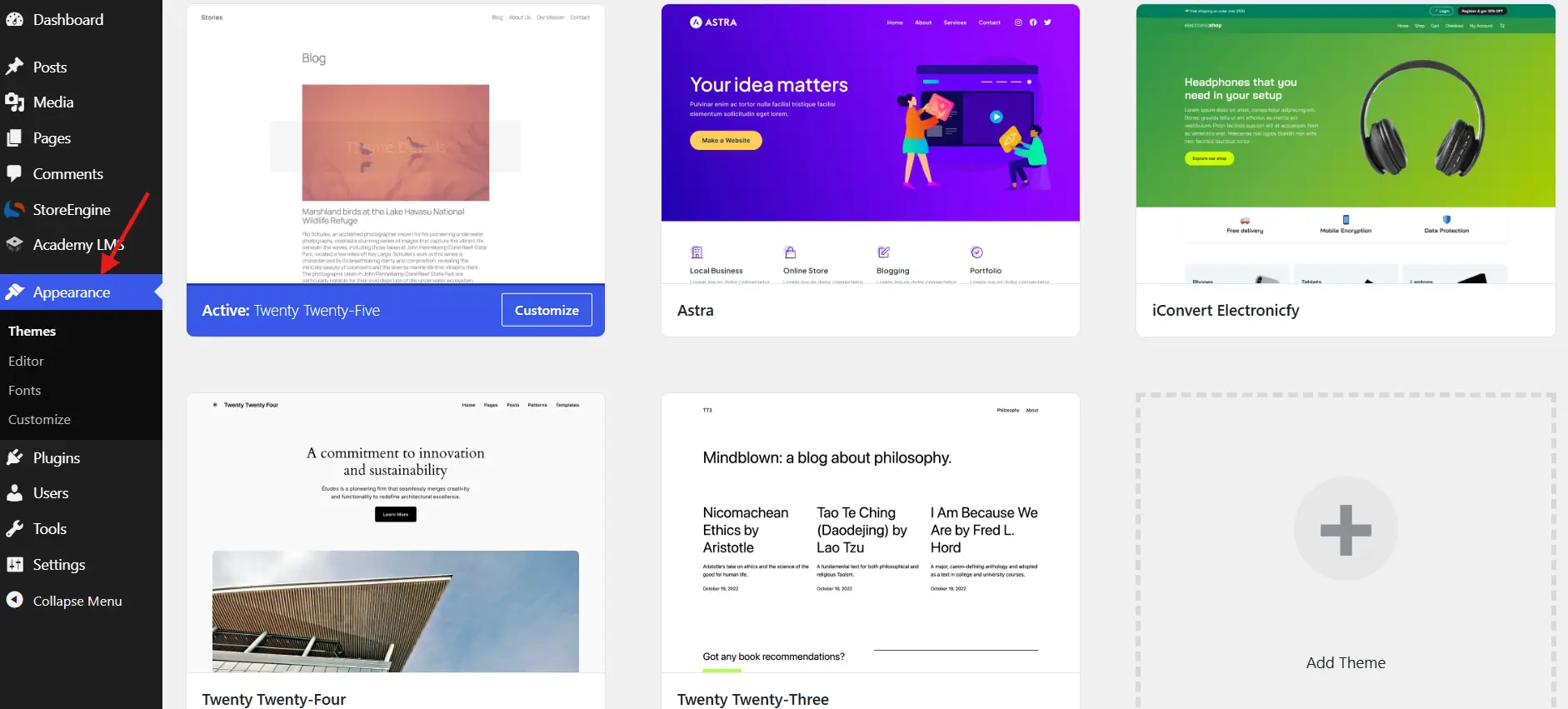
For an online course website, you can consider themes like Astra, OceanWP, or GeneratePress. Choose a responsive theme that works well on mobile devices and fits your website’s design needs.
Remember, a theme controls your website’s appearance, while Academy LMS provides the tools to create and manage your online courses.
Step 3: Install Academy LMS
After setting up WordPress and choosing a theme, install Academy LMS to start creating and managing your online courses.
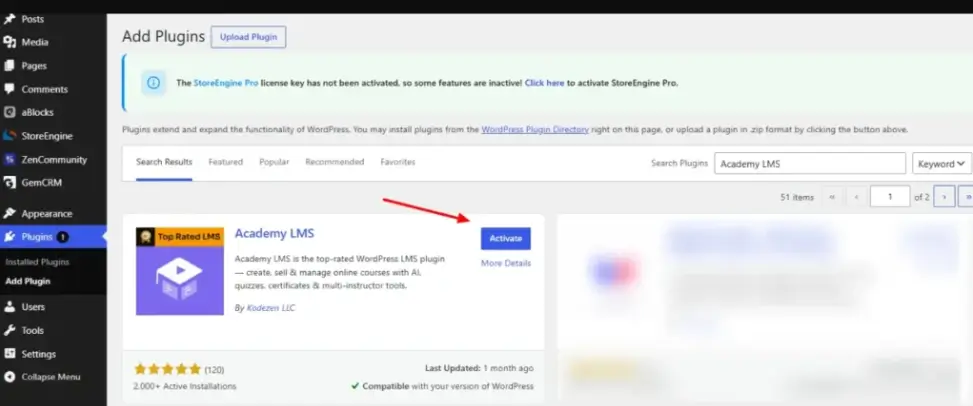
After activation, the Academy LMS menu will appear in your dashboard. Follow the Setup Wizard to configure your initial settings, or skip it and make changes later under Academy LMS → Settings.
If you already have the plugin ZIP file, you can also install it through Plugins → Add New Plugin → Upload Plugin. For detailed instructions, see the official Academy LMS Installation and Activation Guide.
Step 4: Install the aBlocks Page Builder
After installing Academy LMS, you can use aBlocks to design your website pages without writing code. aBlocks is a Gutenberg-based page builder that helps you create and customize layouts for your online course website.
To install aBlocks:
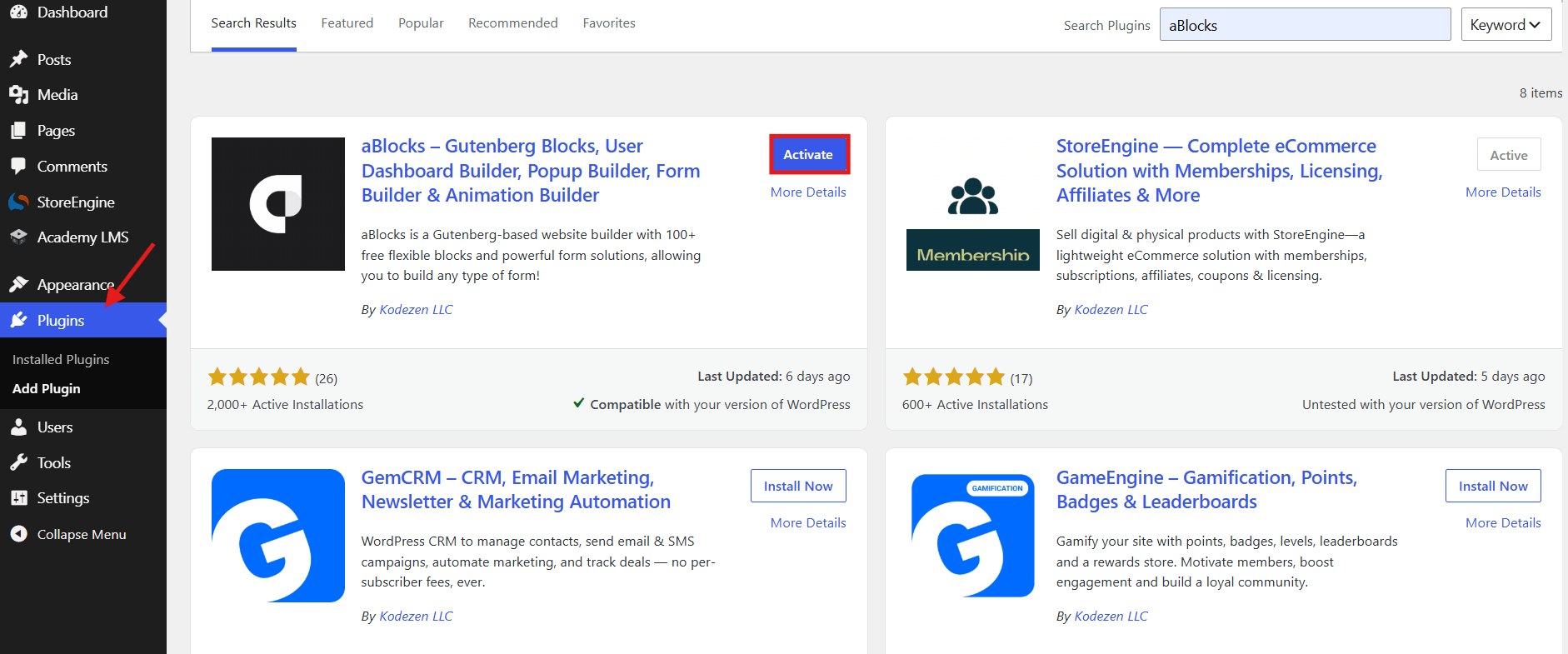
After activation, you can use aBlocks in the WordPress editor to design pages such as your homepage, course listing page, and instructor page.
Learn more about aBlocks and its available features.
Step 5: Configure Your Site Settings
After installing Academy LMS and aBlocks, review your basic LMS settings. Go to Academy LMS → Settings in your WordPress dashboard.
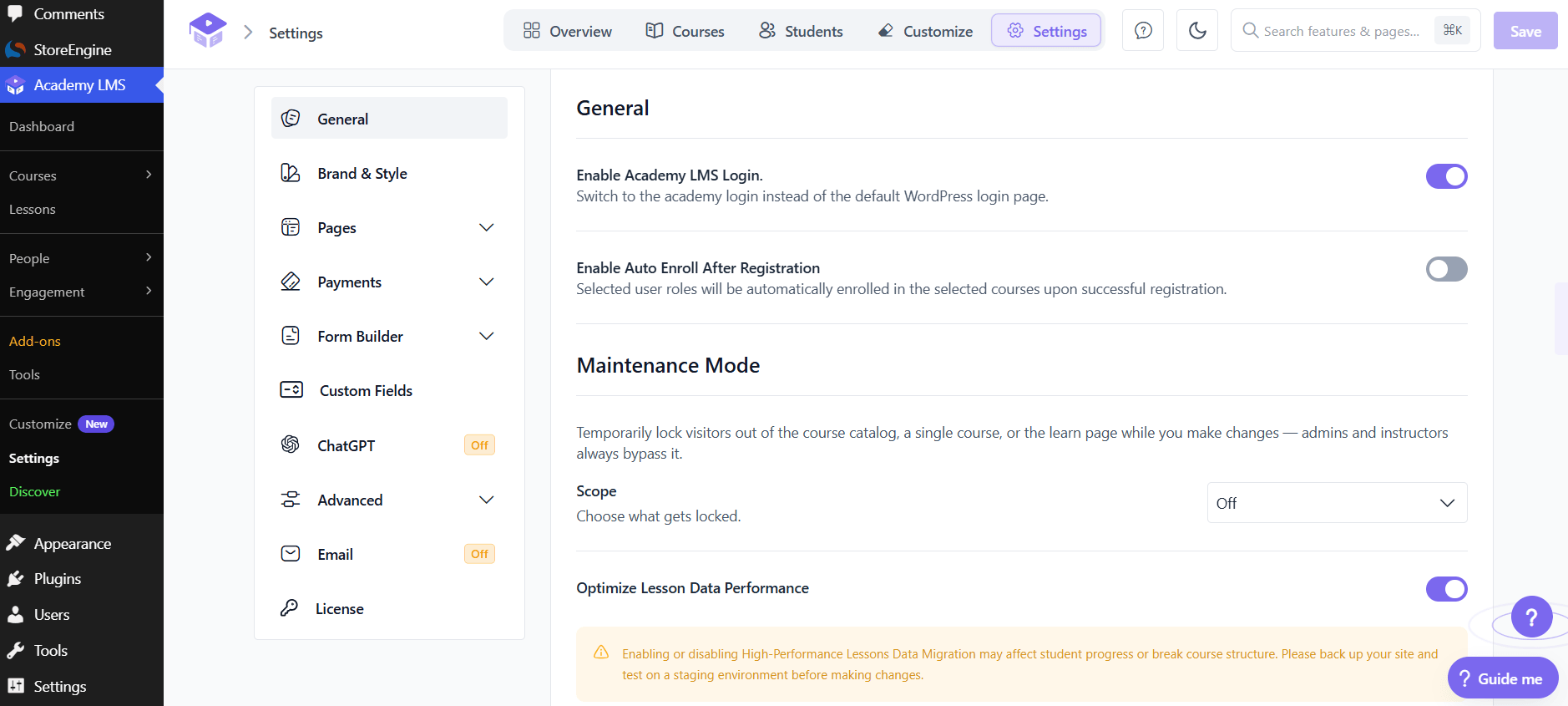
Here are the main settings to review:
After making your changes, click Save to apply them. Once the basic configuration is complete, you can move on to designing the key pages of your website.
Step 6: Design Your Key Pages
Your website needs a few key pages to turn visitors into students. One of the easiest ways to get started is to import a ready-made template from aBlocks.
Import a Template
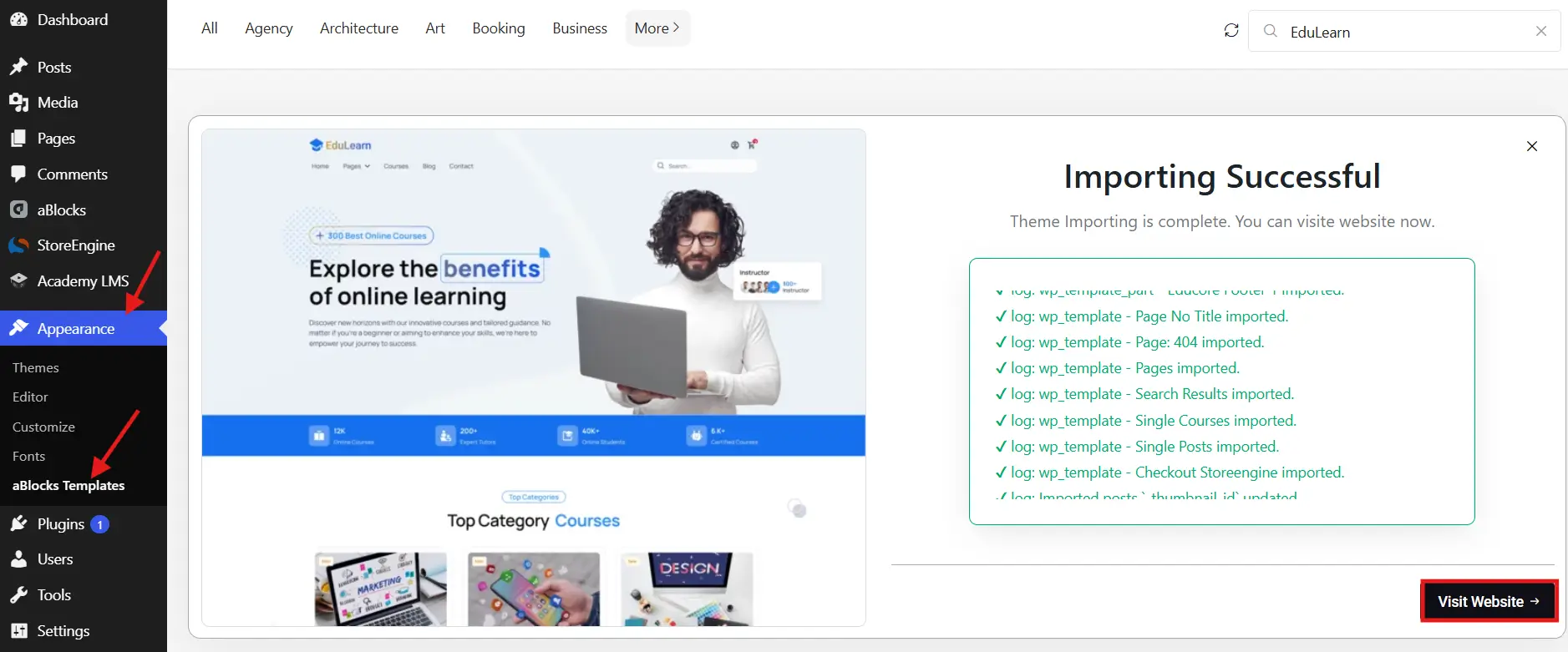
Essential Pages for Your Website
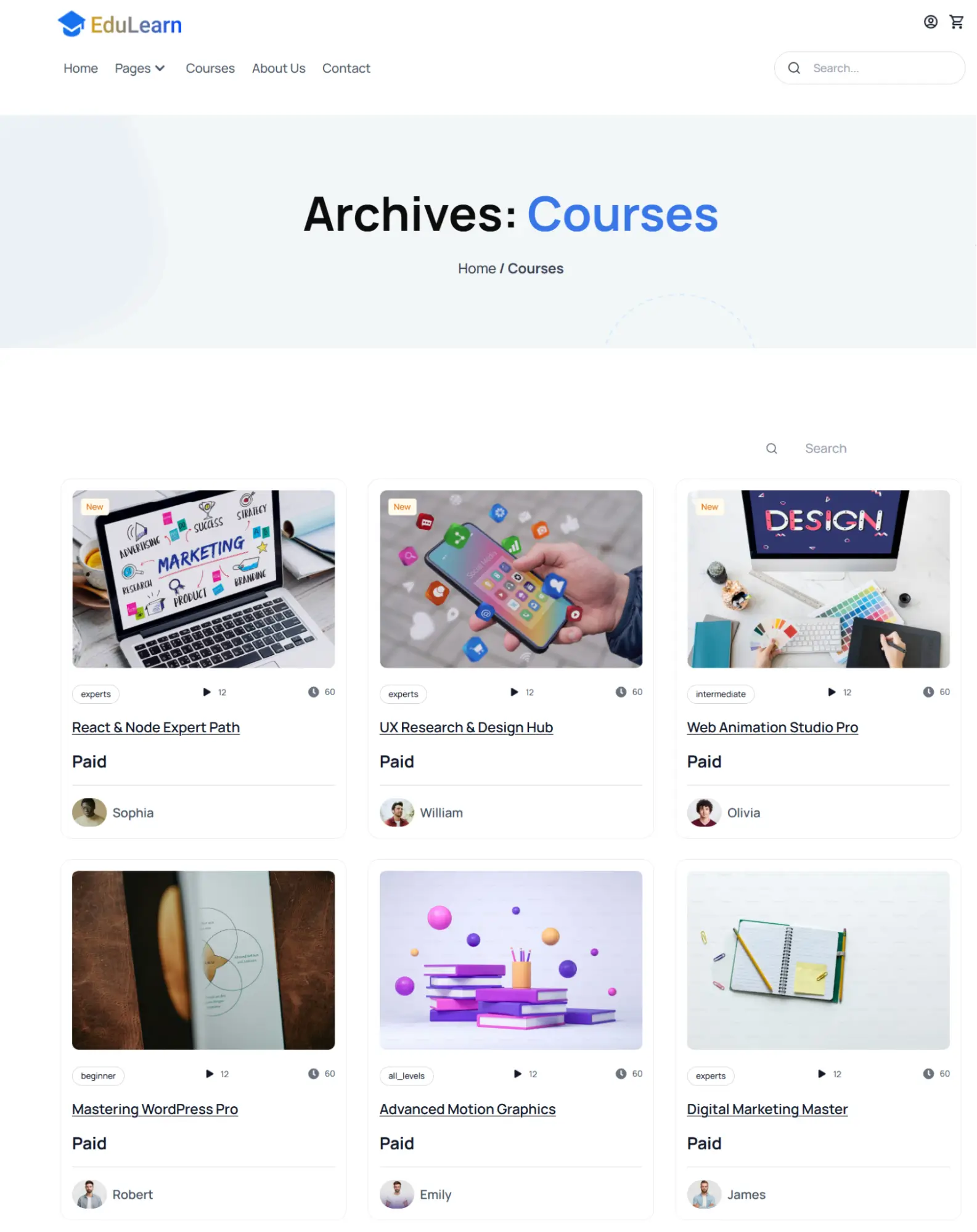
Keep your design clean, mobile-friendly, and easy to navigate. Avoid unnecessary animations and heavy elements that could slow down your website.
Step 7: Create Your First Course
Go to Academy LMS → Courses → All Courses and click Add New Course. You can also start from the Create A Course option in the dashboard’s Getting Started checklist.
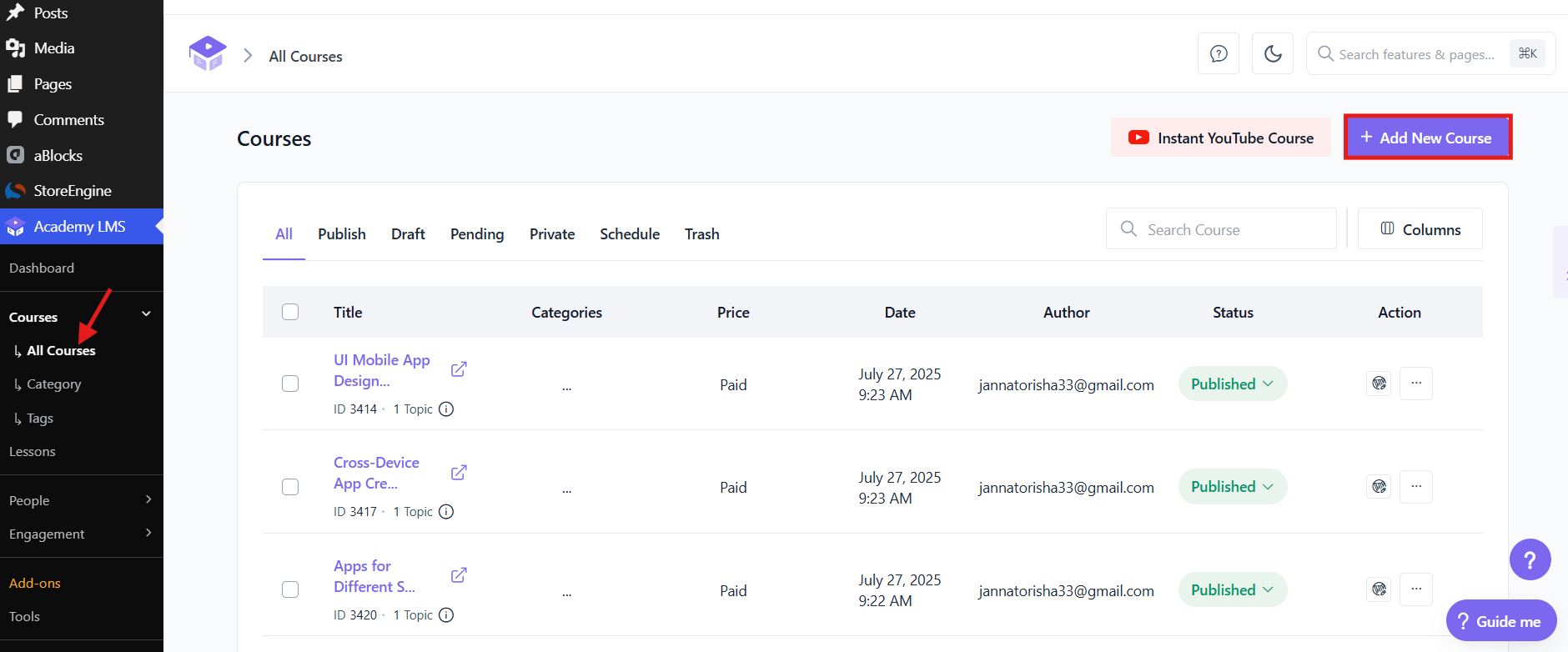
The course editor has three stages: Overview, Builder, and Settings.
Overview
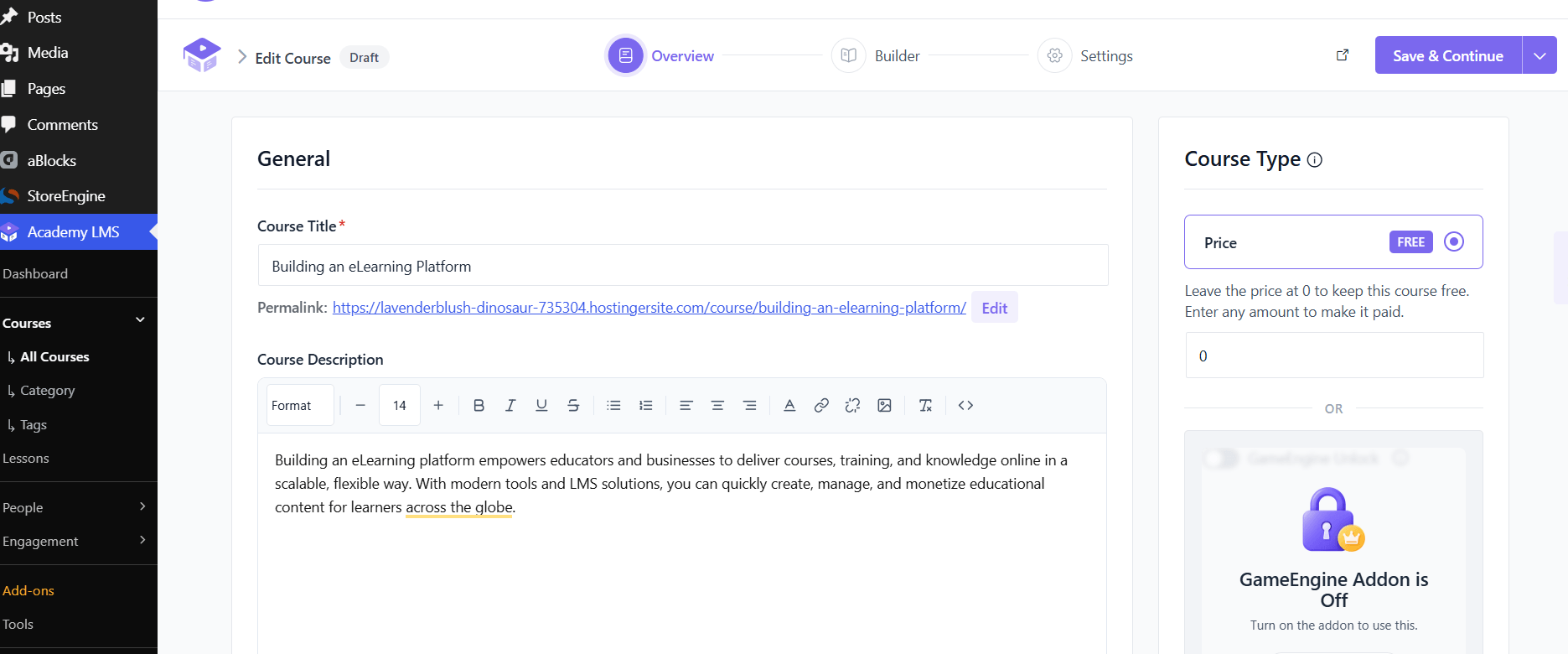
Add your course title and description. On the right, under Course Type, set a price to sell the course, or leave it empty to keep it free. Then click Save & Continue.
Builder
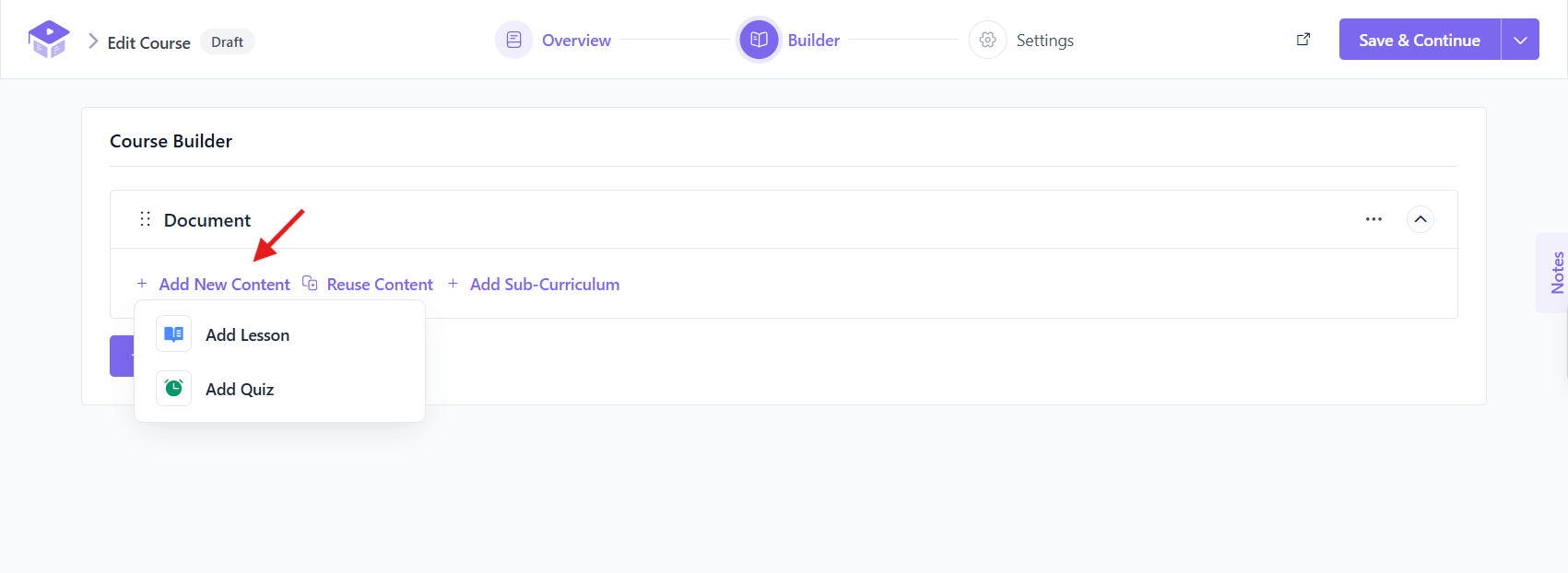
The Course Builder is where you add your course content. Click Add New Content and choose Add Lesson or Add Quiz. You can also reuse existing content or add a sub-curriculum to organize longer courses.
Add a Lesson
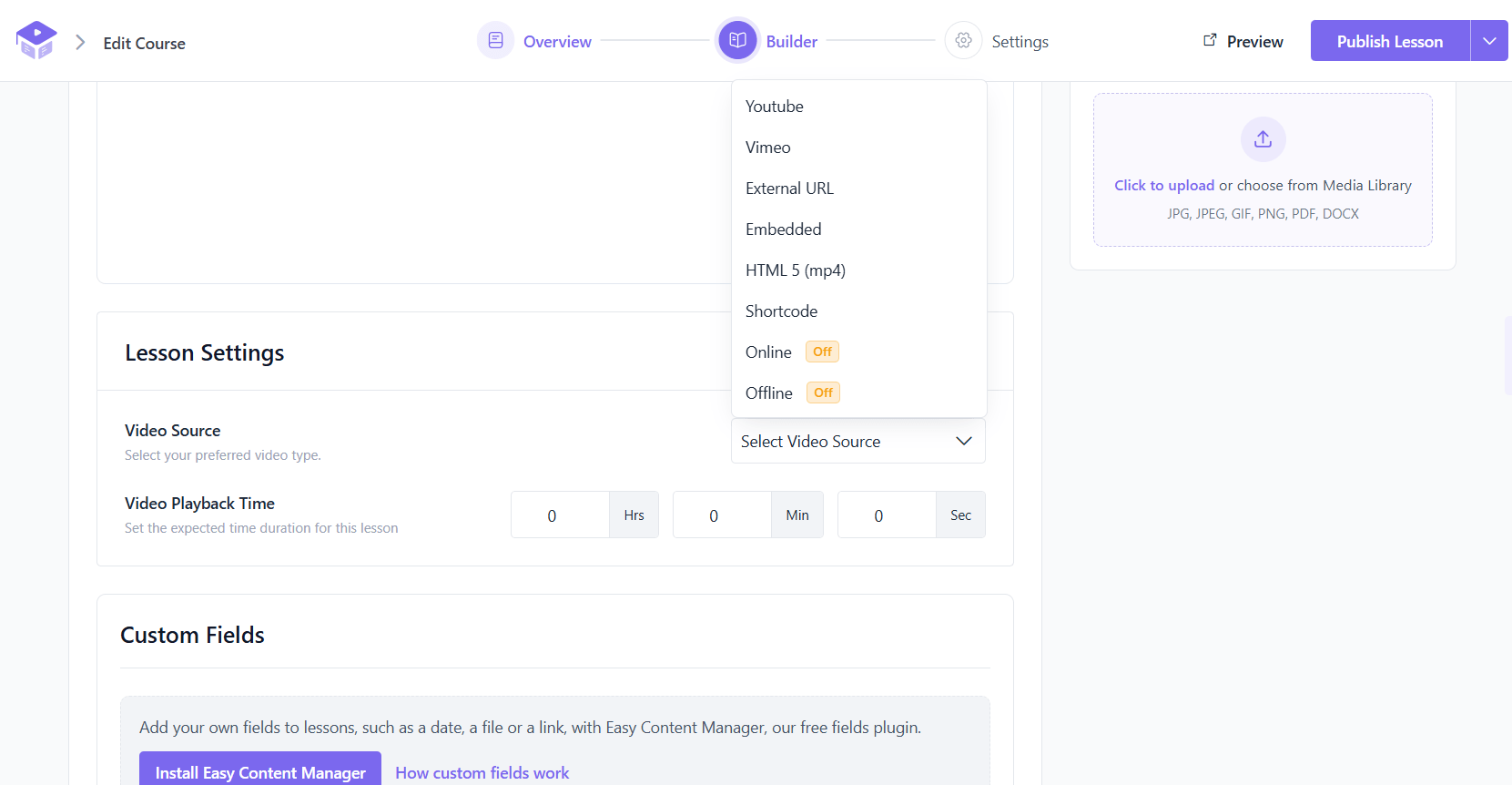
Write your lesson content, then choose a video source under Lesson Settings: YouTube, Vimeo, External URL, Embedded, HTML5 (mp4), or Shortcode. You can also set the expected video time and upload attachments such as PDF or DOCX files. Click Publish Lesson when you are done.
Add a Quiz
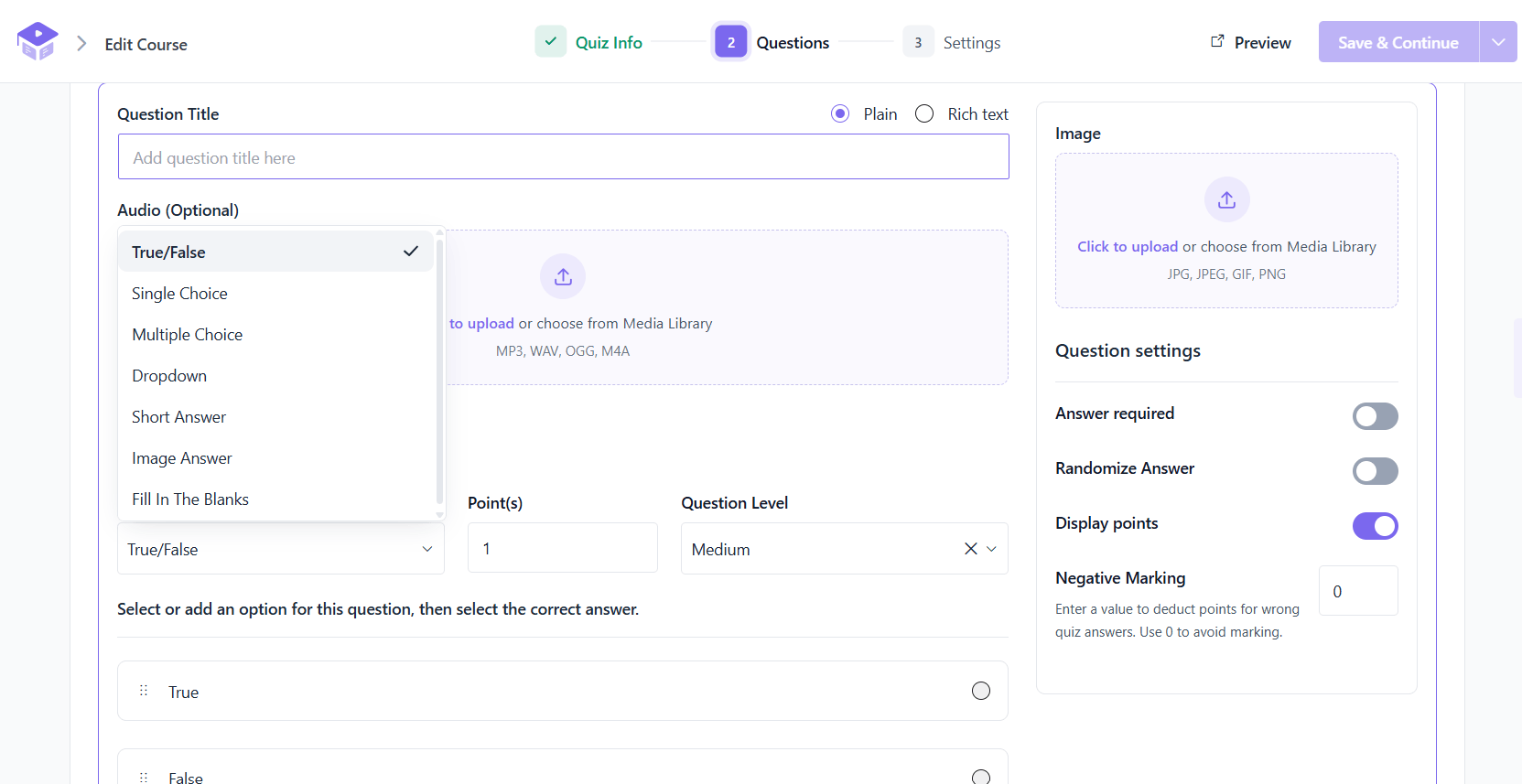
A quiz has three steps: Quiz Info, Questions, and Settings. Choose from seven question types: True/False, Single Choice, Multiple Choice, Dropdown, Short Answer, Image Answer, and Fill In The Blanks. For each question, set the points and question level, and turn on options like Answer required, Randomize Answer, or Negative Marking.
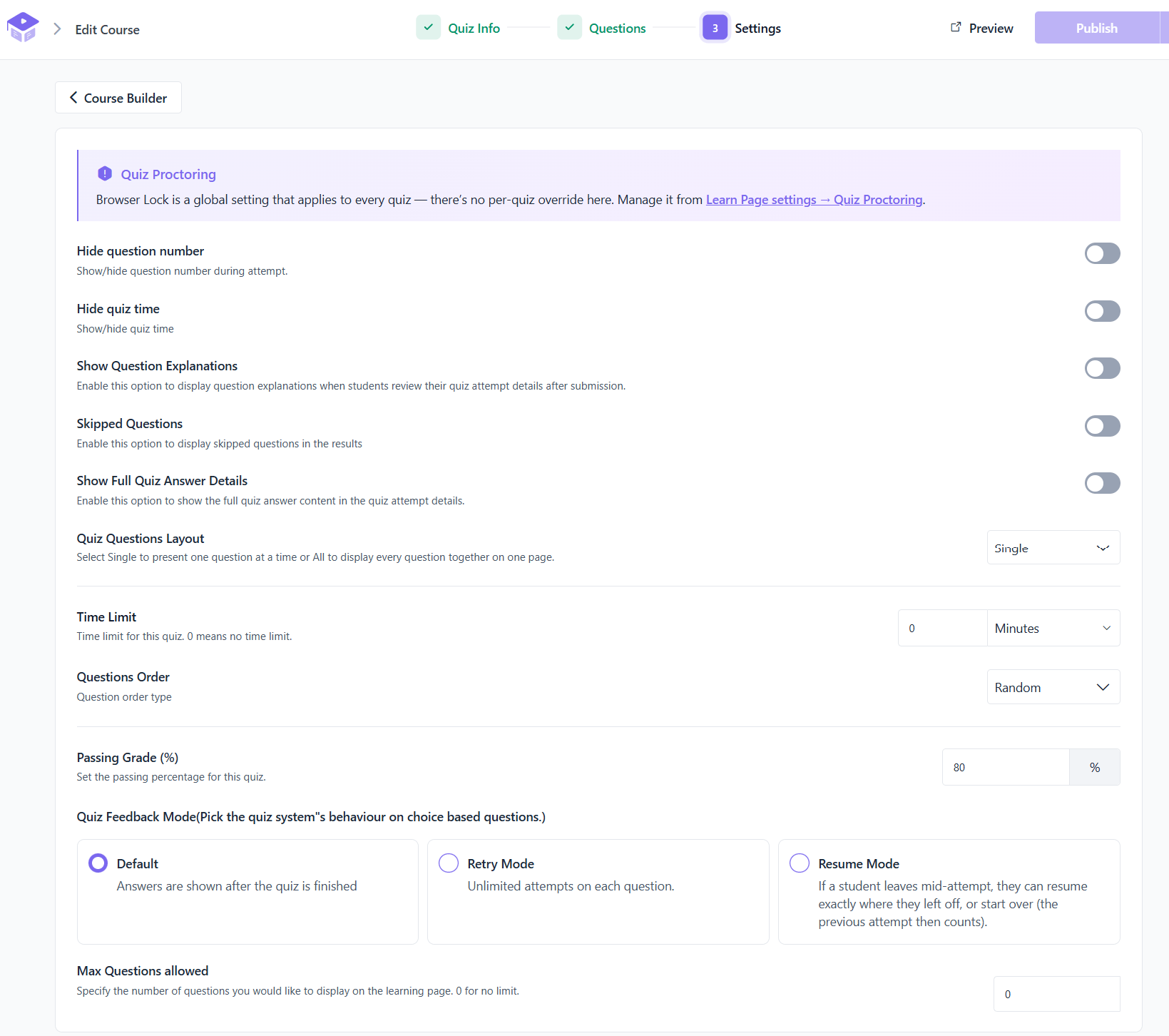
In the quiz Settings, you can set a time limit, a passing grade, question order, and the quiz layout (one question at a time or all together). You can also choose a feedback mode: Default, Retry Mode, or Resume Mode.
Course Settings
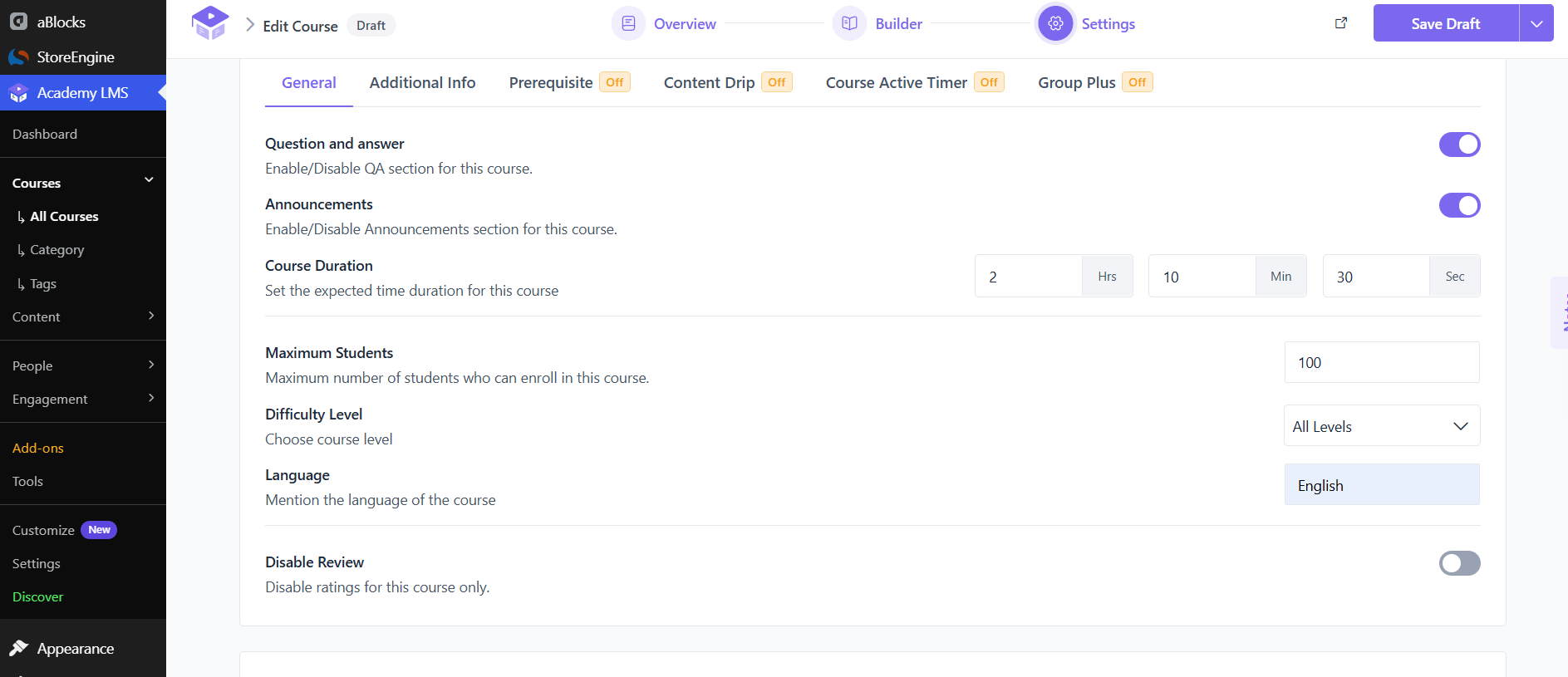
In the Settings stage, set the course duration, maximum number of students, difficulty level, and language. You can also turn the Q&A section, announcements, and reviews on or off. Prerequisite, Content Drip, and Course Active Timer are add-ons that are off by default. Turn them on if you need them.
When everything looks right, publish your course. It will then appear on your course listing page.
Step 8: Use ChatGPT to Build Courses Faster
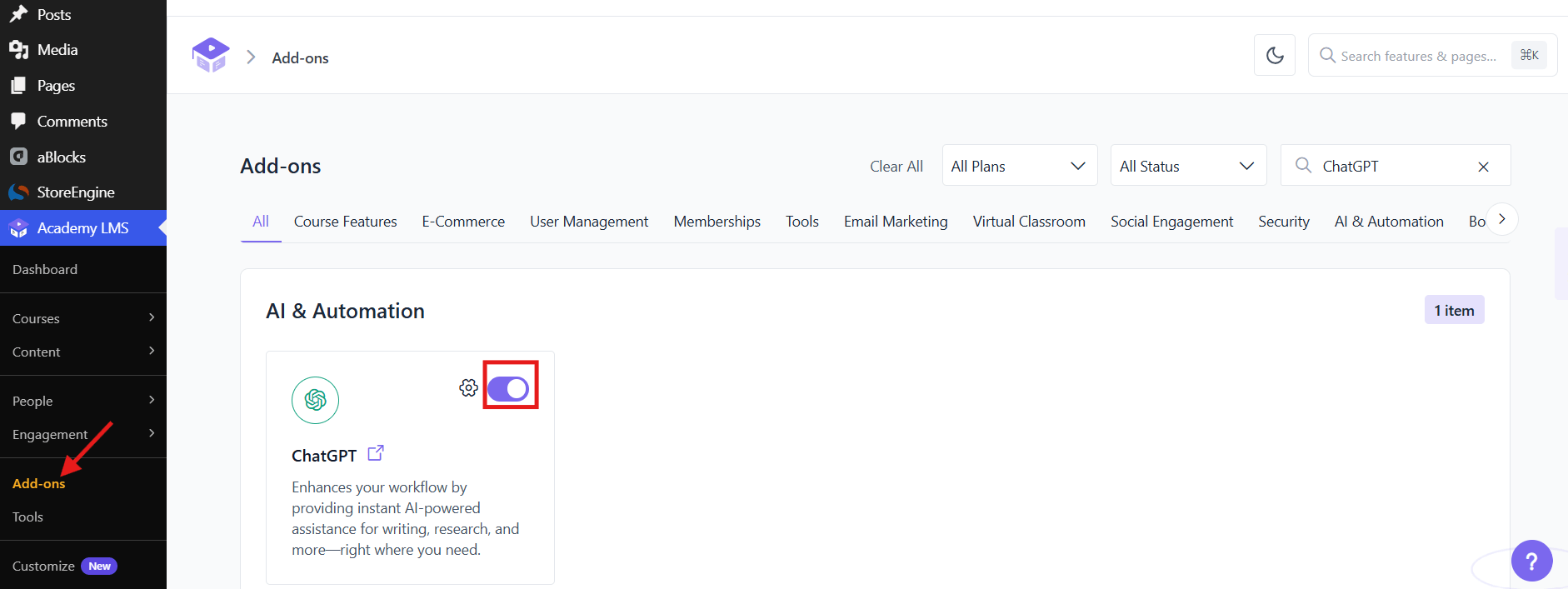
Academy LMS offers a ChatGPT add-on to help generate course content using OpenAI.
Enable the ChatGPT Add-on:
Connect Your OpenAI API Key:
Go to Academy LMS → Settings → ChatGPT, enter your OpenAI API key, and click Verify. Choose your preferred text and image models, then click Save.
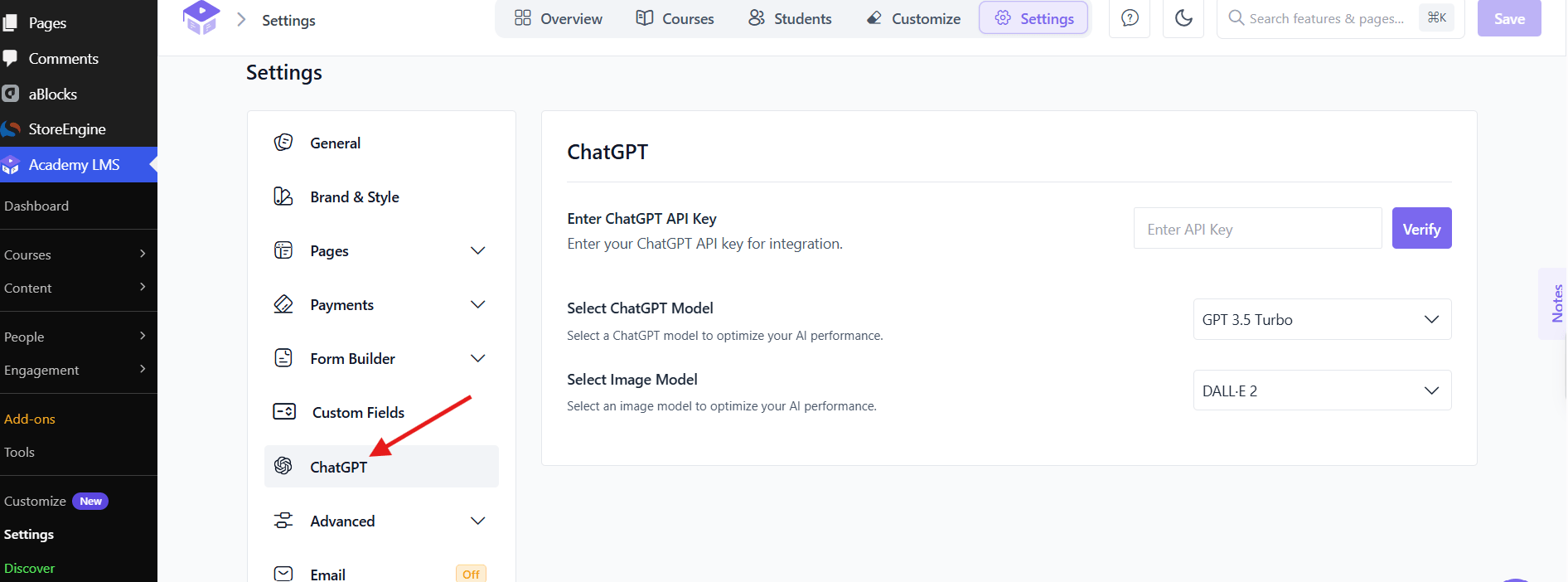
Note: An OpenAI API key is separate from a ChatGPT subscription. API usage is billed separately through your OpenAI account.
Use AI in the Course Builder
Open a course’s Overview stage and click the sparkle icon next to Course Title or Course Description. Enter a prompt, choose the language, tone, and content type, then generate the content.
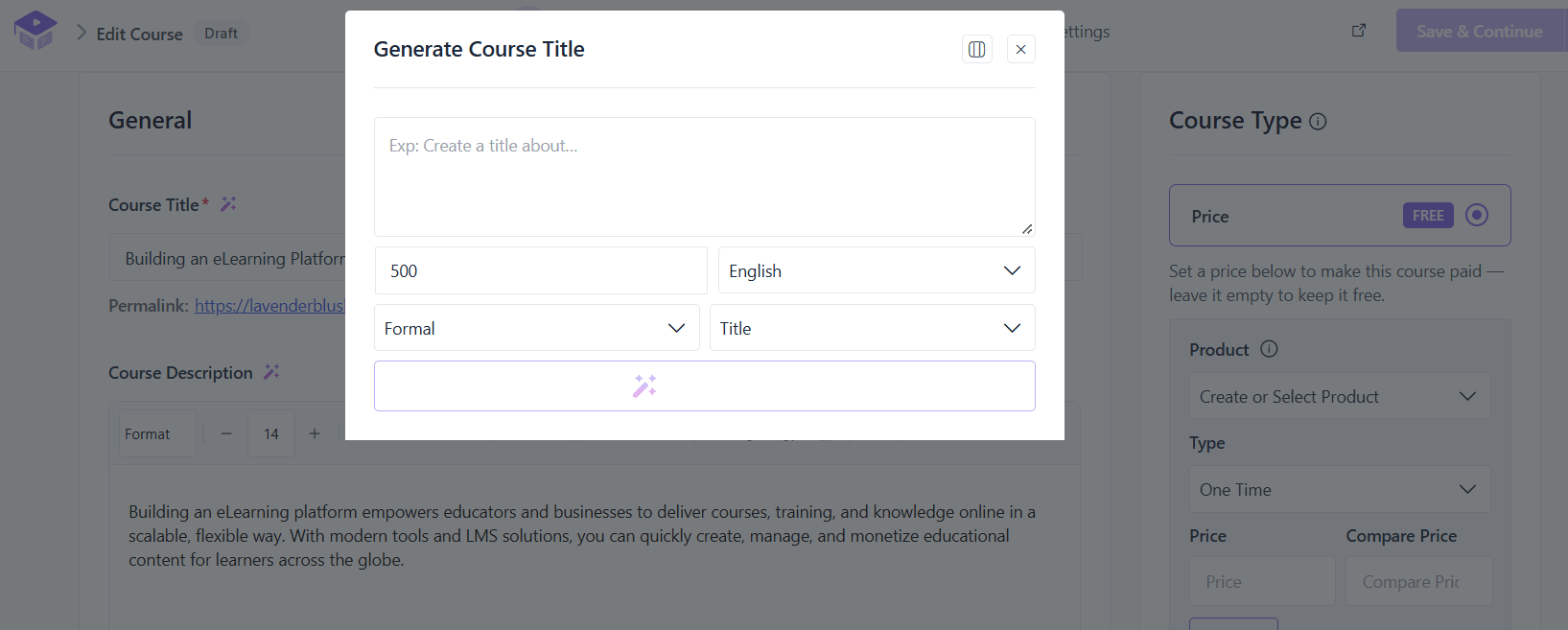
Always review and edit AI-generated content before publishing, so it is accurate and matches your teaching style
Step 9: Set Up Payments
If you plan to sell courses, configure a payment method. Academy LMS recommends StoreEngine as its eCommerce engine. You can skip this step if all your courses are free.
Choose an eCommerce Engine
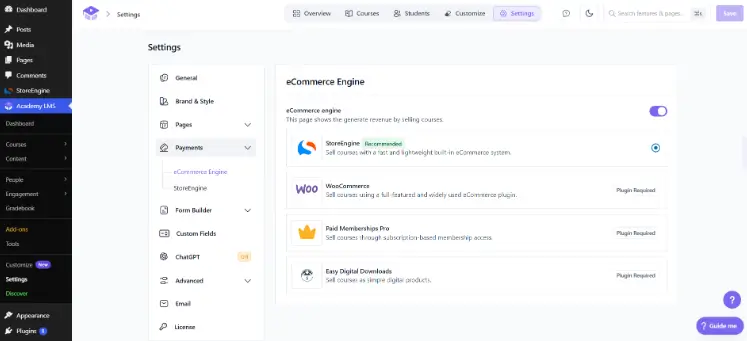
Set Up a Payment Method
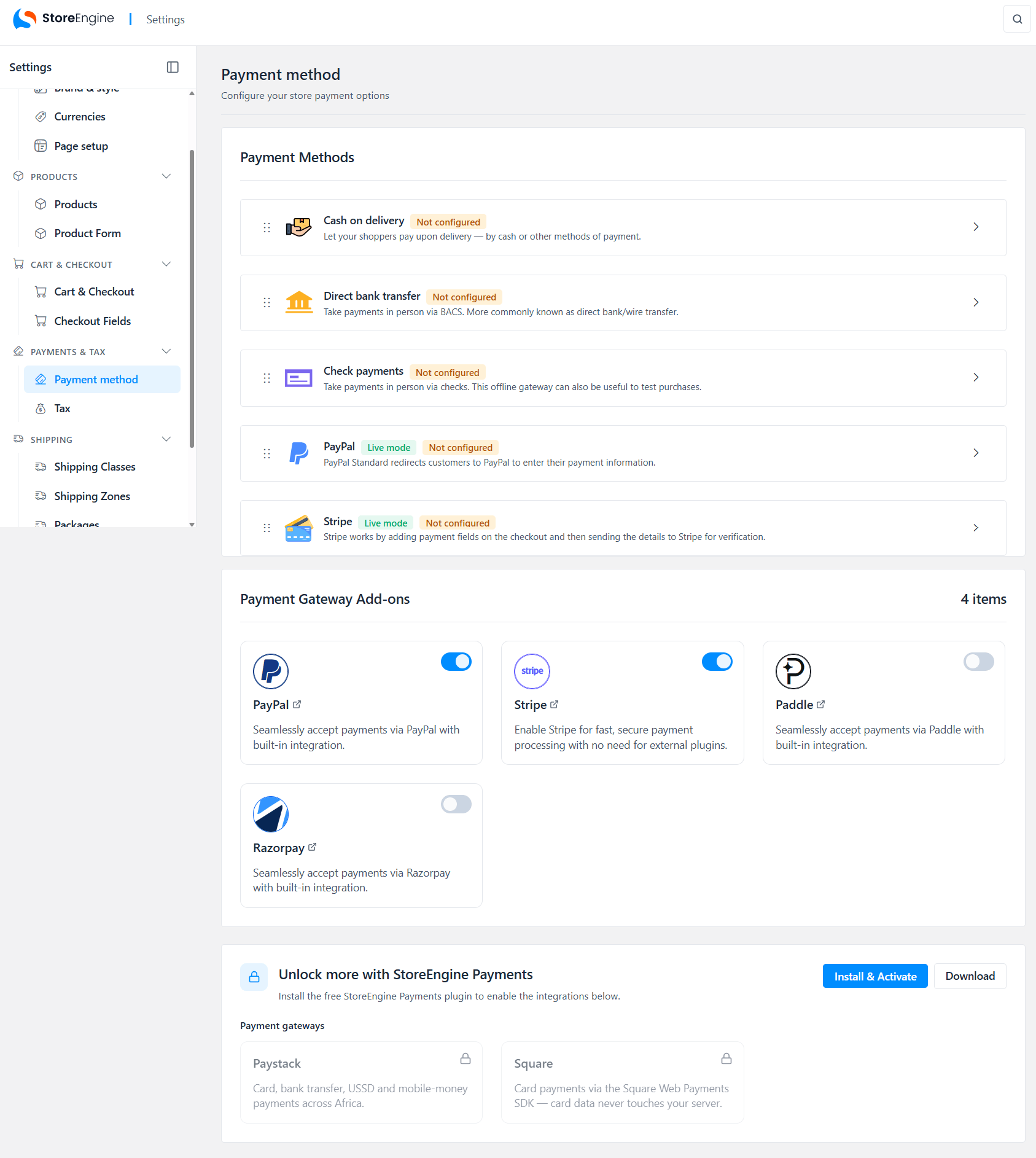
PayPal and Stripe require account configuration. You can also enable gateways such as Paddle or Razorpay through add-ons. Check the official StoreEngine documentation for current gateway setup instructions.
Choose a gateway that supports your country and your students’ locations, then place a test order before launch.
Set a Course Price
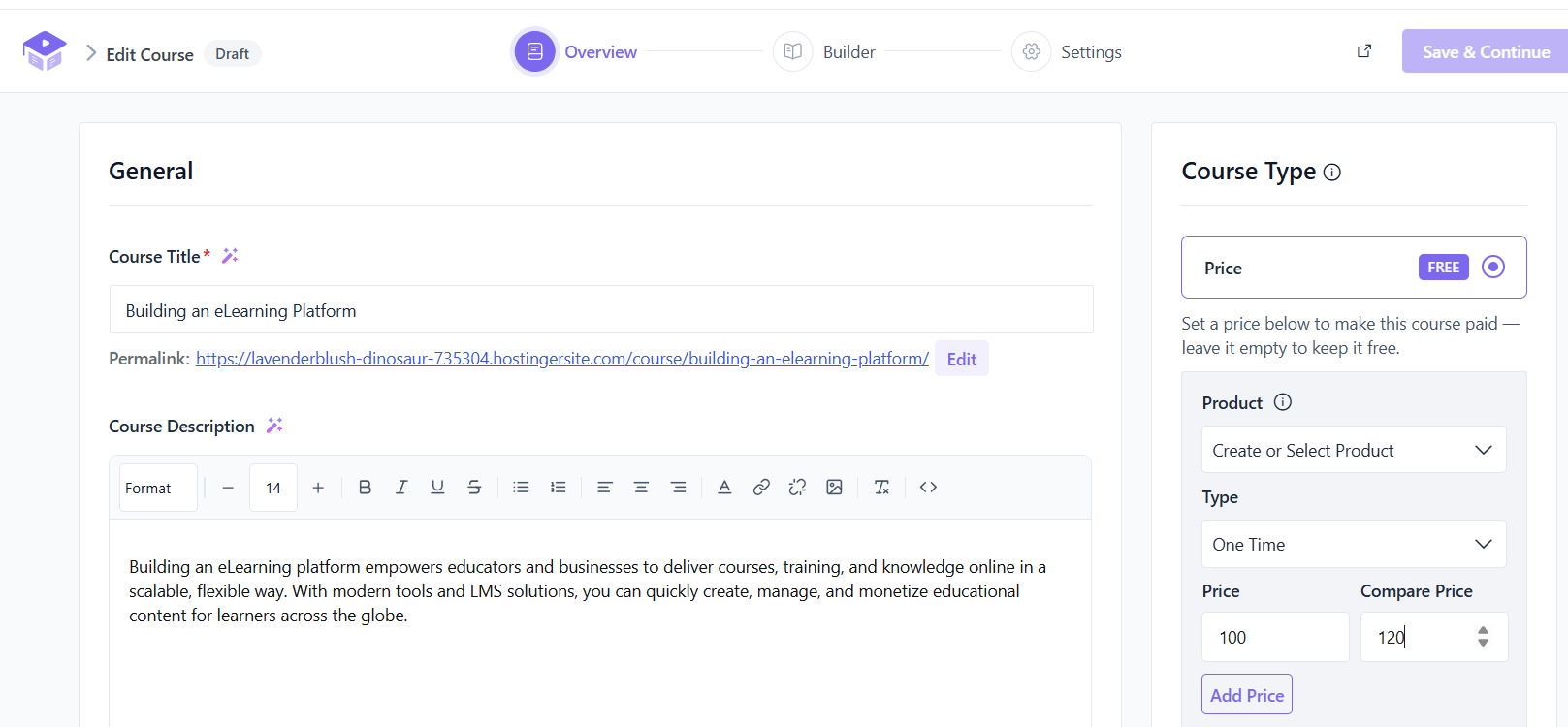
To offer the course for free, leave the price empty.
Step 10: Set Up Multi-Instructor Support (Optional)
If you want multiple instructors to teach on your website, enable the Multi-Instructor add-on in Academy LMS.
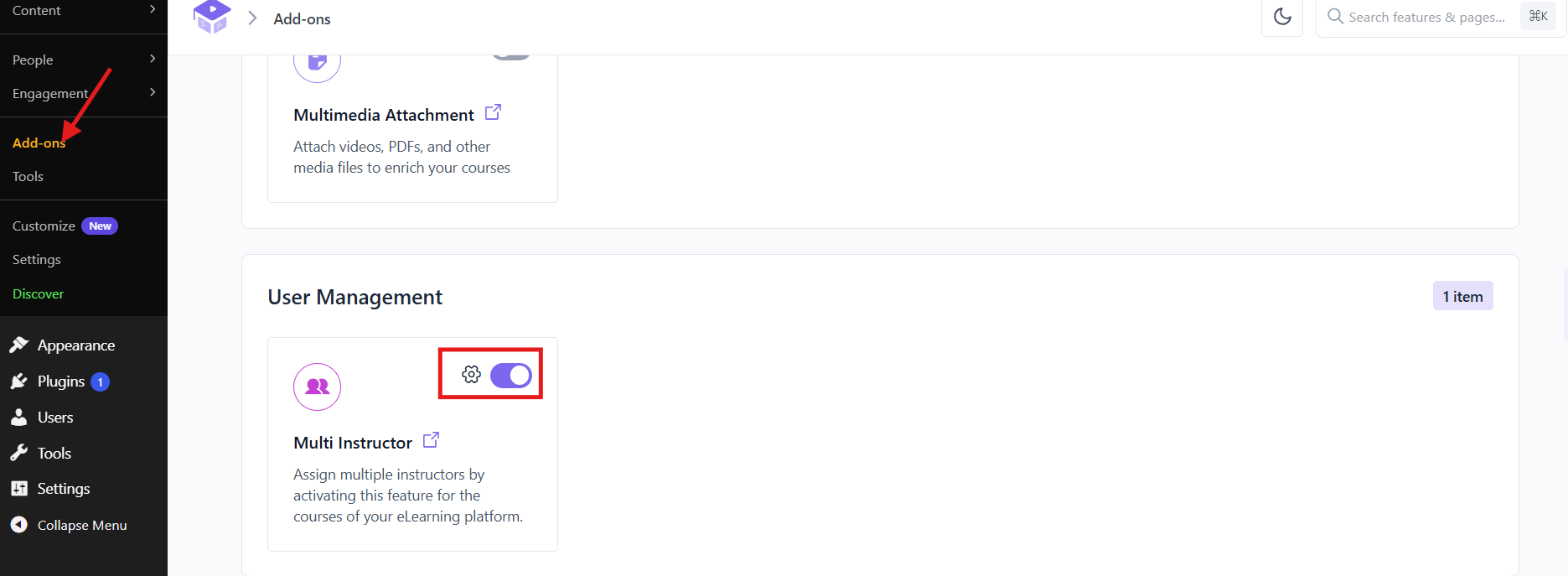
For the full setup, see the [Multi-Instructor setup guide]
Step 11: Add Community and Engagement Features
Make your online course website more interactive by giving students opportunities to connect, attend live classes, and celebrate their progress.
Choose the features that best suit your courses and students. Review the official documentation to confirm the requirements before enabling each add-on.
Step 12: Track Performance with Analytics
Use analytics to understand how students engage with your courses and find areas to improve.
Academy LMS provides an Advanced Analytics add-on that helps you monitor course activity and student registrations.
Enable Advanced Analytics
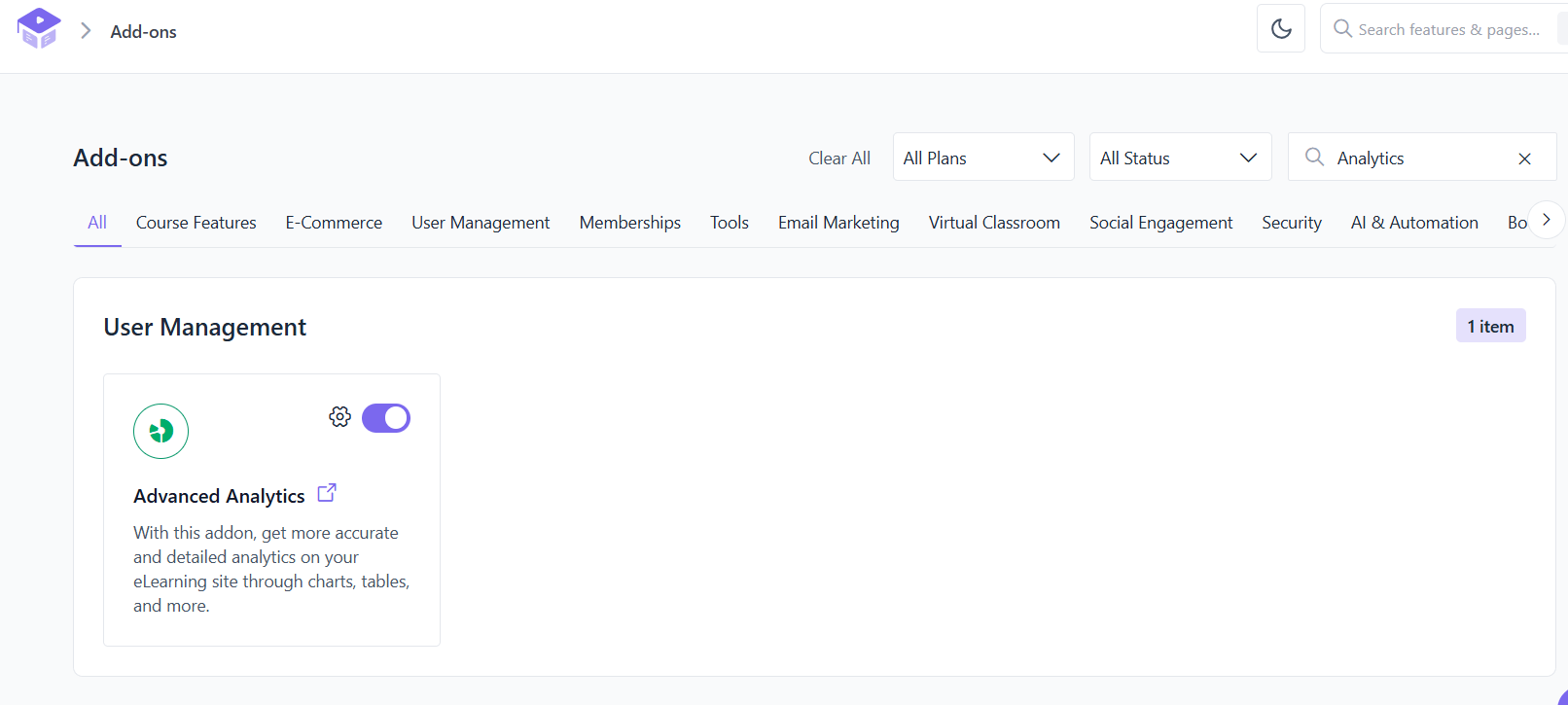
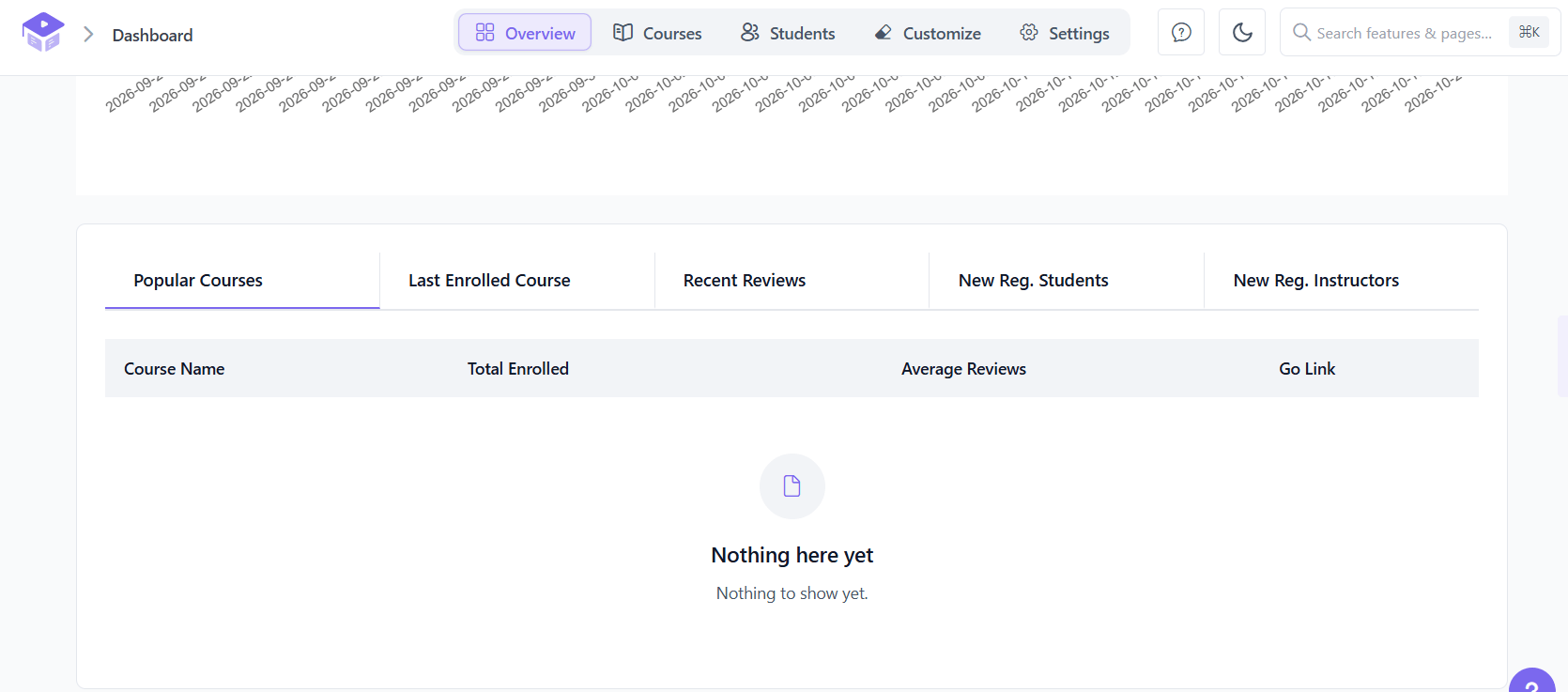
What You Can Track
You can also explore course-level and student-level reports to review enrollment, course progress, and other available statistics.
Use these insights to identify which courses attract students and where improvements may be needed. If a course receives few enrollments, review its title, description, and price.
For setup instructions and details about available reports, see the official Advanced Analytics documentation.
Step 13: Launch, Promote, and Grow
Once your website is ready and your courses are published, use the right tools to attract students and grow your online course business.
Final Website Checklist
Before launching, test the enrollment and checkout process, confirm that payments work, check your website on mobile devices, and make sure students can access their courses.
To learn more, explore our guides on how to sell an online course and building an effective online course launch strategy.
Final Thoughts
Creating an online course website on WordPress requires reliable hosting, a theme that fits your brand, and an LMS plugin to manage your courses. With Academy LMS, you can create courses, add quizzes, accept payments, and track student progress from your own WordPress website.
Start with one course and test the entire student journey, from enrollment to completion. Gather feedback, improve your content, and add features such as live classes, certificates, and analytics as your platform grows.
Ready to get started? Download Academy LMS or explore the Academy LMS Pro features and pricing.
Frequently Asked Questions
Do I need coding skills to build an online course website on WordPress?
No. WordPress, Academy LMS, and aBlocks provide visual editing tools that help you build pages, create courses, and manage your website without writing code.
Will installing an education theme create a working course website?
No. A theme controls your website’s appearance. To create courses, enroll students, run quizzes, and manage learning activities, you need an LMS plugin such as Academy LMS.
Can I offer free and paid courses on the same website?
Yes. You can offer both free and paid courses on one website. In the course editor, set the price to 0 for a free course or enter an amount for a paid course. See the official course creation guide.
How do I accept payments for my courses?
Academy LMS recommends StoreEngine as an eCommerce engine for selling courses. You can configure built-in payment methods such as direct bank transfer and check payments, or enable payment gateway add-ons such as PayPal and Stripe. Follow the StoreEngine payment integration guide for setup instructions.
Can I use AI to create course content?
Yes. Academy LMS includes an AI Studio powered by OpenAI. Enable the ChatGPT add-on, configure your OpenAI API key, and use the AI tools to generate course content. Always review and edit generated content before publishing. See the official ChatGPT integration guide.
Can I have more than one instructor?
Yes. Enable the Multi Instructor add-on from Academy LMS → Add-ons to assign multiple instructors to courses. You can also configure revenue sharing if needed. Read the Multi Instructor setup guide.
How do I host live classes?
Use the Meeting add-on to connect Zoom or Google Meet and add live sessions to your courses. This is a Pro add-on and requires an active Academy LMS Pro setup. See the official Meeting add-on guide.