








Notice: If you’re using the WP Map Block, it’s important to know that it will be permanently migrated to aBlocks.
But don’t worry, you will not lose any data. The migration process is smooth and easy. And your existing map can be easily migrated to the new aBlocks Map Block without losing any of your settings.
How to Migrate WP Map Block to aBlocks Map Block?
Here’s how you can migrate WP Map Block to aBlocks Map Block easily.
Step 1: Install and Activate the aBlocks Plugin
Since the WP Map Block will soon be unavailable, the first thing you need to do is set up aBlocks.
The installation is just like a default plugin you always install. However, let us give you the step in short.

This will enable the aBlocks plugin, including the new Map Block.
Step 2: Export Your Current WP Map Block
To make sure you don’t lose your existing map, you’ll need to export your current map settings.
Open the page where you have your WP Map Block.
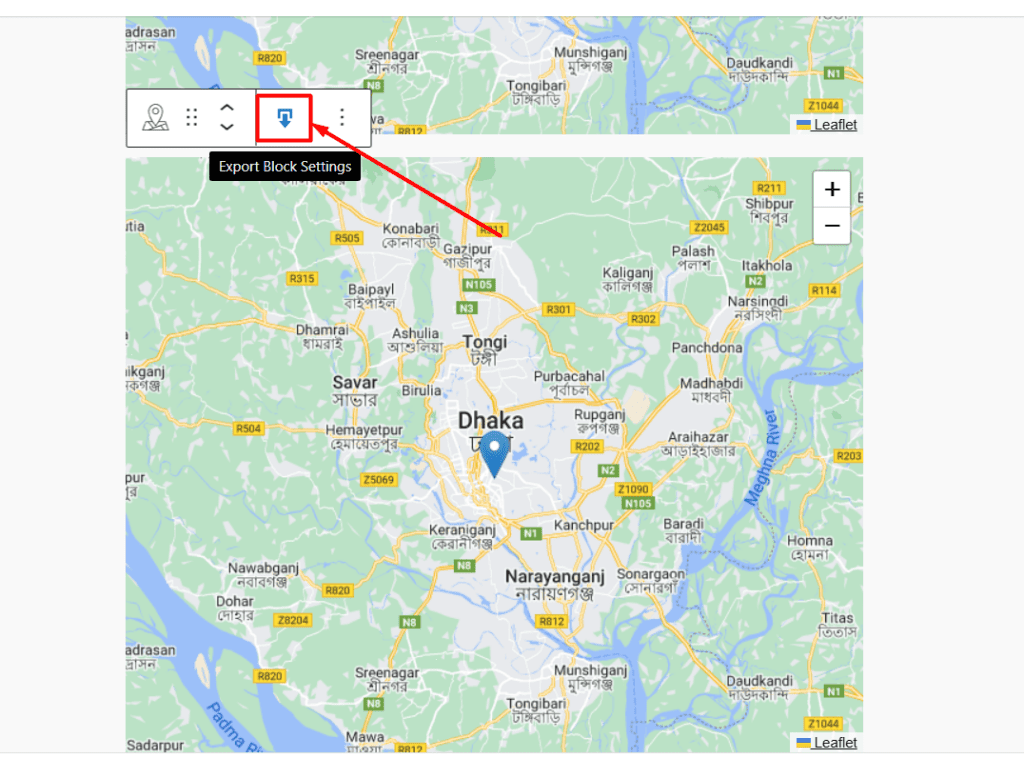
Click on the map section, and then look for the Download icon.
A JSON file will download. And you must keep it for the migration process.
Step 3: Add the aBlocks Map Block
Now that aBlocks is activated, it’s time to replace the old block.
Go to the page, post or section your old map was.
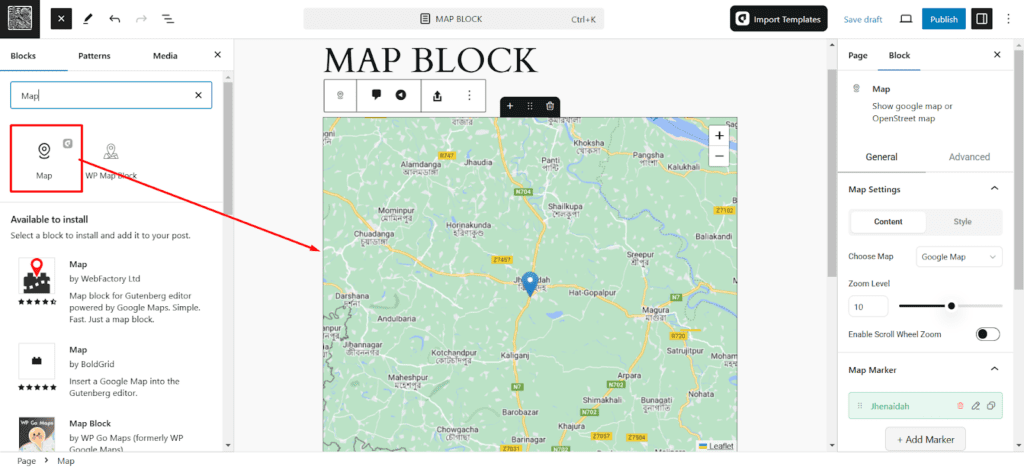
In that very page, click the Plus (+) icon to add a new block.
Search for the aBlocks Map Block and add it to your page.
Step 4: Import Your Map Settings into the aBlocks Map Block
Now, let’s restore the map with the settings you exported.
Once the aBlocks Map Block is added, click the Import button.
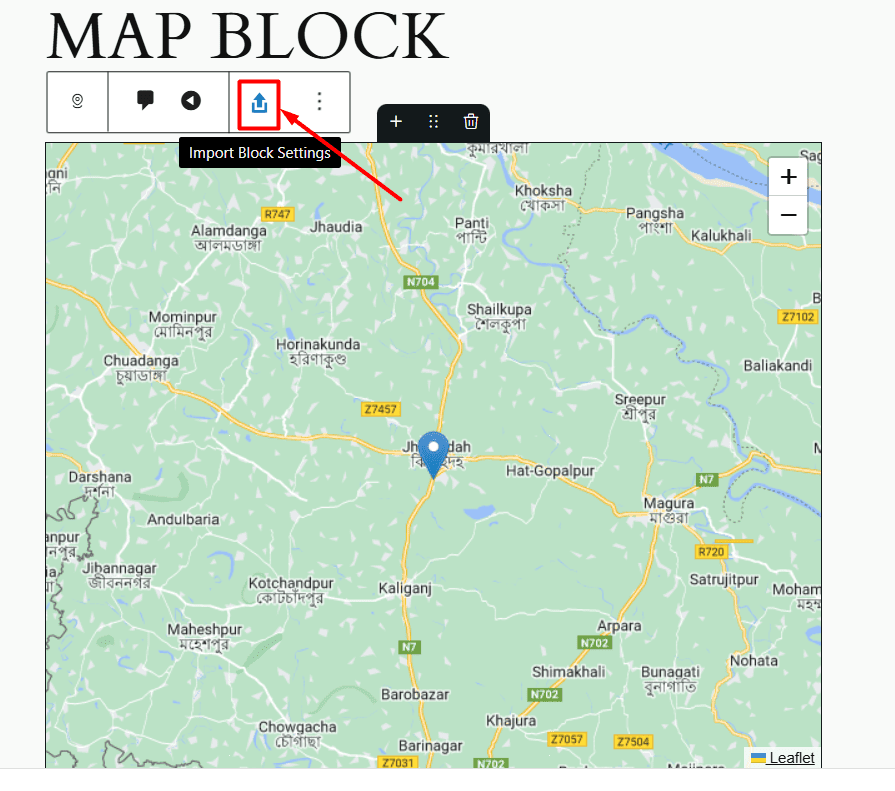
Select the JSON file you downloaded in Step 2. And, you’re basically done with the migration process.
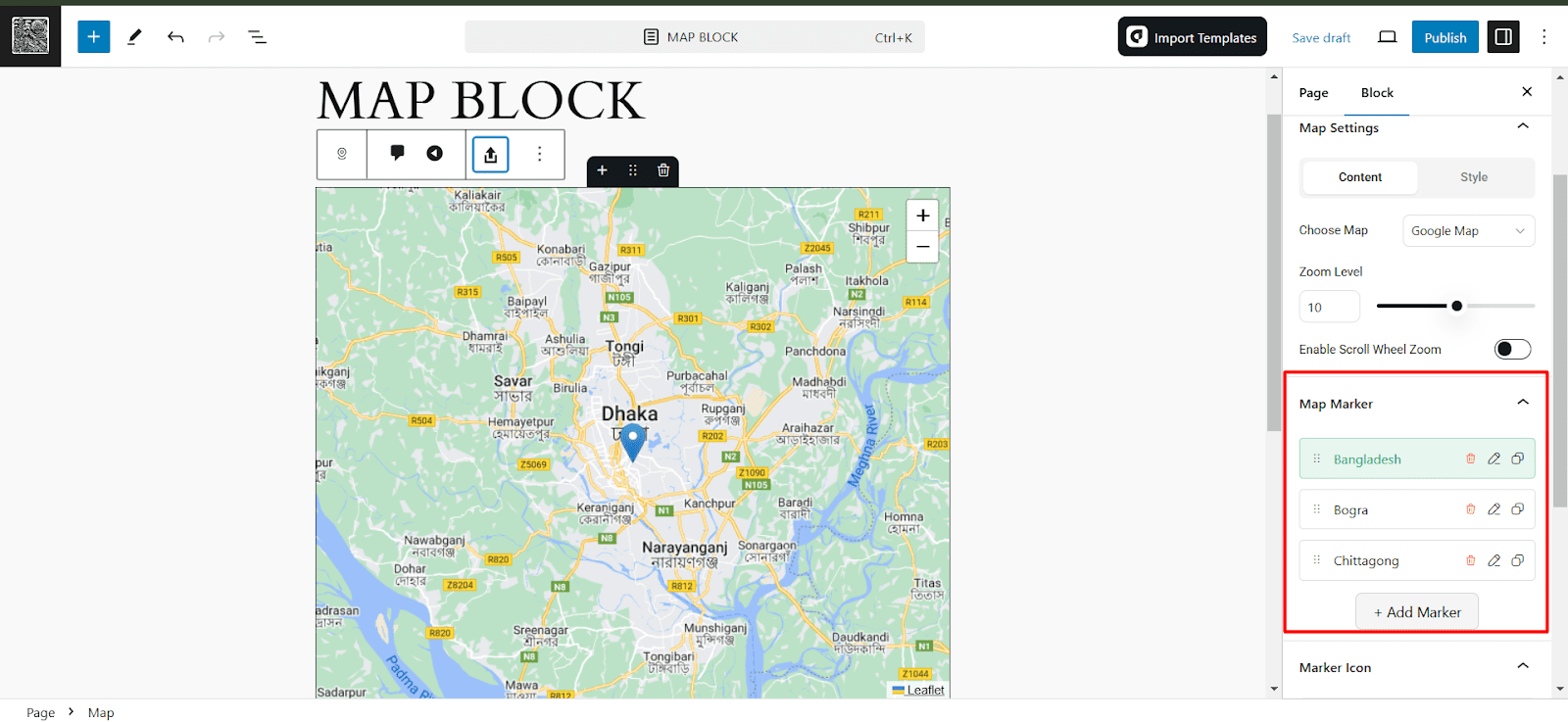
This will bring back your map in the aBlocks block, with all the same settings intact.
Then, delete your old map and reposition the new aBlocks Map Block.
If you have followed each step from the beginning, your old map is successfully migrated to New aBlocks Map Block.
The customization is basically the same with added advanced options. But, we kept the basic settings just as it was before. So, you won’t face any issues or troubles while using the new aBlocks Map Block.
Customizing Map Settings:
After adding the WP Map Block, you will see the map displayed in the Gutenberg editor. On the right-hand side, you can find the Map Settings. Here are the customization options available to you:
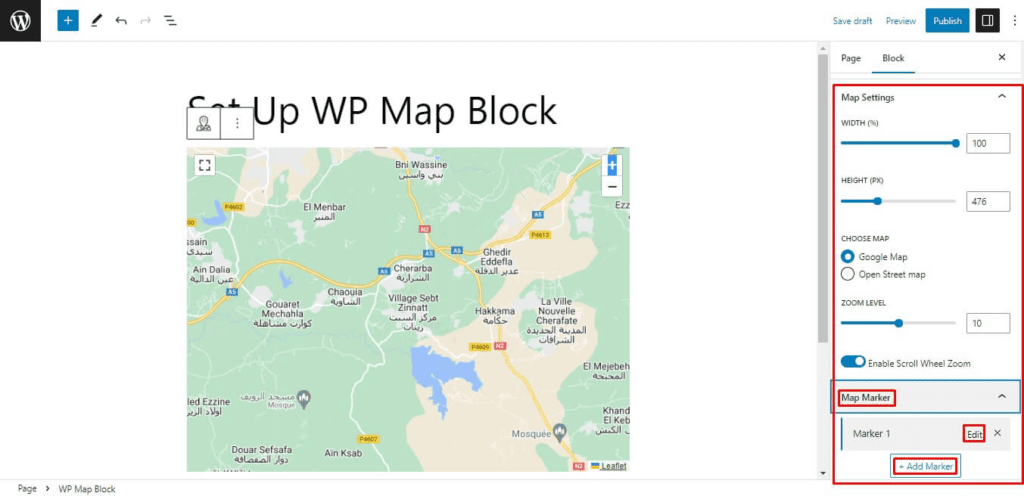
Setting Map Location and Marker:
To set your map location and marker, follow these steps:
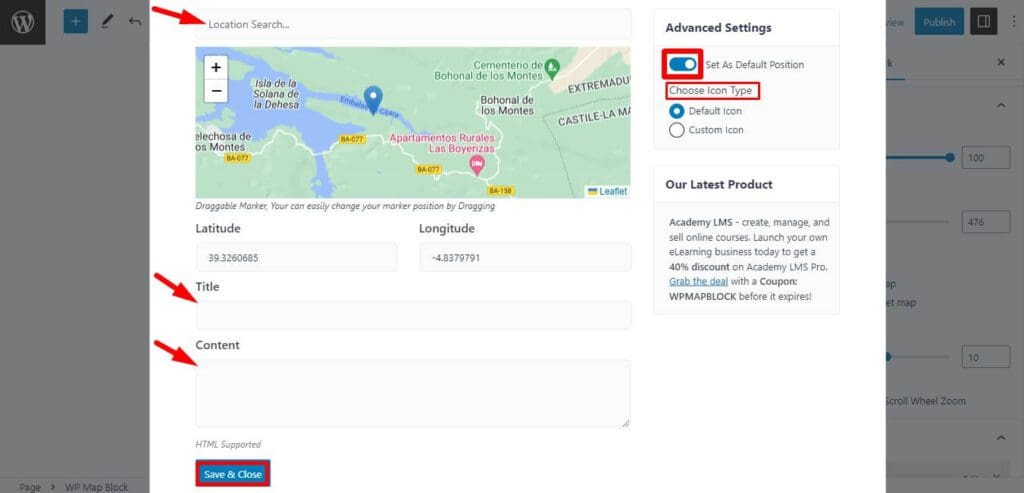
After modifying the settings, click on the Publish button to publish the map on your website, or click on the Preview button to view the map on your website.
Adding More Marker
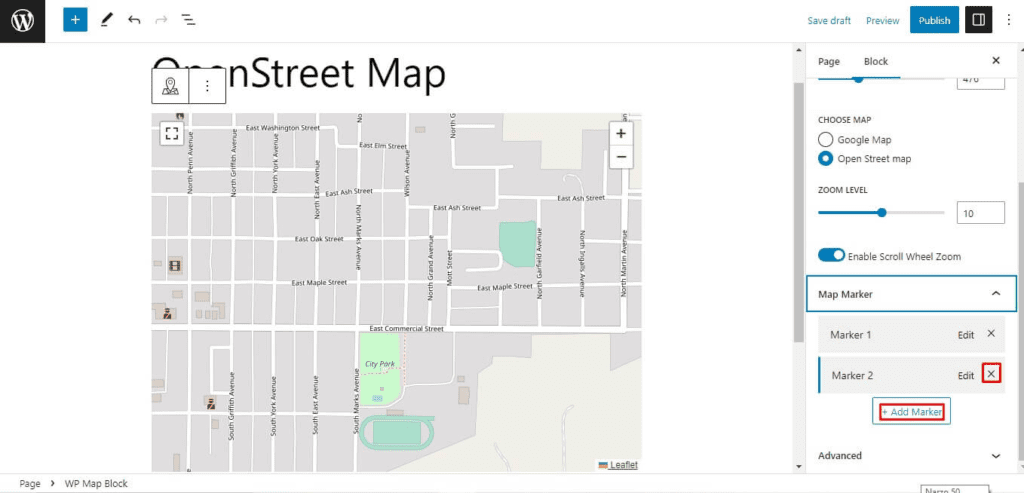
If you need more custom markers, then you can add more markers by clicking on Add Makerker, furthermore, you can select every time Google Maps or OpenStreetMap for your marker. If you need to delete your added marker, just click on Following Place (Cross X).
Additional Features of WP Map Block:
WP Map Block offers several features that make it a top choice for map integration:
In this documentation, we have outlined the steps on how to use WP Map Block Google Maps Gutenberg block to your WordPress website using the WP Map plugin. With its intuitive interface and extensive customization options, WP Map Block easily incorporates interactive maps into your WordPress content. Enjoy the benefits of visualizing locations, providing directions, and enhancing the user experience on your website.